
Find Results Tweak - Now with less suck
 I posted the other day about a Visual Studio add-in which I developed. When developing it, I used the add-in model which has a nasty side effect, it needs to be installed with a MSI. Visual Studio 2010 can also be extended with packages and these can be deployed using the VSIX format.
What is this magical new VSIX format? It is basically a ZIP file which contains everything you need plus a manifest which tells VS how to use it. What makes this much better is that VS handles the install itself, so no MSI is needed. It is also then listed in the Extension Manager and so can take advantage of the features there by being disabled/uninstalled easily, not that you would want to.
A great side effect of this is that the new extension model let me add a little more error handling to the tool to help out debugging it. To get the new version go to http://findresultstweak.codeplex.com
Tweaking the Find Results window in Visual Studio 2010
Visual Studio is filled with goodness and happiness and a lot of that is available for tweaking, so you can get the maximum goodness, via the Tool -> Options menu. One of the things which doesn’t have any visible options is the formatting of the way the results are displayed:
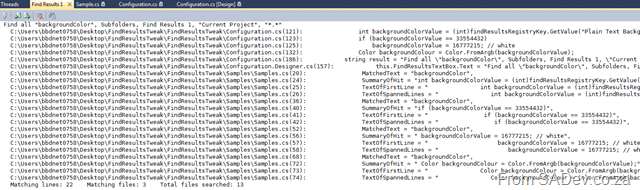
The problem, as indicated above, is a ton of white space, long file paths, no column information etc… Wouldn’t it be great to tweak how that can be displayed? Thankfully Sara Ford found a way to do exactly that via the registry. So you could tweak it to actually display the way you want it!
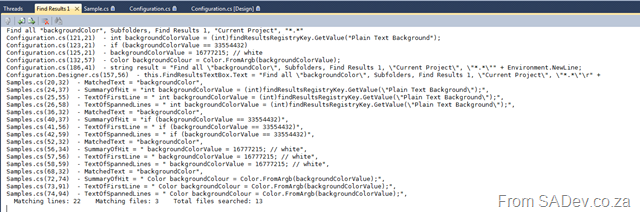
In my tweaked way it is far more condense with just the filename (no more path), less whitespace (since I am showing only a summary of results) and I also included the column info. The problem is that editing the registry is not user friendly :( This gave me a chance to write my first Visual Studio add-in, which gives you an option inside Visual Studio to set it.

What is really nice is that while you configure the format, the preview window will update and show you how it looks so you do not get any surprises when you save it! If you would like to find out more about it you can go to the site on CodePlex at http://findresultstweak.codeplex.com/
Installing TFS 2010 Basic on a Laptop
I decided that I would like show how easy it is to install TFS 2010 on a laptop in an upcoming presentation, but I also want to use that TFS installation for demo’s which is a worry – what happens if the install fails? So what I decided to do was create a video of me installing TFS, this way I can show the video and not worry about my demos not working because of some demo failure. As I am such as nice guy, I decided to share it with everyone on YouTube, so here is the video:
How I Build Presentations, appendix 2: Gadgets
For the rest in the posts in this series please see the series index.
Part of presenting a good presentation is using the right tool for the job. Often that may mean PowerPoint to present content, or demos to help get the point across. Sometimes it means building an entire slide show system out of the technology you are showing off to (as I did with jQuery). In this post I will open my bag of gadgets I tend to use in my presentations.
Now first off, I do not use every gadget in every presentation (right tool for the job again), but these are my favourites which I use often.
Logitech V450 Laser Wireless Mouse

I have a fairly standard wireless mouse from Logitech which is actually a great tool for a presenter, because you can use it to move forward through slides like a slide clicker device from around the room – no more being tied to the table. I can use the mouse wheel to go backwards too. While there are more dedicated mice for this job, a simple wireless does it just fine.
Windows 7
Windows 7 is my choice for presenting because of a number of great features it has specifically for presenters, which are all available via hot-keys!
| Keyboard combination | Description | Screenshot |
| ÿ + P | Easily enables you to turn on a remote screen in either duplication or extended mode. No more funny fn+F something that is hardware specific. | 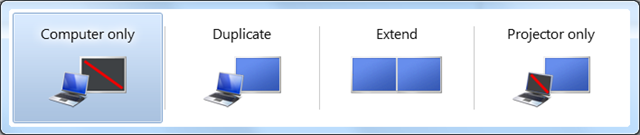 |
| ÿ + X | The mobility centre is only on laptops, tablets etc… but on those devices you can change a number of settings quickly. Most important for presenting is the Presentation Settings option which allows you to
To configure it click the projector icon  (that is actually a button). (that is actually a button). | 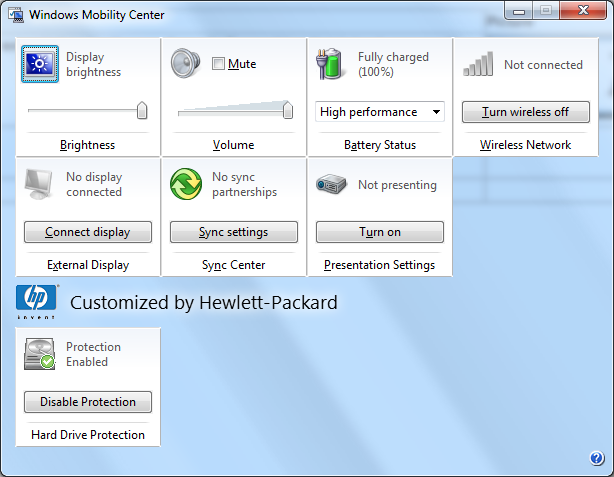 |
| ÿ + + (That is windows key and the plus key) ÿ + - | These two keyboard shortcuts enable the Windows 7 magnifier which allows you to zoom in on something with the plus, and zoom out with the minus. What makes this really great is the fact it is a live zoom, so you can type and work still while zoomed in! |  |
Visual Studio 2010
I know it’s still in beta, but it really has replaced VS2008 as my IDE for demos for a few reasons:
- The IDE is now based on WPF, so it looks much clearer when projected on screen.
- The built in text zoom feature means I can zoom in and out of code easily.
- Multi-targeting of the framework means that my .NET 2.0, 3.0, 3.5 and 4.0 demos can all work in a single IDE.
- The extension support is so much better than the old add-in model, and being able to drag images into code or have twitter integration in the IDE is a great plus.
SysInternals ZoomIt
 SysInternals has a tool called ZoomIt which has been a stable of my demos for ages as it contains three powerful features:
- The ability to zoom in – originally just static but in newer versions it also has a live zoom like Windows 7 has.
- The ability to draw on the screen – So often I want to highlight code or some text on the screen and ZoomIt makes my screen a canvas with arrows, text and free drawing. This can be combined with the zoom feature.
- Count down- You can fire up a full screen count down, which not only scares people sitting next to me on a plane but also allows me to have a timer for when a session will start. This is most useful in my full day (or longer) courses where there are smoke or lunch breaks.
ZoomIt Screenshot is taken from Ben Craigo’s blog
Rule 18
 A self built application for managing text snippets for usage during demos.
The core idea is that while in a demo, I often need to type code on the screen however this is error prone and time consuming, so what else can I do? Visual Studio does support putting text in the toolbox, however this has failed on me in the past, so I do not trust it. Visual Studio also supports snippets which are a bit of overkill to setup, especially if I have a number of back to back sessions. Also what about outside Visual Studio? What are my options in PowerShell for instance?
For a while I have used a simple text file and copy/paste which is great since it means I can include it in the slide deck, I won’t forget about it, and it works everywhere. Yet it is not elegant, and remember what I said about changes on the screen – flipping to notepad the whole time is very distracting.
So I built a Rule 18 which is a simple application, where you put snippets of text into it, the application will automatically assign each snippet a keyboard shortcut and when you press that shortcut the snippet is copied to the Windows clipboard – ready to be pasted into any application you choose to use. Now you just have to remember the shortcut keys (which is why they are in my demo scripts)!
Rule 18 also stores the data as XML which means if I do not have the app or it is crashing, I can fall back to the notepad way of doing things!
How I Build Presentations, appendix 1: Simulate a type writer with PowerPoint
For the rest in the posts in this series please see the series index.
So the first of the appendixes of this series is an idea I had for the presentation: animate the content of the code slides so it looks like it is being typed. This never made it into the final presentation because each slide change (i.e. changing from one slide to another) causes your audience to lose focus on you a look at the screen. Animation is a powerful tool to help get your point across but you should not be just animating for wow factor, because then the audience will just watch the slides and ignore you.
Anyway for those who can find a good use of this effect, here is how to do recreate it. Note I am using PowerPoint 2010 Beta 2, but this should work in previous versions too.
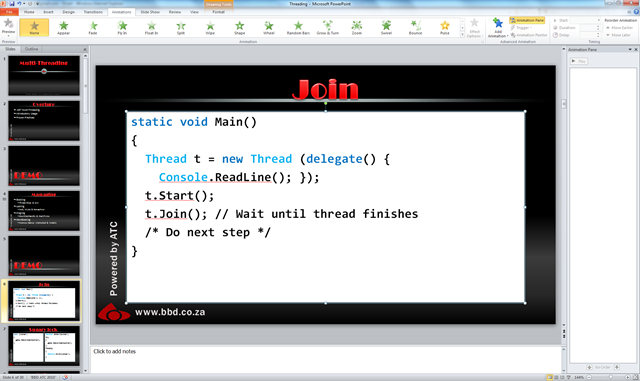
The above image shows what the slide looks like at the start. The white block is just a normal text block with some text in it. I have turned on the animation pane as I will need it later. First select the text block, and choose the Appear animation effect.
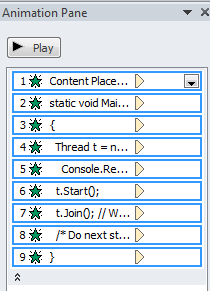
The animation pane will now have each line as an appear, set to show individually on click. So click one will show the white block, click two will show “static void Main()” etc… Not really what we want… yet.

First I removed the first item (the Content Place Holder) as I want the white block there from the start, then I select all the remaining animations, right click, and select Effect Options…
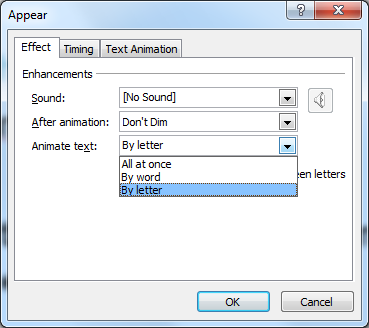
In the options dialog I change the Animate text setting from All at once to By letter and I change the delay per letter (hidden behind the drop down above) to 0.25 as that seems to be a better speed for this and finally click OK.

Next, in the Animation Pane, I select from items two to the last item and right click again and change to Start After Previous which means I do not need to click for each line to appear. That is it, now you have a decent typing effect in PowerPoint.
I recorded a video of it which you can view by clicking here.
How I Build Presentations, day 6: Dry runs
For the rest in the posts in this series please see the series index.
 So today the visible changes to the slides are minor, the work really revolves around finishing up the demo script and minor cleanup. Today is maybe the most important day of work for a presentation as it is the day I do my first set of dry runs! Dry runs are vital because if you want to be successful you need to practise, practise and practise more.
All this practise is part of preventing the dreaded demo crash! Interestingly the stats on session scores show that demo crashes are one of the biggest causes of low speaker scores so you want to make sure you do what ever you can to prepare for them. On the right is a tweet that Anu said about no matter how hard you plan to avoid crashes they can catch you. Now it may look unprofessional to have a crash, but in Anu’s case she shows more professionalism because she had a backup in case her demo crashed: the live bits and so she could continue with her demo.
So what do I do for my preparations to make sure my presentations look good and do not crash?
Demo bits
If you look at my previous parts in this series I have fully completed demo, a demo base, the parts I need for demo in an XML file and in the notes of my PowerPoint. All that is just for the code for my demo and so I am covered for a lot of the issues which can go wrong.
Backups
Backups are important, so all my slides and demo’s are backed up to “the cloud”, so that even if I have a serious hardware failure I can pull the bits down and get up and running.
Connections
A lot of demo’s are prepared by sitting at a desk somewhere, normally connected to the internet with a specific configuration setup. However that is seldom where you present them – normally you present them at an event where you may or may not have internet, may or may not have network (wired or wireless) connectivity or even power. Why is that important? Because the change of environment can mean a settings change that crashes demos.
Two examples of this are power and networks. Power is an interesting for laptops since the performance could be changed if the OS detects there is no power – so your demo’s or videos may run slower than expected. In fact for my demo’s I have changed the upper limit from 100 000 to 10 000 as it runs too slowly when not on power.
Network connectivity is also something to check because if you are using a virtual machine then not having network connections could mean that the network on the VM is disconnect and then you cannot connect to the services running on it.
The tip her is to check that your demo’s still work when you not at your desk.
Projectors
Projectors are very different to a monitor and doing a demo on them is MUCH different to how it is when looking at your monitor. The key differences are I want to highlight are resolution, contrast, screen mode and layout.
Resolution
Projectors seem to come out of the stone age as getting above a resolution of 1024x768 is VERY VERY difficult. For me this has been a problem in the past when it came to Visual Studio. With all it’s toolbars and chrome, the code area is so small at that resolution it made it hard to demo. Knowing this earlier means making sure you get your configuration right and your demo will better.
Tip: Alt+Shift+Enter will full screen your code or designer window in Visual Studio – very useful to get the gunk out the way. If you are using VS2010 then you can also undock and maximize the window.
Contrast
One of the worst demo’s at TechEd ever unfortunately was one of mine. I had a great demo planned – beautiful application which was styled in a white, grey and blue theme. When projected to a movie sized screen at TechEd though, the projector was not able to get enough difference between the colours. So the application just looked like a big white screen with shadows. What I had failed to do was test that demo on a projector ahead of the time, else I would have seen the issue and would have been able to fix it.
Screen Mode
When you are doing a demo at your desk you can see the screen and have control over it – when using a projector you are either in duplication mode, which gives you the same feeling or in extended mode where you have to juggle between the projector and you machine.
I once forgot to print my notes (yes, I keep a printed copy of my slide and notes, so that I have yet another fall back) before a dry run with some people. Being still new with the presentation I hadn’t memorised the demo’s which meant I needed to read my demo script on my screen and have my demo on another one. This meant connecting to the projector in extended mode. Well it was a nightmare, I struggle with the difference in resolutions, popup’s occurring on the wrong screen and neck hurt from having to look backwards and forwards the whole time.
So when possible run in duplication mode and make sure your demo’s work well then too.
Layout
Once again when you are in front of your screen and about 30cm away you can see everything easily. However when you are looking at it projected 15m away with 20 people in front of you – where things are on the actual screen becomes important. Easy tips are to avoid the very bottom since it will likely be hidden by heads and avoid the far left and right as some projectors/screens may cut off those portions of the screen. Once again testing with a real projector helps with this scenario.
Tip: I have also started using 16:9 aspect ratio for my slide decks over the traditional 4:3 aspect ratio. This helps the layout because when a slide deck with a 16:9 aspect ratio is projected by a projector with a 4:3 aspect ratio (which most projectors are) the bottom is banded out. This is the same as when you watch a wide screen movie on a normal TV, those blank bands at the top and bottom are added to compensate. That automatically handles making sure you don’t put things too low on the physical screen.
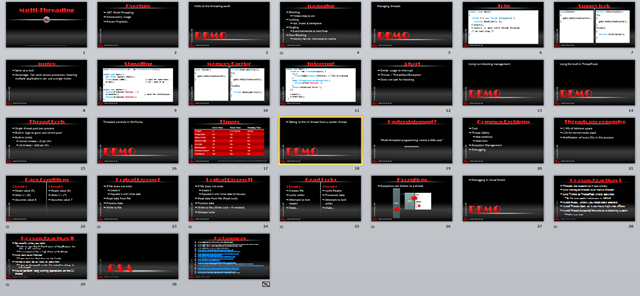
Slide deck at the end of day 6
We can rebuild him, we have the technology - Rangers Factory Ships!
I am very excited that at midnight we shipped the latest Rangers solution the VM Factory!
What is the Visual Studio 2010 and Team Foundation Server 2010 VM Factory?
The purpose of this project is to build prescriptive guidance around the virtualization of the Visual Studio 2010 and guidance for full automation of the creation of virtual machines. The goal is to help users with the installation and configuration of virtualized environments with least effort and maximum automation.
You can download it from Codeplex
What is in the package?
The download package consists of two ZIP package downloads:- Rangers Virtualization Guidance
- Focused guidance on creating a Rangers base image manually and introduction of PowerShell scripts to automate many of the configuration tasks.
- Virtualization guidance looking at the “why” and “how” to use virtualization for Team Foundation Server and Visual Studio, including planning, pre-requisite software, use of non-Microsoft virtualization technologies and introducing use case scenarios.
- Rangers Factory Package and Guidance
- Reference walk-through documentation on how to install, configure and support a Microsoft internal or an external factory to automate the installation of Team Foundation Server and Visual Studio environments.
- Microsoft Deployment Toolkit metadata and PowerShell scripts used to create a Rangers factory.
The two little secrets of this is that the guidance, while targeting specific products on VM’s can actually be used as a base for non-VM scenarios and as since products like TFS use a lot of core services, for example SQL, there is a lot that can be used to build on for working with other products. The other secret is that a lot of the PowerShell scripts here are my own work, so I am very excited to see them get used and get some feedback on them!
Holy download fever Batman
Seems that in the last week, and just in time for me to be in Canada where they have bandwidth, that a bunch of things have become available for download which deserve your attention:
VS 2010 Quick Reference Guidance is now out!
Plus hotfix 1 for it
Visual Studio Team Foundation Server 2010 Upgrade Guidance is now out!
The new Nokia 5800 firmware (40.0.0.5) is out – which brings it up to the level of the X6 in features now!
Lastly, and sneakily at the end of this post, my latest open source tool is out. Now I am not going to tell you what it is, but it is for presenters (mostly) and requires .NET 4.0 Beta 2 and Windows 7. Hopefully the name will entice you to check out Rule 18!
Presentation Data Dump
Over the last year I have done a number of presentations and recently some of uploaded them (unfortunately I cannot upload all, as some contain NDA information) to SlideShare so here is the collection of presentations from the last 15 months or so, in no particular order:
- ASP.NET Dynamic Data
- JSON and REST
- What’s Microsoft CRM all about?
- Source Control 101
- SQL Server Integration Services
- ASP.NET MVC
- What’s new in the .NET Framework 3.5 SP 1
Click the read more link to see and download them...
ASP.NET Dynamic Data
JSON and REST
What’s Microsoft CRM all about?
Source Control 101
SQL Server Integration Services
ASP.NET MVC
What’s new in the .NET Framework 3.5 SP 1
Dev4Devs - 28 November 2009
Well today is the day! Dev4Dev’s is happening at Microsoft this morning and I will be speaking on 10 12 new features in the Visual Studio 2010 IDE. For anyone wanting the slide deck and demo application I used you can grab them below.
The slide deck is more than the 6 visible slides, there is in fact 19 slides which cover the various demos and have more information on them so you too can present this to family and friends :)