
.NET 4 Baby Steps - Part XI: Special folders
 Note: This post is part of a series and you can find the rest of the parts in the series index.
Environment.SpecialFolder
If you are building an application which takes advantage of special folders in Windows (special folders are folders like My Documents), you will be happy to know that .NET 4 has expanded the number of special folders it support, by adding 25 new options to the Environment.SpecialFolder enum.
The new options are:
- AdminTools
- CDBurning
- CommonAdminTools
- CommonDesktopDirectory
- CommonDocuments
- CommonMusic
- CommonOemLinks
- CommonPictures
- CommonProgramFilesX86
- CommonPrograms
- CommonStartMenu
- CommonStartup
- CommonTemplates
- CommonVideos
- Fonts
- LocalizedResources
- MyVideos
- NetworkShortcuts
- PrinterShortcuts
- ProgramFilesX86
- Resources
- SystemX86
- Templates
- UserProfile
- Windows
Usage is:
Console.WriteLine(Environment.GetFolderPath(Environment.SpecialFolder.MyVideos));
GetFolderPath
The GetFolderPath method has also gotten an update with a new overload which takes a second enum, SpecialFolderOption. This has three values
- None: Returns the path, but does not verify whether the path exists. If the folder is located on a network, specifying this option can reduce lag time.
- Create: Verifies the folder path. If the folder does not exist, an empty string is returned. This is the default behavior.
- DoNotVerify: Forces the folder to be created if it does not already exist.
Super fast network option:
Console.WriteLine(Environment.GetFolderPath(Environment.SpecialFolder.MyVideos, Environment.SpecialFolderOption.None));
Visual Studio ALM Ranger Champions for 2010!
 I am a proud contributor to the Microsoft Visual Studio ALM Rangers (see this post for who they are) and each year, the Rangers have a vote for who they believe are helping the Rangers initiatives the most. The top four from the votes are honoured with the title of Champion! I was honoured in 2009 to be included in the list of the four champions and even more honoured that I have again been listed in the top 4!
Congrats to the other three champions and especially to Mathias Olausson, who was also re-awarded!
For more details on the latest Rangers champions see: http://blogs.msdn.com/willy-peter_schaub/archive/2010/05/12/external-visual-studio-alm-rangers-the-votes-have-been-tallied-and-the-2010-champions-are-have-been-known.aspx
DevDays Durban Slides and Bits
I had a great time in Durban this week presenting at the DevDays event. I was a bit nervous for my first keynote but calmed down once I was up there. I was much less nervous for the sessions and they turned out to be great fun.
Knowing is half the battle
As part of my prep I did fully script the demos and those scripts are included in hidden slides in the slide shows – so if you are looking to recreate the demos please download the slides and have a look.
For both my sessions I made use of the excellent (but I’m biased) Rule 18 tool. So if you looking for the actual code, which I referred to in my scripts with Rule 18 key presses, you should really download that too.
All the demos were done using Visual Studio 2010.
What’s new in ASP.NET 4?
- Demo Bits
- Rule 18 Snippets
- Websites and tools mentioned in the talk:
- jQuery
- ASP.NET Chart Controls for Visual Studio 2008 and .NET 3.5
- Windows Server AppFabric (previous called Velocity), which is the distributed caching solution.
- Web Platform Installer
- Used to install web application to IIS, like Drupal or Joomla
- Used to install MVC 1
What’s new in .NET 4?
- Demo Bits
- To save size in the bits I have not included the IMDB data dump, which you will want to download and include to get the IMDB provider to work.
- Rule 18 Snippets
- Websites and tools mentioned in the talk:
.NET 4 Baby Steps - Part X: Location, Location, Location
Note: This post is part of a series and you can find the rest of the parts in the series index.
This is seriously some of the coolest stuff in .NET 4: System.Device.Location which gives you access to the Windows 7 sensor platform to build location aware applications. The two important classes to know are:
- GeoCoordinateWatcher: Think of this as your GPS device. It gives you time and latitude and longitude.
- CivicAddressResolver: This translates latitudes and longitude into addresses!
Usage
Usage of it is very easy. First we create a resolver and gps and then we tell the GPS to start. We assign an event to alert us when the position has changed and when we done we tell the GPS to stop.
static System.Device.Location.CivicAddressResolver resolver = new System.Device.Location.CivicAddressResolver();
static System.Device.Location.GeoCoordinateWatcher gps;

static void Main(string[] args)
{
    Console.Clear();
    Console.WriteLine("Press any key to quit");

    using (gps = new System.Device.Location.GeoCoordinateWatcher())
    {
        gps.PositionChanged += new EventHandler<System.Device.Location.GeoPositionChangedEventArgs<System.Device.Location.GeoCoordinate>>(gps_PositionChanged);

        gps.Start();

        Console.ReadKey();

        gps.Stop();
    }
}
When the GPS position changes we write it to the screen as follows:
static void gps_PositionChanged(object sender, System.Device.Location.GeoPositionChangedEventArgs<System.Device.Location.GeoCoordinate> e)
{
    Console.Clear();
    Console.WriteLine("Last updated at: {0}", DateTime.Now);
    Console.WriteLine("Your location: {0}", e.Position.Location);
    Console.WriteLine("I think that is: {0}", NiceAddress(e.Position.Location));
    Console.WriteLine("Press any key to quit");
}
How do we get our address and display it nicely?
private static object NiceAddress(System.Device.Location.GeoCoordinate geoCoordinate)
{
    System.Device.Location.CivicAddress address = resolver.ResolveAddress(geoCoordinate);
    if (address.IsUnknown)
    {
        return "Unknown";
    }

    return string.Join("\n", address.FloorLevel, address.Building, address.AddressLine1, address.AddressLine2, address.City, address.StateProvince, address.CountryRegion, address.PostalCode);
}
And all this code produces the following:

Distances?
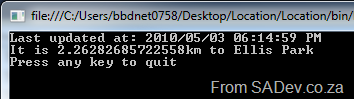
The GeoCoordinate class has a brilliant method called GetDistanceTo which returns the distance, in meters (Metric system FTW) between it and another GeoCoordinate. So for me to find the distance to the Lions Rugby Team home stadium I just do:
static void gps_PositionChanged(object sender, System.Device.Location.GeoPositionChangedEventArgs<System.Device.Location.GeoCoordinate> e)
{
    Console.Clear();
    Console.WriteLine("Last updated at: {0}", DateTime.Now);
    System.Device.Location.GeoCoordinate ellisPark = new System.Device.Location.GeoCoordinate(-26.1978417421848, 28.060884475708 );
    Console.WriteLine("It is {0}km to Ellis Park", e.Position.Location.GetDistanceTo(ellisPark) / 1000);
    Console.WriteLine("Press any key to quit");
}
Which gives:
Accuracy?
The accuracy can be controlled in settings, but a lot of it is up to your GPS receiver device. Unfortunately I do not have a proper hardware based GPS device, so I have used the excellent free software based Geosense for Windows, which you can see is accurate enough for most scenarios.
No sensor?
If you are on a version of Windows prior to 7, then the status of the GPS sensor will be set to Disabled.
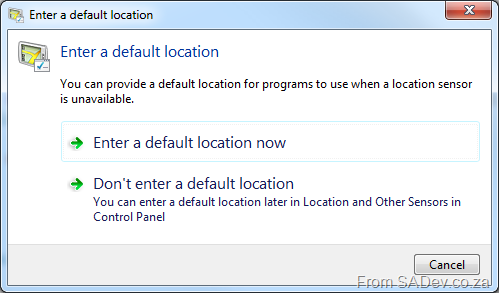
If you are on Windows 7 without a GPS sensor then when you run it, you will be prompted for your default location information which Windows can try and use to find you.
Mobile?
As a bonus to using this, it is similar as the geolocation system in the new Windows Phone 7 platform! You can find out about geolocation in Windows Mobile 7 in Rudi’s blog post.
.NET 4 Baby Steps: Part IX - Stream
Note: This post is part of a series and you can find the rest of the parts in the series index.
Streams are something I try to avoid, it feels to me like I am getting down and dirty when I use them – but maybe that is just flash backs to working in Delphi :) They are very useful, but they can be clunky especially when you need to get the content into another stream.
The key example of coping a steam is when you write your own file copy method (and which programmer hasn’t):
using (FileStream sourceFile = new FileStream("test.xml", FileMode.Open))
{
    using (FileStream destinationFile = new FileStream("target.xml", FileMode.Create))
    {
        byte[] buffer = new byte[4096];
        int read;
        while ((read = sourceFile.Read(buffer, 0, buffer.Length)) != 0)
        {
            destinationFile.Write(buffer, 0, read);
        }
    }
}
The whole buffer/read/write pattern is just ugly.
Now with .NET 4, we can use the new CopyTo method to fix this up:
using (FileStream sourceFile = new FileStream("test.xml", FileMode.Open))
{
    using (FileStream destinationFile = new FileStream("target.xml", FileMode.Create))
    {
        sourceFile.CopyTo(destinationFile);
    }
}
Ah, much better!
.NET 4 Baby Steps: Part VIII - Enumerate Directories and Files
 Note: This post is part of a series and you can find the rest of the parts in the series index.
.NET 4 has seven (!!) new methods for enumeration of directories, files and contents of files. What makes these stand apart from what we have had before, is these return IEnumerable<T> rather than arrays.
Why is it better to get IEnumerable<T> over an array? Rather than getting all the data into one structure first, the array, and returning a massive lump of data. With IEnumerable<T> it returns it one item at a time, as it enumerates that item. If this doesn’t make sense, see the example below.
Example
Old way
So in this example I use the old method:
DirectoryInfo root = new DirectoryInfo(@"c:\");

var collection = from f in root.GetFiles("*", SearchOption.AllDirectories)
                 select f;

foreach (var item in collection)
{
    Console.WriteLine(item);
}
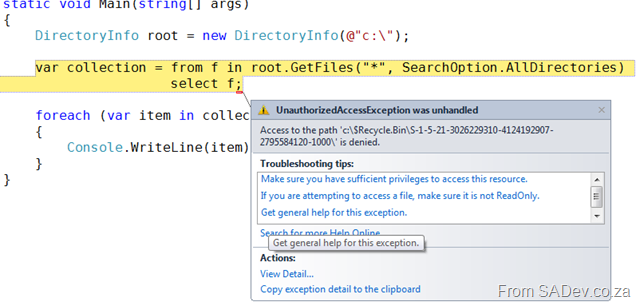
However due to some permissions it will fail with an exception. Note where the exception is, it is where we are asking for the files and the the console output at this point is empty because it hasn’t finished loading all the data into the array.
New Way
Now we change it to the new method:
DirectoryInfo root = new DirectoryInfo(@"c:\");

var collection = from f in root.EnumerateFiles("*", SearchOption.AllDirectories)
                 select f;

foreach (var item in collection)
{
    Console.WriteLine(item);
}
This time see how the exception occurred during the iteration of the items and note how the output contains some files now, because it has processed those already.
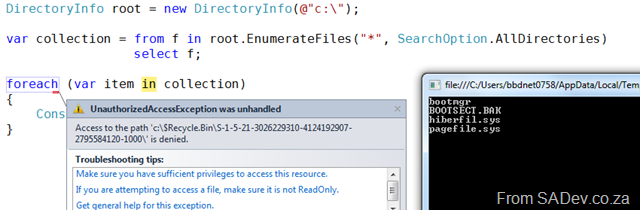
This is a major advantage of the new IEnumerable<T> versions, because now we do not need to wait for all items to be found first and that means it is easier to do high performance code and threading.
What are the new methods?
The seven methods are:
- Directory.EnumerateDirectories
- This returns IEnumerable<string> of the folder names.
- DirectoryInfo.EnumerateDirectories
- This returns IEnumerable<DirectoryInfo>.
- Directory.EnumerateFiles
- This returns IEnumerable<string> of the files fullname.
- DirectoryInfo.EnumerateFiles
- This returns IEnumerable<FileInfo>.
- Directory.EnumerateFileSystemEntries
- This returns IEnumerable<string> of the file system entries.
- DirectoryInfo.EnumerateFileSystemEntries
- This returns IEnumerable<FileSystemInfo>.
- File.ReadLines
- This returns IEnumerable<string> where each string is a line from text file.
.NET Baby Steps: Part VII - Caching
 Note: This post is part of a series and you can find the rest of the parts in the series index.
.NET has had one out of the box way to do caching in the past, System.Web.Caching. While a good system it suffered from two issues. Firstly it was not extensible, so if you wanted to cache to disk or SQL or anywhere other than memory you were out of luck and secondly it was part of ASP.NET and while you could use it in WinForms it took a bit of juggling.
The patterns & practises team saw these issues and have provided a caching application block in their Enterprise Library which has been used by everyone who did not want to re-invent the wheel. Thankfully from .NET 4 there is a caching system now included in the framework which solves those two issues above. This is known as System.Runtime.Caching.
Slow Example
To see how to use it lets start with a process which we can cache. I have a class called Demo which has a property named Times which is of type IEnumerable<DateTime>. To set the value of Times, you call the SetTimes method and that populates the property with 5 values. However there is a delay of 500ms between each adding of DateTime to the Times property, so it takes 2.5secs to run. In my Program class I have a method, PrintTimes which creates a new Demo object, calls SetTimes and then prints the value to screen. Lastly I in my Main method I call PrintTimes three times – in total it takes 7.5secs to run.
class Program
    {
        public static void Main()
        {
            PrintTimes();
            PrintTimes();
            PrintTimes();
        }

        private static void PrintTimes()
        {
            Demo demo = new Demo();
            Stopwatch stopwatch = Stopwatch.StartNew();
            demo.SetTimes();
            foreach (DateTime time in demo.Times)
            {
                Console.WriteLine(time);
            }
            stopwatch.Stop();
            Console.WriteLine("It took {0} to print out the times", stopwatch.ElapsedMilliseconds);
        }
    }

    class Demo
    {
        public List<DateTime> Times { get; set; }

        public void SetTimes()
        {

            if (Times == null)
            {
                Times = new List<DateTime>();
                for (int counter = 0; counter < 5; counter++)
                {
                    Thread.Sleep(500);
                    Times.Add(DateTime.Now);
                }
            }

        }
    }
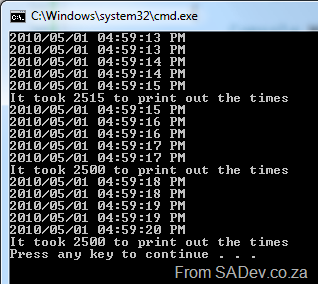
The output is from this example code is below. Note the times printed are constantly changing and that it takes ~2500ms to print out each set of values.
Cache Example
Now I change the PrintTimes method to incorporate the caching by creating an ObjectCache which I set to use the default MemoryCache instance. I can check if the cache contains an object using the .Contains method, I retrieve from the cache using the .Get method and I add to the cache using the .Add method:
private static void PrintTimes()
{
    Demo demo;

    Stopwatch stopwatch = Stopwatch.StartNew();

    ObjectCache cache = MemoryCache.Default;
    if (cache.Contains("demo"))
    {
        demo = (Demo)cache.Get("demo");
    }
    else
    {
        demo = new Demo();
        demo.SetTimes();
        cache.Add("demo", demo, new CacheItemPolicy());
    }

    foreach (DateTime time in demo.Times)
    {
        Console.WriteLine(time);
    }
    stopwatch.Stop();
    Console.WriteLine("It took {0} to print out the times", stopwatch.ElapsedMilliseconds);
}
This gives the output:
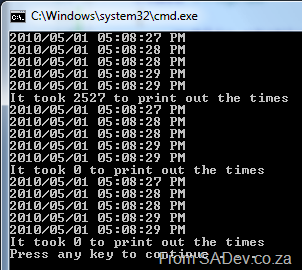
Note the time to print out for the first one is about 60ms longer but the second two is down to 0ms and also note how the values in the three sets in are the same.
CacheItemPolicy
In the above example I just use a default CacheItemPolicy, but you could do a lot more with the CacheItemPolicy:
- AbsoluteExpiration: Set a date/time when to remove the item from the cache.
- ChangeMonitors: Allows the cache to become invalid when a file or database change occurs.
- Priority: Allows you to state that the item should never be removed.
- SlidingExpiration: Allows you to set a relative time to remove the item from cache.
- UpdateCallback & RemovedCallback: Two events to get notification when an item is removed from cache. UpdateCallback is called before an item is removed and RemovedCallBack is called after an item is removed.
Things to watch out for
- .NET 4 only ships with support for memory caching out of the box, so you will need to build your own provider if you want any other cache source.
- You must add the System.Runtime.Caching.dll reference to get access to the namespace and classes.
- This is NOT part of the .NET 4 client profile, it is only in the full .NET 4 Framework. I have logged an issue with Connect to move the assembly into the client profile and if you agree with this idea, please vote on it: 558309
.NET 4 Baby Steps: Part VI - SortedSet
Note: This post is part of a series and you can find the rest of the parts in the series index.
SortedSet<T> provides a way to have a sorted list of items, which is sorted internally in a binary tree. This is different to the index based sorting on SortedList<T, K> or SortedDictionary<T, K>. This means that inserts and edits to the tree are done with almost no perf impact and it also means we do not need to figure out the key manually. Without an index, you may ask how does it know the sort order? The answer is that the class it is using must implement IComparable so it can sort correctly:
Usage is very simple:
public static void Main()
{
    Random random = new Random();
    SortedSet<GPSPosition> gpsPositions = new SortedSet<GPSPosition>();
    for (int counter = 0; counter < 100000; counter++)
    {
        gpsPositions.Add(new GPSPosition(random.Next(-180, 181), random.Next(-180, 181)));
    }

    foreach (GPSPosition position in gpsPositions)
    {
        Console.WriteLine(position);
    }
}
Note: I am using the same GPSPosition class from part IV. This gives the following output:

ISet<T>
Under the surface SortedSet<T> implements the new ISet<T> interface, which is especially designed for collections with unique items. HashedSet<T>, which was introduced in 3.5, has also been updated to implement ISet<T>.
.NET 4 Baby Steps: Part V - Lazy
 Note: This post is part of a series and you can find the rest of the parts in the series index.
Lazy<T> is a new class which has been added to cater for scenarios where
- you may need to create an object early.
- the creation is expensive (CPU, memory) or slow.
- you may not need the data the object provides when you do the creation of the object.
An example of this is LINQ which does not actually execute the query when you define it. Execution of the LINQ query occurs only when you ask for the data or some calculation on the data (like .Count()). It is done this way to prevent slow or expensive (memory, CPU) operations from being called if they are not needed.
Lazy<T> allows you to assign an object, but not actually create it until needed. Example of usage:
class Program
{
    static void Main(string[] args)
    {
        Console.WriteLine("Before assignment");
        Lazy<Slow> slow = new Lazy<Slow>();
        Console.WriteLine("After assignment");

        Thread.Sleep(1000);
        Console.WriteLine(slow);
        Console.WriteLine(slow.Value);
    }
}

class Slow
{
    public Slow()
    {
        Console.WriteLine("Start creation");
        Thread.Sleep(1000);
        Console.WriteLine("End creation");
    }
}
Which produces a result of:

See how the start creation line is only after the assignment when we actually ask for the value. Methods on the object work the same, the first time you call a method it then does the creation.
Forth Coming Attraction: Brian Noyes speaking
Brian Noyes will be in South Africa next week and for one night only he will be giving a free presentation on MVVM at Microsoft’s offices in Bryanston. Brian works at IDesign and is a Connected Systems MVP and is known for being one of the top Silverlight/WPF/WCF/WF experts and so if you interested in those technologies or the MVVM pattern then this is must attend!
Details:
- Date: 11 May 2010
- Time: 6:00 PM for 6:30 PM to 7:30 PM
- Address: Microsoft, 3012 William Nicol Drive, Bryanston
- Registration: http://sadev.wufoo.com/forms/sadevelopernet-event-brian-noyes/