This is a great example of how not to protect software. When you try to uninstall it, it can ask for a password configured by the network admin—but what if the server admin, servers, or entire infrastructure is gone? This basically gives you no chance of recovering the password. I faced this scenario myself and hacked around to find a workaround.
Here’s how I figured it out: I wouldn’t have cracked it without a similar post on bypassing the protection on the server, available at http://www.sbsfaq.com/Lists/FAQs/DispForm.aspx?ID=23. The client-side differences start with the file location—it’s in C:\Program Files\Trend Micro\OfficeScan Client. Next, the keys differ slightly:
[INI_CLIENT_SECTION] Client_Allow_Uninstall → 1Client_Allow_Unload → 1Uninstall_Pwd → 70Unload_Protect → 0RemoveCTA → 1
Save the .ini file, then relaunch the uninstaller. Enter 1 as the password—et voilà, it’s gone!
From a development perspective, this is a prime example of poor encryption practices. The patterns & practices Enterprise Library offers better machine encryption methods. Additionally, using hash signatures for such files ensures that tampering invalidates them, forcing a server update.
In MSCRM 4.0, you can specify how users work with their incoming and outgoing email. Incoming email is handled via none, the router, the Outlook client, or the forward mailbox, while outgoing email is managed through the router, Outlook client, or none. There are two ways to configure this:
- Get users to set it in their personal settings (yeah right), or manually adjust each user one-by-one in the admin panel (boring and a waste of time).
Well, you can create a simple workflow to update these settings in bulk:
Step 1: Create a new blank workflow and set the entity to System User (despite my picture). 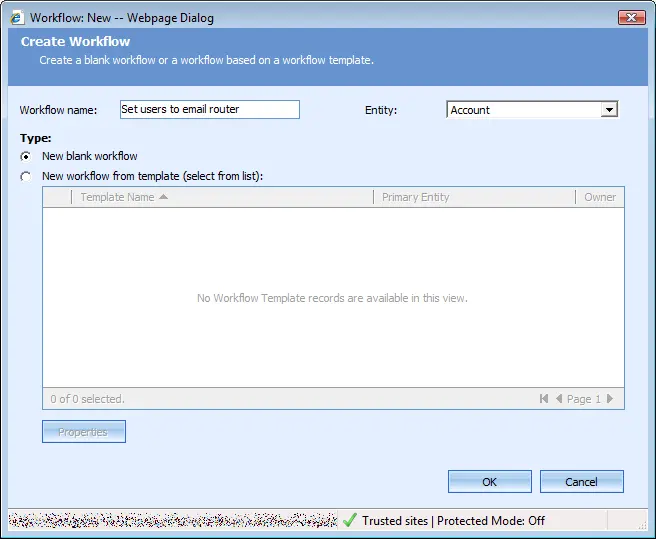
Step 2: Turn off automatic execution (or keep it on if you want this to run on user creation, ensuring future users are also configured correctly). Under Available to Run, select "On Demand". Add a step to update the user. 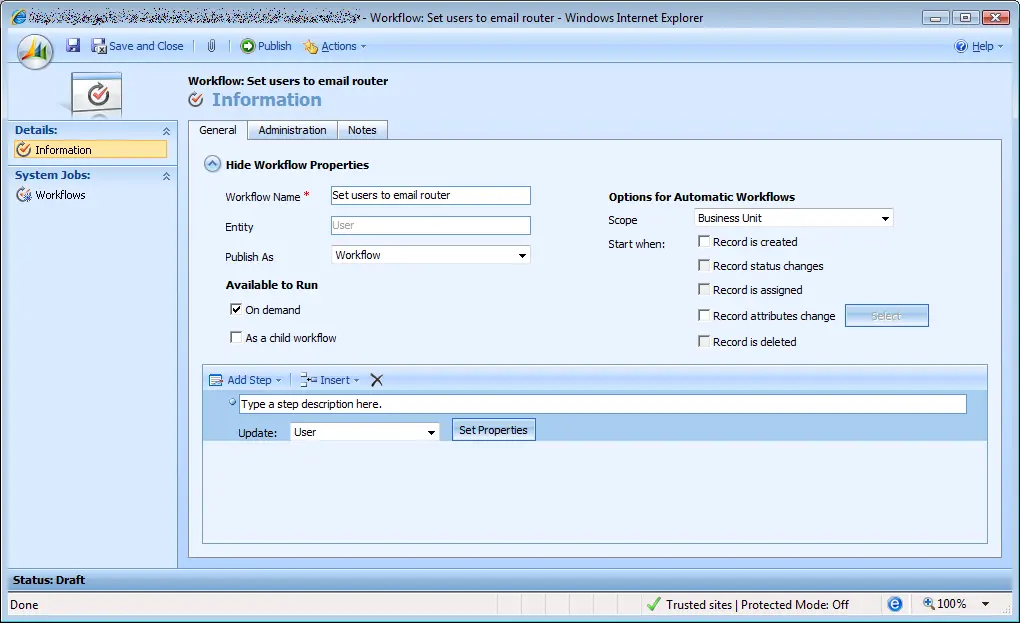
Step 3: Click "Set Properties" and update the "Email Access Configuration" to your preferred method. 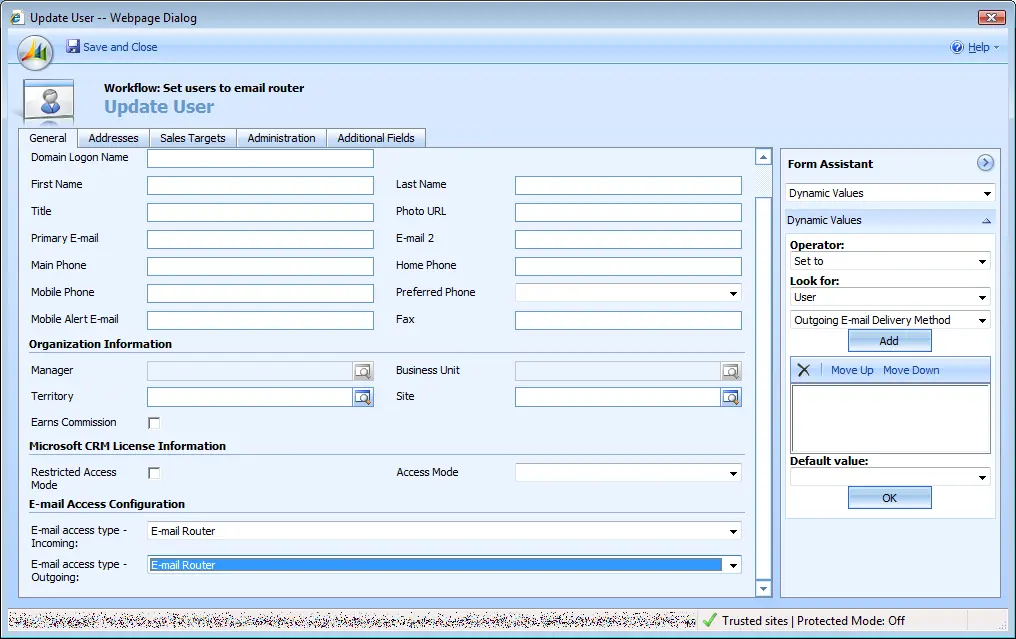
Step 4: Save your workflow. Now, in the user list, click the "Run Workflow" button, select your workflow, and click OK. 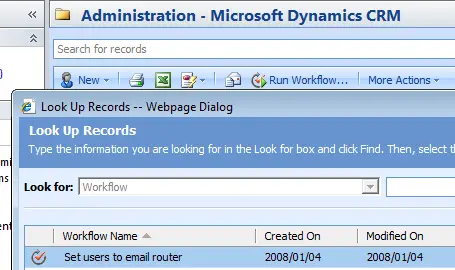
And voilà—now all users are updated to the correct email method.
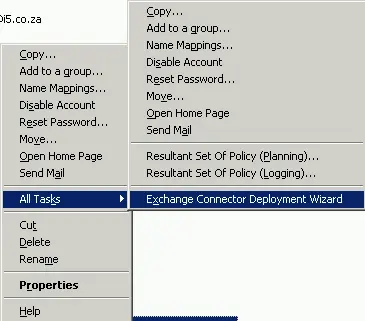
Another useful option for network admins: After installing the email router, Active Directory users and groups gain a menu option to launch the configuration tool directly (see AD Config Tool).
When configuring the MSCRM 4.0 email router for Exchange incoming, you may get the following message when testing: Incoming Status: Failure – The remote server returned an error: (403) Forbidden.
This is actually caused by a poor UI (IMHO), which kinda leads you to configure it wrong. Here’s what happens: the outgoing section has a checkbox for using SSL and asks for a server name, while the incoming section asks for a URL—and it automatically fills in http://. So, you naturally enter your server like this: http://myexchange.
But since Exchange runs on SSL, the correct format should be https://myexchange.
If that doesn’t resolve the issue, open the URL you’re using in a web browser to check if it works. That way, you’ll get more detailed error information about the actual cause.
In MSCRM 3.0, I did a few redeployments of MSCRM, and what was nice was that in the database there was a license table containing the key. This was great since most of the time the customer couldn’t find the original media a year down the line.
Well, for MSCRM 4.0, the license table is gone—but fear not, you can still get the key. If you have the media, the key is in a file called license.txt (at least according to the implementation guide). If you got the download version, there is no such file—but you can still retrieve it from the MSCRM_CONFIG database in the ConfigSettings table.
Static analysis is the process of having a tool scan your compiled and/or uncompiled code for things like bad practices, maintainability, performance, and security issues—and so on. If you have Visual Studio Team Edition or better, you have the built-in tool, which is based on the free FxCop. Wikipedia contains a nice list of various tools available, but the reason why FxCop/Visual Studio is so much better is the help on the issues. All the help contains samples and information on the how and why of the problem, along with solutions for it. This actually becomes more than just a tool for shipping software—it’s a great learning aid for developers using it.
Subjects in MSCRM use this interesting tree view structure, which allows you to associate cases, knowledge base articles, and products in interesting ways. However, they have never been customizable—which has limited their usefulness—along with a few other interesting limitations.
Well, MSCRM 4.0 takes two steps forward in making subjects more useful, namely:
You can now delete used subjects. In MSCRM 3.0, once you used a subject, it was locked and could never be deleted—even if you updated all your cases, etc., to another one. This made managing the tree a nightmare since it basically meant you got one chance.
In MSCRM 4.0, provided nothing is currently associated with the subject, you can delete it. If you try and delete one that is still in use, you’ll get an error message. Simply fire up Advanced Find, remove or update the linked items, and you’ll be able to delete the subject!
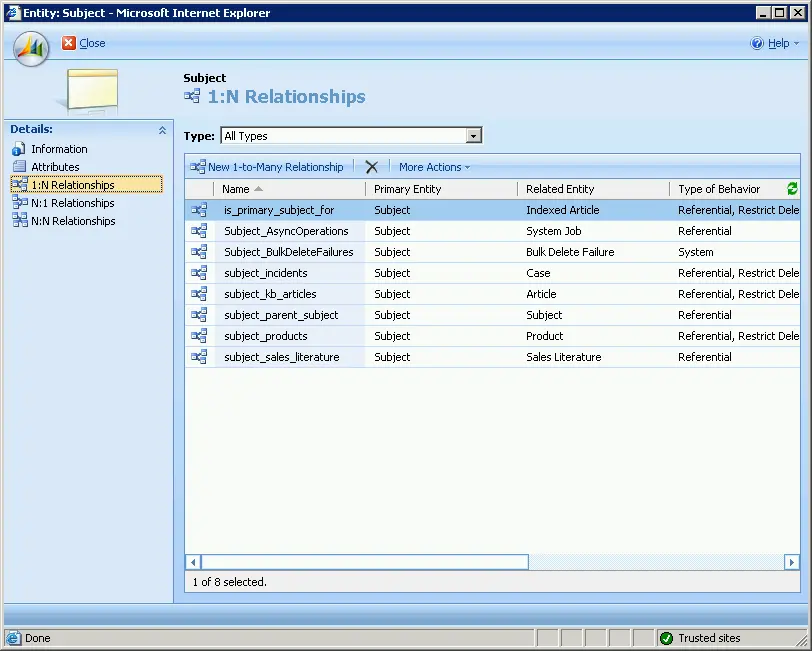
You can now associate subjects with other entities! But not yet with the full power of MSCRM 4.0. In fact, the only available relationship is one-to-many (1:N) (see the attached screenshot). Many-to-one (N:1) and many-to-many (N:N) relationships are still not supported.
This means that your custom entities or system entities can now use the main subject tree!
It’s still not where it needs to be—namely, support for multiple subject trees, customization options (even just adding attributes would help), and better display showing full structures (like X > Y > Z)—but it is now much more usable than before.
In my previous post I spoke about some of the new features in 3.5. For ASP.NET, though, there is more goodness coming in the form of the ASP.NET 3.5 Extensions package. This package contains some interesting bits I want to highlight:
ASP.NET MVC: This model-view-controller (MVC) framework for ASP.NET provides a structured model that enables a clear separation of concerns within web applications. It also makes it easier to unit test your code and support a TDD workflow. It helps provide more control over the URLs you publish in your applications and over the HTML emitted from them.
ASP.NET Silverlight Support: With the ASP.NET 3.5 Extensions release, we’ll deliver support for easily integrating Silverlight within your ASP.NET applications. Included will be new controls that make it easy to integrate Silverlight video/media and interactive content within your sites.
ADO.NET Data Service (codename "Astoria"): In parallel with the ASP.NET Extensions release, we will also release the ADO.NET Entity Framework. This provides a modeling framework that enables developers to define a conceptual model of a database schema that closely aligns with a real-world view of the information. We will also be shipping a new set of data services (codename "Astoria") that make it easy to expose REST-based API endpoints from within your ASP.NET applications.
There are a few more, and Scott Guthrie’s post will be good to cover if you’re interested (all the info above is from him). Now, starting with Silverlight support—this is a no-brainer really. If your market is developers who want great tools, then making them edit HTML to get your new platform is a little tougher than it needs to be. The MVC is a nice thing if you believe the information on it (I haven’t used it yet myself), but it basically brings a lot of the CCF/CAB ideas to the web in an elegant way. Lastly, Astoria is a great technology (I almost built my own for a project, but beta 1 came out and saved me from that), which gets your data from within the black box of servers onto the web in a way it can be consumed by client applications easily. Obviously, performance doesn’t compare to ADO.NET directly, but if you don’t have access to the server, this is the way to share information.
My first MSCRM 4.0 upgrade was last night, and so was my first MSCRM 4.0 issue. The issue, after upgrading MSCRM and accessing the site, was: "System.Data.SqlClient.SqlException: Invalid object name 'Entity'." A screenshot is attached to the post if you want to see it.
Straight away, you can see it is a SQL error, so I pulled up SQL Profiler to investigate. I first limited the trace to the _MSCRM and _METABASE databases (remember, this was an upgrade) and started monitoring the activity. What I noticed is that it was running a SELECT * FROM entity, so entity must be a table or view. However, checking the database myself revealed that it couldn’t be found, and running the statement manually also failed. I also noticed that _METABASE was not being accessed at all.
So, using Deployment Manager, I created a new tenant to compare. The first thing I noticed was that this new tenant had no _METABASE database—and, if I ran the same SELECT statement in this new tenant’s database, it worked. Digging deeper, I found a table named entity. But wait—what was before it? Normally, tables are prefixed by dbo, but this one wasn’t; instead, it was prefixed with something like metabase. Then I remembered my SQL Server 2005 training on schemas.
See, MSCRM 4.0 doesn’t need two databases anymore—it uses schemas to separate both the metabase and data within a single database, allowing for finer security control. This is also why SQL Server 2000 isn’t supported—it doesn’t have schemas (at least one of the reasons).
To resolve the issue, I ensured that the Network Service account (since we upgraded using that account) had the same permissions on the original database as on the new tenant database, and—voilà—it worked!
One thing about being a developer is that at some point you will have to work with databases and datastores. It’s a fact of life (like death and taxes). The thing about these databases is that they all require connection strings to access them—but the problem is, how do you get the connection string? A popular website is http://www.connectionstrings.com, which lists them, and you can then copy, paste, and modify those for your own needs. However, there’s a problem with this: it’s open to errors during modification (even if you can copy and paste without error), and there’s no built-in test system for your environment.
Well, fear not—Windows (I’ve known about this since Windows 2000 and can confirm it works on XP, Vista, and 2003) has a great feature for finding out connection strings and testing them. Here’s how you do it:
- Create a new empty file somewhere (the desktop is good, because you can right-click → New → Text Document).
- The trick is to ensure the file extension is
.udl (e.g., connection.udl). - Double-click the file and use the (possibly) familiar connection wizard/ODBC dialog to set and test the values.
Once you click OK, the window disappears. But here’s the good part: if you now open that file in Notepad, you’ll find the connection string in plain text—complete with all the correct values for your environment!
Happy connecting!
Update (10 Jan 2008): If you’re doing this on x64 machines and encountering issues, this may help: http://blogs.msdn.com/snehadeep/archive/2008/01/10/running-a-32-bit-data-link-properties-udl-in-64-bit-box.aspx.
For the sake of this series, I’ll highlight a few key points. For real concrete details, see:
.NET 3.5 introduces many new language features, but the most important for this series is LINQ. Moving on to the more exciting updates: AJAX, WPF (including XBAP support in Firefox and cookie compatibility), and WCF (enhanced WS* support, general syndication, a web-focused model, and Silverlight integration) now work seamlessly together. WCF + WF and WCF + AJAX also integrate far more smoothly than before. Additionally, new cryptography features and peer-to-peer development tools are now available. Notably, WinForms now supports the same authentication model as ASP.NET.