In MSCRM 4.0, you may get the following error when trying to track an email:
The text entered exceeds the maximum length
This is caused because the message ID is too long for the field (though the error message is confusing, as it suggests the text entered is the issue when you’re not actually entering it). To resolve this:
- Open the IE CRM Client.
- Open Settings.
- Select Customizations from the left menu and open the Email entity.
- Open Attributes and locate the messageid attribute.
- You should see a text box named Maximum Length with the value
100. Increase this to 200. - Click Save and Close.
- Repeat: Click Save and Close.
- Click More Actions → Publish All Customizations.
- Click Start Menu, type
Run, and enter iisreset → Click OK (or press Enter).
Thanks to Oli Ward on the PSS at Microsoft for solving this.
Ages ago I did an interview around the Rezonance product brand I work on. It was so long ago, I had forgotten about it. Well, the interview appeared online this weekend. Thanks to Carey for the heads-up.
Update 26 August 2010: A new and better version of this Excel file has been made available. Please go to South African ID Number Checker in Excel version 2 to get it. Update 11 August 2011: Want this as an app for your smartphone? Click here
A few days ago, I wanted to validate a list of ID numbers. Previously, I had done the basics—length, date, etc.—but this time I decided to do the full validation. So I searched for the rules and found this post, which explained it nicely and included some C# code. However, since I wanted to process an Excel spreadsheet, I created my own solution that performs the following checks:
- Length
- Valid date
- Date in the past
- Gender flag
- Nationality flag
- Check bit
I've hidden the calculation cells, so you can unhide them if you want to see the calculations. When I ran my list through it, the failures came in two forms: obvious failures (like 1000000000000) or check bit failures. Since I don’t know which entries in my list are real or valid, I’m unsure if the check bit is 100% reliable, but it worked fine for the real IDs I tested myself. Anyway, you can grab it from the attachments below (or get version 2 from the link above).
24 January 2010: I have disabled comments on this post as I’m receiving many requests about who ID numbers belong to, how to track people using IDs, or what someone’s ID is. I can’t answer those—I don’t work for the government, police, etc. If you have questions about the technical aspects of ID numbers, please contact me using the contact form.
Update 12 March 2009:
After you get MSCRM 4.0 up and running (install or upgrade) on your system with a custom host header, you may find that workflow doesn't work (or flow), imports stay in a submitted state forever, the email router and Outlook client cannot connect to the MSCRM server. This could also happen if you change the website details in IIS.
What is happening is that, even though you access your server on a specific URL, internally the Async service (which handles workflow, duplicate detection, and imports) and the email router and Outlook client actually use the URL you used to connect to the Discovery Service. The Discovery Service is a web service that returns the real URL to the web services in MSCRM, so if you change IIS, it still gives back the old ones. There is also a bug in the RTM of MSCRM 4.0 that causes it to use the machine name instead of the host header after upgrades.
So you go to http://<nice name>, but the Discovery Service gives back http://<machine name>/mscrmservices/2007/crmservice.asmx, which doesn't exist since your host headers should have it as http://<nice name>/mscrmservices/2007/crmservice.asmx. You can pick this up using Fiddler on the email server or desktop machine when trying to configure the email router or Outlook client, respectively.
So I went through this with Microsoft PSS, and they came back with a SQL command you can run to fix this. NOTE: As this is a database change, it is unsupported. If you are a little worried about the impact, do backups before trying it. If you are very worried, contact PSS directly for help.
USE MSCRM_CONFIG
UPDATE DeploymentProperties SET NVarCharColumn = '<server>:<port>' WHERE ColumnName = 'AsyncSdkRootDomain'
UPDATE DeploymentProperties SET NVarCharColumn = '<server>:<port>' WHERE ColumnName = 'ADSdkRootDomain'
UPDATE DeploymentProperties SET NVarCharColumn = '<server>:<port>' WHERE ColumnName = 'ADWebApplicationRootDomain'
Example: If your server is called myserver and runs on port 50000:
USE MSCRM_CONFIG
UPDATE DeploymentProperties SET NVarCharColumn = 'myserver:50000' WHERE ColumnName = 'AsyncSdkRootDomain'
UPDATE DeploymentProperties SET NVarCharColumn = 'myserver:50000' WHERE ColumnName = 'ADSdkRootDomain'
UPDATE DeploymentProperties SET NVarCharColumn = 'myserver:50000' WHERE ColumnName = 'ADWebApplicationRootDomain'
Once done, run an iisreset and restart the Async service, and everything should start working fine! As I mentioned before, this came from PSS (in particular Justin Thorp), and I would really like to thank him for the hard work and great responses I received on it.
The following error message is likely the least thought out requirement of MSCRM 4.0 and a common cause of frustration for developers in enterprise customers who are using the multi-tenancy features. 0x80040256: "Not enough privilege to complete Create operation for an SDK entity."
You get this error when attempting to register a workflow activity or plug-in into MSCRM 4.0, and you may think that to perform this customization, you need at least the System Customizer role. Well, you’re wrong—you need more than that. In fact, the highest role for an organization (System Administrator) isn’t even sufficient. You need to be a Deployment Administrator. This role is assigned at the server level, via the Deployment Manager tool, and grants that user full control over all organizations!
Here’s why I think this is poorly designed—threefold, in fact:
- I don’t want developers to see everything in MSCRM in live environments (that’s why the System Customizer role exists), but I do want them to perform customizations.
- If a developer works within a specific division or subsidiary with its own MSCRM organization, I certainly don’t want them to have access to other organizations on the server (security and stability concerns).
- Most importantly, I don’t want to extend server access to more people than absolutely necessary. Now that I need to configure users as Deployment Administrators occasionally, it means expanding that privileged group.
Anyway, here’s hoping MSCRM 5.0 fixes it! 😉
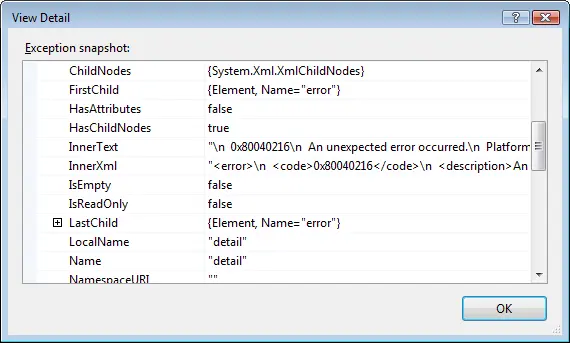
Remote debugging sounds like the title to a book but it isn’t—in truth, I’ve never used remote debugging because I’ve never needed to. In MSCRM 3.0, exceptions bubbled up nicely in workflow, and I could do a lot on my own machine. However, in MSCRM 4.0, those exceptions don’t bubble up nicely. 😢 All you get is something like this:

Besides adding logging to your assembly (which you should do anyway), what’s a dev to do now? You can now debug your plugins and custom workflow activities using the remote debugging facility in Visual Studio—and that’s what I hope to show in the next 9 easy steps!
- On your machine, you’ll find a folder
_<system drive>\Program Files\Microsoft Visual Studio 9.0\Common7\IDE\Remote Debugger_ (assuming you installed Visual Studio 2008 to the default location), which contains an x86 folder. Copy that to the MSCRM server and run the msvsmon.exe file. - Now click Tools → Permissions and give yourself access to it.
- Now load your plugin or custom workflow activity (when I refer to plugin for the rest of the document, I mean both—unless otherwise stated)—using the coughannoyingcough plugin registration/developer tool.
- Next, copy the PDB file for your assembly to the
_<system drive>\Program Files\Microsoft Dynamics CRM\Server\bin\assembly_ (assuming you installed MSCRM 4.0 to the default location). - Now, to finish up the MSCRM server side, do an IISReset and restart the Async Windows Service.
- Back on your machine, in Visual Studio, set a breakpoint in your code.
- Next, click Debug → Attach to Process. The transport should be Default, and the Qualifier should be
_<domain>\<username running msvsmon.exe on the server>@<Server name>_. Note: You can get this from Tools → Options in msvsmon.exe. You may need to do some firewall configuration, but it should be automated. - Next, select the process to attach to:
- For an online plugin, attach the debugger to the w3wp.exe process on the Microsoft Dynamics CRM server.
- For an offline plugin, attach the debugger to the Microsoft.Crm.Application.Hoster.exe process.
- For asynchronous registered plugins or custom workflow activities, attach to the CrmAsyncService.exe process.
- Now do whatever is needed to trigger your event, and watch Visual Studio on your machine do its magic!
It seems that my stupid tips is catching on, however I did not expect this level of duh from the official MSCRM blog itself. The post states that you can use .NET 3.5 for development as it uses the same CLR as .NET 3.0 (which MSCRM 4.0 is based on), however they don't recommend it because it could break if .NET 3.5 isn't installed. Duh! Does that mean that I should not use .NET 3.5 for any dev since I can't guarantee that it will ever be available on a machine?!
How about not using Windows because I might write code and then there's a Linux box that exists. Sigh. They should have said if you write code in .NET 3.5 and it breaks because it's not installed and you can't figure it out, then you need to stop writing code and become a chef or something—and leave the dev to the people with at least a double-digit IQ.
Two stupid tips when using it (it’s obvious if you think about it, but anyway—I’ve learned these the hard way):
- Don’t try to create a new organisation when installing Windows updates, especially if there’s a SQL update included that might stop the SQL server.
- Don’t run multiple copies of the deployment manager to create multiple organisations at the same time.
If I mess up with the deployment manager again, I’ll be sure to let you know.
If you get the MSCRM 4.0 SDK, there is a little HTML file called sdkreadme.htm, which you would assume (incorrectly) is about the SDK itself and not the development side. Well, in there are a number of issues that can occur. So, in the interest of helping someone out who is searching for this particular issue on the net (instead of reading the manual, like we ever do that), here are the issues (related to development only—there is some sample stuff that I have removed):
Organization-specific URL requests to CrmService.asmx are case-sensitive (32068)
- You must use all lowercase for mscrmservices in the following URL:
http://ServerName/OrgName/mscrmservices/2007/CrmService.asmx
PreReturnValue.Stop Callout in 3.0 does not show any error (22605)
- Returning a
Stop value from a Microsoft Dynamics CRM 3.0 callout has been deprecated and is treated equivalently to returning an Abort value. Callouts returning a Stop value will result in an Abort, but a standard error message is displayed to the user instead of a custom one.
Offline plug-ins or offline SDK creating entities (10858)
- Inside a plug-in, if an entity is created or updated, the action is recorded as an offline user—even though it is impersonated as
SYSTEM. - Offline plug-ins that create entities use the offline user's credentials, even if the plug-in specifies impersonation.
Deletion of plug-ins (8574)
- When an asynchronous plug-in or custom workflow activity is deleted, it is recommended that you stop and restart the Async Service so that entries in the async queue are aware of the plug-in or workflow deletion.
Metadata API: Failure on update of system-required attribute (32170)
- When you try to update an attribute that is system-required, an exception is thrown.
- Workaround: Set the required level to
NULL before calling update().
Metadata API: Unable to update the default value on the statuscode attribute (31251)
- There is no method in the MetadataAPI that allows you to update the default value for a
statuscode attribute. - Workaround: Use import or edit the value through the application user interface.
Metadata API: GetValidReferencingEntities and GetValidReferencedEntities return results for entities that cannot reference the task entity (32116)
- The task entity cannot be a referenced or referencing entity in a custom relationship. However, the
GetValidReferencing and GetValidReferenced messages return a list of possible entities for a relationship. - Workaround: Use the
CanBeReferenced or CanBeReferencing messages to determine if the task entity can participate in a relationship.
Text attribute value cannot contain escape characters (2134)
- When you create an entity instance (e.g., an account), the name attribute value cannot contain escape characters. For example, if you create an account where the name is
"Name_\r_123", after creation, the actual name of the account will be "Name_\n_123".
Bulk Delete UI: Deleted records not shown in Bulk Record Deletion Grid (31741)
- When executing the
BulkDelete message, if the BulkDeleteRequest.RecurrenceStartTime property is set to "today", the Bulk Record Deletion grid will not show the correct number of deleted records or the number of failures for the bulk delete job.
Lookup type is not always populated (31612)
For the following attributes, the lookup type is not set when you retrieve an entity instance:
activitypointer.serviceidannotation.objectidappointment.serviceidcustomeraddress.parentiddocumentindex.documentidfax.serviceidincidentresolution.serviceidletter.serviceidlistmember.entityidopportunityclose.serviceidorderclose.serviceidphonecall.serviceidqueueitem.objectidquoteclose.serviceidsite.createdbysite.modifiedbytask.serviceidtimezonelocalizedname.timezonedefinitionidtimezonerule.timezonedefinitionid
AssociateRequest message does not work for several relationships (28900)
- The
AssociateRequest message will fail for these relationships: systemuserroles_associationteammembership_association
- Workaround: Use the following specialized requests available for these relationships:
AssignUserRolesRoleRequest (for systemuserroles_association)AddMembersTeamRequest (for teammembership_association)
SPLA/IFD: Anonymous access for DiscoveryService in SPLA is not allowed on all methods (32683)
- In some configurations, downloading the WSDL may fail because anonymous access is not allowed.
- Workaround: You can publish the DiscoveryService WSDL for partners/developers. Use the static WSDL shipped with the SDK, located in the folder
\SDK\WSDL.
I recently was looking for some concrete information on the various status meanings in Microsoft Dynamics CRM 4.0 for duplicate detection rules and their publishing. Checking the help didn’t help, so I used the feedback option to report this. This morning, I received a response answering my exact question. Anyway, for anyone else looking for this information, here it is (not like you couldn’t guess, but better to be safe than sorry):
- Unpublished: Rule has been created, but match codes have not yet been generated.
- Publishing: Match codes are in the process of being generated. The rule is not yet in effect. This step can take a while if you have many records.
- Published: Match codes have been generated for each record in the base and the matching record type for the rule. Records created or updated after the rule is published will be checked against existing records.

