I watched a guy—who doesn’t work with me but works for another company—today try to duplicate a SQL Reporting Services ReportServer virtual directory by saving the existing one to a file using standard IIS methods and creating a new one. There’s a decent enough reason for doing this, but that doesn’t matter.
The process failed spectacularly. Reporting Services kept complaining that it couldn’t find the <server path>/REPORTSERVER/bin folder. The solution? Remove the newly created folder, use the Reporting Services Configuration Tool to generate a fresh one, and then run an IIS reset (thanks, Bruce, for the tip with the IIS reset). This fixed everything—the new report server folder worked perfectly, and the original one remained untouched and continued functioning correctly.
So I haven’t posted for way too long due to a massive new initiative which I have been involved in, namely setting up a hosting solution provider called VirtualBox. This has been a very enlightening experience in terms of many new skills I have learned and a much deeper understanding of the products I worked with. So as a personal outcome from that investment, I have written a series on what I have learned. This series is kinda different from my normal blog posts, for a number of reasons.
Firstly, this is one of the few times I have written the posts out long before posting them (normally I post as I think). This has given me the chance to re-read them and change them so hopefully the quality is higher (as a side note, I used Microsoft OneNote to write this). The length of each post in this series is also much longer than my normal average (450 words per post), and lastly, this is one of the few times I actually blog about what I’m doing at work and mention some of the exact products, customers, and technologies I am involved with. The reason for this is not because I am normally not proud of what I do or who I do it with, but because I like to keep things separate. But this time, I am so excited (kid on Christmas Eve type) that I really can’t not share what has been accomplished by the small team I feel privileged to work with.
Firstly, what is a hosting solution provider? Well, traditionally, when you have wanted an application like Microsoft Exchange, you would go out, buy a server, buy the licenses, get an IT pro in to do the install and configuration. Well, a hosting solution provider (HSP) changes the entire game by removing the buying from the traditional way. So you want Microsoft Exchange, and you have it—instantly!
Why would anyone go this route? Well, there are a couple of benefits. For anyone, the turnaround time is minutes from needing it to having it ready. You get proven systems in place from day one, or having a guide on how your environment is set up—which means as you bring on staff, you just give them the guide, and in a few days of reading and asking questions (and lots of Googling), they have a wealth of understanding of the environment from the package. Better yet, if you can afford a few lab machines and run Hyper-V or Virtual Server, they could even do the deployment of the environment to really understand it.
But if you are a point-haired boss type, there is one very important business factor: money. For the SME market, the significant cost benefits come from paying for only what you consume. Licensing for Exchange, for instance, lets you purchase mailboxes with no support for calendars or tasks (i.e., just mail) if that’s all you need—for just a few dollars per month. The HSP also invests far more in hardware and staff, thus providing faster, bigger, and better (insert your favorite positive adjective here) than what the SME company could get themselves.
For the enterprise customer, an HSP can be a very different route in that it allows an IT department to move away from the traditional model and set itself up as an HSP for the rest of the business. This means they can lower the cost of licensing, properly manage budgets between them and other departments, react quicker to business needs, and lastly—once they have moved through the lifecycle of setting this up—could actually allow them to start offering the services outside the business, allowing them to stop being a cost center and start to become a revenue center.
That’s enough from me sounding like a business expert. So what can you expect in the series coming up? Well, we will next tackle the overviews of the system and then start to dive into some of the cooler technologies.
Eek, my first post in 50 days. I have been very busy on a new business venture—it’s very exciting from an offering and technology perspective. So lots of long nights with not enough time to blog. I will be posting a huge multipart blog on the experiences of that in the near future. Add to that finding out I’ll be a parent in Jan ’09—it’s been extra hectic.
Anyway, on to my new favorite issue of MSCRM 4.0: the async service crashing. Should it crash, it takes down lots of features, to name a few big ones:
- Imports
- Data duplication
- Workflows
- Logging into an IFD deployment via the forms login
Well, this can occur if you’ve added a new deployment to your MSCRM deployment that contained workflows running. These rogue workflows crash async with a lovely message in the event log: “The entity with ObjectTypeCode = 0 was not found in the MetadataCache.” Well, Microsoft has released a hotfix for this issue, available at http://support.microsoft.com/kb/950680/en-us.
So I had a great surprise this morning walking into the office—MSCRM 4.0 greeted me with "Invalid Action: The Selected Action Was Not Valid." This was after a long weekend with no activity or system changes. First, I checked if it was just my machine—nope, everyone else was affected. Next, I logged onto the server and opened MSCRM again, but the issue persisted. IIS reset? Same problem. Checked services? Still nothing. Verified SQL was up and the database was fine—yep.
Then, someone mentioned an issue with MOSS: they couldn’t edit a document. I wondered if it was related, so I logged into the SQL box and checked disk space—and (DUM DUM DUM!!) there was no space left on the disk drive for the databases. A quick cleanup of the transaction logs and—voilà—the system was back up and running perfectly.
(This is a repost of the content which was previously available on the IW community site.) Microsoft CRM supports many customizations—some of them simple (adding a field)—while others (also simple to do) allow you to embed other web pages via IFrames or add new buttons to the toolbar or the links on the left-hand side of the window. This is great because part of the ability to link pages in CRM is that it automatically passes various parameters to the referenced web page, including the GUID and type of object. This means if you build a web page, your web page gets context information for free (no weird JavaScript needed to navigate to it).
The problem seen at many customers is that these pages look nothing like CRM. This would make sense if you are embedding something like Live Maps, but if you are building the pages yourself, why not make them look like CRM? This improves the user experience significantly and really isn’t hard to do. In fact, Microsoft has included a sample in the SDK for you. The problem is that this is an HTML page, and when converting to ASP.NET, you will hit a few issues. However, it’s a simple 9-step process to get it right. So let’s dive into how to make your ASP.NET page look like Microsoft CRM.
Once you have loaded your project (I’m assuming you are using a new ASP.NET page that has had nothing done to it), navigate to where you have extracted the CRM SDK, and under it, you will find a style sheet you will need. It can be found in: CRM SDK\sdk samples\stylesheet\template.css Add this to your project.
Next, drag the CSS file from the solution explorer onto the default.aspx (I’m assuming that Visual Studio is in design view, not source view). If you get this right, the background will turn that lovely light blue.
Next, open the sample HTML page (CRM SDK\sdk samples\stylesheet\sample.htm) in your favorite text editor and copy the content from the opening <body> tag to the closing </body> tag. Now switch VS to source mode and replace the ASP.NET page’s content from the opening <body> tag to the closing </body> tag with the copied source.
When you try to switch back to design view, you will get 11 errors. Thankfully, they’re easy to fix.
The first fix is to add the runat attribute to the <form> tag and move it up two lines so it appears above the <table> tag. So it looks like the image here.
Next, move line 245 to after the closing </table> tag on the following line, so it looks like the image here.
Now, remove line 15 (it should just have </td> in it).
You should now be able to get back to design view! But you’ll still be greeted by something not very CRM-like yet.
Lastly, switch back to source mode and go to line 3 (it should start with <!DOCTYPE>), then remove it. This line controls whether Internet Explorer operates in standards-compliant mode or quirks mode—a non-standard rendering method. Since CRM relies solely on IE on Windows, compliance wasn’t necessary, and thus the designers used non-compliant tricks to improve the UI, like tables expanding to but not exceeding 100% of screen height and gradient effects.
If you now switch to design mode, you’ll see the pretty CRM pages. What I would suggest is to now hit Ctrl+E,D in source mode, which will format the HTML neatly (a great little feature in VS 2005; it also works on code and XML). Save this page somewhere on your machine as a base so next time you don’t need to do the cleanup to get it to work.
Just what I love at 4 p.m. on a Friday afternoon: finding an undocumented requirement for a product while sitting in front of the client. Anyway, it appears that the location of the MSCRM Monitoring (whoever that is—I found this by checking the install logs) is set in the installer to _C:\Program Files_, regardless of where you put MSCRM itself. Even worse, it isn’t _<System Drive>\Program Files_—it’s C:\Program Files. I have no C: on this box (don’t ask why, but that’s what IT provided).
I suspect you can work around this by creating an unattended installation (see the implementation guide for creating the XML files for that), but I’m actually lucky enough to have an empty second drive I can change the drive letter to C: (using Disk Manager). Add to this that nothing actually appears on C: once I fixed the issue (assuming it’s checking for something and that’s failing—and thus the issue). So all that I have left to do is:
AARRRRRGGGHHHHHHH
Here is a new great error for Microsoft Dynamics CRM 4.0: "Request IP Address has different address family from network address." You may encounter this when opening MSCRM or in the event log. If you see it in the event log, it means that workflows don’t work, imports never happen, emails don’t flow, and Outlook clients cannot connect. Lastly, it is likely you are using Windows Server 2008 (though I suspect this can also affect Windows Server 2003).
The issue is that MSCRM 4.0 doesn’t support IPv6 (as explained in Microsoft KB 950100), but server names are resolving internally to IPv6 addresses. The easiest way to test is to ping the server name and localhost—if you get an IPv6 address, you’re in trouble.
The fix is simple:
- Open your hosts file (
<system drive>:\windows\system32\drivers\etc\hosts). - Add a line for your server name with an IPv4 address.
- Save the file and ping again to confirm it works.
- Once confirmed, run an IISReset—and you’re done!
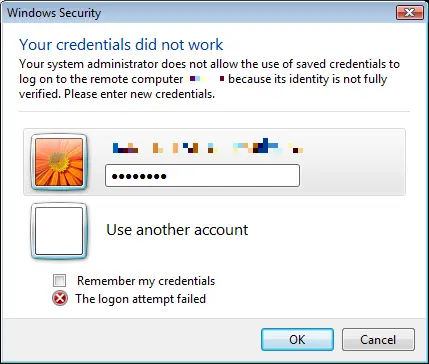
Remote desktop for Vista (and if you download the update for XP) has a great feature—it allows you to save the username/password combination so you don’t have to type it in all the time.
When I installed the update for XP, I was working for one of the large banks in the country and worried about what would happen if they stole my laptop. If they could get in, they could just open remote desktop to access various systems. 😒
Well, Windows Server 2008 finally fixed this with a rule that denies saved passwords, meaning—whether you save or not—you have to retype them each time.
Another great feature in 2008 is the ability to secure Remote Desktop using Network Level Authentication, which means it’s even more secure than the standard method. The only requirement on the client side is that you must be running Vista.
NOTE: This was developed in March 2008 and the calculations are no longer accurate. They are close but not exactly right. Update: 11 August 2011: Want this as an app for your smartphone? Click here
A personal annoyance at the moment is the use of the term "AA rates." It seems companies love to tell employees they pay at AA rates or charge customers at AA rates. However, due to a recent annoying experience, I decided to read up on this—and to find out what the AA rate actually is.
Well, imagine my surprise when I didn’t find one magic overall AA rate! What I did find is that there is an AA rate per vehicle, so how you get one rate is beyond me (I guess you could take the average value of everyone in the company, but that sounds like too much work for admin/financial staff who need to update it each time someone joins or leaves).
Anyway, I decided to take that and some of the Excel skills I’ve been taught recently and build a nice Excel spreadsheet (2007 version) that calculates it for you (download below). You can get the details on the rules and the fuel price (which you’ll need) from the AA site.
(This is a repost of the content which was previously available on the IW community site). Here is an interesting effect which I solved recently: when an item in Microsoft Dynamics CRM (MSCRM) was created, the assign event (both callout and workflow) would fire twice. This was very odd, and great lengths were taken to track it down—using the MSCRM trace tool, various tests, etc. But since this was a one-off issue that could not be replicated at other sites, it was eventually shelved until more important matters were resolved.
This issue only occurred during creations from external sources (namely, my code) and did not happen if the item was created in the MSCRM interface. However, the code itself was standard—I created the item, set its properties, and passed it to the Create method. Nothing fancy there.
The root cause? I couldn’t see the forest for the trees: I was setting the ownerid parameter as one of the properties. Internally, this was causing the assign event to fire when the item was created and triggering a second assign to handle the ownerid. Removing that single line of code fixed the issue immediately.