This is a multi-part series. The other parts can be found at:
This was inspired by a post on the IWSA](https://www.informationworker.co.za) group, about how to get a decent slide show in SharePoint using a picture library as a source. The poster went on to say he [Slide.Show looked like it would meet his need and wondered if it could be used. For those who do not know, Slide.Show is a cool Silverlight 1.0 component that takes a list of images and displays them as a slide show, with the presentation looking brilliant. Slide.Show has options like pausing, skipping the current image, viewing a grid of thumbnails so you can select which one to skip to, and even a full-screen view! It has, in fact, over 300 options you can tweak to get it just the way you like it! If you don’t know what SharePoint is, how is life under that rock? 😉 SharePoint (or, as it is officially known, Microsoft Office SharePoint Server) is a cool system too—it has all kinds of functions for document management. One of them is a picture library, but the downside of the picture library when displayed normally is a boring list or, if you configure it, one static picture… YAWN. So there’s a perfect harmony just waiting to occur!
But how can you use Slide.Show together with SharePoint? I wish it were as straightforward as adding a web part, but it isn’t. That said, it’s not difficult to get up and running and requires a few tricks and a bit of thinking outside the SharePoint box to get it working.
The first step is to add a Content Editor Web Part (CEWP), which can be found under the Miscellaneous section. 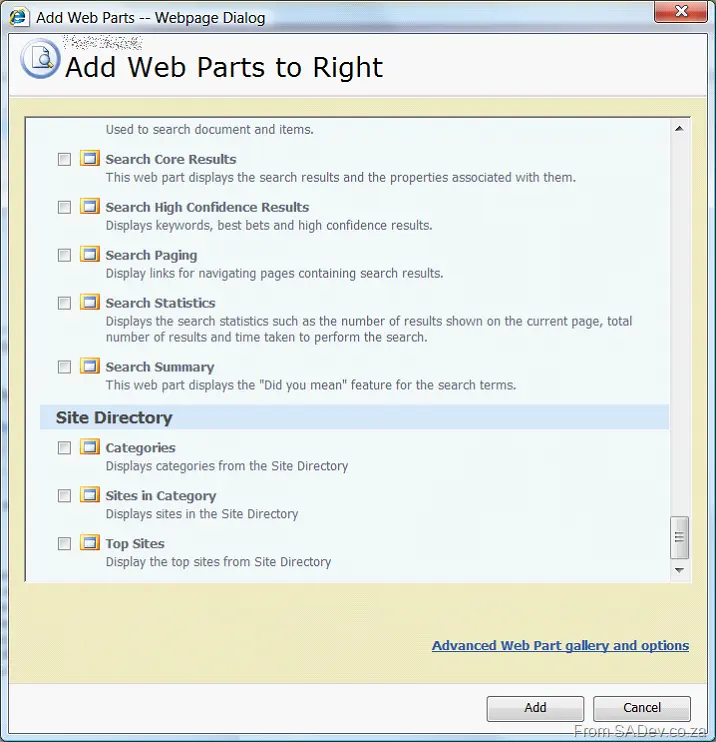
The CEWP is interesting because it allows you to set the content using rich text (à la Microsoft WordPad-like options) or actually put the HTML directly into it using the Source Editor option. The ability to put HTML directly in doesn’t mean just HTML—it means you can actually put anything in it and have total control over what will be rendered! Since we’ll be using a lot of JavaScript, this is exactly what we need to get Slide.Show into SharePoint. 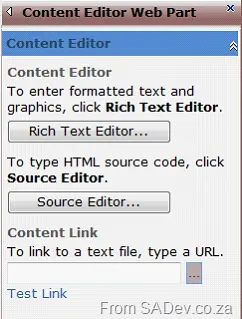
The first step in getting this working is to set up Slide.Show, so once you’ve downloaded the source package and extracted it, you need to run the release.bat file, which will combine a lot of JS files into two files in a release folder. You then need to take the release folder and place it in a folder under your SharePoint website—that’s definitely the cleanest way to configure it. However, I preferred to take the Slide.Show folder (part of the files extracted) and place it under the SharePoint website, as it allows me to run some tests more easily and get the system set up correctly, as shown in the screenshot below. 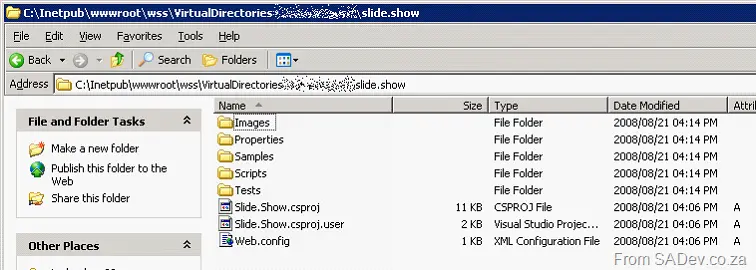
If you’ve also followed my thinking about taking the slightly messier config, you should be able to fire up your favorite browser and type in [http:///slide.show/samples/empty/default.html](https:///slide.show/samples/empty/default.html), which should show you a pure black screen (right-click, and it should say "Silverlight config"). The point of that boring sample is that it just makes sure the content is available—there are no server issues or client issues preventing it from working. Another simple test to check everything is configured correctly is to go to [http:///slide.show/scripts/release/silverlight.js](https:///slide.show/scripts/release/silverlight.js), which should prompt a download (like in the picture below). 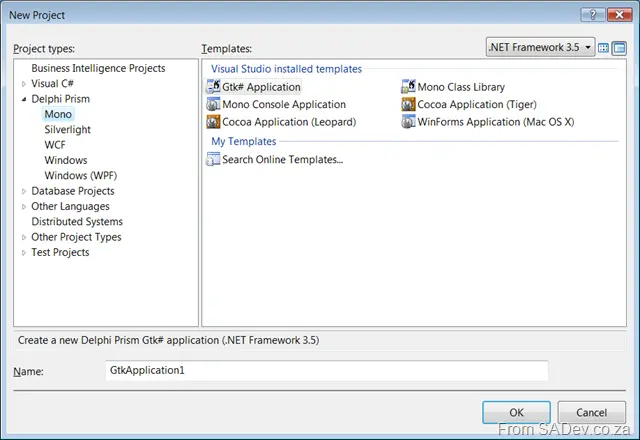
Now that Slide.Show is configured correctly, we’ll return to the CEWP and need to plop the code into it to make it work. Since the CEWP allows us to drop in any source, we’ll use that to put in the JavaScript we need for Slide.Show to work. This is where we lose the straightforwardness of doing this, because if you thought you could follow the Slide.Show quick-start guide and get it to work… you’d be in trouble. That’s because we can’t put <script> tags in the header of the page like the quick-start guide tells us—SharePoint won’t allow that. So our first step is to put our own code in to load and run the JS files, and then we can start using Slide.Show as normal.
To do this, we first need to tell the system that we’ll be running some JavaScript with a normal script tag:
Note: A complete version of the JavaScript is available at the end of the article (without numbering) to allow for easy copy-and-paste.
<script language="JavaScript">
Next, we’ll use the XMLHttpRequest class to load the JS file synchronously. However, if we just called XMLHttpRequest, this would only work in modern web browsers (IE 7 and higher, Firefox, etc.). But since so many people use older IE versions, we need to cater for them by adding a bit of code like this (source of the next 8 lines is not my brilliant mind but Wikipedia):
// Provide the XMLHttpRequest class for IE 5.x-6.x:
if (typeof XMLHttpRequest == "undefined") XMLHttpRequest = function() {
    try { return new ActiveXObject("Msxml2.XMLHTTP.6.0"); } catch(e) {}
    try { return new ActiveXObject("Msxml2.XMLHTTP.3.0"); } catch(e) {}
    try { return new ActiveXObject("Msxml2.XMLHTTP"); } catch(e) {}
    try { return new ActiveXObject("Microsoft.XMLHTTP"); } catch(e) {}
    throw new Error("This browser does not support XMLHttpRequest.");
};
For the following example, we’ll just load one file, but when we’re done, we’ll need to repeat this for all our JS files:
var silverlightRequest = new XMLHttpRequest();
silverlightRequest.open("GET", "/slide.show/Scripts/Release/Silverlight.js", false);
silverlightRequest.send(null);
Note: If you’ve put Slide.Show in a different location than I have, you’ll need to adjust the second line as needed. The last line of loading the file is to call the eval function, which allows us to execute the JavaScript from the JS we retrieved. This enables the classes and methods to be available to us:
eval(silverlightRequest.responseText);
Once we’ve loaded both Slide.Show JS files, we can then use Slide.Show as normal by calling:
new SlideShow.Control();
Lastly, we close our script block with:
</script>
Now click OK to close the HTML source code editor and OK (or Apply) again for the web part, and it should give us the same result as our first test—the empty sample. That’s kind of boring, so to wrap up part one in this series, let’s modify the Slide.Show creation line to load a configuration file from one of the samples. We’ll use the Flickr one since it requires nothing on the machine. The modified Slide.Show creation line with the configuration specified looks like this:
new SlideShow.Control(new SlideShow.XmlConfigProvider({ url: "/slide.show/Samples/Flickr/configuration.xml" }));
Now, you should have something that looks like the image below: 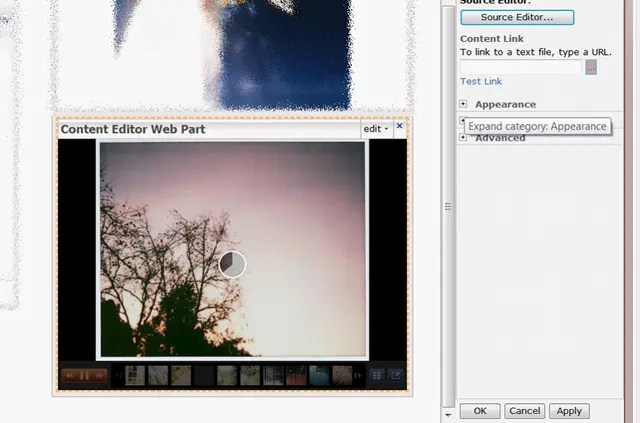
The full JavaScript that we would place in the CEWP to get this far would look like this:
<script language="JavaScript">
if (typeof XMLHttpRequest == "undefined") XMLHttpRequest = function() {
try { return new ActiveXObject("Msxml2.XMLHTTP.6.0"); } catch(e) {}
try { return new ActiveXObject("Msxml2.XMLHTTP.3.0"); } catch(e) {}
try { return new ActiveXObject("Msxml2.XMLHTTP"); } catch(e) {}
try { return new ActiveXObject("Microsoft.XMLHTTP"); } catch(e) {}
throw new Error("This browser does not support XMLHttpRequest.");
};
var silverlightRequest = new XMLHttpRequest();
silverlightRequest.open("GET", "/slide.show/Scripts/Release/Silverlight.js", false);
silverlightRequest.send(null);
eval(silverlightRequest.responseText);
var slideshowRequest = new XMLHttpRequest();
slideshowRequest.open("GET", "/slide.show/Scripts/Release/SlideShow.js", false);
slideshowRequest.send(null);
eval(slideshowRequest.responseText);
new SlideShow.Control(new SlideShow.XmlConfigProvider({ url: "/slide.show/Samples/Flickr/configuration.xml" }));
</script>
Updates to this post
- Update – 25 Sept 2008: I have cleaned up this post a bit to make it easier to understand.
- Update – 26 Sept 2008: Added information/fix to get it to work on older IE versions.
Over the last four parts (1, 2, 3, and 4), you’ve seen how to build this complex SRS report. However, there are a few key points to consider when building reports like this:
Scalability issues – This is not a scalable solution, neither in terms of computation cost nor development cost. Sub-reports add significant overhead to CPU and RAM, and for each year you want to include, you must add more SQL. Thankfully, in this example, we only had 3 years and 3 commodities. In the real-world case that inspired this, it was also limited to three years with fewer than 25 items, so performance considerations were manageable.
Export limitations – The Export To option in SRS supports various formats (PDF, Excel, etc.), but Excel export has a critical flaw: sub-reports inside table cells aren’t supported—you’ll just see a gray block where the sub-report should be. PDF, TIFF, and web archives, however, work fine. If your users expect to export to Excel, you may need to reconsider using this approach.
Alignment issues – To prevent misalignment, ensure that the width and height are consistent across all reports and sub-reports, and that cells are locked to prevent expansion or shrinking. Without uniform dimensions, your cells may not align properly between reports and sub-reports, resulting in a disjointed appearance.
A sub-report is a report which is embedded into another report—basically, it’s SRS’s answer to IFRAMEs. This should not be confused with the ability to drill through from one report to another, as those render separately and are provided separately. With sub-reports, the main report renders first, then the sub-report, and the output of all of those is combined to produce a single report. Sub-reports are normal SRS reports as well, so they have the same features as other reports.
So how do we use them? Well, if we look back at our previous image—where we had the fields scattered all over—there is a distinct pattern here: basically, there are five blocks (Q1, Q2, Q3, Q4, and Total) in a row under each fiscal year for each commodity/deal, and the horizontal total row at the end is essentially the same.
What we can do is merge those five cells in the table together and insert a sub-report into that merged cell. Since all the groups are the same, they can all point to the same report. The exception is the horizontal total row, which has the same look but is calculated slightly differently. So we only need two sub-reports, and we would structure it as follows:
So how does the sub-report know what to show? Well, remember—it’s a normal SRS report, so you can just pass parameters to it. Because it’s in a cell of a table, you can just access the values from the row that is being rendered. So all we need to do is pass two parameters: the fiscal year and the commodity. Now, the complexity is easy since it’s just a simple bit of SQL using the same UNION stuff we used before:
SELECT     f1q1value, f1q2value, f1q3value, f1q4value
FROM         Deals
WHERE     (deal = @projectid) AND (fiscal1 = @fiscal)
UNION
SELECT     f2q1value, f2q2value, f2q3value, f2q4value
FROM         Deals
WHERE     (deal = @projectid) AND (fiscal2 = @fiscal)
UNION
SELECT     f3q1value, f3q2value, f3q3value, f3q4value
FROM         Deals
WHERE     (deal = @projectid) AND (fiscal3 = @fiscal)
UNION
SELECT '0','0','0','0'
If you read that and saw the last SELECT and thought, "Whoa, good for spotting it!"—you’re on the right track. What’s happening is that I always want a result, regardless of whether there’s missing data. So by adding that line and only selecting the top record, I ensure there is always a value—even if it’s zero. The total column in the sub-report is just a calculated field that adds the four values up.
For the total row sub-report, it’s basically the same, except we wrap the fields in SUM()—that’s the only change.
The last thing to make sure of is that for the initial table on the main report, you get all the commodities for all the periods. To do that, your SQL needs to account for all the possibilities, like so:
SELECT     Deal
FROM        Deals
WHERE     ((fiscal1 = @FiscalYear)
        OR (fiscal2 = @FiscalYear)
        OR (fiscal3 = @FiscalYear)
        OR (CAST(RIGHT(fiscal2,2) AS INT) = CAST(RIGHT(@FiscalYear,2) AS INT) + 1)
        OR (CAST(RIGHT(fiscal2,2) AS INT) = CAST(RIGHT(@FiscalYear,2) AS INT) + 2)
        OR (CAST(RIGHT(fiscal3,2) AS INT) = CAST(RIGHT(@FiscalYear,2) AS INT) + 1)
        OR (CAST(RIGHT(fiscal3,2) AS INT) = CAST(RIGHT(@FiscalYear,2) AS INT) + 2))
ORDER BY Deal
@FiscalYear is the name of the dropdown we mentioned earlier, and we use a bit of SQL to convert it into an INT and manipulate it to give us every possible combination.
Last week was a special week, as it was the last week I worked at The i5 Group, and it was the week I started at BB&D in the ATC group. I will definitely go into more of what that means in the future—but for now, just know it means I work with an amazing team in a non-client role! 😊
Before I finish up, I’ll be at TechEd Africa next week and will likely not be posting until Thursday or Friday. If you’re attending, come say hi—I’ll be giving a talk on WPF!
So in part two, I showed what was needed. Now, how do we actually build this report?
Well, if your gut tells you to use a table or matrix, you’d quickly hit a problem: the data required in each field isn’t constant. A picture might help explain what I mean. If we look at our previous example:
Our fields would need to look like this:
Notice how F1Q1Value appears in a different place in each row. Try building that in a table or matrix—you just can’t.
Also, consider the requirement for subtotals. Going horizontal is fine in concept, but vertical is tough because you’re adding values from many different fields together.
So how do you go about building this?
Well, the financial year indicators at the top could just be calculated from the value in the dropdown and placed into three text boxes. The next row—the header row for quarters—could also be text boxes or the header row of a table, since it doesn’t change. Then, you’d need a table below that for commodity names and values. But how do you get the field values to dynamically change based on the commodity?
If you go back to part 1, you’ll remember I mentioned sub-reports—but I’ll cover that next time.
In part 1, we looked at the requirements at a high level and also examined the data structure. In part 2, we’ll now dive into the finer details.
First, the user must be able to select from a dropdown containing all possible fiscal years—the first fiscal year they want to see. Next, the report should display blank spaces for commodities that don’t feature in that fiscal year but may appear in future fiscals. Lastly, we need subtotals for years and commodities.
The dropdown is a simple SRS parameter, linked to a dataset executing this SQL command:
SELECT DISTINCT Fiscal1 AS Fiscal FROM Deals
UNION
SELECT DISTINCT Fiscal2 AS Fiscal FROM Deals
UNION
SELECT DISTINCT Fiscal3 AS Fiscal FROM Deals
Then, set the dropdown’s value and name to the _Fiscal field.
The next requirement reveals something subtle at the core of the complexity: If a user selects FY06, the report should render FY06, FY07, and FY08. If a commodity appears in any of those years, it must be shown. We’re not just displaying what starts in FY06—we’re also showing commodities that begin in FY07 and FY08.
Thus, the final output should resemble:
If you’re a regular SRS developer, your instinct might tell you this is just a table—or perhaps a matrix. Unfortunately, it’s slightly more than that. (We’ll explore that next time.)
The last requirement—subtotals—is straightforward and logical (especially considering the image above), so I won’t elaborate further.
One of my recent tasks was to setup a TFS 2008 server and migrate our VSS system across to it. Once done, set up the projects and users. Well, since I have a good knowledge of the systems and had done a TFS 2005 deployment previously (though it was not adopted), I felt confident that the install wouldn’t be an issue. I did the usual prep—reading blogs and learning from others—and that helped me avoid some pitfalls.
Next up was the migration of VSS to TFS, which was actually not a major requirement—it was just there for legacy projects. All active projects would have to check their code into new TFS projects, the ones we planned to create in TFS. The key benefit of this was that it would allow us to align with EPM better than the migration tool would have allowed.
I created a project, and imported the 1.7 GB of source code into it! It took some time. Then I needed to add the users, and this is where I met a problem. Regardless of whether I used the command line, the TFS admin tool, or the GUI, I kept getting an error: Team Foundation Server could not resolve the user or group. <AD Distinguished Name of the User>. The user or group might be a member of a different domain, or the server might not have access to that domain. Verify the domain membership of the server and any domain trusts.
The AD issue and TFS issue both revolved around the fact that in our AD, the Authenticated Users (AuthUsers) group did not have read permissions to our users and the containers they were in. This is odd to an outsider because, when AD is set up, the AuthUsers group does have permissions—so why would ours be different, and what are the implications of changing it?
The reason there is a difference is because our AD was set up according to Hosted Messaging and Collaboration (you can read more about it here), which specifically removes the AuthUsers group permissions for security reasons (i.e., to prevent users from seeing other customers). Because of this change, the GPO could not access the users’ accounts, nor could TFS read from AD what it needed.
To solve this for TFS, it meant giving AuthUsers read permissions to the users who needed to access TFS and their immediate container. For AD/GPO, it required just AuthUsers to have permissions on the container for the users (it doesn’t need permissions on the actual users) and all of its parent containers. Once those were done, the group policies and TFS started to work 100%. That’s great—but what is the impact on the hosted environment, and is this the best way to solve the issue?
Well, this does open up a security risk: customers could see other customers, simply by logging into the domain. For us, this is mitigated as we aren’t offering hosted TFS; this is just for our own internal staff, who are aware of who our customers are, and we aren’t worried if our customers know about our staff. It’s also very difficult for a customer to see other customers, as most applications don’t allow it, and those that do—such as MSCRM—ignore it in an HMC environment in their standard configurations.
In regards to whether this is the best way to solve the issue, my view is that it isn’t. Instead, you should run a separate AD for each customer, this being a normal AD system which runs at the client premises. Using the Customer Integration component of HMC (which is based on MIIS), you sync the customer AD to the hosted AD. This means you could run GPOs and TFS on the customer site without the need to change anything in a hosted way.
Recently I got the chance to build a report using Microsoft SQL Server Reporting Services 2005 for a customer—that, in itself, is nothing fantastic. However, this was one of the most complex reports I have ever had to build, for two main reasons:
- What needs to be displayed is so simple in concept that you get misled into thinking it’s easy.
- To do this, you need to use a component of SRS that is seldom required: sub-reports.
But before I give too much away, let me explain what the report should show. The customer I’m using in this series tracks deals for commodities over a three-year period, broken down by quarter. So they want to see, in Year 1, Quarter 1, how much they sold in terms of value (e.g., beer), and so on for all 12 quarters. However, since they’re constantly adding new commodities, Year 1 is not the same for each. For example, they might have started selling beer in 2008 and chickens in 2009, meaning beer is only tracked until 2011 but chickens until 2012. All we need is a report to display this.
Disclaimer: Most of this has been changed to protect the innocent, so the report images are drawn in Visio and are not real; the customer doesn’t actually sell commodities (especially not coffee and beer), and the data is completely faked.
Now, let’s look at the data structure—it’s a simple single table (no, I didn’t have anything to do with the design of this). It includes:
- A Deal field for the commodity name,
- Fiscal1, Fiscal2, Fiscal3 (storing the years being tracked for each commodity), and
- FxQxValue (the value for that year and quarter).
Let’s look at how this would look with sample data—this is the same dataset we’ll use for the rest of the series.
Next time, we’ll examine the report requirements and start building it.
Previous I blogged about a concept called IP address abstraction, IAA for simplicity, (Zen of Hosting pt 11), where I wrote about using CNAMEs in DNS to abstract yourself away from having lots of IP addresses and needing to update lots and lots of DNS records should your IPs change. It seems like a good idea, however, no good idea seems to be a perfect fit in IT anymore 😒 In this case, the biggest issue is that, according to Common DNS Operational and Configuration Errors (RFC 1912, for those who care), it states a few issues and many an admin may point out that this is the cause of all kinds of things—like email breaking—but as we will see, that may not be the case. But let’s cover the highlights from RFC 1912, which will be pointed out to you:
A CNAME record is not allowed to coexist with any other data. However, DNS servers like BIND will see the CNAME and refuse to add any other resources for that name. Since no other records are allowed to coexist with a CNAME, the NS entries are ignored. Therefore, all the hosts in the podunk.xx domain are ignored as well!
That’s a big one: if you use IAA, it will coexist with MX, NS, etc. It also goes on to say:
Don’t go overboard with CNAMEs. Use them when renaming hosts, but plan to get rid of them (and inform your users). However, CNAMEs are useful (and encouraged) for generalized names for servers—ftp for your FTP server, www for your Web server, gopher for your Gopher server, news for your Usenet news server, etc. RFC 1034 in section 3.6.2 says this should not be done, and RFC 974 explicitly states that MX records shall not point to an alias defined by a CNAME. This results in unnecessary indirection in accessing the data, and DNS resolvers and servers need to work more to get the answer.
This basically goes against everything IAA identifies as a reason for using it 😒 Lastly, it states:
Also, having chained records such as CNAMEs pointing to CNAMEs may make administration issues easier, but is known to tickle bugs in some resolvers that fail to check loops correctly. As a result, some hosts may not be able to resolve such names. Having NS records pointing to a CNAME is bad and may conflict badly with current BIND servers. In fact, current BIND implementations will ignore such records, possibly leading to a lame delegation. There is a certain amount of security checking done in BIND to prevent spoofing DNS NS records. Also, older BIND servers reportedly will get caught in an infinite query loop trying to figure out the address for the aliased nameserver, causing a continuous stream of DNS requests to be sent.
Basically, stating that it may make administration issues easier is kind of the point of all this. However, there are a few things that wily admins may not point out: first, this was published in February 1996—that’s 28 years ago! Since then, superior DNS software like BIND (and even inferior software like that which ships with Windows) no longer has these issues. This nullifies the first and last points, but what about that bit in the middle, pointing to RFC 1034 and RFC 974?
Well, RFC 974 deals with MX records and routing, so it’s similar to the first point but does state:
If the response contains an answer which is a CNAME RR, it indicates that REMOTE is actually an alias for some other domain name. The query should be repeated with the canonical domain name.
So basically, even if you chain CNAMEs, it should not break any email system. RFC 1034 is more about DNS (it’s actually called DOMAIN NAMES - CONCEPTS AND FACILITIES) and covers the overview of how it should work without covering technical details. However, it was written in November 1987 (so even older than RFC 1912) but is not obsoleted by any other RFC. It states:
Of course, by the robustness principle, domain software should not fail when presented with CNAME chains or loops; CNAME chains should be followed and CNAME loops signalled as an error.
Basically, DNS should be robust, and the idea of IAA should work regardless. The one issue I cannot disprove is that it takes additional time and bandwidth to have lots of CNAMEs. Then again, in 1996, 56k was the blinding speed of the internet—now, that’s not the case. Bandwidth has increased and latency decreased so much that it makes sense to utilize that additional power to make a more stable internet through making administration easier.
Hopefully, we can soon get some tools to test for loops, which are the biggest issue caused by this structure. Looking at all of this, I would state that IAA is worth implementing and there is no significant reason anymore not to utilize it. Hopefully, this document should help answer any questions or be of use when dealing with those admins who haven’t seen the light.
It’s an unfortunate problem that the GAL integration isn’t rock-solid with HMC and Exchange, and that it’s merely controlled by AD schema attributes (see The Zen of Hosting: Part 5 – HMC and Exchange for more info). It’s very easy for this to be messed up by a number of things. Most common for me is the use of Exchange PowerShell, which seems to reset that attribute with many of its commands. The easiest way to resolve it is with another XML request passed to provtest, in this case the nicely named RepairExchangeObject. Basically, it just needs the domain controller and the LDAP path to the user whose attributes have been screwed—and off it goes and fixes it.
NOTE: This is for HMC 4.0. HMC 4.5 has a different structure completely. Check the SDK for the message, which will give you a sample you can use.
The request looks like this:
<request>
    <data>
        <preferredDomainController>Domain Controller</preferredDomainController>
        <path>LDAP Path</path>
    </data>
    <procedure>
        <execute namespace="Exchange 2007 Provider" procedure="RepairExchangeObject" impersonate="1">
            <before source="data" destination="executeData" mode="merge" />
            <after source="executeData" destination="data" mode="merge" />
        </execute>
    </procedure>
</request>
Sample:
<request>
    <data>
        <preferredDomainController>srv01</preferredDomainController>
        <path>LDAP://CN=frank@test.com,OU=MyCustomer,OU=MyReseller,OU=Hosting,DC=litware,DC=local</path>
    </data>
    <procedure>
        <execute namespace="Exchange 2007 Provider" procedure="RepairExchangeObject" impersonate="1">
            <before source="data" destination="executeData" mode="merge" />
            <after source="executeData" destination="data" mode="merge" />
        </execute>
    </procedure>
</request>

