I often end up in the event log with SharePoint problems—since there is so much goodness there… well, usually too much. So this trick of using PowerShell to filter the results and export them to a grid or CSV is very useful.
Get the 20 newest SharePoint logs to a grid:
Get-EventLog –LogName Application –Source '*sharepoint*' –Newest 20 | Out-GridView
Export all SharePoint logs to CSV (perfect for Excel):
Get-EventLog –LogName Application –Source '*sharepoint*' | Export-Csv c:\eventlog.csv
The man who has more friends that are robots than are human (check the pics on his blog posts), kids who will fly at supersonic speeds (soon) and who has never attempted a Rubik’s Cube is back online with his blog! Yep, Willy-Peter Schaub is now blogging with Microsoft branding😉 Go follow him at http://blogs.msdn.com/willy-peter_schaub — his blog on dotnet.org.za will still be there but will focus on personal items.
Dublin is the code name for an application server which will ship as a separate download for Windows Server around the .NET 4.0 timeframe. The application server’s focus will be on Workflow Foundation and Windows Communication Foundation applications.
So, to me, the developer pushing out code today—what does it mean?
Well, it means that a lot of the grunt work involved with WCF/WF applications is taken away because Dublin will provide a host for them—no more need for IIS for WCF and bespoke solutions for WF. That is not so great, I mean of course you can write your own still, and in some situations that will be faster or more scalable than Dublin. But because the host is built, the surrounding services come included. So let’s take a prime example of how this would affect WF:
Currently, WF has a great tracking system which you can visualize using WinForms or ASP.NET, but why should you need to "copy-and-paste" that code into every WF application? Why isn’t there an out-of-the-box tool like BizTalk has? Well, since the Dublin server will host your workflows, they will now provide you with a tool to do it!
Dublin setup/configuration tool
There are some important points to understand here:
- Dublin is NOT .NET Framework 4—it’s a separate Windows Server component. Updates will follow the Framework update schedule, but that’s as close as it gets.
- Dublin is backward compatible to .NET Framework 3.5—so the work you’re doing today is not wasted.
- Dublin will support Oslo—Dublin is the first application to support administrators deploying out of Oslo.
- So do I need BizTalk? Yes. BizTalk will still be great for B2B or LOB integration scenarios where you still will need to write code to get close to those great out-of-the-box features. It is told they will work well together, but I have no details on how yet.
- So do I need IIS? Yes. Even though a lot of apps now running on IIS will be moved to Dublin, you still want IIS for what it is good for—websites. In addition, Dublin’s management interface is part of IIS!
Dublin settings in IIS 7.0
- OS supported—Nothing official I can find, but it uses IIS 7.0, so that implies Windows Server 2008 is a requirement.
- What will it be called—Nothing official, although the beta bits have "Windows Application Server" as the name, so it looks like it could be that.
Interesting: the first customers to start work on Dublin are the Dynamics AX and CRM teams. Since I know CRM, let me explain how I think they will use it (nothing official here). In MSCRM 4.0, you have two core components (high-level):
- Async Service—which runs workflows
- Website—which does the frontend and web services
The async service will be dropped, and its function, together with hosting of the web services, will be shifted over to Dublin, with IIS continuing to host the website!
Persistence Out of the Box!
You can find out more at http://www.microsoft.com/NET/Dublin.aspx
Pictures from: http://www.biztalkgurus.com/blogs/biztalk/archive/2008/11/02/first-look-screen-shots-of-windows-application-server-dublin.aspx
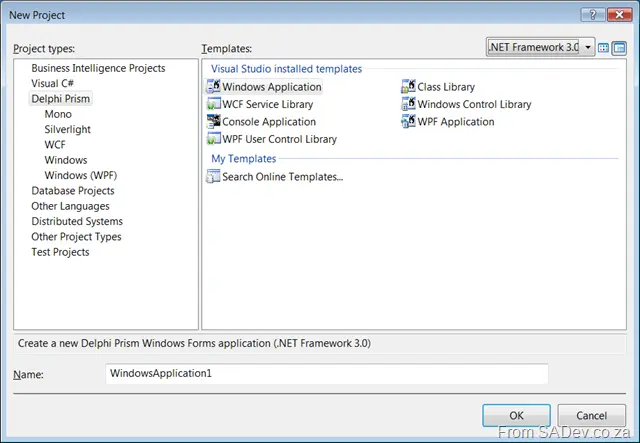
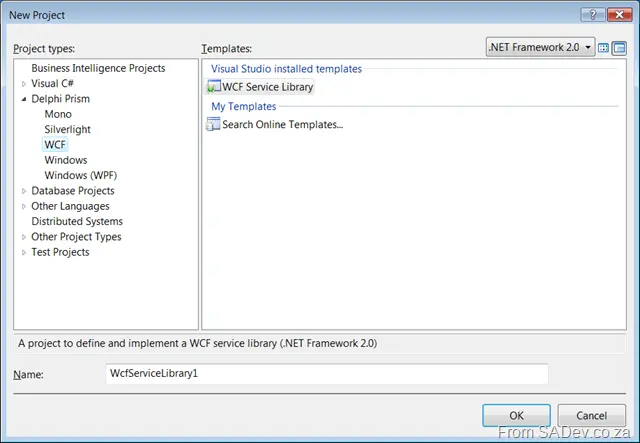
What is available on each .NET Framework with Prism—this is mainly a screenshot post since it supports exactly what C# (and VB.NET) supports on those framework versions.
.NET Framework 3.5
Delphi - General
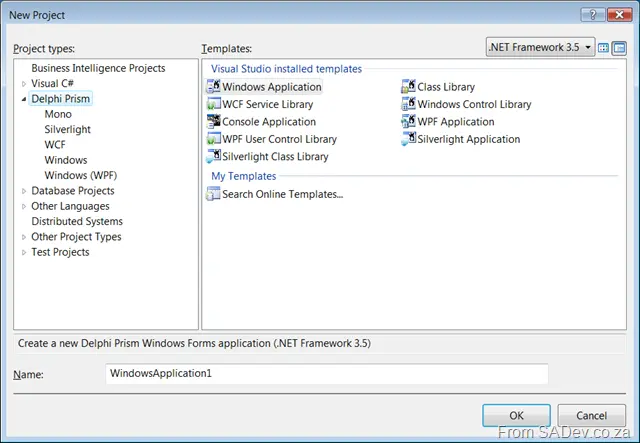
Mono
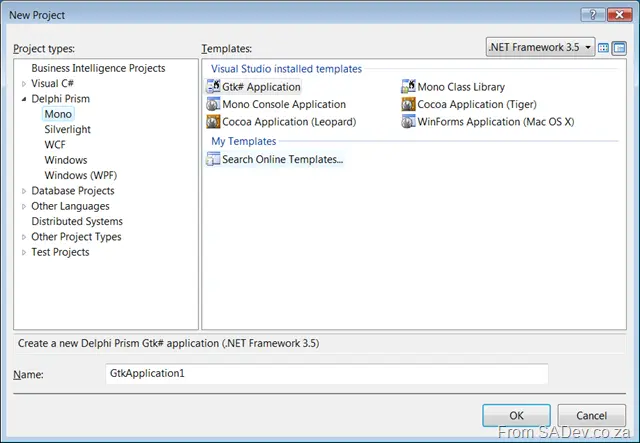
Silverlight
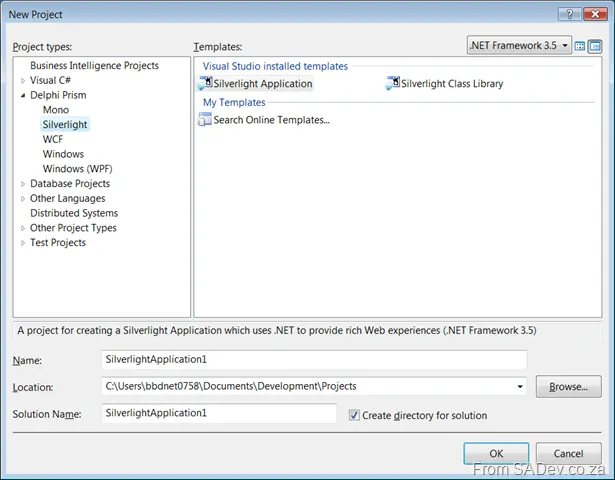
WCF
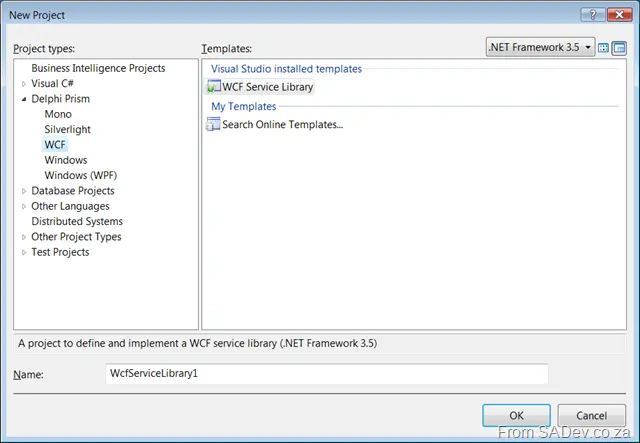
Windows
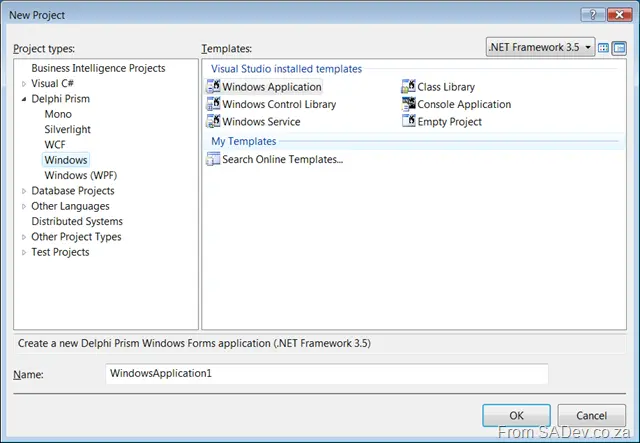
Windows (WPF)
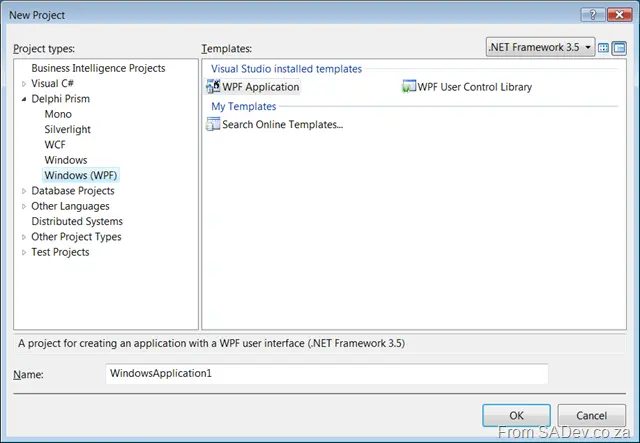
.NET Framework 3.0
Delphi - General
Mono
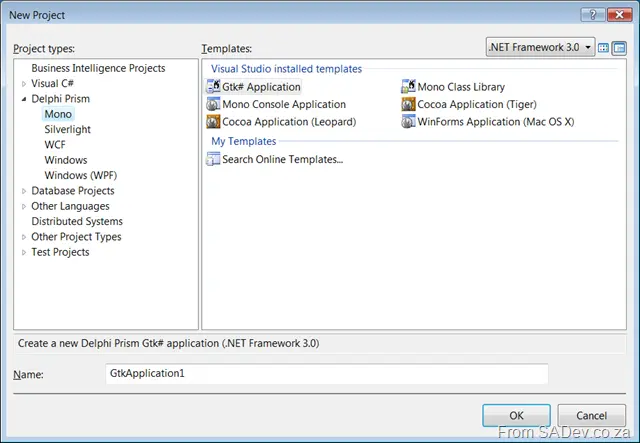
Silverlight
NONE
WCF
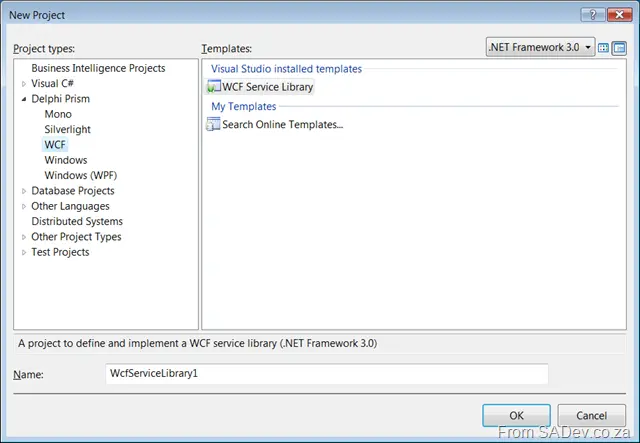
Windows
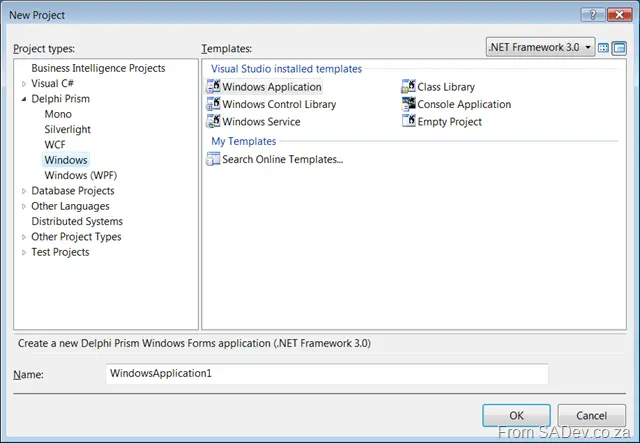
Windows (WPF)
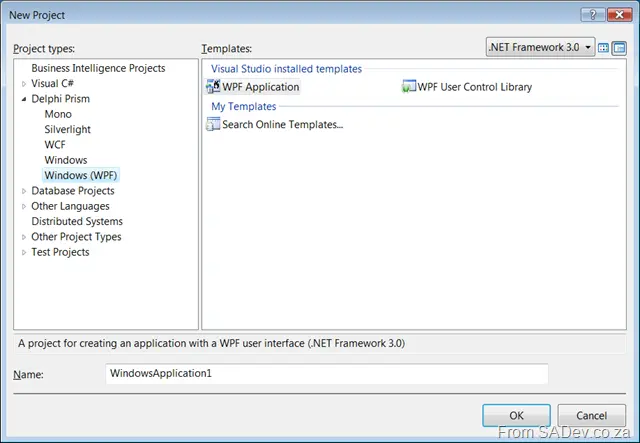
.NET Framework 2.0
Delphi - General
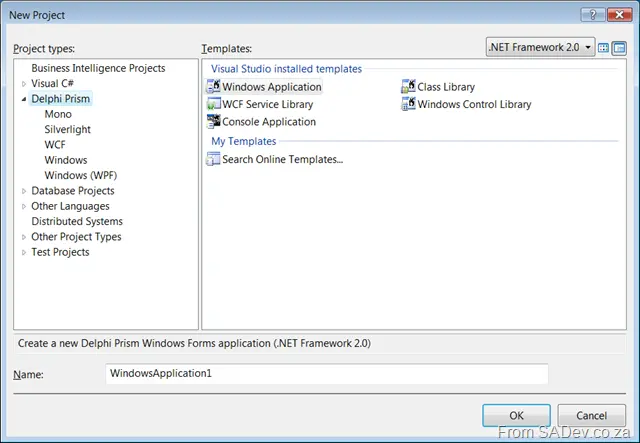
Mono
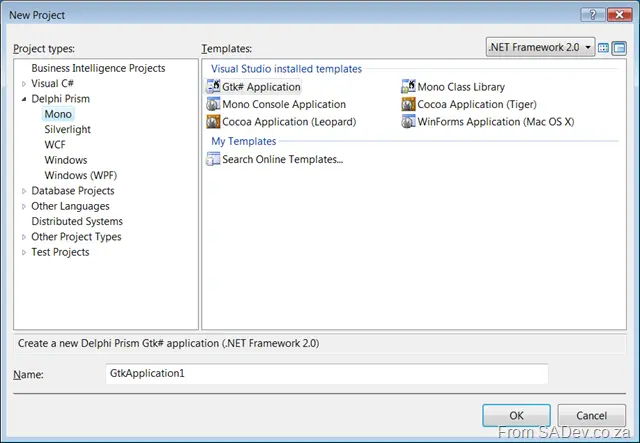
Silverlight
NONE
WCF
Windows
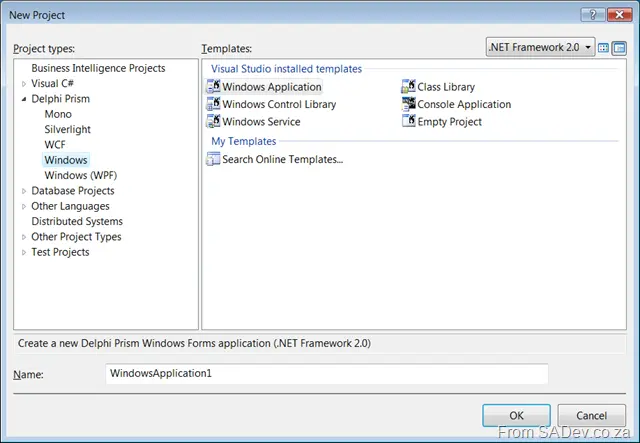
Windows (WPF)
NONE
So my double header post on getting this funky AD lookup control with Perl (post 1 & post 2) was actually prep work for getting it to work in a product called RT (or Request Tracker from BestPractical), which is built on Perl. I had never worked with it before, so I was slightly (read: exceptionally) ignorant of how to do this. Effectively, I wanted a lookup to include AD users.
The First Option
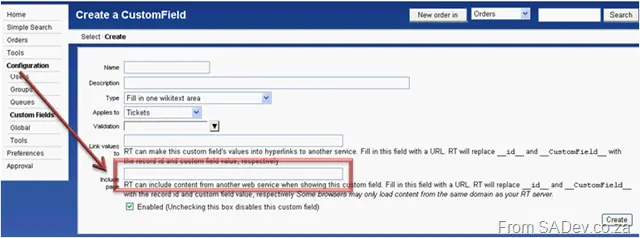
The first thing I saw was the Include Page option when creating a field, which is described as:
RT can include content from another web service when showing this custom field. Fill in this field with a URL. RT will replace __id__ and __CustomField__ with the record ID and custom field value, respectively. Some browsers may only load content from the same domain as your RT server.
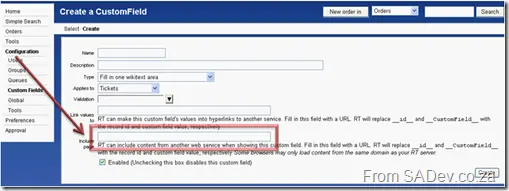
It sounds perfect—but, turns out, there is no knowledge of how this works. I tried various forums and newsgroups, even emailing people who asked about it before… no answers were available! The documentation is useless!
The Second Option
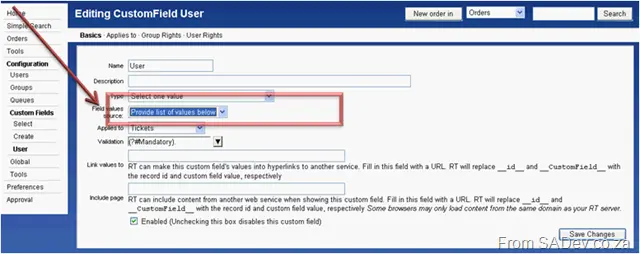
Another option is that once you have created a field, a new option appears: Field values source:
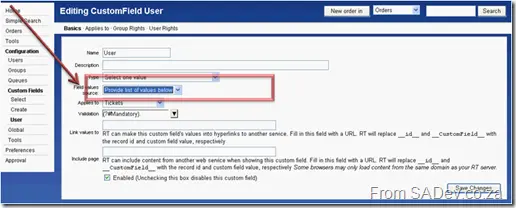
But how do you actually use this without typing in the options yourself?
Custom Perl Module
Well, in the /opt/rt3/lib/RT/CustomFieldValues/ directory is a file called Groups.pm, which allows you to provide the names of the groups as a field source. This is a possible solution—but first, you need to create the module. The module has two methods:
- SourceDescription – which needs to return a string containing the name of what you are returning.
- ExternalValues – which needs to return an array of objects containing the values. These objects must have a
_name property (the name you want to show) and two optional properties: _description (I honestly don’t know where it’s used—don’t think it is)_sortorder (used for sorting).
Taking the AD code from the previous posts and combining it into the right format, we end up with this code:
package RT::CustomFieldValues::AD;
my $DomainController = "<SERVER>";
my $Username = "<USERNAME@DOMAIN>";
my $Password = "<PASSWORD>";
my $BaseOU = "<SEARCH OU>";
my $Attributes = "sAMAccountName,sn,displayName";
my $Filter = "(objectCategory=User)";
use strict;
use warnings;
use Net::LDAP;
use Net::LDAP::Control::Sort;
use HTML::Entities;
use base qw(RT::CustomFieldValues::External);
sub SourceDescription {
return 'Active Directory Users';
}
sub ExternalValues {
my @res;
my $i = 0;
my $ad = Net::LDAP->new($DomainController)
or die "Could not connect!";
$ad->bind($Username, password => $Password, version => 3);
my $sort = Net::LDAP::Control::Sort->new(order => "displayName");
my $results = $ad->search(
base => $BaseOU,
filter => $Filter,
attrs => $Attributes,
control => [$sort]
);
if ($results->count == 0) {
die "No results returned";
} else {
for (my $counter = 0; $counter < $results->count; $counter++) {
my $user = $results->entry($counter);
if (defined($user->get_value("sn"))
&& length($user->get_value("sn")) > 0
&& defined($user->get_value("sAMAccountName"))
) {
push @res, {
_name => encode_entities($user->get_value("displayName")),
_description => encode_entities($user->get_value("sAMAccountName")),
_sortorder => $i++,
};
}
}
}
$ad->unbind;
return \@res;
}
Then we bundle that nicely into AD.pm and dump that into the folder.
Configuration
How do we use that module? Well, you need to go to /opt/rt3/etc/ and edit the RT_SiteConfig.pm file, adding the following line:
Set(@CustomFieldValuesSources, "RT::CustomFieldValues::AD");
Next, restart Apache (the command I used was: apache2ctl restart), and go back to the field properties. You should be able to select it.
Tips and Tricks
A few things about building these that I learned along the way:
- If, after restarting Apache, there is no dropdown for the field source, it means you have a bug in your module, and you need to fix it.
- Use the
die command excessively. When you select the field source and click save changes, it will test your code. Only die will cause it to show error messages! If you get the UI, it won’t give you errors. - The autocomplete options may seem the coolest, but they use a (poorly, at least compared to jQuery) written piece of JavaScript. This struggles to run with more than 25 results returned (slows down, doesn’t work, errors, freezes the browser). I would recommend working with the select one or select many (combo boxes) first and trying to change to autocomplete later.
- If you change the code after setting the field, you need to restart Apache and then reconfigure the field by setting the field source to something else, saving, and then setting it back. It seems there is some caching that can prevent your changed results from appearing.
Hopefully, this helps you develop with RT, and that this (overcomplicated) process is easier.
So now we have completed the install. Let’s run it. To start off, we’ll try VS 2008 first.
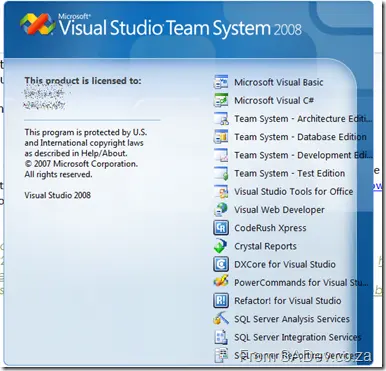
Hmm, nothing new on the splash screen.
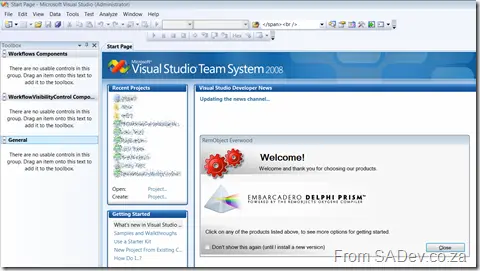
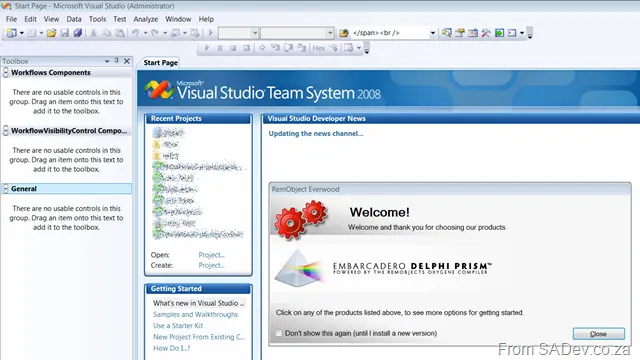
Ah, there is a special window. This could be annoying, though—maybe "Don’t Show" should be the default.
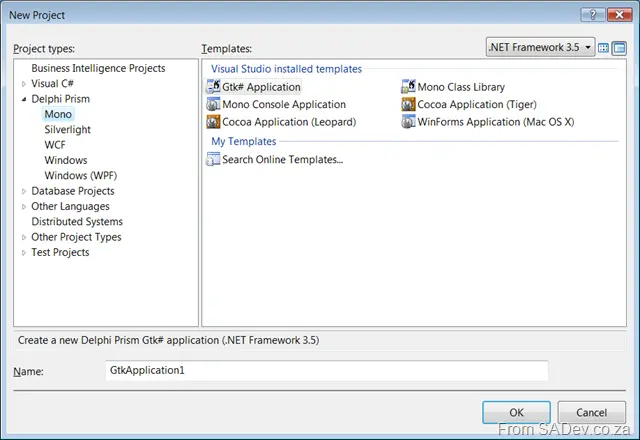
In the New Project dialog, there it is: the Delphi Prism section. Yes, changing the framework version changes what’s available—same as in C# or VB.NET:
[]
Interesting is this sub-section called Mono, which has GTK# and Cocoa options!!
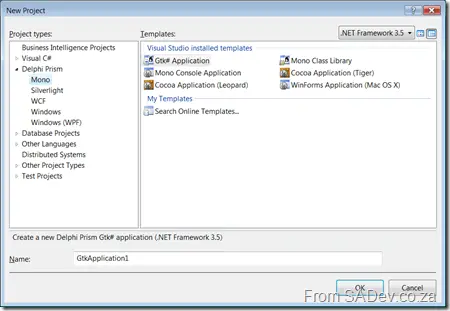
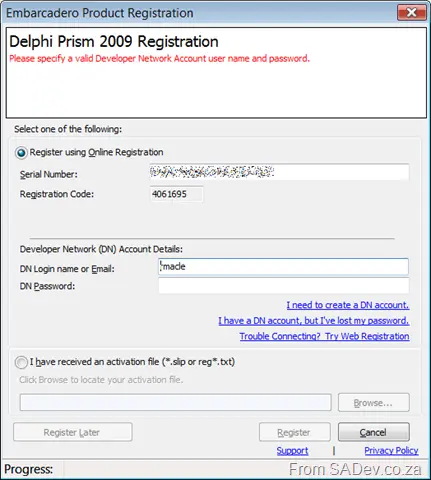
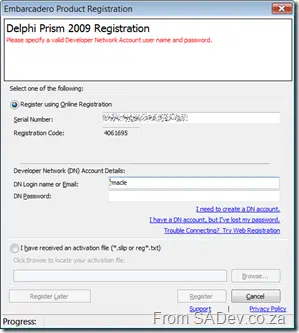
I first chose GTK#, and I got prompted for registration… damn, more remembering of that BDNCDN password 😒
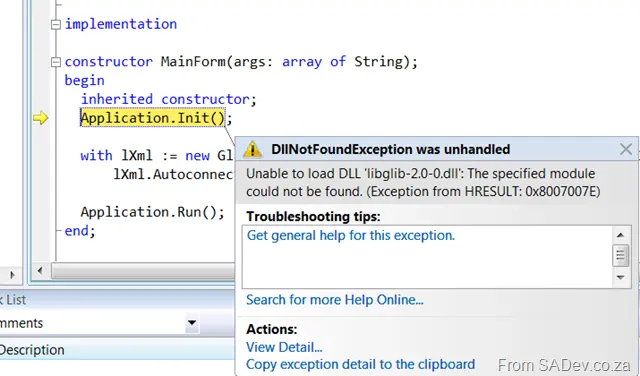
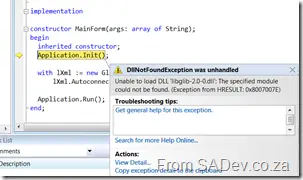
Right, so let’s just compile and run… and boom—that failed 😒
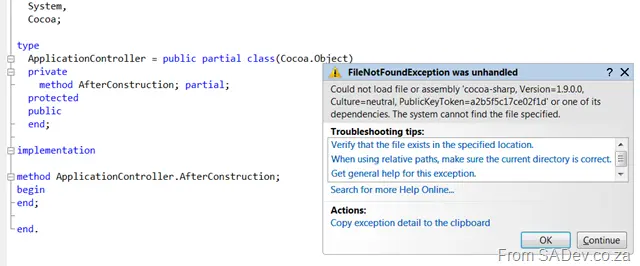
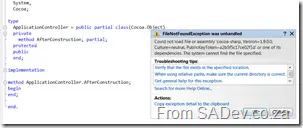
Right, maybe GTK# needs something? Let’s try Cocoa (Leopard)… which also boomed 😒
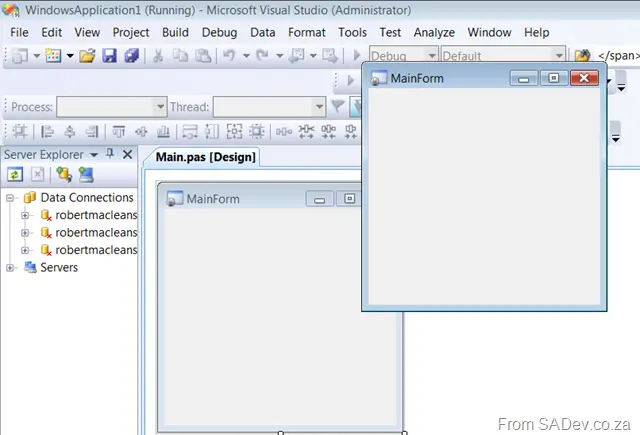
WinForms on OSX… that works 😊
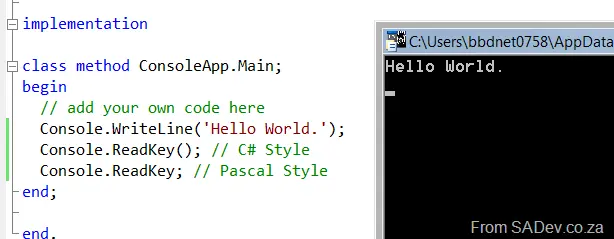
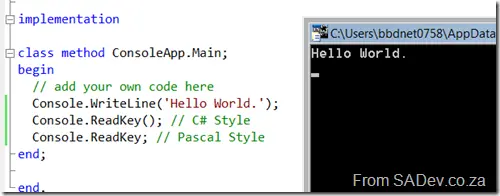
GTK#/Mono Console App… that works too! Love the base code (hello world). I added ReadKey() to test the various styles, and both work (check the screenshot).
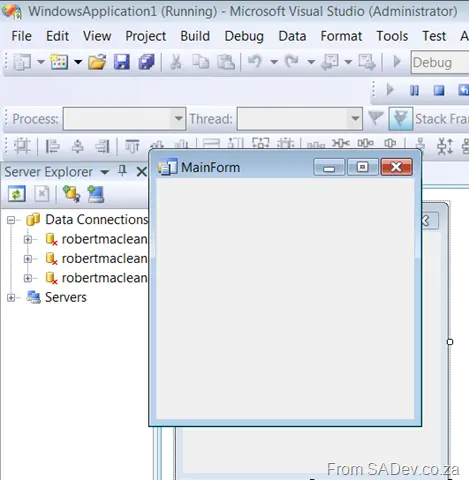
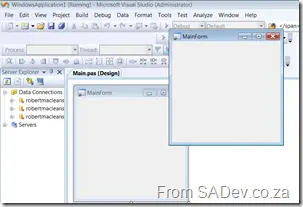
How about good old Windows WinForms-based? That worked too! 😊
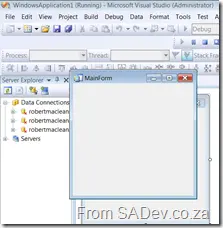
So I drop a button onto the form and double-click… hmm, no partial class support, so everything goes into the main.pas, same as C# in Visual Studio 2003. Anyway, this lets me try some things—first, IntelliSense, which works great:

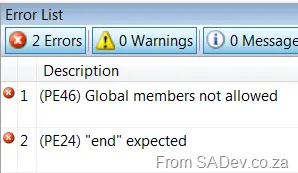
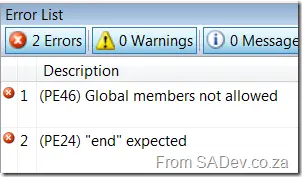
Error messages look slightly different:
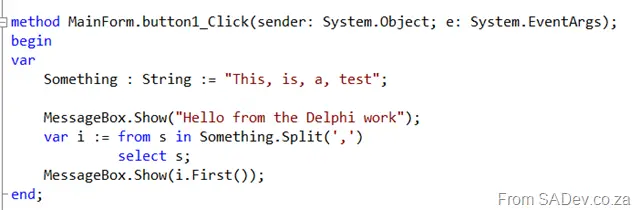
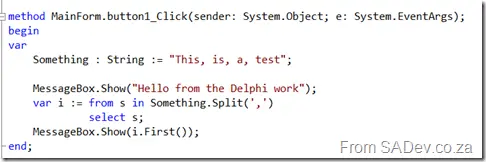
And LINQ in Delphi works!!
Right, enough basics for this post.
So Day 2 started with growing the control further, but first I wanted to set the code up to run in IIS.
Perl + IIS 7
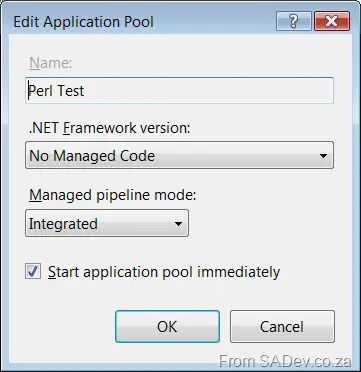
First, I created a simple application pool for this site to run in. One of the nice things is setting it to not run .NET Framework code, which just lowers your attack surface.
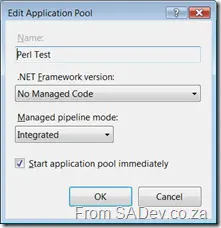
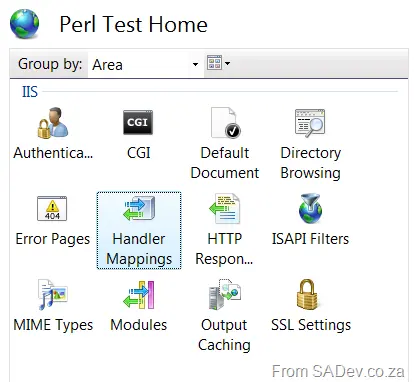
Next, I created a simple website to use that app pool. However, there was no handler setup (odd—I thought ActivePerl’s install did this—but maybe it’s IIS 6 only). To fix that, I clicked on Handler Mappings:
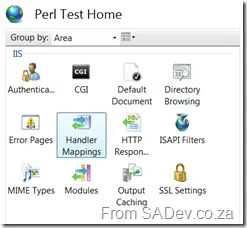
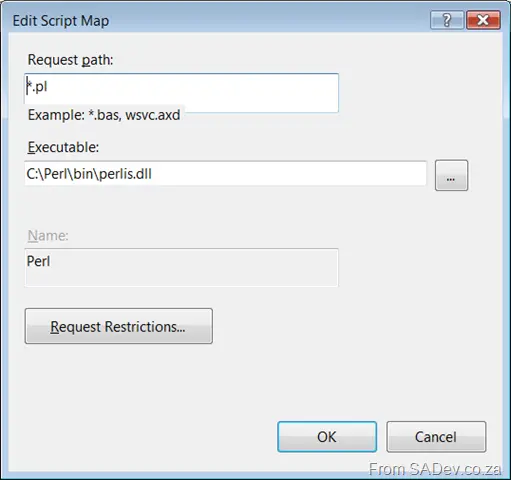
In there, I added a Script Handler with the following settings:
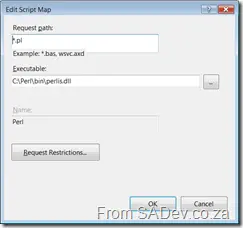
Note: I would leave Request Restrictions on the default unless you have a good reason to change it.
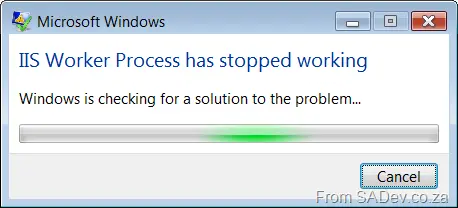
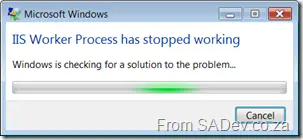
After that brief config, my Perl worked for a while, until I started getting this error (IIS Worker Process has stopped working) when browsing to the web page:
I had just changed code before that, so here’s a quick test to try and find the fault. The snippet of Perl code looks like the following:
print "<html>
<head>
<script src='jquery.js' type='text/javascript'></script>
<script src='jquery.simplemodal.js' type='text/javascript'></script>
<script src='test.js' type='text/javascript'></script>
</head>
<body style='font-family: Calibri'>

Username <input type='text' id='result' readonly='readonly'/><span id='test' style='color: #0000FF; text-decoration: underline; cursor: hand'>Select User</span>

<div id='listContent' style='padding: 5px; background-color: #000000; color: #FFFFFF; border: thin solid #C0C0C0; width: 450px; overflow: scroll; height: 450px;'>
<div style='font-size: x-small; color: #C0C0C0; text-align: right; cursor: hand;padding-right: 20px;' class='simplemodal-close'>Cancel</div>
<span style='text-transform: capitalize; font-weight: bold; padding-bottom: 3px'>Select a user by clicking on their name</span>
<hr />
Filter <input type='text' id='filter' />
<hr />";
If you’re stuck, here’s a hint: Line 14.
...
...
Ok, if you got it, good. If not, well, it’s because the HTML I was outputting had " in it and that caused the string to close and some garbage (from the compiler’s POV) to follow it. Why this had to kill the process, I don’t know—what’s wrong with a proper error message like we get from .NET?!
Filtering
I added a text box to the popup dialog so I could filter using jQuery .show() and .hide() methods. This isn’t that impressive, but it led me to needing the jQuery documentation a lot (mainly for selectors, but I was also getting weird results with hide()… until I realized I had <br/> tags there and those weren’t getting hidden). Checking with the slow internet here wasn’t great.
I found (read: I went to the jQuery Alternative Resources page) a cheat sheet I could print and stick on the wall in front of me. There are two listed there: one Excel and one Image. The image one looks nicer and is more verbose, but I went with the Excel one because it has examples—and I can figure out more from the examples than the verbose text in the image gives me.
One of the other things about filtering is that I wanted it to be case-insensitive, but I was using :contains for the filtering, which is case-sensitive. I found a great thread on adding an extension method to it with a case-insensitive version of :contains. I recommend copying and pasting that if you’re stuck.
So continuing on from part 1…
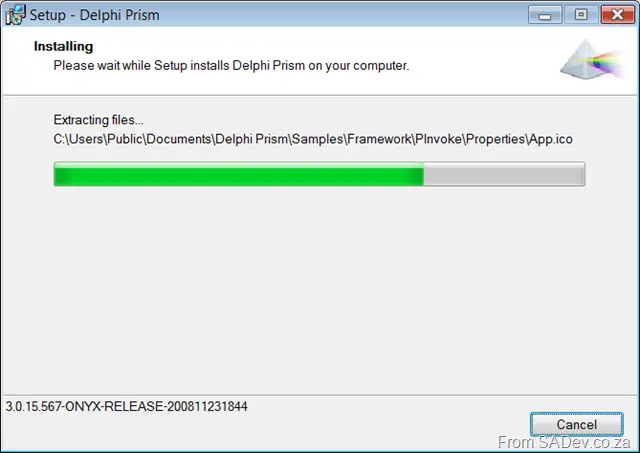
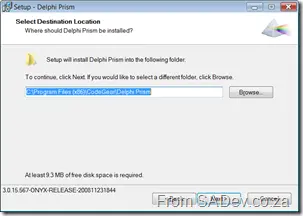
My machine (Windows Server 2008) already has Visual Studio 2008 installed, so this may be different for those who do not already have it. This will be a lot of pictures showing step-by-step the installation and my comments on that.
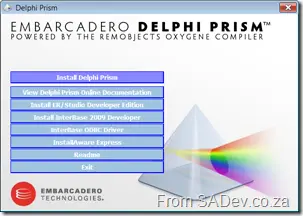
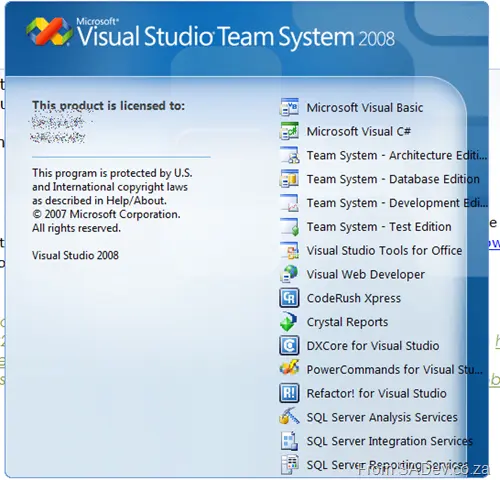
The standard splash screen for any application.
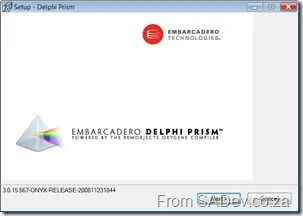
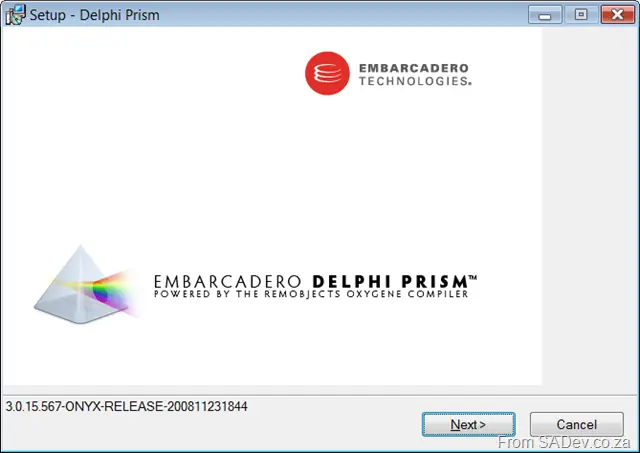
First window of the wizard installer. Interesting is the version number there—I wonder if "Onyx" is the codename for this product?
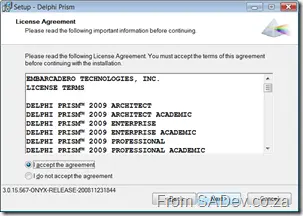
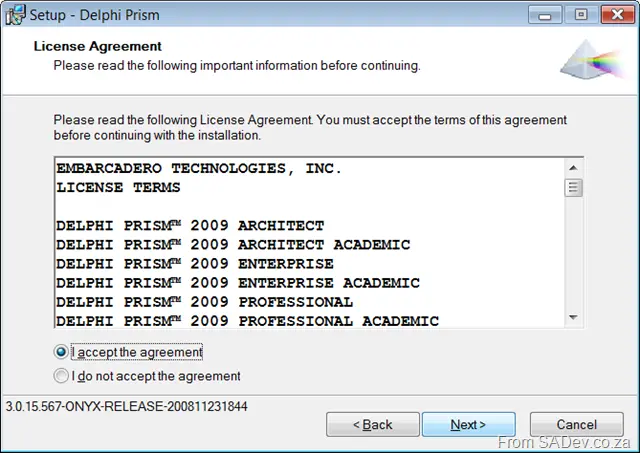
Same as what is in license_??.rtf in the root of the disk.
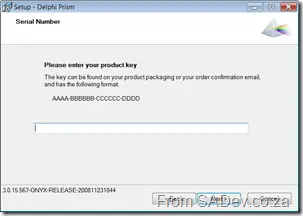
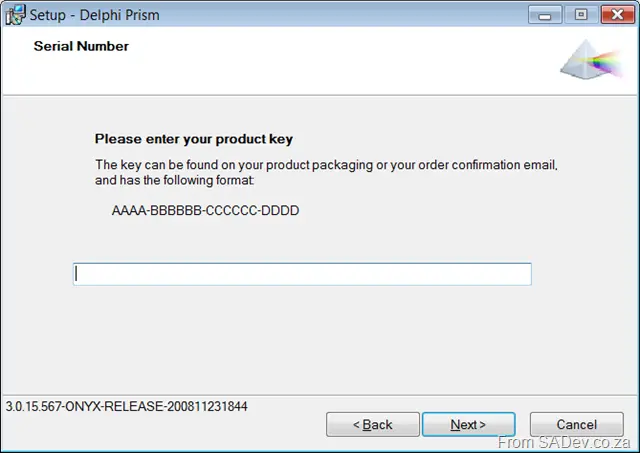
Enter key—what key? Damn, need to find the mail they sent me… Gmail here I come. Damn, no key in the mails they sent me. Okay, back to the Embarcadero site. Oh, look—I had to enter that manually. WTF, why don’t you send it to me when I click download? Oh well, guess I can’t get everything.
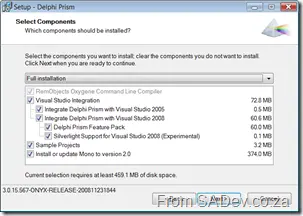
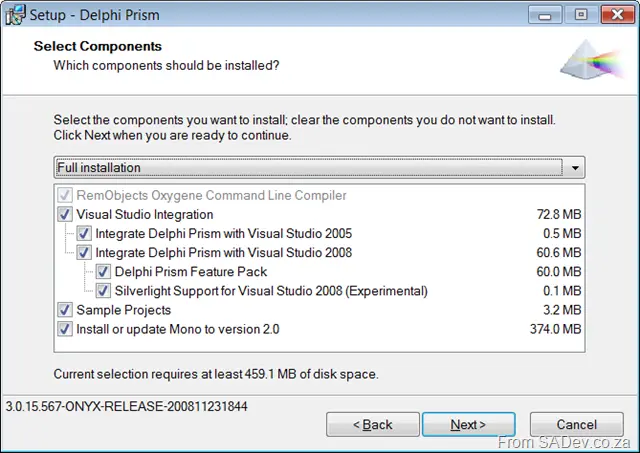
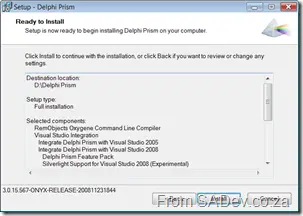
This is interesting—since I have Visual Studio 2005 installed as well, it seems to integrate with that too (cool). I make this assumption because the shell on the disk is only for 2008. Silverlight support is also interesting.
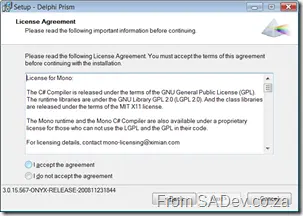
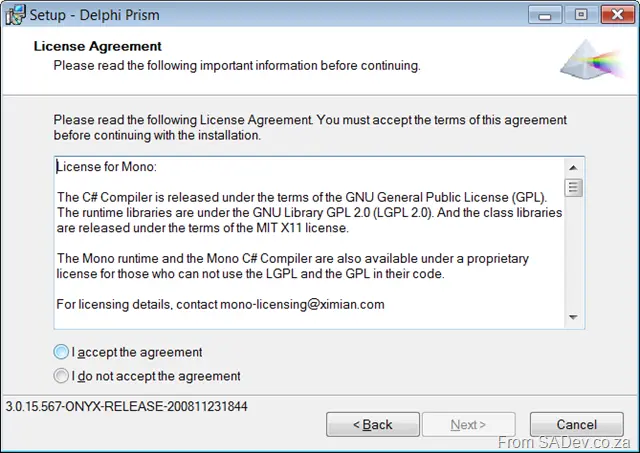
Mono license.
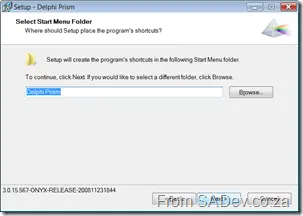
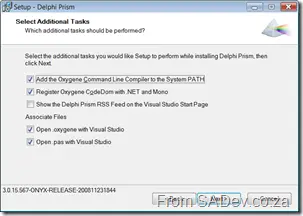
Hey, thanks for giving me an option to change my Visual Studio start page to Delphi Prism. The SQL guys could learn a lot from you—they just set it to Microsoft.com/sql regardless of whether you want that or not.
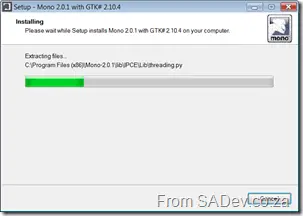
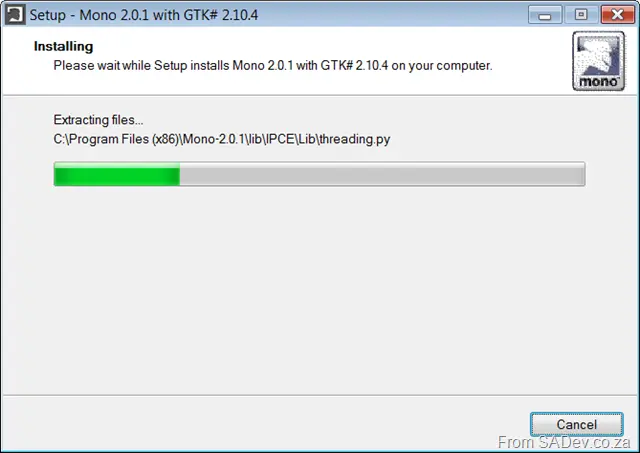
Mono installs first, then
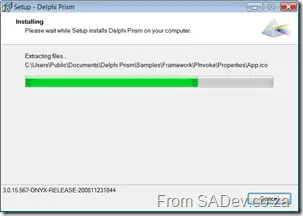
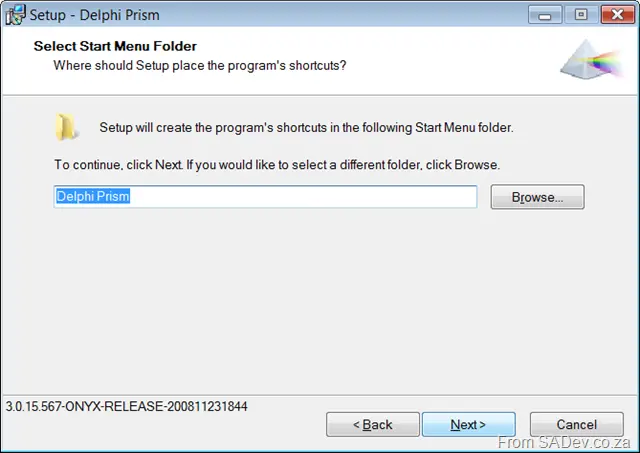
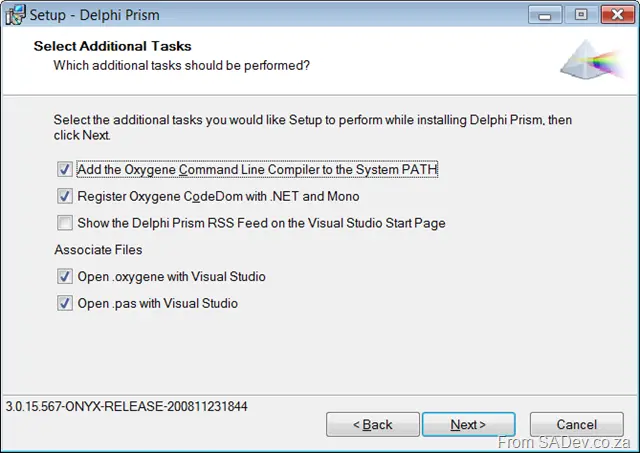
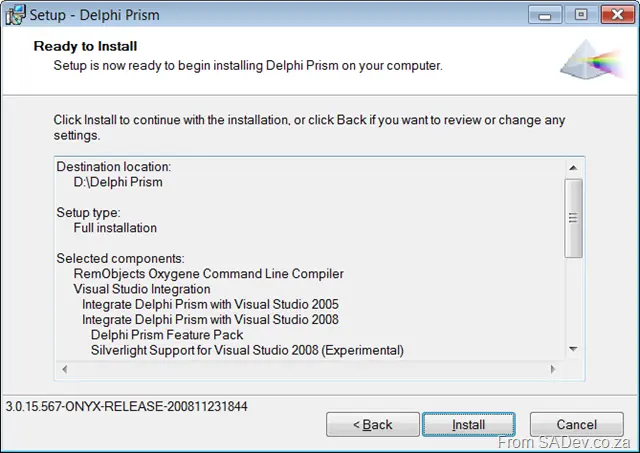
Prism actually installing.
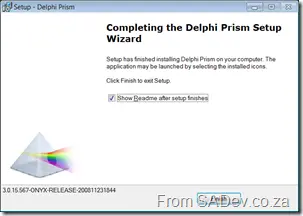
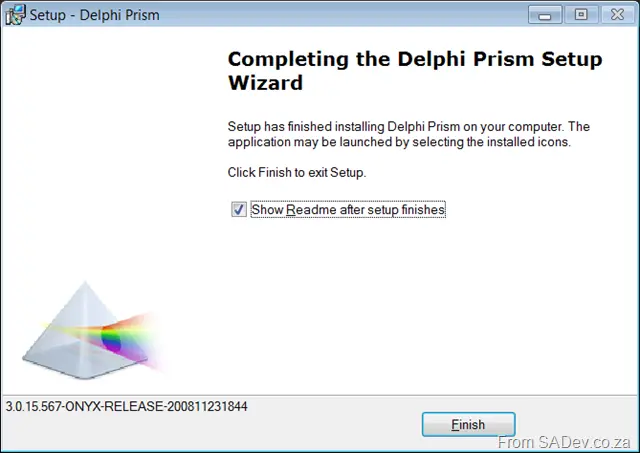
And done! From start to finish in under 10 minutes!
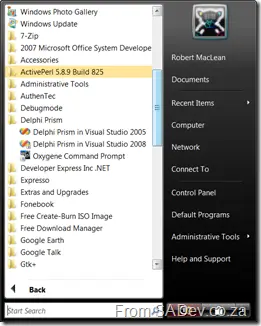
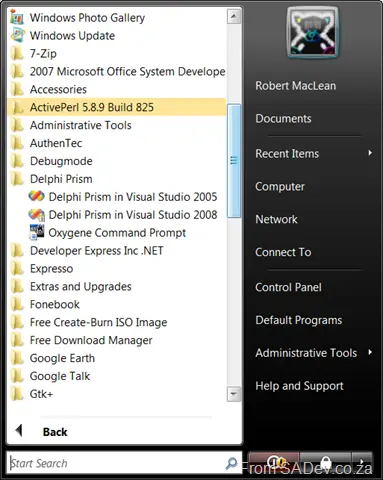
Icons in the program list.
Hi, my name is Robert. I’ve been a closet Delphi fan for many years. <Hi, Robert>. So when Borland—sorry, Inprise—no, actually, it’s Borland, but I was thinking of CodeGear, never mind, it’s Embarcadero—said there was a super-duper new version coming, I got excited. So I’ve downloaded the trial and will blog about the experience. Now, note: Delphi is not what I use day to day—in fact, if I’m choosing a language now, it’s C#—so don’t expect production-level evaluations but rather a hacker’s perspective.
First thing: downloading it (and finding my BDN CDN login) and waiting for the 4GB to download to the slow internet of South Africa.
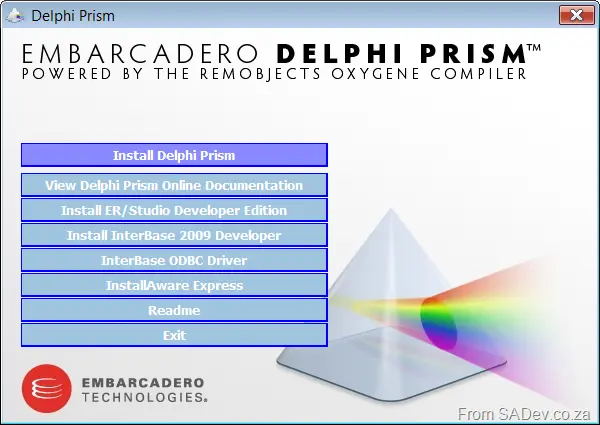
So let’s see what’s in the box—or, more accurately, the installer:
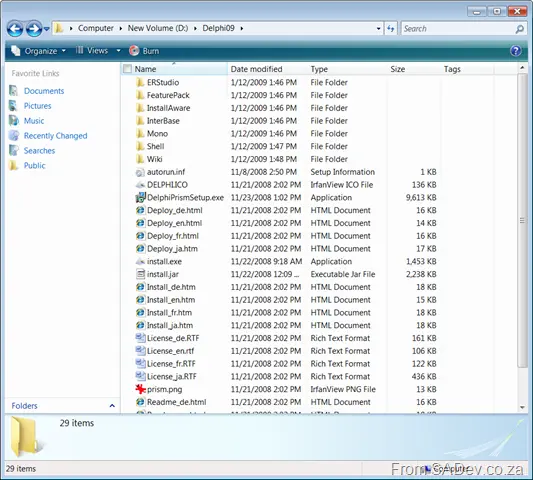
First up: ER/Studio Developer Edition, a database modeling tool from Embarcadero.
InstallAware Express (CodeGear edition) is an installer system—think MSI/InstallShield/NSIS, etc.
Next is InterBase 2009 Developer Edition—no need to explain what that is (Delphi fans will just know).
Mono is exciting, especially since it includes the Win32 GTK version. Cross-platform dreams are coming back.
The installer also includes the VS 2008 shell—pretty straightforward.
The included Wiki is interesting—it looks like a dated dump (September 29, 2008) of their site, with most editing disabled. That makes sense and is actually very useful for us in slow-internet countries where connecting to the wiki can sometimes be a struggle. To whoever had this idea: well done! A few articles that stood out:
- Win32 Delphi vs. Delphi Prism
- Delphi Prism Syntax compared with Win32 Delphi
- Migration Tools: Oxidizer – ShineOn
And there’s also a logo to check out:
Recently I needed to do a bit of coding for a project that needed a lookup system into Active Directory, written in Perl. This post explores the excitement (read: pain) I had with this bit of coding. I haven’t touched Perl in a few years, but development is like riding a bike, isn’t it?
Setup
The first problem was that I used to “ride” a Linux bike where Perl is part and parcel of the world. Now I was working on a Windows Server 2008 on my laptop—a different story entirely. So, step one was getting Perl for Windows, and thankfully, my memory (not yet fully destroyed by beer) recalled Active Perl from Active State. It had a Windows version—this takes me back almost a decade to when I last used it, go strong, brain cells! The download and install were painless; it just did its thing.
Next, I needed an IDE to get up and running. I found Perl Express, a free, lightweight IDE for Windows with a built-in debug environment—all I needed. Later, I realized I might have confused it with my small script. Many people recommended Slick Edit instead, as it’s far superior, but it costs money. Since I only needed it for a short while, I stuck with Perl Express. If this were a daily task, though, I’d invest in a proper IDE.
Install NET::LDAP Attempt 1
Next, I needed to figure out how Perl could talk to Active Directory. I assumed LDAP support would be the way, and I found a great series on using NET::LDAP (the link goes to Bundle::NET::LDAP, but I’ll explain that later). You can read part 1 of that series here. I fired up Perl Express and tried the first sample, but it died with the error: “I don’t have NET::LDAP.” So off I went to find out how to install the module via the command line:
perl -MCPAN -e "install Net::LDAP"
However, since it had dependencies, I decided to install the bundle pack instead:
perl -MCPAN -e "install Bundle::Net::LDAP"
This would download, compile, and install everything. The first time I ran the command, it failed—my proxy at work was blocking me. Time to switch to my trusty 3G connection.
Install NET::LDAP Attempt 2
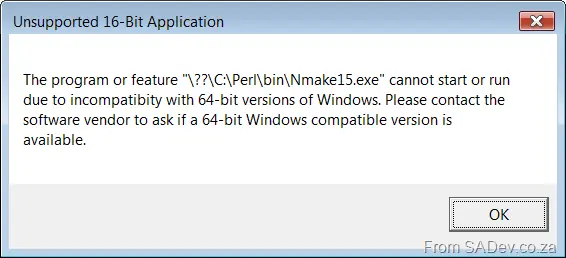
The second attempt failed with a popup error:
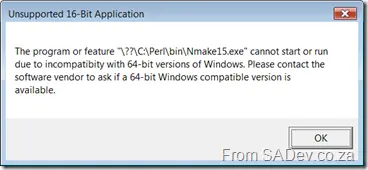 (See full image here)
It needed to compile but couldn’t find NMake, so it downloaded an old 16-bit version from Microsoft—which wouldn’t run on 64-bit Windows Server 2008. The internet suggested downloading the Windows SDK, which had a 32-bit version, but it was massive (a few hundred MB). However, I already had Visual Studio installed—shouldn’t it have what I needed?
Thankfully, my search kung fu (I must stop calling skills “Kung Fu”—X-Files is messing with me) led me to a local version of the tool. To use it, I had to run this at the command prompt before the Perl install:
"C:\Program Files (x86)\Microsoft Visual Studio 9.0\VC\vcvarsall.bat"
Install NET::LDAP Attempt 3
Right—attempt number three. This failed due to missing dependencies. You’d think when it asked:
==> Auto-install the 1 optional module(s) from CPAN? [n]
it would actually do that if I said yes. Doesn’t seem so. It appears to be just testing how many times I’d run the tool.
Install NET::LDAP Attempts 4 & 5
Sigh. Now I’d try installing each dependency manually. The commands looked like this:
"C:\Program Files (x86)\Microsoft Visual Studio 9.0\VC\vcvarsall.bat" perl -MCPAN -e "install GSSAPI" perl -MCPAN -e "install IO::Socket::SSL" perl -MCPAN -e "install XML::SAX::Writer" perl -MCPAN -e "install Bundle::Net::LDAP"
It still complained about issues, so I ran each one again—ignoring errors (ignorance is bliss). When prompted, I chose the default “no.” Somehow, even with errors (or maybe I’m just not used to reading these messages), a NET folder with an LDAP.pm file appeared in C:\Perl\site\lib!
Five attempts and it was installed—yeah, just like riding a bike.
Finding My Domain Controller
First, I needed to provide NET::LDAP with my domain controller, which I didn’t know. Instead of logging a call with IT, I decided to figure it out myself. Thankfully, I found a page on Microsoft’s site detailing How Domain Controllers Are Located in Windows, including troubleshooting steps. One method was to manually test via the command line:
nltest /dsgetdc:
This gave me exactly what I needed.
Control Construction Step 1 – Getting the Details
The first part of building my lookup control was querying Active Directory for all users and listing them back. I defined a user as someone with a non-empty surname and a username—no machines or system accounts (yes, SkyNet, I’m looking at you).
The final script looked like this:
use strict;
use Net::LDAP;
use Net::LDAP::Control::Sort;
my $DomainController = "<DOMAIN CONTROLLER>";
my $Username = "<USERNAME@DOMAINNAME>";
my $Password = "<PASSWORD>";
my $BaseOU = "<BASE OU>";
my $Attributes = "sAMAccountName,sn,displayName";
my $Filter = "(objectCategory=User)";
print "Attempting to connect to " . $DomainController;
my $ad = Net::LDAP->new($DomainController)
or die "Could not connect!";
$ad->bind($Username, password => $Password);
my $sort = Net::LDAP::Control::Sort->new(order => "displayName");
my $results = $ad->search(
base => $BaseOU,
filter => $Filter,
attrs => $Attributes,
control => [$sort]
);
if ($results->count == 0) {
die "No results returned";
} else {
for (my $counter = 0; $counter < $results->count; $counter++) {
my $user = $results->entry($counter);
if (defined($user->get_value("sn")) &&
length($user->get_value("sn")) > 0 &&
defined($user->get_value("sAMAccountName"))) {
print "\nUser Found: " .
$user->get_value("displayName") .
" (" . $user->get_value("sAMAccountName") . ")";
}
}
}
$ad->unbind;
print "\nDone";
Since I don’t deserve to be called a Perl programmer (I have no skills here), this Perl hacker relied on the internet for help. The sites that helped were:
Control Construction Step 2 – The HTML
Since this would be a web page, I wanted a popup when clicking a text box to select a user. To simplify development, I created an HTML file on my desktop and got the JavaScript working in a tightly scoped scenario. This way, I could focus on structure and logic without worrying about bugs from data or Perl code.
Since I’d use JavaScript, I needed a copy of everyone’s (well, at least mine and the guys at End User SharePoint and Microsoft) favorite JS library: jQuery. Next, I browsed jQuery’s plugin section to see if someone had already built what I needed—because, honestly, I’m too busy to reinvent every wheel. Besides, the demos were impressive enough to get me geeked out.
Thankfully, I found Eric Martin’s wonderful Simple Modal plugin, which helped me create a nice mashup of HTML and pop-ups.
You can grab the source code for that mashup by clicking Download (you’ll need 7-Zip to open it).