My first time presenting at DevDays was a great experience, with me presenting in the community slot. I told the attendees of my session that they were the smart ones because—by the end of the day—only the dedicated people were left, and those dedicated people got two presentations for the price of one timeslot.
The session itself covered how to write JavaScript more easily with jQuery and Visual Studio 2010, which you can see below. Now, the slides below aren’t done using some special PowerPoint-to-web tool, but are HTML that uses jQuery. Using the same technology as I was presenting on—and building it in Visual Studio 2010—really highlighted how powerful and easy this was to do.
To navigate the slides, click the grey dots at the top or click on the slide and press = to go forward and - to go back.
They are a little wide for the website, so to see them in a new window, click here.
The demo used jQuery and Visual Studio 2010 to clean up the page, and then connect to Stack Overflow to pull down my stats and display them to the audience. The completed demo code (which is not included above, so the demo page won’t work) is as follows (this goes in the <HEAD> tags in the demo .html page):
<scriptsrc="jQuery/jquery-1.4.2.js"type="text/javascript"></script><scripttype="text/javascript">
$(document).ready(function () {
$("#DemoButton").click(gapSO);
});
functiongapSO(e) {
///<summary>Gets and parses Stack Overflow Points</summary>var sourceDiv = $(this);
var replacementText = "I have ";
var stackOverflowURL = "http://stackoverflow.com/users/flair/53236.json";
sourceDiv.html("Loading...");
$.getJSON(stackOverflowURL, function (data) {
replacementText += data.reputation + " points and " + data.badgeHtml + " badges on StackOverflow";
sourceDiv.html(replacementText);
});
};
</script>
Last week, I was able to upgrade BB&D’s internal intranet site from SharePoint 2007 to SharePoint 2010! So you can properly understand what happened, let me cover a little bit about the intranet first. Our intranet is a small deployment—just a single server deployment—however, it is kept up to date with technology, so it is running on SQL Server 2008 with SP1, Windows Server 2008 R2 on a 64-bit virtual machine. We have also avoided heavy customization, instead focusing on small tweaks and adjustments. A good example is that we do not have a customized master page but rather use the theme options to achieve the color scheme we want.
The first step I took was to download the prerequisites for SharePoint 2010, and using the option on the installer, it was a breeze. I’ve seen this before with Dynamics CRM, and once again, I am impressed by how a very simple feature makes such a big difference. The next step was the install, which was painless and quick.
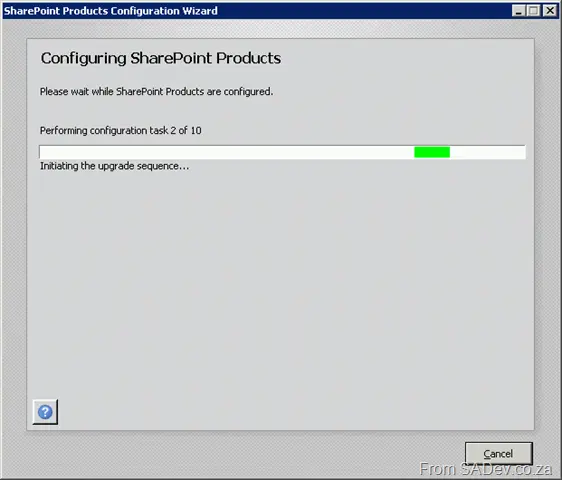
Once installed, the configuration manager had to run, and this is where I encountered two issues. The first problem was that I got stuck on Task 1! The cause here was that a dialog box had appeared behind the main window (telling me to do the same for all servers in the farm) and wouldn’t go away until I clicked OK. This annoying little bug cost me a few minutes.
The second issue was that the SharePoint 2010 install needed to perform some Active Directory queries, and this meant my user account did not have sufficient permissions. Not having adequate permissions resulted in the installer producing a very unhelpful error at step 3:
`System.ThrowHelper.ThrowKeyNotFoundException()`
  at `System.Collections.Generic.Dictionary`2.get_Item(TKey key)`
  at `Microsoft.SharePoint.Utilities.SPUtility.GetUserPropertyFromAD(SPWebApplication webApplication, String ginName, String propertyName)`
  at `Microsoft.SharePoint.Administration.SPManagedAccount.GetUserAccountControl(String username)`
  at `Microsoft.SharePoint.Administration.SPManagedAccount.Update()`
  at `Microsoft.SharePoint.Administration.SPProcessIdentity.Update()`
  at `Microsoft.SharePoint.Administration.SPApplicationPool.Update()`
  at `Microsoft.SharePoint.Administration.SPProcessIdentity.UpgradeToV4ManagedAccount()`
  at `Microsoft.SharePoint.Administration.SPConfigurationDatabase.ResolveObjectAndClassVersions(SPLog log)`
  at `Microsoft.SharePoint.Upgrade.SPConfigurationDatabaseSequence2.Upgrade()`
  at `Microsoft.SharePoint.Upgrade.SPUpgradeSession.Upgrade(Object o, Boolean bRecurse)`
It took ages to figure this out, mostly because it is not a documented requirement. To get the correct permissions, you need to get a domain admin to do the following on the domain controller:
Open Active Directory Users and Computers.
Select Advanced Features from the View menu. Failing to do this means that the tab in step 4 won’t be visible.
Right-click your AD account and select Properties.
Select the Security tab.
Select Authenticated Users in the Group or user names field.
Allow Full Control permissions.
Repeat this process for any SharePoint service accounts you may have created.
Ensure this change replicates to all domain controllers.
Connect to your SharePoint server and open a command prompt (cmd.exe). Type gpupdate /force. This will force the changes to the machine, as it may have a cached version.
Finally, reboot the SharePoint server and start the configuration wizard again.
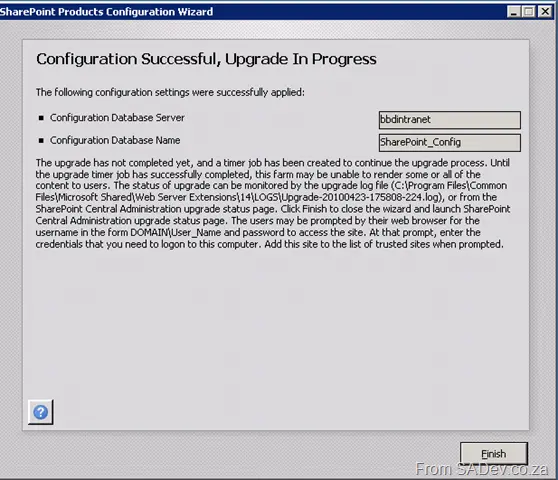
After all that was done, the configuration wizard completed, and the upgrade process started in Central Admin. The upgrade process also took a while, but once done, everything just worked.
Lastly, we applied some theme tweaks and ran a quick test—it was done. One thing that is important to remember about this process is that the entire time it was happening, the current intranet was live, so plan your deployment accordingly. This is easily the best experience I’ve ever had installing or upgrading SharePoint—and it shows that the product is maturing.
I have had to explain many times in the last year why I, a normal developer, am involved with Information Worker, which is (mostly) a SharePoint group? I am involved because I believe that the idea of a SharePoint Developer is a fast-dying one—and soon, people who call themselves SharePoint Developers will use it just as a way to justify higher consulting costs more than anything else.
I do not think this is because SharePoint usage is dying, rather the growth (maturity and adoption) of SharePoint is causing SharePoint developers to die off. This is not because SharePoint is so user-friendly that we no longer need custom code—because we still need custom code in SharePoint. The two reasons for my thinking stem from two questions: “What is SharePoint development really?” and, secondly, “What Microsoft is doing about SharePoint development?”
What is SharePoint development really? In SharePoint versions past (2007 and before), you would develop code for SharePoint using development concepts unique to SharePoint. Now that SharePoint has matured, development of the code for SharePoint involves concepts that are universal to development. Two examples highlight this maturity:
First, web parts, which are now the same as ASP.NET web parts; second, web services (and OData if you have SharePoint 2010). Both concepts are identical to those used by many other products from Microsoft and other companies. For example, if you understand how to get data from Twitter, with OData in SharePoint 2010, you’ll understand how to get data from SharePoint. Yes, you will have some SharePoint-specific bindings/APIs/code—but the concepts (the difficult part) remain the same.
I mentioned two questions, and the second concerns Microsoft’s strategy for SharePoint development—particularly their 2010 strategy (Visual Studio 2010 + SharePoint 2010). A SharePoint developer used to have to download special files, install them, fix issues, try installing again, fix more issues, and rely on special machines or virtual machines to run SharePoint. The actual process of just writing code for SharePoint meant becoming elite because you had to endure a ritual of fire before you could even start.
Microsoft has made SharePoint 2010 development simple—and, more importantly, easy to start with. They achieved this by making SharePoint run natively on Windows 7 and by including everything needed for development within Visual Studio 2010 from day one. Now, it’s as easy to start writing code for SharePoint as it is to make a WPF application!
What I’m trying to convey is that previously, a SharePoint developer had “paid their school fees” by learning so much that was specific to SharePoint development that they had earned a special title. Now that all those barriers have been removed, the title of SharePoint developer no longer applies—we are all just developers now!
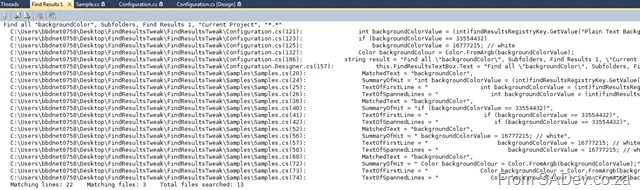
Visual Studio is filled with goodness and happiness, and a lot of that is available for tweaking—so you can get the maximum goodness via the Tool → Options menu. One of the things that doesn’t have any visible options is the formatting of how the results are displayed:
The problem, as indicated above, is a ton of white space, long file paths, no column information, etc. Wouldn’t it be great to tweak how that can be displayed? Thankfully, Sara Ford found a way to do exactly that via the registry. So you could tweak it to actually display the way you want it!
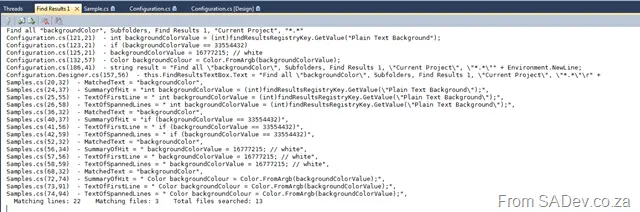
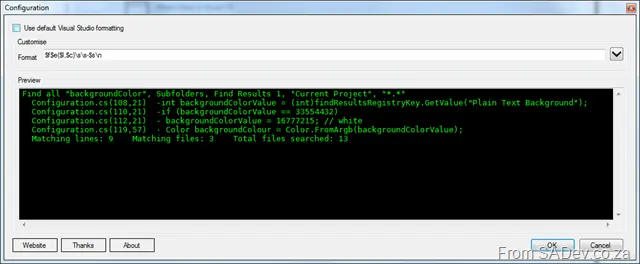
In my tweaked version, it’s far more concise—with just the filename (no more path), less whitespace (since I’m showing only a summary of results), and I also included the column info. The problem is that editing the registry isn’t user-friendly. 😒 This gave me the chance to write my first Visual Studio add-in, which gives you an option inside Visual Studio to set it.
What’s really nice is that while you configure the format, the preview window updates in real time and shows you how it looks—so you don’t get any surprises when you save it! If you’d like to find out more about it, you can visit the site on CodePlex at http://findresultstweak.codeplex.com/.
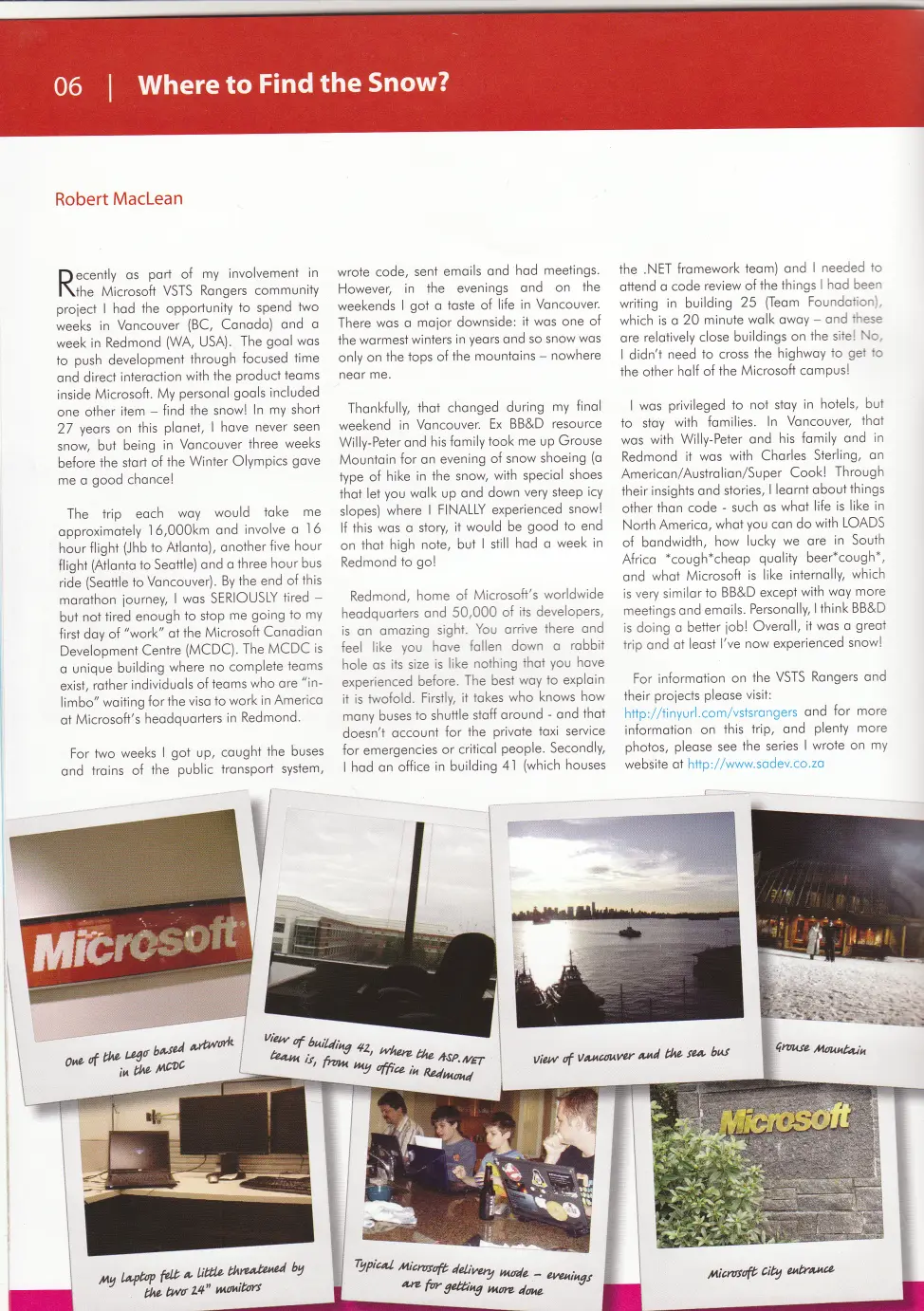
After being at BB&D for almost two years, I finally managed to get an article in the BB&D newsletter! The article is about my trip in January to Canada and the US for the ALM Rangers work. This was a different experience than writing for my blog, because it had to go through an editor and a copywriter before it was included. They made enough changes to the article that, reading it myself, it felt strange—it sounds like me, just a different me.
Click the image for a bigger view.
Thanks to Martin for spotting that the clicking of the image didn’t give a bigger view, which is now fixed.
[Note: See the series index for a list of all parts in this series.]
A few people have struggled with getting all the bits of code scattered in this series to actually work. This isn’t only because they are scattered, but also because Part III did not display the code correctly and there was a bug in Part IV. I’ve gone back and fixed those issues, and to help further, here is the full code in one consolidated view (click read more if needed to see it):
using System;
using System.Collections.Generic;
using System.IO;
using System.IO.Packaging;
using System.Linq;
using System.Xml;
using System.Xml.Linq;
namespaceReadFromExcel
{
classProgram
{
staticvoidMain(string[] args)
{
List<Cell> parsedCells = new List<Cell>();
string fileName = @"C:\Users\bbdnet0758\Desktop\Demo.xlsx";
Package xlsxPackage = Package.Open(fileName, FileMode.Open, FileAccess.ReadWrite);
try
{
PackagePartCollection allParts = xlsxPackage.GetParts();
PackagePart sharedStringsPart = (from part in allParts
where part.ContentType.Equals("application/vnd.openxmlformats-officedocument.spreadsheetml.sharedStrings+xml")
select part).Single();
XElement sharedStringsElement = XElement.Load(XmlReader.Create(sharedStringsPart.GetStream()));
Dictionary<int, string> sharedStrings = new Dictionary<int, string>();
ParseSharedStrings(sharedStringsElement, sharedStrings);
XElement worksheetElement = GetWorksheet(1, allParts);
IEnumerable<XElement> cells = from c in worksheetElement.Descendants(ExcelNamespaces.excelNamespace + "c")
select c;
foreach (XElement cell in cells)
{
string cellPosition = cell.Attribute("r").Value;
int index = IndexOfNumber(cellPosition);
string column = cellPosition.Substring(0, index);
int row = Convert.ToInt32(cellPosition.Substring(index, cellPosition.Length - index));
int valueIndex = Convert.ToInt32(cell.Descendants(ExcelNamespaces.excelNamespace + "v").Single().Value);
parsedCells.Add(new Cell(column, row, sharedStrings[valueIndex]));
}
}
finally
{
xlsxPackage.Close();
}
// The following is additional code not covered in the posts—just to show it works.foreach (Cell cell in parsedCells)
{
Console.WriteLine(cell);
}
}
privatestaticvoidParseSharedStrings(XElement sharedStringsElement, Dictionary<int, string> sharedStrings)
{
IEnumerable<XElement> sharedStringsElements = from s in sharedStringsElement.Descendants(ExcelNamespaces.excelNamespace + "t")
select s;
int counter = 0;
foreach (XElement sharedString in sharedStringsElements)
{
sharedStrings.Add(counter, sharedString.Value);
counter++;
}
}
privatestatic XElement GetWorksheet(int worksheetID, PackagePartCollection allParts)
{
PackagePart worksheetPart = (from part in allParts
where part.Uri.OriginalString.Equals(String.Format("/xl/worksheets/sheet{0}.xml", worksheetID))
select part).Single();
return XElement.Load(XmlReader.Create(worksheetPart.GetStream()));
}
privatestaticintIndexOfNumber(stringvalue)
{
for (int counter = 0; counter < value.Length; counter++)
{
if (char.IsNumber(value[counter]))
{
return counter;
}
}
return0;
}
}
internalstaticclassExcelNamespaces
{
internalstatic XNamespace excelNamespace = XNamespace.Get("http://schemas.openxmlformats.org/spreadsheetml/2006/main");
internalstatic XNamespace excelRelationshipsNamespace = XNamespace.Get("http://schemas.openxmlformats.org/officeDocument/2006/relationships");
}
publicclassCell
{
publicCell(string column, int row, string data)
{
Column = column;
Row = row;
Data = data;
}
publicoverridestringToString()
{
returnstring.Format("{0}:{1} - {2}", Row, Column, Data);
}
publicstring Column { get; set; }
publicint Row { get; set; }
publicstring Data { get; set; }
}
}
This page acts as a list of the various parts in the series of blog posts about reading and writing to Excel 2007 or Excel 2010 (i.e., the .XLSX format) files using C#:
DevRally is an event that has been bubbling in my head—and in the heads of many others—for a while, most importantly Willie Roberts. The idea behind this event is a developer-focused gathering that isn’t vendor-driven, so open discussions about technology can thrive among developers who would otherwise never meet. It’s also not centralized—it’s distributed, using conference technologies to bring the best speakers to the audience easily (and cheaply).
A while back, Willie and I decided to see if we could make it happen. As usual for this sort of idea, the first thing we did was launch a website and a survey to gauge interest. Yesterday marked the second step in the process: securing sponsors! Both BB&D and Mr. Price have come on board, providing venues and infrastructure support for the event. We still need a few more sponsors—and we need to finalize dates, speakers, and other details—but this space, this event is going to be a blast!
Considering Zayd Kara, Rudi Grobler, and I were in Seattle, we took a few days extra to sightsee around the town—and here are some of the highlights from the camera:
First, we found the Needle—since it was the only thing Rudi wanted to see.
The entrance to the Microsoft Visitors Centre—worth a look at the cool tech. (Not enough Visual Studio in there, though.😉)
An entire store devoted to Lego was almost too much for me! You could even buy individual bricks based on type and color for specific products.
At the Sci-Fi Museum and Hall of Fame (SFM), I geeked out a lot—(ask Rudi about my running tour of the place). R2-D2 was cool.
Still at SFM, the flying cop car from Blade Runner!
Right next to SFM was EMP – Experience Music Project. This is the HUGE concert screen in the lobby.
The Yes time capsule at EMP.
Rudi Grobler, Zayd Kara, and I in our “band” at EMP!
The Eagle artwork at the SAM (Seattle Art Museum) in Olympic Park.