Note: This post is part of a series and you can find the rest of the parts in the series index.
This is seriously some of the coolest stuff in .NET 4: System.Device.Location, which gives you access to the Windows 7 sensor platform to build location-aware applications. The two important classes to know are:
- GeoCoordinateWatcher: Think of this as your GPS device. It gives you time and latitude and longitude.
- CivicAddressResolver: This translates latitudes and longitudes into addresses!
Usage
Usage of it is very easy. First, we create a resolver and GPS, then we tell the GPS to start. We assign an event to alert us when the position has changed, and when we're done, we tell the GPS to stop.
static System.Device.Location.CivicAddressResolver resolver = new System.Device.Location.CivicAddressResolver();
static System.Device.Location.GeoCoordinateWatcher gps;

static void Main(string[] args)
{
    Console.Clear();
    Console.WriteLine("Press any key to quit");

    using (gps = new System.Device.Location.GeoCoordinateWatcher())
    {
        gps.PositionChanged += new EventHandler<System.Device.Location.GeoPositionChangedEventArgs<System.Device.Location.GeoCoordinate>>(gps_PositionChanged);

        gps.Start();

        Console.ReadKey();

        gps.Stop();
    }
}
When the GPS position changes, we write it to the screen as follows:
static void gps_PositionChanged(object sender, System.Device.Location.GeoPositionChangedEventArgs<System.Device.Location.GeoCoordinate> e)
{
    Console.Clear();
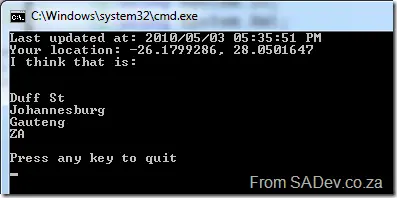
    Console.WriteLine("Last updated at: {0}", DateTime.Now);
    Console.WriteLine("Your location: {0}", e.Position.Location);
    Console.WriteLine("I think that is: {0}", NiceAddress(e.Position.Location));
    Console.WriteLine("Press any key to quit");
}
How do we get our address and display it nicely?
private static string NiceAddress(System.Device.Location.GeoCoordinate geoCoordinate)
{
    System.Device.Location.CivicAddress address = resolver.ResolveAddress(geoCoordinate);
    if (address.IsUnknown)
    {
        return "Unknown";
    }

    return string.Join("\n", address.FloorLevel ?? "Unknown", address.Building ?? "Unknown",
                       address.AddressLine1 ?? "Unknown", address.AddressLine2 ?? "Unknown",
                       address.City ?? "Unknown", address.StateProvince ?? "Unknown",
                       address.CountryRegion ?? "Unknown", address.PostalCode ?? "Unknown");
}
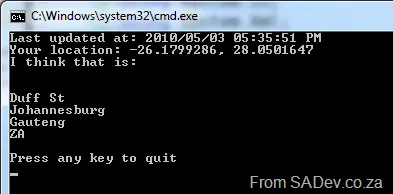
And all this code produces the following:
Distances?
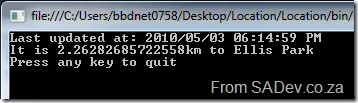
The GeoCoordinate class has a brilliant method called GetDistanceTo, which returns the distance—in meters (Metric system FTW)—between it and another GeoCoordinate. So to find the distance to the Lions Rugby Team home stadium, I just do:
static void gps_PositionChanged(object sender, System.Device.Location.GeoPositionChangedEventArgs<System.Device.Location.GeoCoordinate> e)
{
    Console.Clear();
    Console.WriteLine("Last updated at: {0}", DateTime.Now);
    System.Device.Location.GeoCoordinate ellisPark = new System.Device.Location.GeoCoordinate(-26.1978417421848, 28.060884475708);
    Console.WriteLine("It is {0} km to Ellis Park", e.Position.Location.GetDistanceTo(ellisPark) / 1000);
    Console.WriteLine("Press any key to quit");
}
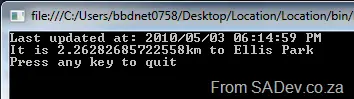
Which gives:
Accuracy?
The accuracy can be controlled in settings, but a lot of it is up to your GPS receiver device. Unfortunately, I do not have a proper hardware-based GPS device, so I’ve used the excellent free software-based Geosense for Windows, which you can see is accurate enough for most scenarios.
No sensor?
If you are on a version of Windows prior to 7, then the status of the GPS sensor will be set to Disabled.
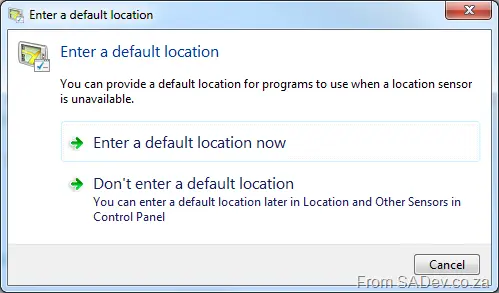
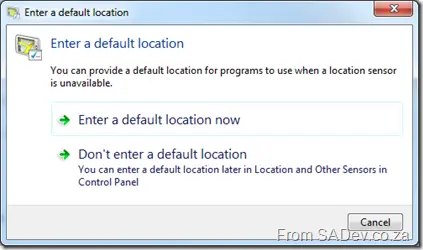
If you are on Windows 7 without a GPS sensor, then when you run it, you will be prompted for your default location information, which Windows can try and use to find you.
Mobile?
As a bonus, this is similar to the geolocation system in the new Windows Phone 7 platform! You can find out about geolocation in Windows Mobile 7 in Rudi’s blog post.
Note: This post is part of a series and you can find the rest of the parts in the series index.
Streams are something I try to avoid—they feel to me like I’m getting down and dirty when I use them—but maybe that’s just flashbacks to working in Delphi. 😉 They’re very useful, though, and can be clunky, especially when you need to get the content into another stream.
The key example of copying a stream is when you write your own file copy method (and which programmer hasn’t?)
using (FileStream sourceFile = new FileStream("test.xml", FileMode.Open))
{
    using (FileStream destinationFile = new FileStream("target.xml", FileMode.Create))
    {
        byte[] buffer = new byte[4096];
        int read;
        while ((read = sourceFile.Read(buffer, 0, buffer.Length)) != 0)
        {
            destinationFile.Write(buffer, 0, read);
        }
    }
}
The whole buffer/read/write pattern is just ugly.
Now with .NET 4, we can use the new CopyTo method to clean this up:
using (FileStream sourceFile = new FileStream("test.xml", FileMode.Open))
{
    using (FileStream destinationFile = new FileStream("target.xml", FileMode.Create))
    {
        sourceFile.CopyTo(destinationFile);
    }
}
Ah, much better!
_  Note: This post is part of a series and you can find the rest of the parts in the series index._
.NET 4 has seven (!!) new methods for enumerating directories, files, and file contents. What makes these stand apart from what we had before is that they return IEnumerable<T> rather than arrays.
Why is it better to get IEnumerable<T> over an array? Rather than loading all the data into one structure first—the array—and returning a massive lump of data, IEnumerable<T> returns items one at a time as they are enumerated. If this doesn’t make sense, see the example below.
Example
Old Way
So in this example, I use the old method:
DirectoryInfo root = new DirectoryInfo(@"c:\");

var collection = from f in root.GetFiles("*", SearchOption.AllDirectories)
                 select f;

foreach (var item in collection)
{
    Console.WriteLine(item);
}
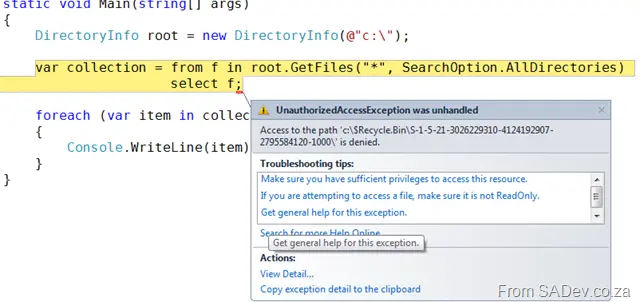
However, due to some permission issues, it will fail with an exception. Note that the exception occurs where we ask for the files, and the console output at this point is empty because it hasn’t finished loading all the data into the array.
New Way
Now we change it to the new method:
DirectoryInfo root = new DirectoryInfo(@"c:\");

var collection = from f in root.EnumerateFiles("*", SearchOption.AllDirectories)
                 select f;

foreach (var item in collection)
{
    Console.WriteLine(item);
}
This time, see how the exception occurs during the iteration of the items and note how the output contains some files already, as they have been processed.
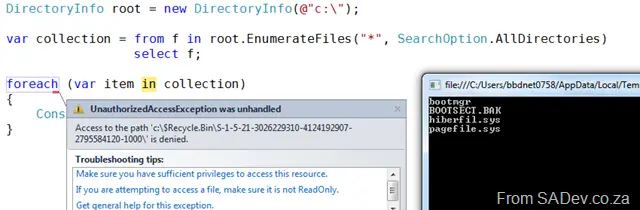
This is a major advantage of the new IEnumerable<T> versions, as we no longer need to wait for all items to be found first. This means it’s easier to write high-performance code and use threading.
What Are the New Methods?
The seven methods are:
Directory.EnumerateDirectories Returns IEnumerable<string> of the folder names.
DirectoryInfo.EnumerateDirectories Returns IEnumerable<DirectoryInfo>.
Directory.EnumerateFiles Returns IEnumerable<string> of the files’ full names.
DirectoryInfo.EnumerateFiles Returns IEnumerable<FileInfo>.
Directory.EnumerateFileSystemEntries Returns IEnumerable<string> of the file system entries.
DirectoryInfo.EnumerateFileSystemEntries Returns IEnumerable<FileSystemInfo>.
File.ReadLines Returns IEnumerable<string>, where each string is a line from a text file.
 Note: This post is part of a series and you can find the rest of the parts in the series index.
.NET has had one out-of-the-box way to do caching in the past, System.Web.Caching. While a good system, it suffered from two issues. Firstly, it was not extensible, so if you wanted to cache to disk or SQL or anywhere other than memory, you were out of luck. Secondly, it was part of ASP.NET and while you could use it in WinForms, it took a bit of juggling.
The patterns & practices team saw these issues and provided a caching application block in their Enterprise Library which has been used by everyone who did not want to reinvent the wheel. Thankfully, from .NET 4 there is a caching system now included in the framework that solves those two issues. This is known as System.Runtime.Caching.
Slow Example
To see how to use it, let’s start with a process we can cache. I have a class called Demo which has a property named Times of type IEnumerable<DateTime>. To set the value of Times, you call the SetTimes method, which populates the property with five values. However, there is a delay of 500ms between each addition of a DateTime to the Times property, so it takes 2.5 seconds to run. In my Program class, I have a method, PrintTimes, which creates a new Demo object, calls SetTimes, and then prints the value to the screen. Lastly, in my Main method, I call PrintTimes three times—in total, it takes 7.5 seconds to run.
class Program
{
    public static void Main()
    {
        PrintTimes();
        PrintTimes();
        PrintTimes();
    }

    private static void PrintTimes()
    {
        Demo demo = new Demo();
        Stopwatch stopwatch = Stopwatch.StartNew();
        demo.SetTimes();
        foreach (DateTime time in demo.Times)
        {
            Console.WriteLine(time);
        }
        stopwatch.Stop();
        Console.WriteLine("It took {0} to print out the times", stopwatch.ElapsedMilliseconds);
    }
}

class Demo
{
    public List<DateTime> Times { get; set; }

    public void SetTimes()
    {
        if (Times == null)
        {
            Times = new List<DateTime>();
            for (int counter = 0; counter < 5; counter++)
            {
                Thread.Sleep(500);
                Times.Add(DateTime.Now);
            }
        }
    }
}
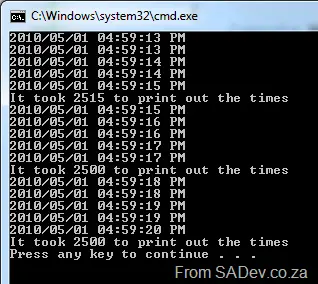
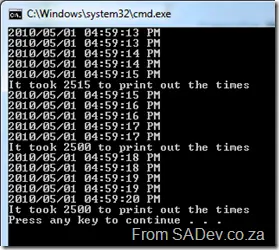
The output from this example code is below. Note that the times printed are constantly changing, and it takes ~2500ms to print out each set of values.
Cache Example
Now I modify the PrintTimes method to incorporate caching by creating an ObjectCache that uses the default MemoryCache instance. I can check if the cache contains an object using the .Contains method, retrieve it with .Get, and add to it using .Add:
private static void PrintTimes()
{
    Demo demo;

    Stopwatch stopwatch = Stopwatch.StartNew();

    ObjectCache cache = MemoryCache.Default;
    if (cache.Contains("demo"))
    {
        demo = (Demo)cache.Get("demo");
    }
    else
    {
        demo = new Demo();
        demo.SetTimes();
        cache.Add("demo", demo, new CacheItemPolicy());
    }

    foreach (DateTime time in demo.Times)
    {
        Console.WriteLine(time);
    }
    stopwatch.Stop();
    Console.WriteLine("It took {0} to print out the times", stopwatch.ElapsedMilliseconds);
}
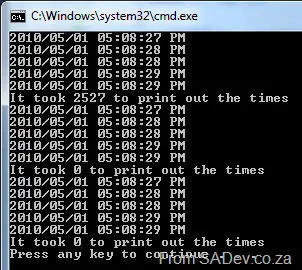
This gives the output:
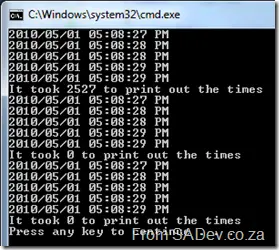
Note that the time to print for the first iteration is about 60ms longer, but the next two take 0ms, and the values in the three sets are the same.
CacheItemPolicy
In the above example, I only use a default CacheItemPolicy, but you can do a lot more with it:
AbsoluteExpiration: Set a date/time when to remove the item from the cache.ChangeMonitors: Allows the cache to become invalid when a file or database change occurs.Priority: Allows you to state that the item should never be removed.SlidingExpiration: Allows you to set a relative time to remove the item from the cache.UpdateCallback & RemovedCallback: Two events to get notification when an item is removed from the cache. The UpdateCallback is called before an item is removed, and RemovedCallback is called after an item is removed.
Things to Watch Out For
- .NET 4 only ships with support for memory caching out of the box, so you will need to build your own provider if you want any other cache source.
- You must add the
System.Runtime.Caching.dll reference to get access to the namespace and classes. - This is not part of the .NET 4 client profile; it is only in the full .NET 4 Framework. I have logged an issue with Connect to move the assembly into the client profile, and if you agree with this idea, please vote on it: 558309
Note: This post is part of a series and you can find the rest of the parts in the series index.
SortedSet provides a way to have a sorted list of items, which is sorted internally in a binary tree. This is different from the index-based sorting in SortedList<T, K> or SortedDictionary<T, K>. This means that inserts and edits to the tree have almost no performance impact, and it also means we do not need to figure out the key manually. Without an index, you may ask how it knows the sort order? The answer is that the class it uses must implement IComparable, so it can sort correctly:
Usage is very simple:
public static void Main()
{
    Random random = new Random();
    SortedSet<GPSPosition> gpsPositions = new SortedSet<GPSPosition>();
    for (int counter = 0; counter < 100000; counter++)
    {
        gpsPositions.Add(new GPSPosition(random.Next(-180, 181), random.Next(-180, 181)));
    }

    foreach (GPSPosition position in gpsPositions)
    {
        Console.WriteLine(position);
    }
}
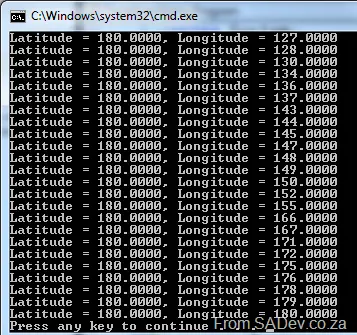
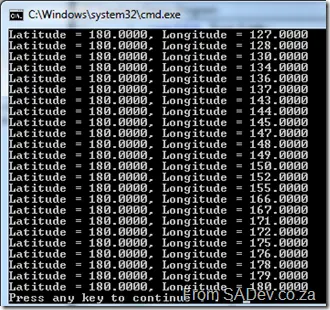
Note: I am using the same GPSPosition class from part IV. This gives the following output:
ISet
Under the surface, SortedSet implements the ISet interface, which is designed especially for collections with unique items. HashSet (not HashedSet), which was introduced in .NET 3.5, has also been updated to implement ISet.
 Note: This post is part of a series and you can find the rest of the parts in the series index.
Lazy is a new class that has been added to handle scenarios where:
- you may need to create an object early but don't need it immediately.
- the creation is expensive (CPU, memory) or slow.
- you may not need the data the object provides when you create it.
An example of this is LINQ, which does not actually execute the query when you define it. Execution occurs only when you access the data or perform calculations on it (like .Count()). This design prevents slow or expensive (memory, CPU) operations from running if they’re unnecessary.
Lazy allows you to assign an object without creating it until needed. Here’s an example of usage:
class Program
{
    static void Main(string[] args)
    {
        Console.WriteLine("Before assignment");
        Lazy<Slow> slow = new Lazy<Slow>();
        Console.WriteLine("After assignment");

        Thread.Sleep(1000);
        Console.WriteLine(slow);
        Console.WriteLine(slow.Value);
    }
}

class Slow
{
    public Slow()
    {
        Console.WriteLine("Start creation");
        Thread.Sleep(1000);
        Console.WriteLine("End creation");
    }
}
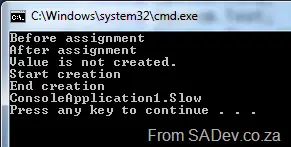
The output shows that the creation starts only when the value is accessed:
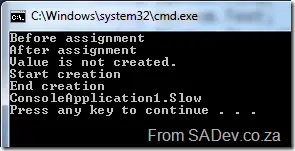
Notice that the "Start creation" message appears only after assignment when you first request the value. The same behavior applies to methods: the object is created only on the first method call.
_ _Note: This post is part of a series and you can find the rest of the parts in the series index.
The pub/sub pattern is a simple concept: you have a provider that pushes data to subscribers, and .NET 4 introduces two new interfaces, IObservable<T> and IObserver<T>, which make implementing this pattern very easy.
To see the usage of these interfaces, I’d like to use an example of a device with a GPS sensor that checks its position every second. If the GPS position leaves a specified area, we want to notify the cops.
GPSPosition
First, we need a small class to represent our location data—a simple data class with these key points:
- Implements
IComparable to check when a boundary is exceeded. - Overrides
ToString for a clean output. - Has two constructors: a default one and one that takes latitude and longitude (using
@long since long is a reserved keyword in C#).
class GPSPosition : IComparable<GPSPosition>
{
public int Lat { get; set; }
public int Long { get; set; }
public GPSPosition() { }
public GPSPosition(int lat, int @long)
{
this.Lat = lat;
this.Long = @long;
}
public override string ToString()
{
return string.Format("Latitude = {0:N4}, Longitude = {1:N4}", Lat, Long);
}
public int CompareTo(GPSPosition other)
{
if (this.Lat > other.Lat)
{
return 1;
}
if (this.Lat < other.Lat)
{
return -1;
}
if (this.Long > other.Long)
{
return 1;
}
if (this.Long < other.Long)
{
return -1;
}
return 0;
}
}
GPSSensor
Next, we create a fake sensor that reports our position. Key points:
- Implements
IObservable<T> to provide GPSPosition data. - Maintains a list of observers (
List<T>). - Uses
observer.OnNext to send updates and observer.OnCompleted when tracking ends (e.g., boundary exceeded). GetPosition() updates observers if the position changes.
class GPSSensor : IObservable<GPSPosition>
{
private readonly List<IObserver<GPSPosition>> observers = new List<IObserver<GPSPosition>>();
private readonly Random random = new Random();
public GPSPosition Position { get; set; }
private GPSPosition boundary;
public GPSSensor()
{
this.Position = new GPSPosition();
this.Position.Lat = random.Next(0, 181);
this.Position.Long = random.Next(0, 361);
boundary = new GPSPosition(this.Position.Lat + 10, this.Position.Long + 10);
}
public void GetPosition()
{
GPSPosition current = new GPSPosition(this.Position.Lat, this.Position.Long);
Position.Lat = (Position.Lat + random.Next(0, 5)) % 181;
Position.Long = (Position.Long + random.Next(0, 5)) % 361;
foreach (IObserver<GPSPosition> observer in observers)
{
observer.OnNext(this.Position);
if (this.Position.CompareTo(boundary) > 0)
{
observer.OnCompleted();
}
}
}
public IDisposable Subscribe(IObserver<GPSPosition> observer)
{
observers.Add(observer);
observer.OnNext(this.Position);
return observer as IDisposable;
}
}
Map
The Map class is a subscriber that handles output and alerts when the boundary is crossed. Key points:
- Implements
IObserver<GPSPosition> to receive updates. - Covers
OnCompleted, OnError, and OnNext.
class Map : IObserver<GPSPosition>
{
    private GPSPosition lastKnown;

    public bool StillTracking { get; private set; }

    public void OnCompleted()
    {
        Console.WriteLine("The device has moved beyond the bounds of our checking. Notify the cops: last seen at: {0}", lastKnown);
        StillTracking = false;
    }

    public void OnError(Exception error)
    {
        Console.WriteLine("SkyNet has taken over and shut down the GPS");
    }

    public void OnNext(GPSPosition value)
    {
        lastKnown = value;
        Console.WriteLine("At {0} we have moved to {1}", DateTime.Now, value);
        StillTracking = true;
    }
}
Main
Finally, we tie everything together in Main():
public static void Main()
{
    GPSSensor sensor = new GPSSensor();
    Map map = new Map();
    sensor.Subscribe(map);

    do
    {
        sensor.GetPosition();
        Thread.Sleep(1000);
    } while (map.StillTracking);
}
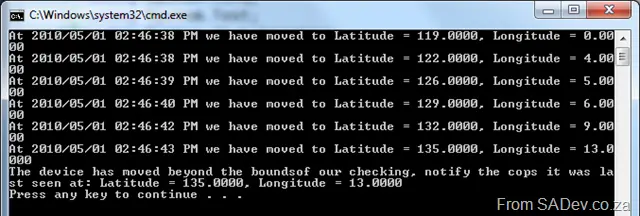
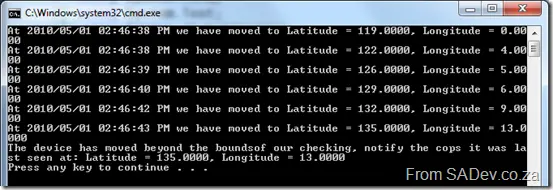
This produces output like the example below:
 Note: This post is part of a series, and you can find the rest of the parts in the series index.
Enumerations are something I have posted about before because they are very useful—and with .NET 4, they have had two new methods added that could have been ripped from my personal feature requests:
HasFlag
Enums can be bitwise values if the [Flags] attribute is set, however checking the bitwise values was ugly and very confusing for people who hadn’t seen it before. For example:
[Flags]
enum CupboardContents
{
    Nothing = 0,
    Cups = 1,
    Plates = 2,
    Cuttlery = 4,
    Food = 8,
    DeadBodies = 16,
    Everything = Nothing | Cups | Plates | Cuttlery | Food | DeadBodies
}

static void Main(string[] args)
{
    CupboardContents motherHubberbs = CupboardContents.Nothing;
    CupboardContents normal = CupboardContents.Plates | CupboardContents.Cups | CupboardContents.Cuttlery;
    CupboardContents hitman = CupboardContents.DeadBodies;
    CupboardContents bursting = CupboardContents.Everything;

    CupboardContents test = CupboardContents.Plates;

    Console.WriteLine("Does {0} contain {1} = {2}", motherHubberbs, test, (motherHubberbs & test) == test);
    Console.WriteLine("Does {0} contain {1} = {2}", normal, test, (normal & test) == test);
    Console.WriteLine("Does {0} contain {1} = {2}", hitman, test, (hitman & test) == test);
    Console.WriteLine("Does {0} contain {1} = {2}", bursting, test, (bursting & test) == test);
}
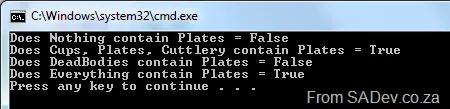
This produces 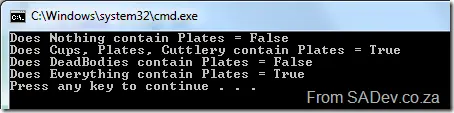
With .NET 4, we now have a simple method to do this check: HasFlag, which takes an enum and tells you if that flag is set. The following code does the same as the code above:
Console.WriteLine("Does {0} contain {1} = {2}", motherHubberbs, test, motherHubberbs.HasFlag(test));
Console.WriteLine("Does {0} contain {1} = {2}", normal, test, normal.HasFlag(test));
Console.WriteLine("Does {0} contain {1} = {2}", hitman, test, hitman.HasFlag(test));
Console.WriteLine("Does {0} contain {1} = {2}", bursting, test, bursting.HasFlag(test));
TryParse
Until now, the only way to get from a string to an enum was the Parse method:
enum Colours
{
    Red,
    Green,
    Blue
}

static void Main(string[] args)
{
    Colours red = (Colours)Enum.Parse(typeof(Colours), "Red");

    Console.WriteLine(red);
}
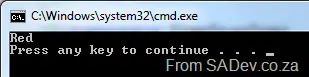
Which produces 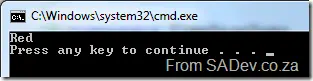
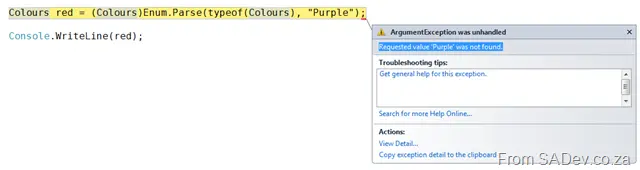
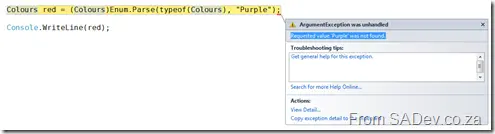
However, get the string wrong, and you were forced to deal with an ArgumentException:
With .NET 4, you now can use the TryParse method—and check the returned value first to see if the conversion was successful:
enum Colours
{
    Red,
    Green,
    Blue
}

static void Main(string[] args)
{
    Colours red;
    Colours purple;
    if (Enum.TryParse("Red", out red))
    {
        Console.WriteLine(red);
    }
    else
    {
        Console.WriteLine("Could not translate to a valid enum");
    }

    if (Enum.TryParse("Purple", out purple))
    {
        Console.WriteLine(purple);
    }
    else
    {
        Console.WriteLine("Could not translate to a valid enum");
    }
}
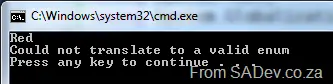
Which produces: 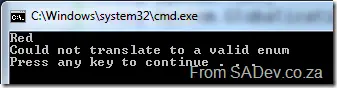
Another benefit of this method over Parse is that it works with generics, meaning you do not need to pass the Type parameter in and cast the return value—as you had to do with Parse!
 Note: This post is part of a series and you can find the rest of the parts in the series index.
I would guess strings are the most used type in .NET, so it is great to see some small improvements with them in .NET 4.
IsNullOrWhiteSpace
Since .NET 2.0 we have had the very useful IsNullOrEmpty, which lets us check for empty strings—but what about strings that contained nothing but whitespace? Unfortunately, that would not be identified as empty! With .NET 4, we have a new method, IsNullOrWhiteSpace, which checks if a string is null, empty, or consists solely of whitespace. Example usage:
string nullString = null;
string emptyString = string.Empty;
string blankString = emptyString.PadRight(30, ' ');
string notBlankString = "SADev.co.za";

Console.WriteLine("IsNullOrEmpty:");
Console.WriteLine("\t nullString is: {0}", string.IsNullOrEmpty(nullString));
Console.WriteLine("\t emptyString is: {0}", string.IsNullOrEmpty(emptyString));
Console.WriteLine("\t blankString is: {0}", string.IsNullOrEmpty(blankString));
Console.WriteLine("\t notBlankString is: {0}", string.IsNullOrEmpty(notBlankString));

Console.WriteLine("IsNullOrWhiteSpace:");
Console.WriteLine("\t nullString is: {0}", string.IsNullOrWhiteSpace(nullString));
Console.WriteLine("\t emptyString is: {0}", string.IsNullOrWhiteSpace(emptyString));
Console.WriteLine("\t blankString is: {0}", string.IsNullOrWhiteSpace(blankString));
Console.WriteLine("\t notBlankString is: {0}", string.IsNullOrWhiteSpace(notBlankString));
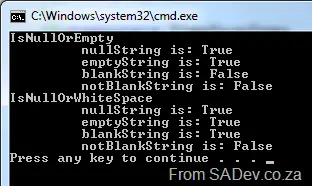
This produces
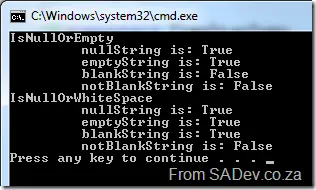
The important one to note is blankString—in the second set (line 15 of the code), it has a different result compared to its result in the first set.
Join & Concat
Join allows us to concatenate an array of strings with a specific separator character. For example:
string[] someValues = { "This", "is", "a", "list", "of", "strings" };
Console.WriteLine(string.Join(Environment.NewLine, someValues));
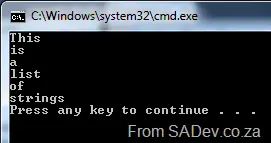
This produces
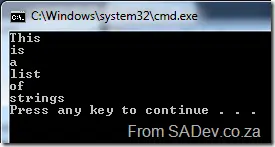
Concat does the same thing, except there is no separator character. Example:
string[] someValues = { "This", "is", "a", "list", "of", "strings" };
Console.WriteLine(string.Concat(someValues));
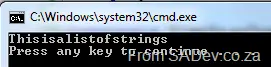
This produces:
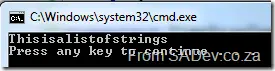
Both of these methods failed when working with generic lists, like List<T>, since they were not supported. This meant you often had to call ToArray() on the list, incurring a performance impact. Now, new overloads have been added to string that cater for IEnumerable<T>, so we no longer need to call ToArray(). Now we can pass the list directly in, as shown below:
List<string> someValues = new List<string>() { "This", "is", "a", "list", "of", "strings" };
Console.WriteLine(string.Join(Environment.NewLine, someValues));
 Welcome to part one of a new series of blog posts that will cover what’s new in .NET 4. To be different, I’m not looking at the big features, like WF 4 or the super cool parallel stuff. This series will focus on the smaller features—like new methods on existing classes or entirely new classes that have been added. As with all series I do, you can see the rest of the posts in the series on the series index.
We’ll start with TimeSpan, which has been around since .NET 1.0 and represents a time interval (duration of time or elapsed time) measured as a positive or negative number of days, hours, minutes, seconds, and fractions of a second. So what’s new in TimeSpan for .NET 4?
Parse & TryParse
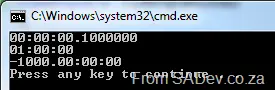
Parse and TryParse are methods that have been around since the beginning and let you input a string in a specific format [-][d’.’]hh’:’mm’:’ss[‘.’fffffff] and get a TimeSpan object back. For example:
TimeSpan oneFractionSecond = TimeSpan.Parse("0.00:00:00.1");
TimeSpan oneHour = TimeSpan.Parse("1:00");
TimeSpan oneThousandDaysPast = TimeSpan.Parse("-1000.00:00");
Console.WriteLine(oneFractionSecond);
Console.WriteLine(oneHour);
Console.WriteLine(oneThousandDaysPast);
This produces: 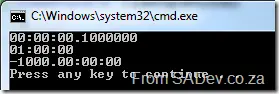
What’s new in parsing? The ability to add culture information through IFormatProvider. Why is this important? Because not everyone formats numbers the same. For example:
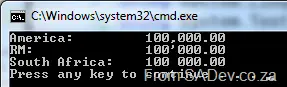
CultureInfo us = CultureInfo.GetCultureInfo("en-us");
CultureInfo rm = CultureInfo.GetCultureInfo("rm");
CultureInfo za = CultureInfo.GetCultureInfo("en-za");
string usResult = string.Format(us, "{0:N}", 100000);
string rmResult = string.Format(rm, "{0:N}", 100000);
string zaResult = string.Format(za, "{0:N}", 100000);
Console.WriteLine("America:\t{0}", usResult);
Console.WriteLine("RM:\t\t{0}", rmResult);
Console.WriteLine("South Africa:\t{0}", zaResult);
Produces: 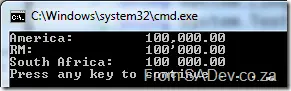
See how all three locations have different formats, and this is important because the old methods couldn’t handle these differences— they could only accept a single specific format.
Now we can do the following:
CultureInfo us = CultureInfo.GetCultureInfo("en-us");
CultureInfo ru = CultureInfo.GetCultureInfo("ru-RU");
TimeSpan oneFractionSecondUS = TimeSpan.Parse("6:12:14:45.3448", us);
TimeSpan oneFractionSecondRU = TimeSpan.Parse("6:12:14:45,3448", ru);
Console.WriteLine(oneFractionSecondUS);
Console.WriteLine(oneFractionSecondRU);
Note the comma in the Russian formatting. If you tried this in .NET 3.5 or before, you would have gotten a FormatException, but now it works!
ParseExact & TryParseExact
These are two brand-new methods that let us specify the format string to use. Until now, we had to comply with: [-][d’.’]hh’:’mm’:’ss[‘.’fffffff].
Now we don’t need to comply with a single format. We have two options with the format string: either a built-in one or a custom one. The built-in ones are:
c/t/T: These three do the same thing and represent what we’re used to currently: [-][d’.’]hh’:’mm’:’ss[‘.’fffffff].
- Examples:
TimeSpan.Zero → 00:00:00New TimeSpan(0, 0, 30, 0) → 00:30:00New TimeSpan(3, 17, 25, 30, 500) → 3.17:25:30.5000000
g: The culture-sensitive short format. This is basically the same as c, but the format provider supplied will be respected, whereas c ignores it: [-][d’:’]h’:’mm’:’ss[.FFFFFFF].
- Examples:
New TimeSpan(1, 3, 16, 50, 500) → 1:3:16:50.5 (en-US)New TimeSpan(1, 3, 16, 50, 500) → 1:3:16:50,5 (fr-FR)New TimeSpan(1, 3, 16, 50, 599) → 1:3:16:50.599 (en-US)New TimeSpan(1, 3, 16, 50, 599) → 1:3:16:50,599 (fr-FR)
G: The culture-sensitive long format, in which there are no optional items except the negative symbol: [-]d’:’hh’:’mm’:’ss.fffffff.
- Examples:
New TimeSpan(18, 30, 0) → 0:18:30:00.0000000 (en-US)New TimeSpan(18, 30, 0) → 0:18:30:00,0000000 (fr-FR)
We also have custom format strings now, so we can really tweak them—this will be great for interoperability. I won’t list all the components, but every individual part is covered. Here are some examples of what we can do now:
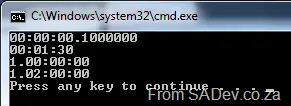
TimeSpan oneFractionSecond = TimeSpan.ParseExact("1", "%F", CultureInfo.CurrentCulture);
TimeSpan oneMinuteThirtySeconds = TimeSpan.ParseExact("1:30", @"%m\%:s", CultureInfo.CurrentCulture);
TimeSpan oneDay = TimeSpan.ParseExact("1", "%d", CultureInfo.CurrentCulture);
TimeSpan oneDayAndTwoHours = TimeSpan.ParseExact("1=2", @"%d\=%h", CultureInfo.CurrentCulture);

Console.WriteLine(oneFractionSecond);
Console.WriteLine(oneMinuteThirtySeconds);
Console.WriteLine(oneDay);
Console.WriteLine(oneDayAndTwoHours);
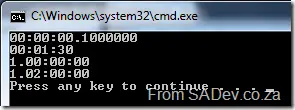
Which produces: