If you asked me 12 months ago what an ALM MVP was, I would likely have told you something—unfortunately, that something would have been completely wrong. One of the most important things I learned this year from being an ALM MVP is what an ALM MVP actually is.
What is an MVP?
First, it is an award—this means you receive it as recognition for doing something that benefits the community of people who use a Microsoft product (or products). It is also important to note that the reason it is awarded to one person is seldom the same as it is awarded to another—no two people are alike, nor are their community contributions, and so the award is unique per person.
I think it’s safe to assume that if you are going to do something that benefits many people using a specific product, you need to know something about that product 😉. However, being an MVP is not meant to indicate that this person is an expert in certain product(s) and knows everything about the product.
This doesn’t mean that a lot of MVPs aren’t brilliant—many are scary smart. The first two that jump to mind are Ed Blankenship, an ALM MVP, and Jon Skeet, a C# MVP—but at the end of the day, all MVPs are people, like you, with limits and gaps in knowledge.
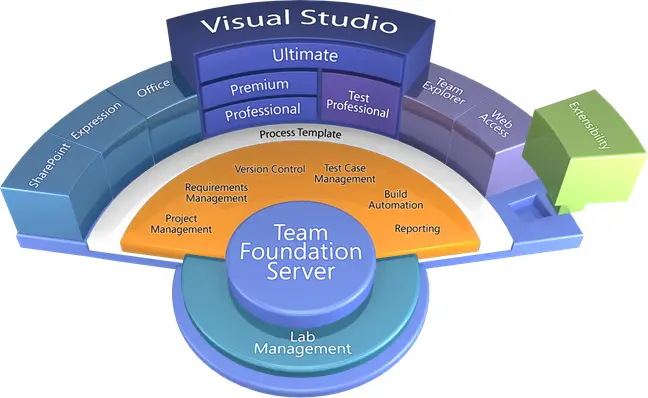
The ALM Stadium
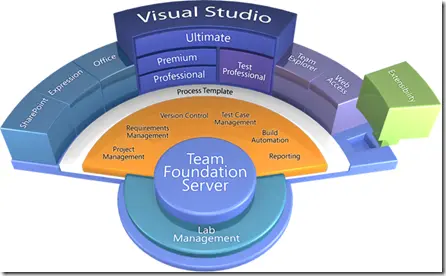
ALM MVPs have an additional layer of complexity since the community they help revolves around not one single product, like Zune MVPs for instance, but is actually made up of many products and components. Above is the “stadium” picture, which shows a lot of (most of?) the components that make up ALM.
An ALM MVP may know and work in one product/component and never encounter the others. An example is Zayd Kara, an ALM MVP, who is deeply IT Pro-focused—so he understands installing systems, building in TFS, etc.—but he seldom opens or works in the Visual Studio IDE, so he may not know as much about it as another ALM MVP.
As I stated above, the reasons someone is awarded differ, and so the areas and skills of ALM MVPs vary from person to person.
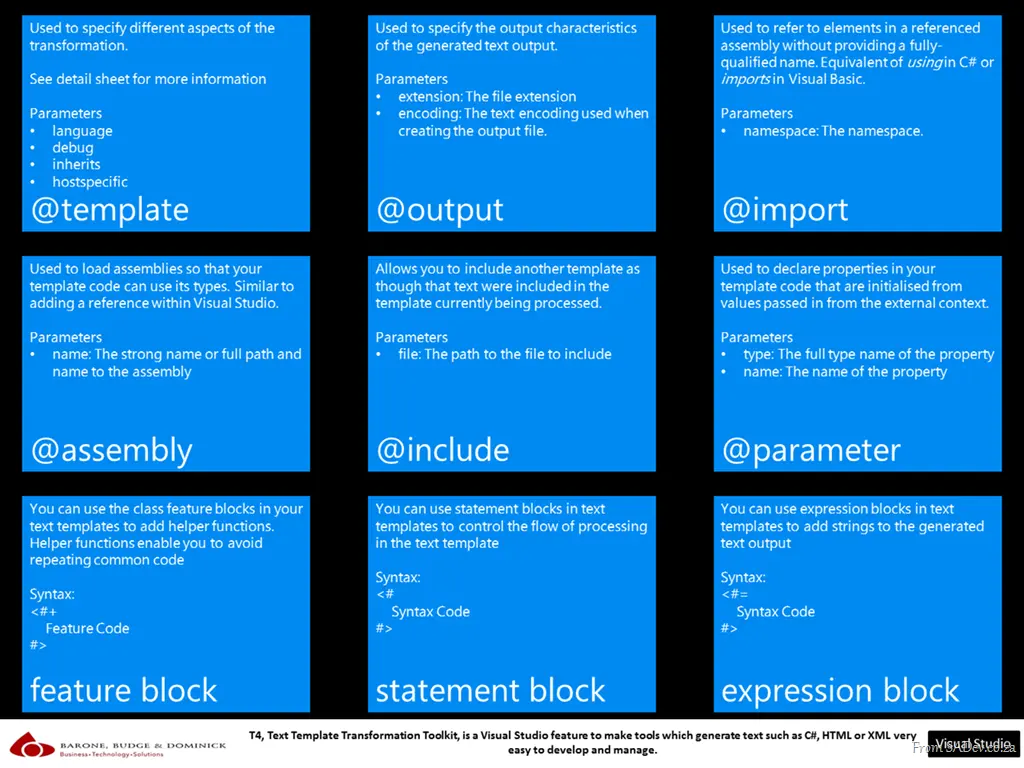
I’ve been spending a lot of time working on two things recently: T4 (Text Template Transformation Toolkit) and Windows Phone 7. Part of my work around T4 included creating some cheat sheets to make it easier to get to grips with it!
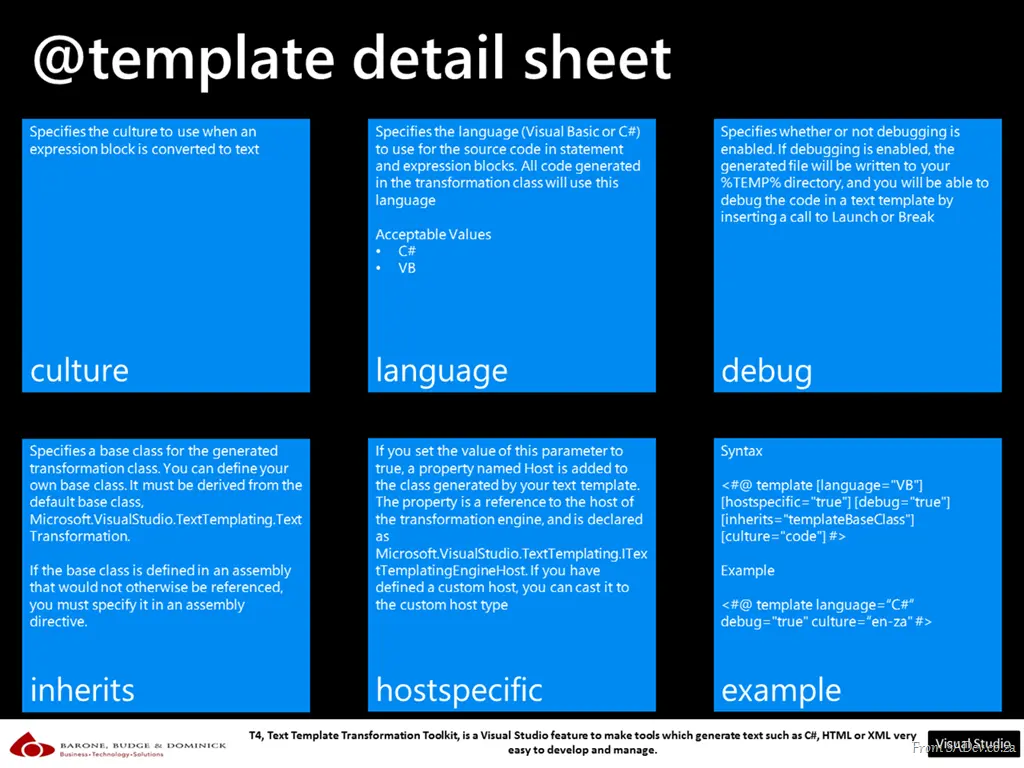
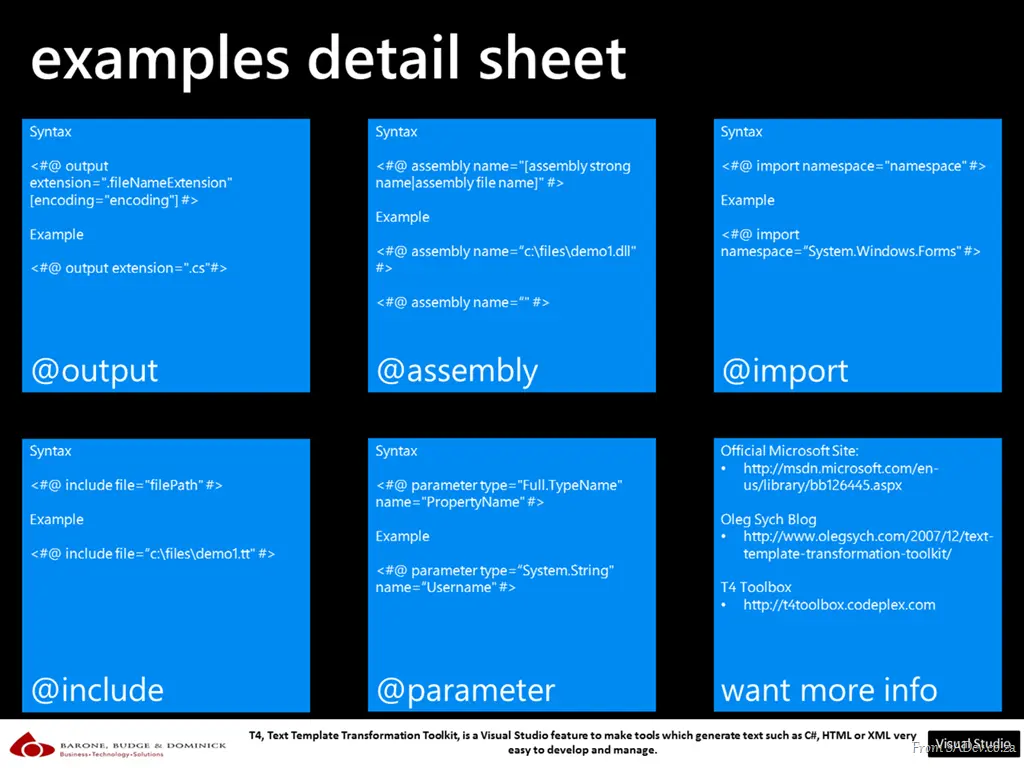
There are now three posters available (high-resolution PDFs below or on the DRP site):
General Overview
This provides a high-level overview of the various components in T4.
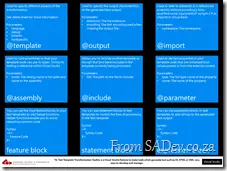
@template Detail
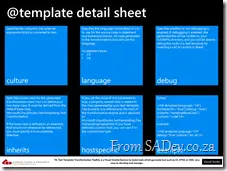
The @template directive has many options, and this sheet provides details on them.
Examples
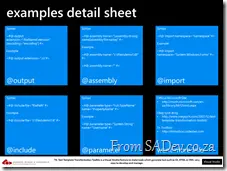
This sheet provides usage examples of various T4 aspect directives.
The third stable release for Pull, the simplest podcast downloader in the world. This release has fewer front-end features than the October 2010 release, but that doesn’t mean there hasn’t been a lot of work done under the hood to make this the best release ever.
Major Features in this Release
Download System Rewritten
I’ve said it many times, but a podcast tool is really just a download tool that knows how to parse RSS & ATOM. That means it should do those two things fantastically. In this release, the download system was completely rewritten from scratch to incorporate many new features and improve performance.
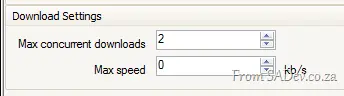
In the last release, we supported canceling a download, but now we can also pause a download. This becomes even more important with another new feature: you can limit the number of concurrent downloads. Add to this the third feature in the trifecta of download management: speed limiting—you now have full control over your bandwidth, download performance, and how and when you want to download.
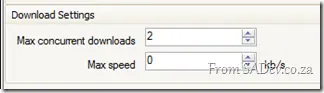
The other major feature introduced in the downloads was a number of checks before downloading to determine if the download is needed. For technical users, this is done via a HEAD request, checking the ETag and Last-Modified date. What this means is that in the October release, you would download ~10 KB to refresh a podcast, regardless of whether it had changed. Now, we can tell in less than 200 bytes and only pull that ~10 KB if it has actually changed.
Ability to Disable Automatic Episode Downloads
Previously, if you subscribed to a podcast, you were at the mercy of the podcasters because when they published a new episode, it would download automatically. Now, in Pull, you can disable this behavior—the podcast will still update, but new episodes won’t download automatically.

BTW, this came directly from the community via the discussions, so if you want a feature—LET US KNOW!
Minor Features in this Release
New Version Checking
A feature you’ll see in December is a small text block that appears when a new version of Pull is available. It will appear next to the "Give Feedback" link:

Shutdown Confirmation Options
In the settings, you can now control the close confirmation prompt. You can set it to:
- Always confirm (as before),
- Confirm only if an active download is in progress, or
- Never confirm.

Backstory: Rudi Grobler (my unofficial product owner) originally asked for confirmation during beta because he kept accidentally closing Pull. During the last sprint, guess who was complaining about it always asking? 😉
Refresh Individual Podcasts
You can now easily right-click on a podcast (or multiple podcasts) and select "Refresh Selected Podcasts" to manually refresh only the chosen ones.

Future
December is the planned timeline for the next release, and in the plan (plan = no promise) is the ability to fix broken feeds. Many feeds are broken because authors make mistakes, but Pull gets blamed for not handling them. So, there will be a "fix-up engine" to address those issues.
I’m also considering adding sync-to-device support, likely in a basic—folder/drive-style—format.
Additionally, I want Pull to be a better Windows citizen by:
- Adding a manifest so Windows knows what to expect,
- Better support for battery-powered devices,
- Improved integration with Windows Error Reporting, and
- Optimizing download settings based on your CPU count.
 Rudi Grobler, known for his love of WPF, Silverlight, and Windows Phone 7, has organized a free training event focused on Windows Phone 7! This event will run on February 5, 2011, but space is very limited.
The idea is to give you key information via presentations, learning through hands-on labs, and fun by playing with real devices!
You can get all the details and register at: http://sadev.wufoo.com/forms/windows-phone-7-jump-start-feb-2011/
More details about the event will be announced over the coming weeks, so follow Rudi’s blog for updates!
Tech·Ed Africa 2010 ended on Wednesday, and it was a great event. Thanks to everyone who came to my sessions and came up afterward—and between sessions—to chat. I felt very honored to meet and share with you! 😊
This post is for those who want the slides or demo information. I have completed versions of the demos below (in the ZIP file) and the script for each demo, which gives you the step-by-step process I used (in the DOCX file).
APS302 – Introduction to Workflow Services and Windows Server AppFabric
Other content for this session:
APS309 – Windows Server AppFabric Caching: What It Is and When You Should Use It
Other content for this session:
APS310 – WCF Made Easy with .NET 4 and Windows Server AppFabric
Other content for this session:
I’m happy to share my second stable release of Pull, the simplest podcast/vidcast download tool in the world. This release has had a ton of work done to make it more usable and some plumbing improvements.

Major features in this release
Full proxy support
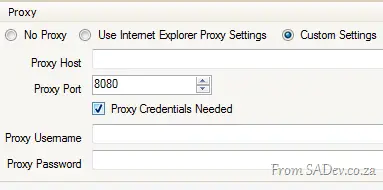
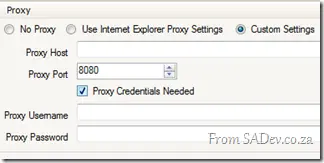
Proxies are either really easy to use or completely destroy your application. Previously, Pull used whatever Internet Explorer specified, but now you can specify no proxy (if your IE settings differ for some reason) or provide custom proxy settings. This should help people use it in a variety of environments.
Add multiple podcasts at once
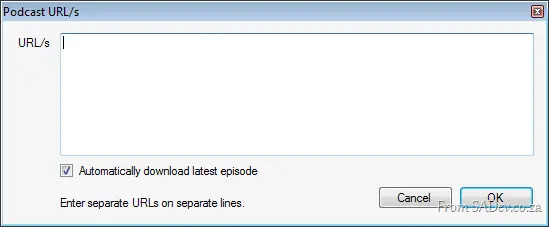
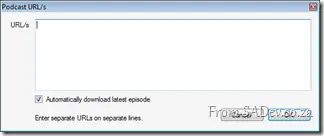
Want to subscribe to multiple podcasts? Just use the new add dialog box to add them.
Automatic backup of feeds to OPML
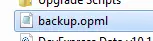
Have a database? Then you’d better have a backup. These are rules for all software, and Pull now automatically backs up your feeds to an OPML file—just in case! 😊
New jumplist options
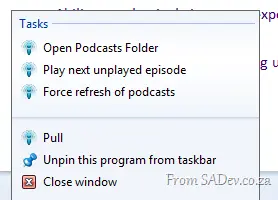
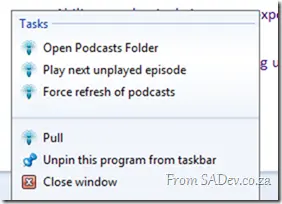
Right-click the Pull icon in Windows 7 to access the jumplist, which now includes two new options: Play next unplayed episode and Force refresh of podcasts.
Since adding the play unplayed feature, I’ve used it a lot—it lets me keep playing podcasts quickly. When one finishes, it takes just two clicks to start the next episode without switching to the application!
Ability to automatically download the latest episode when subscribing to a podcast
When you subscribe to a podcast, you’ll likely want the latest episode, so we now include an option to enable this. The setting is available in both the new podcast dialog box (see above) and in the protocol handler or OPML import.
For the latter two, you can disable this in the settings:

Ability to cancel downloads
Right-click any download in the download pane to cancel it!
Locking
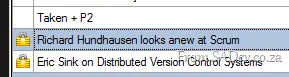
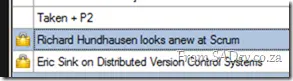
I often have podcasts I want to keep forever, and now you can lock them: Right-click a podcast and select Lock to add a lock icon next to it. Repeat to unlock.
This prevents locked files from being deleted, so you can now safely delete all played episodes—locked items will be ignored.
Ability to prevent Windows from sleeping during downloads
In the settings, you can control whether the computer is allowed to sleep during active downloads.

Ability to selectively import or export podcasts from an OPML file
Want to export your podcasts—except that one you’d rather not share? Or maybe a friend sent you an OPML file with podcasts you don’t want? Now you can select individual podcasts and export or import them selectively.
Delete to recycle bin
When you delete a podcast, it now goes to the recycle bin (and not into oblivion). This also lets you retry deletion if it fails.
Scan for episodes
Another small but useful feature: Scan an existing folder for episodes you’ve already downloaded in Pull or another app. This helps with migration to Pull or re-associating deleted episodes.
Welcome wizard for easy setup
Pull used to require just two settings on first launch, but now that more options are available, we’ve introduced a welcome wizard. It asks only for the essentials to get you started—without overwhelming you with too many settings upfront.
Future
I’m planning another release in about a month. I’d love to add more download management features, so if you have any ideas, drop me a line or share them in the Pull discussions forum.

 BB&D
BB&D
is once again sponsoring the community lounge at Microsoft Tech·Ed Africa 2010! This year, there are some fantastic prizes to be won in the community lounge thanks to BB&D.
The big prize is a Microsoft Xbox 360, but there are also some smaller prizes available. The one I am most excited about is the Flying Screaming Monkey, who looks like a cross between Zoro and the monkey from the Chicken Licken adverts.
What makes him really cool is that his arms are springs, so you can stretch him like a slingshot—and when you let him go, he flies across the open-plan office, inflicting "monkey love" on any unsuspecting co-worker.
To even the odds though, he screams the entire flight (and if he screams again if he hits the ground hard enough), so your co-workers do have some time to duck out of the monkey’s flight path!
If you’re keen to win a monkey of your own, an Xbox, or any other prize, head over to the community lounge at Tech·Ed!
For a while, the flair on my site has included my stats from Stack Overflow, Server Fault, and Super User. In my article on it, I mentioned I used the <iframe> but I stopped that a few months ago and switched to getting the JSON data for my accounts directly and parsing that. I did this because it was orders of magnitude faster than loading via the <iframe>.
For those who attended my DevDays talks, they would recognize that code as it is the same as I used in my demos.
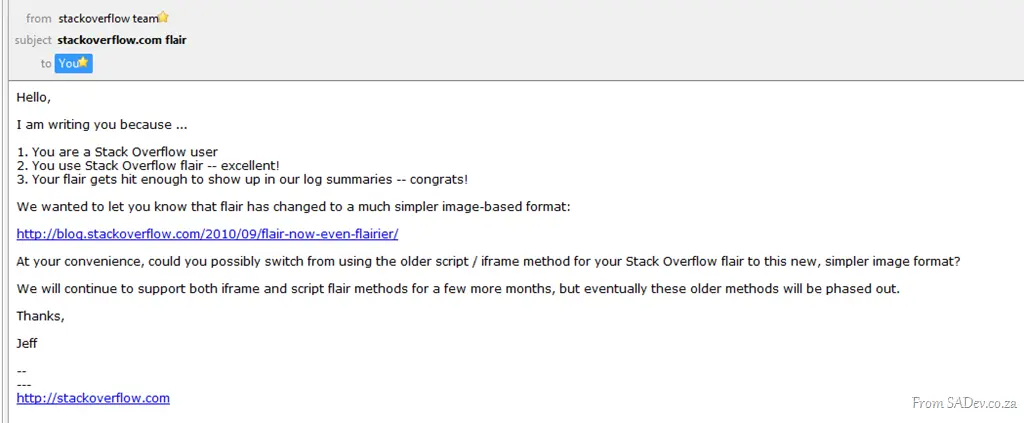
Then recently, an email arrived:
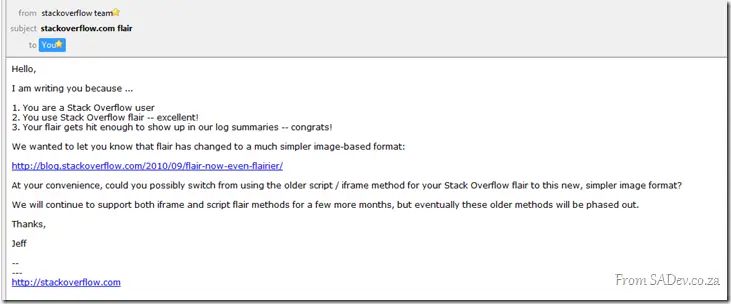
Damn, my jQuery magic was about to end, so what could I do but change? When I started looking at the new flair, I noticed that Stack Overflow wanted me to hotlink the image—that is, have my visitors get it from their server—but the performance for pulling the image was still poor compared to my own website (or so Firebug told me). So how could I improve this?
What I did was use wget—a Linux tool (I’m hosted on a Linux box)—for downloading files, and put that in a schedule to once a day download my Stack Exchange flair and store it on my website. That means it gets served faster. As my numbers won’t change heavily day to day (I’m not Skeet), once a day is enough—a good balance between keeping it fresh and making it cacheable.
The only downside is that my flair usage stats on Stack Exchange will likely drop, but I don’t really care about that.
The wget command is:
wget http://stackexchange.com/users/flair/1c5ab06b9a844e49b817e7eeb31977e0.png -O <path>/files/stackexchange.png
There is a known bug for this 601047. This is resolved with RTM! You can hear Eric Lawrence talk about this bug on the Herding Cat Podcast.
Internet Explorer 9 works great—except when it doesn’t—and it seems to not work for developers more than most. Or maybe it’s just me (could the IE9 team be targeting me?).
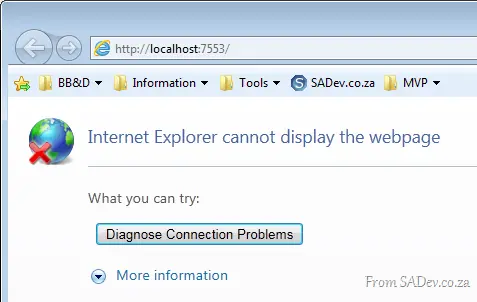
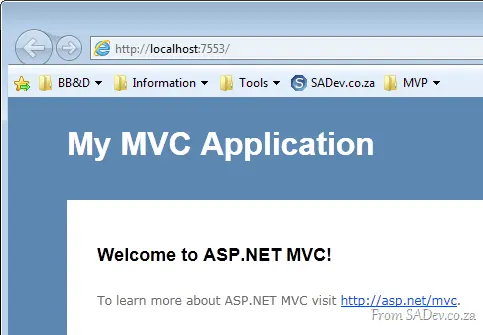
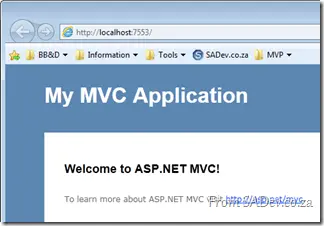
Paranoia aside, there’s an issue where testing web applications (ASP.NET, MVC) or Silverlight applications from Visual Studio (i.e., press F5) just refuses to load. Thankfully, this has been confirmed by others 😉.
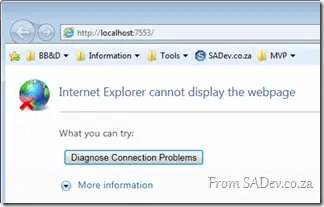
What’s going on, and how do we fix this? Because it’s really frustrating—and it also makes for bad demos, especially with TechEd around the corner.
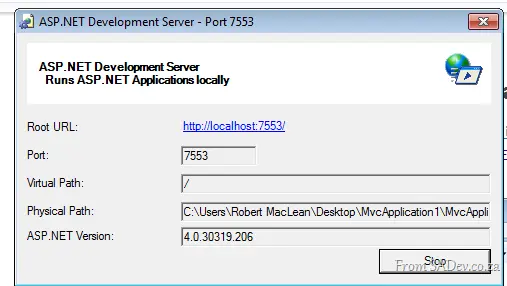
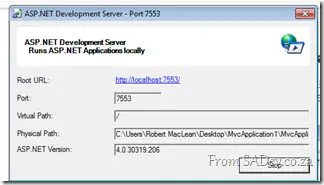
The first part of the problem is the ASP.NET Development Server, which hosts your websites when you press F5.
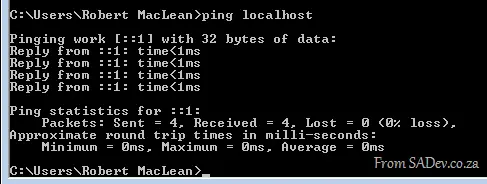
The next part of the problem is Windows, especially since it assumes IPv6 is better than IPv4. Note in the picture below that when you ping localhost, you get an IPv6 address.
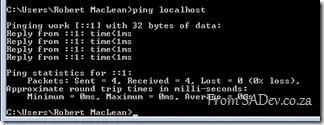
What appears to be happening is that when IE9 tries to go to localhost, it uses IPv6, but the ASP.NET Development Server is IPv4-only. Thus, nothing loads, and we get the error.
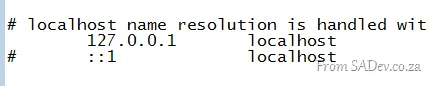
To solve this, open Notepad as an administrator and navigate to <windows directory>\system32\drivers\etc\ and open the hosts file. Inside, you’ll find lines prefixed with a hash (making them comments). Remove the hash from the line with 127.0.0.1, as shown below, and save.
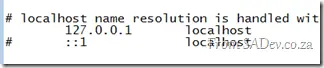
This will force Windows to resolve localhost to IPv4 first (you can confirm by pinging localhost), meaning IE9 will do the same—and now it works every time.
Internet Explorer 9 is fast, really, really fast! A lot of that speed comes from the massive caching improvements in IE9 – but this is a bit of a double-edged sword, especially for developers when caching gets in the way of what is actually happening. I spent two hours debugging an odd caching issue recently, and this is the sad story.
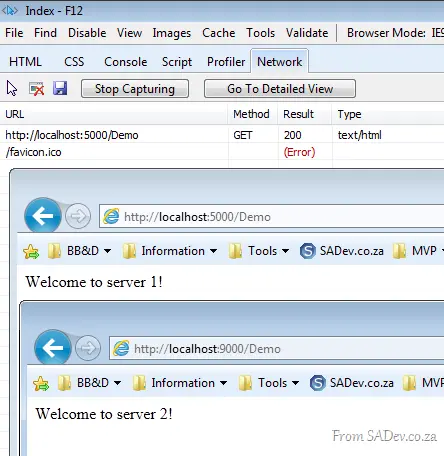
For some testing, I needed to set up a redirect—in this case, a 301 permanent redirect (handy HTTP status codes cheat sheet in case you don’t remember these). What this would do is enable me to have site alpha (http://localhost:5000/Demo) redirect to site beta (http://localhost:9000/Demo).
Prior to this, the scenario looked like this:
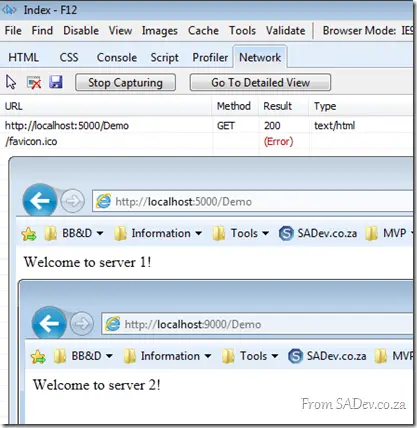
Behind the two browser windows is the IE 9 Developer Tools and their fantastic new network capture feature. You can easily see that when I hit site alpha, I got a 200 result—meaning all good, and it loaded.
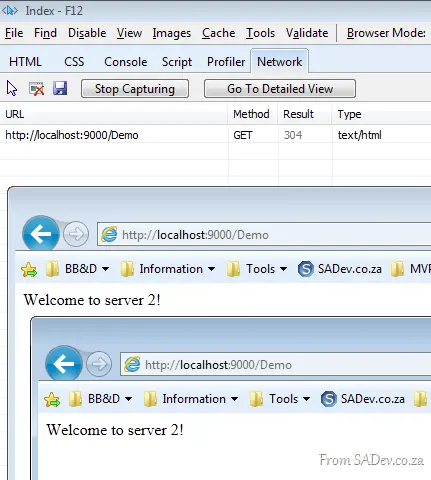
Once I set up the redirect, you’ll see I get a 304—this is because the data is already cached. Note that even though I typed in the site one URL, it immediately loaded site two. This is because the browser had cached the redirect and so skipped the network steps for performance.
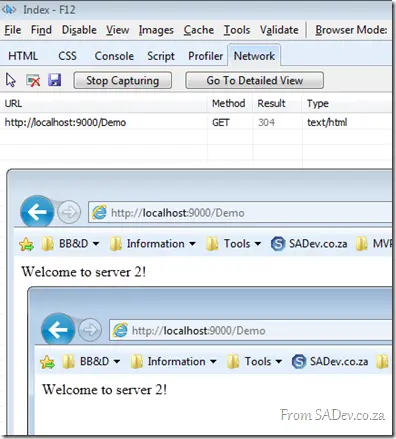
Now the problem: I wanted to turn off the redirect—however, the browser cached it and so would ignore the change. Clearing cache, deleting files, rebooting, and even using the IE reset option did nothing to solve this 😭
The only way to fix it was to fire up the fantastic Fiddler tool and use its Clear Cache option with the option to delete persistent cookies, which flushes the WinINET cache.

Considering that this is supposedly the same as clearing the IE cache, I have no idea why this works and IE cache clearing doesn’t—but it does work.