[This blog is part of a larger series, to find more parts in the series, please see the Series Index].

We will start off the series with something very simple: two classes that give us access to some constant definitions that may be useful.
Control Characters
Microsoft.VisualBasic.ControlChars contains 10 constant fields for commonly used items:
public const char Back = '\b';
public const char Cr = '\r';
public const string CrLf = "\r\n";
public const char FormFeed = '\f';
public const char Lf = '\n';
public const string NewLine = "\r\n";
public const char NullChar = '\0';
public const char Quote = '"';
public const char Tab = '\t';
public const char VerticalTab = '\v';
As you can see, this is just a useful list to have and can make code much easier to read.
As a C# developer, there is one on that list I wouldn’t use—NewLine. In the mscorlib assembly, there is an Environment class that contains a property called NewLine, which, on my machine, is the exact same as the one above. So why would I use that over the VB one? This is because Environment.NewLine changes based on the underlying OS—so on systems that use just \n, it will be that, whereas the VB one is always the same regardless of what the OS uses.
Constants
Microsoft.VisualBasic.Constants contains a lot of constant definitions used throughout the whole Microsoft.VisualBasic assembly. A lot are meant to be used with specific functions—for example, vbAbort is meant to be used with the MsgBox function—but there are a few that are interesting.
Control Characters
The first interesting group is that almost all the control characters from Microsoft.VisualBasic.ControlChars are repeated here—the only one missing is Quote. So now you have two ways (or three ways for NewLine) to get control characters.
public const string vbBack = "\b";
public const string vbCr = "\r";
public const string vbCrLf = "\r\n";
public const string vbFormFeed = "\f";
public const string vbLf = "\n";
public const string vbNewLine = "\r\n";
public const string vbNullChar = "\0";
public const string vbTab = "\t";
public const string vbVerticalTab = "\v";
TriState
Developers often have the bad habit of thinking they can build something better than others did in the past. There’s a famous example of someone who decided a boolean (something that is either true or false) needed a third option—FileNotFound.
It appears the VB team also decided this was a good idea, so we have the Tristate enum, which is at least a little more logical than the above example.
public enum TriState
{
    False = 0,
    True = -1,
    UseDefault = -2
}
The values here match those in the Convert.ToBoolean(int value) method, where 0 is always false and anything else is true.
With the .NET Framework 4, I suspect this isn’t that useful anymore, as you can set a default value for method parameters (see example below). But if you’re on older versions, this may still be useful.
private void Demo(bool value = true)

This blog is part of a larger series. To find more parts in the series, please see the Series Index.
The .NET Framework is a large and complex system supporting many languages, and when I do battle with the gods of code, my weapon of choice is C#.
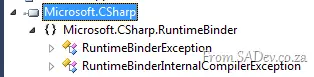
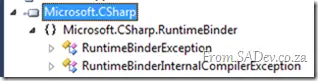
When you create a C# project, you get a reference to Microsoft.CSharp—and if you ever looked inside it, you’ll find it’s remarkably sparse: just two classes.

Like other languages, C# has a similar assembly—and if you’ve ever had the same thought I did, you might’ve assumed: "Those are just low-level language plumbing—nothing I’d want to use."
I was wrong again. While Microsoft.CSharp might not have much, Microsoft.VisualBasic isn’t just low-level plumbing—it’s a monolith of goodness!
WHOA THERE!
You might be asking: How can C# developers use an assembly written in VB.NET? The answer is: very easily! 😊
All assemblies compile to IL (Intermediate Language), meaning you can use any .NET assembly—regardless of its original language—in any language of your choice.
This blog series will explore some of the goodness available in this assembly. By the end, you’ll be a better, faster, and more productive C# developer—thanks to VB.NET!
This page lists all the parts of the series. If a part is not hyperlinked, it means that it will appear in the near future, and you should subscribe to the RSS feed to get notified when it arrives.
This list is subject to change as I write posts.
AppFabric Caching has one error you’ll learn to hate:
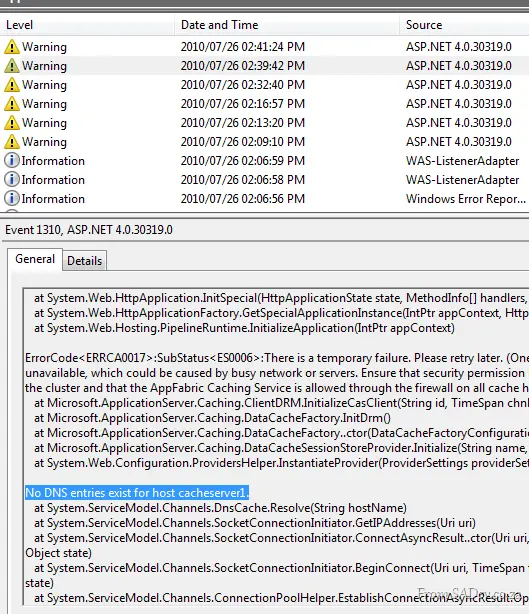
ErrorCode:SubStatus: There is a temporary failure. Please retry later. (One or more specified Cache servers are unavailable, which could be caused by busy network or servers. Ensure that security permission has been granted for this client account on the cluster and that the AppFabric Caching Service is allowed through the firewall on all cache hosts. Retry later.)
This message could mean a variety of different things, such as:
However, none of those were my issue. My problem was:
Copy & Paste Stupidity
I copied and pasted the settings for my deployment, leading to this config issue:
<dataCacheClient>
<hosts>
<host name="cacheServer1" cachePort="22233"/>
</hosts>
</dataCacheClient>
But my server was DEMO-PC, so I needed to update it to:
<host name="DEMO-PC" cachePort="22233"/>
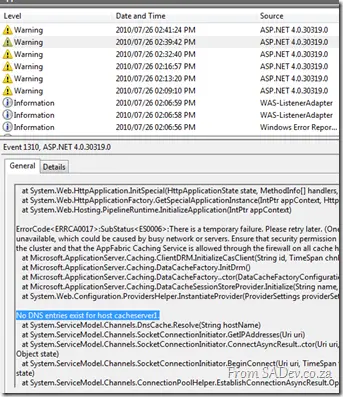
The only way I found this was to dig into the event log and scroll through the error message. About halfway down was the culprit—clear as day.

Exactly a year and one day ago, I blogged about being awarded an MVP from Microsoft and I am proud to announce that I have been awarded MVP status for a second time!
Thank you to all those who were part of making this happen—I am truly honoured by you all.
What is an MVP? In short, it’s a thank-you to Microsoft communities for their contributions. The long version can be found here.
My plans for the MVP Summit in February/March are already in place, so I’m looking forward to seeing the other MVPs and the product teams!
I would also like to congratulate my fellow January MVPs, particularly the South African ones: Zayd Kara (ALM for the second time) and new to the MVP program Veronique Palmer (SharePoint).
 I recently helped with an interesting problem involving SQL Reporting Services, where features from SRS 2008 were mysteriously missing!
History
The team had created several reports in SQL Server 2005 and used them successfully for years. During their upgrade to SQL Server 2008, they needed to upgrade those reports to the SRS 2008 format.
To clarify, SRS doesn’t support backward compatibility—so if you want to run a report built in 2005 on a 2008 server, it must be upgraded. Thankfully, this is a straightforward process: just open the report solution in Business Intelligence Development Studio (BIDS) 2008, and it will upgrade it automatically.
The Problem
The team followed this process, opening their 2005 reports in BIDS 2008. No errors were reported, all reports saved correctly, and they were published to the SRS server without issues. The server rendered them successfully—so the team assumed the reports had upgraded properly.
However, there was a subtle change in how the reports were rendered, and they needed to modify the ConsumeContainerWhitespace property to true to fix the issue.
This is a new property in 2008, but the problem was that when opening the report in BIDS 2008, it was simply not there. They could see it in newly created reports, but their existing ones lacked it entirely.
Diagnosis
My first check was whether they were using the correct version of BIDS—because, as they say, "Have you tried turning it off and on again?"—but they confirmed they were. My next step was to verify if BIDS was actually performing the upgrade.
Since a report is just an XML file, I suggested opening it in a text editor to check the schema:
- If it showed
http://schemas.microsoft.com/sqlserver/reporting/2008/01/reportdefinition, it would be a 2008 report. - If it showed
http://schemas.microsoft.com/sqlserver/reporting/2005/01/reportdefinition, it would still be a 2005 report.
Here’s the kicker: even after the upgrade, the file still identified as a 2005 report! This baffled me—how could SRS 2008 render a 2005 report, and why wasn’t BIDS upgrading it?
Solution
I was about to suggest calling Microsoft—or maybe an exorcist—when re-reading the email thread between the team and me, I spotted the missing clue. They were using .rdlc files, which are designed for client-side rendering.
Here’s why this matters:
.rdlc files are frozen at the 2005 schema, meaning they never adopt new features from SRS 2008 or later.- The schema remains stuck on 2005 (no upgrade occurs in BIDS).
- Yet, confusingly, they still render correctly on SRS 2008 and 2008 R2!
The fix was simple: convert from .rdlc to .rdl. This upgraded the reports to the 2008/2008 R2 format, unlocking the new features. The team did just that—and they’ve been happy ever since!
Note: This is part of a series, you can find the rest of the parts in the series index.
A vital component of keeping a piece of software alive is to keep it useful to your users—but how do you know what your users are thinking about your software or what they consider valuable pieces of functionality?
Pull achieves this using a fantastic piece of software called Runtime Intelligence from PreEmptive Solutions, which is easy to integrate into your application to gather interesting and useful details about its usage.
Lottery Winner?
Yesterday I blogged about DevExpress, and today another (not-free) toolset—maybe I’m thinking I won the lottery recently… unfortunately, I haven’t! 🙁
What I discovered one July morning is that PreEmptive offers its software and services for Runtime Intelligence for free to CodePlex projects.
This could be CodePlex’s biggest secret—and another fantastic reason to use it for open-source hosting.
Stats
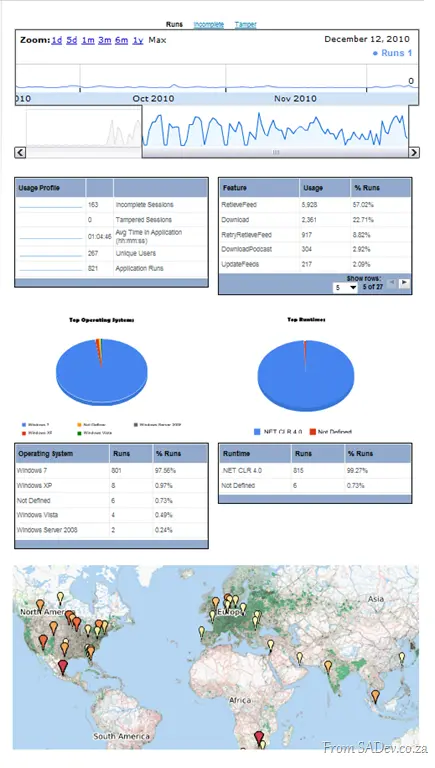
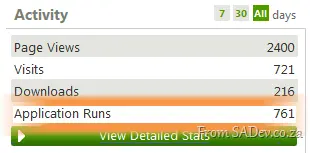
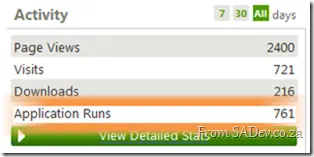
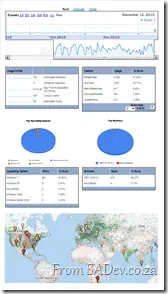 (Larger view) One of the first interesting stats is how many times the application has run—over 700 times for Pull! 😄 It’s always great to see that level of engagement.
 (Larger view) You can drill down into these stats, which are publicly available and provide details on:
- Which features users rely on
- The OS and .NET Framework versions in use
- Where in the world the software is running
Technical
Adding this to your application is simple—just follow the official guide. A word of caution: ClickOnce, another great feature of CodePlex, doesn’t work seamlessly with Runtime Intelligence, so be aware of that.
Note: This is part of a series, you can find the rest of the parts in the series index.
I make no attempt to hide my love for a company called DevExpress, which produces enhancements for Visual Studio and additional controls for WinForms, ASP.NET Web Forms, ASP.NET MVC, WPF, and Silverlight.
When I started with Pull, I used mostly the standard WinForms controls, but over time changed it to be almost 100% DevExpress controls for a number of reasons:
- Rudi Grobler, a Silverlight expert, sits across the partition from me and loves to point out how ugly standard WinForms is compared to Silverlight. DevExpress helps me make my applications look much better.
- Every line of code has a cost, and that value decreases over time. So, standing on the shoulders of giants means my development cost is much lower. This also means I can focus on the business aspects rather than the UI aspects.
- There’s a lot of parity between DevExpress controls across different platforms, so if I want to change platforms—for example, to Silverlight—I know the feature set will be close, and lots of code can be reused.
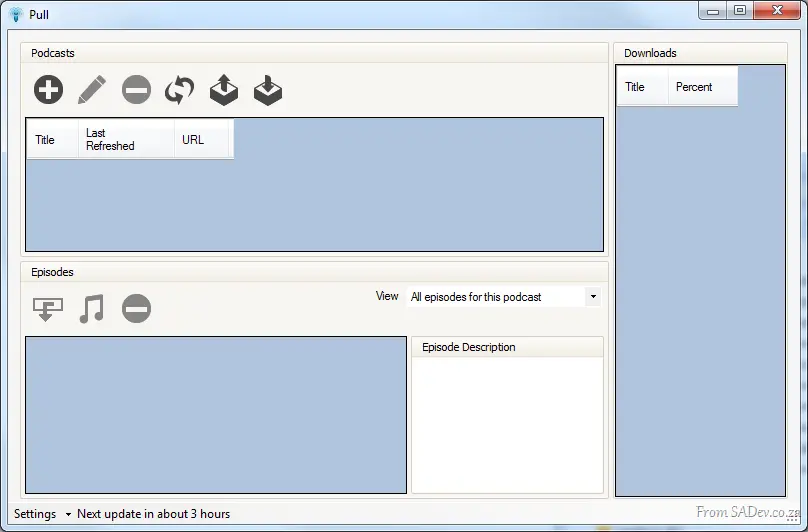
Below is the first public version of Pull, which uses only DevExpress GroupBoxes, while the rest is all WinForms:
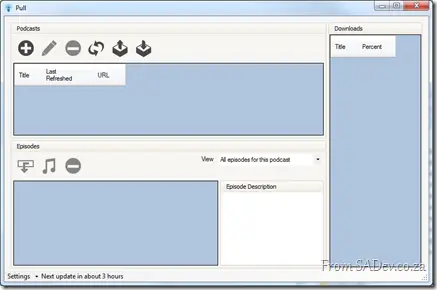
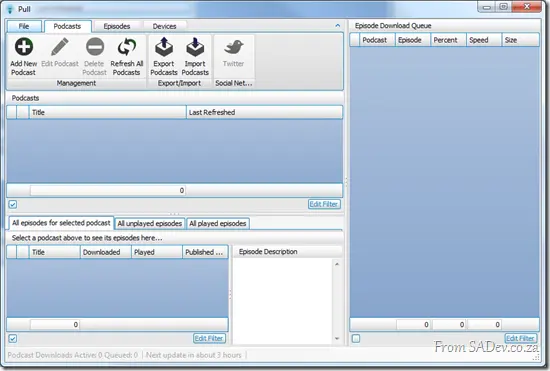
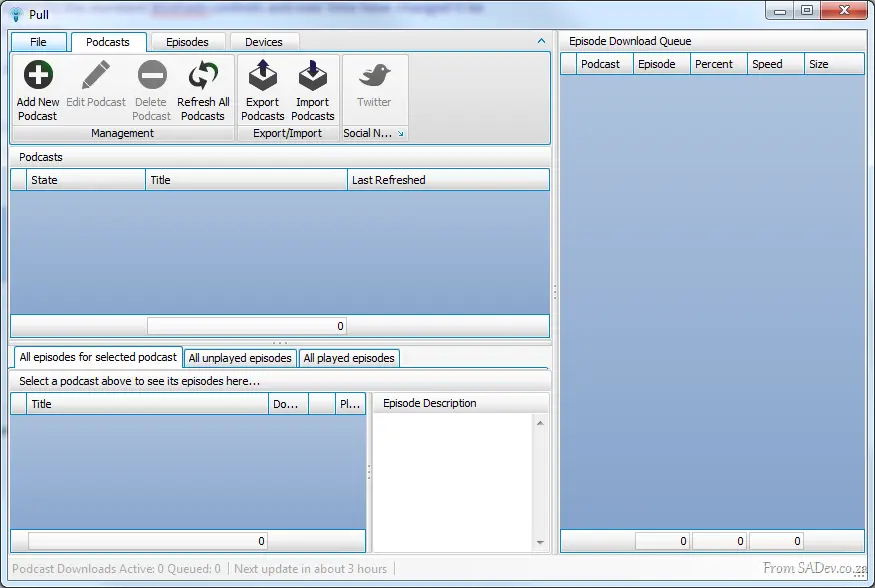
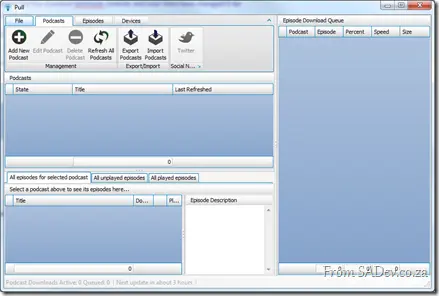
versus the UI currently in development (for the January 2011 release), where only the status bar and web browser control are not from DevExpress! I think you’ll agree it looks way better now, plus there are many new features there—like filtering grids—which weren’t supported previously.
Grid Extensions
For the January 2011 release, we switched to DevExpress grids, which meant a lot of code needed to be changed (or deleted). I ended up writing a few extensions for the grids that I believe may be useful to others:
Return a collection of selected items
Instead of working with a collection of selected rows, this lets you get the values of the selected rows:
public static IEnumerable<T> SelectedItems<T>(this ColumnView view) where T : class
{
    foreach (int selectedRowHandle in view.GetSelectedRows())
    {
        T item = view.GetRow(selectedRowHandle) as T;
        yield return item;
    }
}
Select a collection of items
The grid normally allows you to select a single row or a continuous range. However, often I want to provide a list of item values and have the rows matching those values selected:
public static void SelectRows<T>(this GridView view, IList<T> selectedItems) where T : class
{
    foreach (T selectedItem in selectedItems)
    {
        for (int counter = 0; counter < view.DataRowCount; counter++)
        {
            T item = view.GetRow(counter) as T;
            if (item == selectedItem)
            {
                view.SelectRow(counter);
            }
        }
    }
}
Layouts and Strings
You can persist the layout of a grid to a stream, the registry, or an XML file. However, I have a settings file and would like to save and restore the layout from strings so I can easily add it to my settings file:
public static string SaveLayoutToString(this GridView view)
{
    MemoryStream gridStream = new MemoryStream();
    view.SaveLayoutToStream(gridStream, OptionsLayoutBase.FullLayout);
    gridStream.Position = 0;
    using (StreamReader reader = new StreamReader(gridStream))
    {
        return reader.ReadToEnd();
    }
}

public static void RestoreLayoutFromString(this GridView view, string layout)
{
    if (!string.IsNullOrWhiteSpace(layout))
    {
        using (MemoryStream stream = new MemoryStream(Encoding.Unicode.GetBytes(layout)))
        {
            stream.Position = 0;
            view.RestoreLayoutFromStream(stream, OptionsLayoutBase.FullLayout);
        }
    }
}
Enum + Grid + Images = Headache
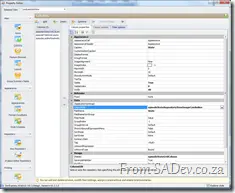 I have an enum for the podcast state and, rather than show the text—which is the default—I want to show an image in the cell. However, this isn’t the easiest thing to figure out, as there’s no designer support for this 🙁. However, you can do most of this in the designer and then only need one line of code per enum value 😊.
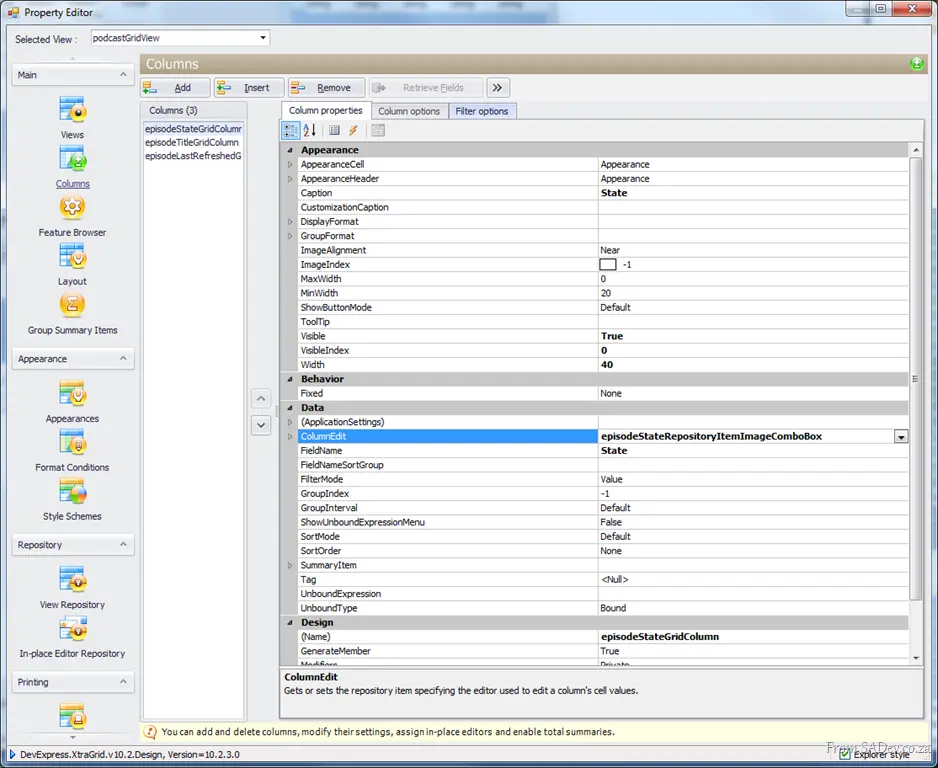
Step 1
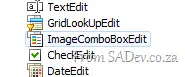
Set the Column Edit property of the column to an ImageComboBoxEdit: 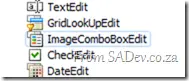
Step 2
On the ImageComboBoxEdit editor settings, set the small images (and/or large images) property to the image list containing the items you want to show. It’s important to know the position (or index) of the image in the image list.
Step 3
Now, all you need to do is add the item values for the editor in code using the _Items.Add method, which takes an ImageComboBoxItem. That class has overloads that accept an Object for the value, and here you can put in the enum value. Once this is done, it all works fantastically.
You’ll note in the demo code below that I have an image index of -1 for the first item—that’s so no image is shown!
editor.Items.Add(new ImageComboBoxItem("None", PodcastState.None, -1));
editor.Items.Add(new ImageComboBoxItem("Downloading", PodcastState.Downloading, 0));
editor.Items.Add(new ImageComboBoxItem("Pending", PodcastState.Pending, 1));
editor.Items.Add(new ImageComboBoxItem("New Episodes", PodcastState.NewEpisodes, 3));
editor.Items.Add(new ImageComboBoxItem("Error", PodcastState.Error, 2));
 Recently I needed to do an upgrade from SharePoint 2007—to be exact, WSS 3.0—to SharePoint 2010. "No big deal," I thought, "I’ve done it before." Assumptions, they do make for interesting life experiences, because this was something different—this was an upgrade on a Small Business Server (SBS) deployment.
 For those who do not know, SBS is a lightweight all-in-one server product. So when you install it, you get Windows Server 2008, plus Exchange Server, plus ISA, plus SharePoint, and more—ALL PRE-CONFIGURED! It is fantastic for use in small companies.
Microsoft has produced a fantastic upgrade guide for this very scenario: http://technet.microsoft.com/en-us/library/ff959273(WS.10).aspx, but I think it’s missing a few footnotes of things I encountered during my upgrades, which this blog post aims to share.
Check Lists
 I’ve created two checklists of things you should do ahead of time:
Software
This is the software you will need during the upgrade.
Environment
Some prep work for your environment ahead of time:
- Get a service account created on the domain for SharePoint.
- Get a service account for SQL Server 2008 R2 (it can’t use Network Service on a domain controller).
- Check for a public internet FQDN and gather its details—you’ll need this when setting up Alternate Access Mappings (AAM).
- Get the domain name used for email.
- Check for a local domain name for the site (typically companyweb). Verify it can be accessed from the server and from a workstation on the network.
- Ensure this is installed on a domain controller—some scenarios assume a non-DC, but with SBS, many steps break if it’s not.
Notes
Here are my additional notes for the guide. Some steps are left out if there was nothing special to note.
Step 1
- To check the WSS 3.0 version, enable the Version column in Add/Remove Programs. Service Pack 2 shows as 12.0.0.6421 (or higher).
- Alternatively, enable Show Updates in Add/Remove Programs and verify SP2 is installed.
Step 4
- There’s no need to disable the service during the copy, unless the server is rebooted or someone accesses SharePoint during this step.
- Critical: Back up the files first, then copy the content database files (MDF/LDF) to a secondary location—this will be their new home.
- Ensure the database files are not read-only.
Step 6
- This is a full farm install, not a standalone one.
Step 7
- If the site no longer exists, that’s okay.
Step 8
- If the Central Admin "Getting Started" Wizard appears, you can cancel it.
- Set the app pool identity to Network Service.
Step 13
- If you get a Default Web Error, it means the default and intranet AAM names are identical—edit them to differ.
Additional Steps Post-Upgrade
- Log in to the site and run the visual upgrade (Site Settings → Title, Description & Icon → Update the user interface), or it’ll look like no work was done!
- Verify the content database is configured with a timer service and search server.
- BACKUPS ARE CRUCIAL! → Microsoft’s Guide
- If search is broken, check for the WSSv3 loopback issue—though this should be resolved by the SBS rollup installed. For reference: Technet Blog Post on Event 2436.
Another month, another Pull release 😄 This month isn’t a very feature-rich release, but it includes some vital features and new ideas:
New Parsing Engine
Internally in Pull, we’ve added a new parsing engine that now handles broken feeds. The scenarios we’re catering for:
- Incorrectly encoded content in the description. Ted Talks — I’m looking at you.
- Feeds using DTDs. The Let’s Talk Geek podcast used to break because of this.
- Incorrect date and time formats. The 702 Podcast is an example of this.
What this means for you as a podcast consumer is that more podcasts are now available for you to subscribe to!
Battery Support
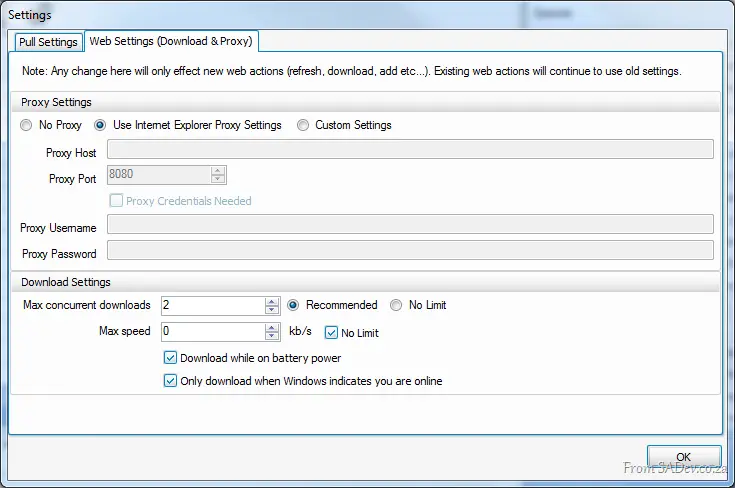
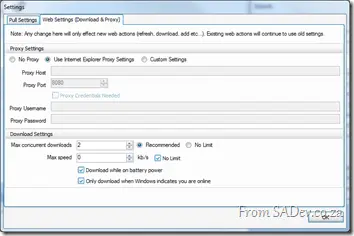 If you’re on batteries (i.e., unplugged laptops), downloading can strain them, so we’ve added an option to prevent downloads while on battery. This can be controlled in the settings dialog.
Online Detection
There’s no point attempting to download if you’re offline (waste of CPU, memory, batteries, etc.), so we now check with Windows whether you’re online before initiating downloads. This can also be adjusted in the settings dialog for cases where you’re online but Windows fails to detect it.
Better Hardware Use
We now optimize downloads based on the number of CPU cores available, ensuring efficient use of your system’s capabilities. This can be tweaked in the settings.
Sync Support
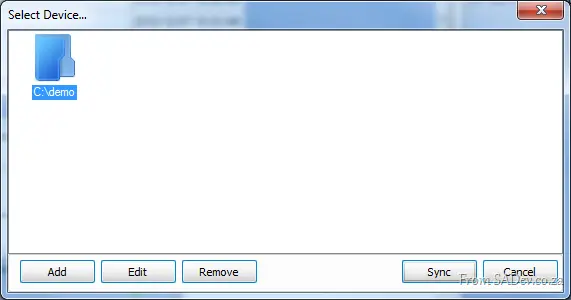
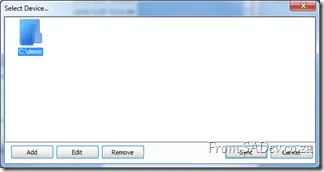 Pull now includes a basic sync system, allowing you to easily sync downloaded episodes across your devices. This intentionally basic implementation helps us understand user needs. Please provide feedback on this feature.
Twitter Support
Another new feature is a one-click way to share podcasts and episodes you’re listening to on Twitter! It’s still basic and may break in some cases, but we’ll improve it in the January release.
Minor Features
- UI and theming improvements
- Better last-resort crash handling
Looking Forward
For the January release, we’re implementing several major features:
- Grid overhaul – We use grids to list podcasts, episodes, downloads, and logs. In January, we’ll overhaul them with filtering, searching, persistent customizations, and performance improvements.
- UI Enhancements – Focused on making the UI more intuitive while giving power users greater control.
- Twitter – Better support, including bit.ly for URL shortening.
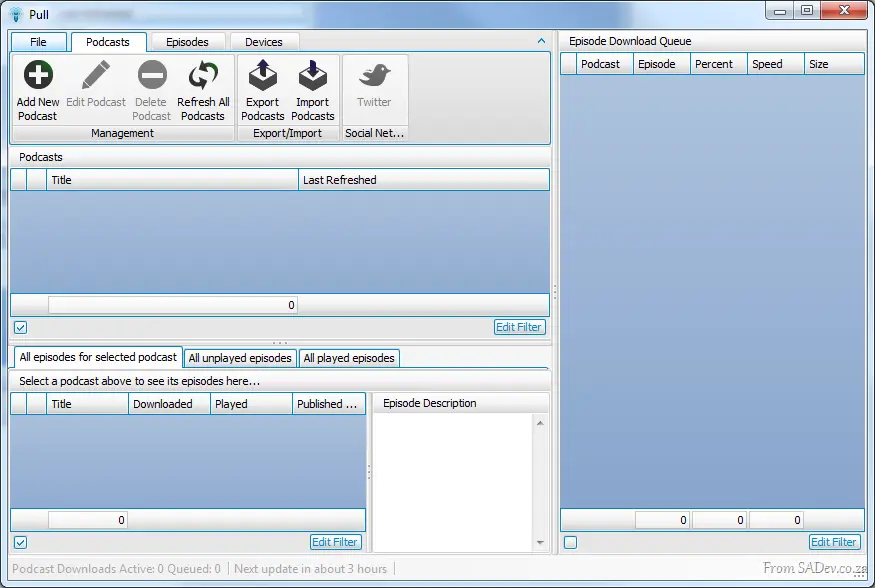
Here’s a sneak peek at the current development progress: