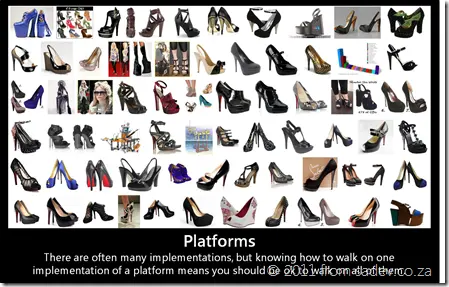
 I recently read an insightful post about how being a developer is less about coding and more about tooling, and while I do not agree with all of the post, the fact that we—as developers—are tool-obsessed rings very true. This obsession with tools becomes a white-hot rage when our favorite tool is threatened with extinction or causes a world of panic when a competing tool is proposed without enough information about it.
Let’s look at two key examples of that:
- WinForms was very popular, and when Microsoft brought us WPF, there was major pushback from those who did not want to change and learn a new tool. If you’re reading this, you might be thinking, “Well, time solved that”—but I disagree. This very week, I was asked about WinForms vs. WPF again. Time doesn’t heal all wounds; it just gives some of us time to move on.
- To illustrate this world of panic, consider a more recent issue: Windows 8! Remember all the discussions before //Build about the death of ? The confusion caused by incomplete discussions around tools we love led to panic.
So what is the solution to this? I think a mindset change would be enough. The mindset change needed is to remember that a platform is more important, powerful, and useful than a tool. I’d like to take credit for this idea, but the first time I heard someone mention it was a few years back—Scott Hanselman was discussing it on MVC almost three years ago to the day. He mentioned that ASP.NET > ASP.NET Web Forms and ASP.NET > ASP.NET MVC. In short, he was saying that the core understanding of ASP.NET—the core features and uses of the platform—are bigger than any single implementation (tool). Sure, you need to learn a new tool, but you aren’t starting at zero if you know the platform.
 Why am I bringing this up? Because of the discussions I’ve been having about another tool recently: Silverlight. We’re approaching panic stage over this tool due to rumors of its demise. However, it is very important to take a step back and see what the platform is—and how knowing the platform means that a tool can evolve, and we’re still able to work, code, and make money.
The platform Silverlight uses is XAML-based UI technologies—a core set of ways to lay out UI components using an XML dialect called XAML. This platform also includes features like binding and the MVVM pattern, which are either difficult or impossible to achieve with other UI technologies (like WinForms, for example).
XAML-based UI technologies started with a single tool: WPF—an implementation of the platform designed to run on top of the .NET Framework. A second tool, Silverlight, later emerged as an implementation designed to run as a browser plugin. A third tool, Silverlight for Windows Phone 7, followed, though it had differences because it was an implementation for the phone. In the last few months, we’ve seen a fourth implementation of XAML-based UI technologies appear: WinRT—the Windows Runtime in Windows 8. When you develop with C#, VB.NET, or C++, your UI technology is just another implementation of the platform.
Every implementation has differed—some in major ways, others in minor—but the core of the XAML-based UI technology platform hasn’t changed. There isn’t a single rumor, plan, or hint that we’re even close to seeing the end of XAML-based UI technologies. We may see a tool reach its end of life (like some rumors about Silverlight) or others reach completion without needing updates (like WPF, if). But the platform remains—and it grows. Learning a platform is always more important, powerful, and useful.
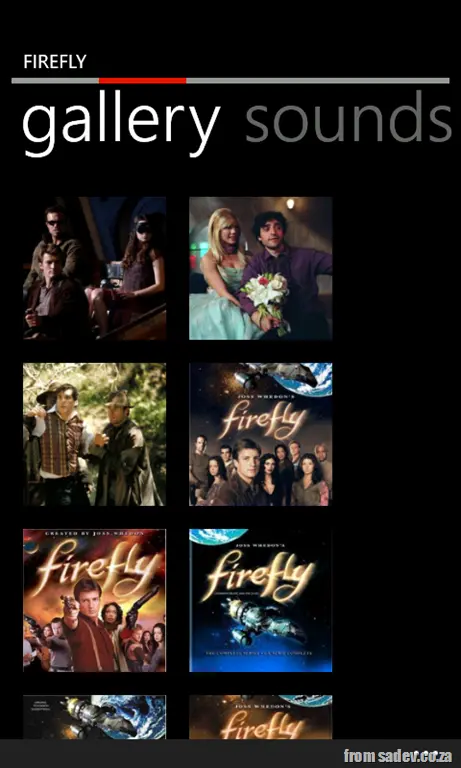
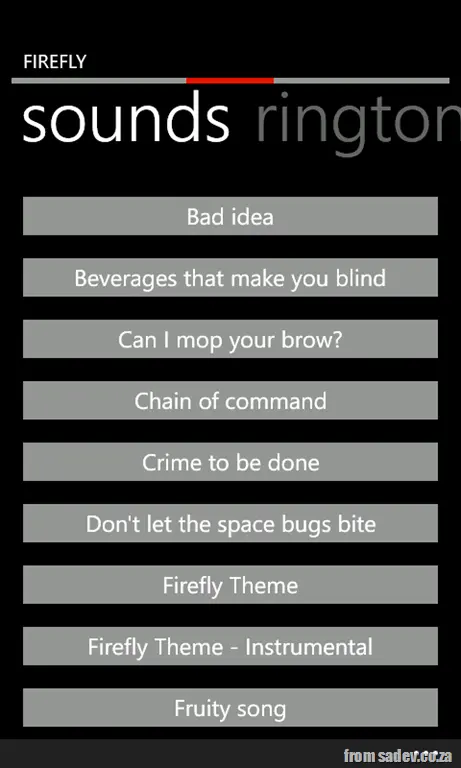
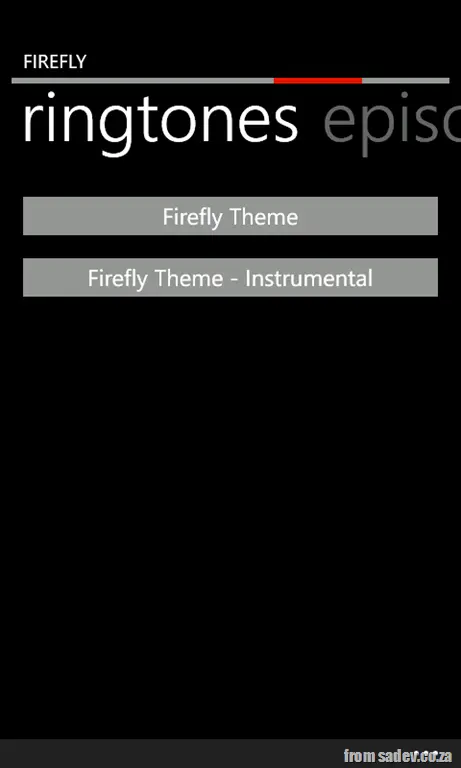
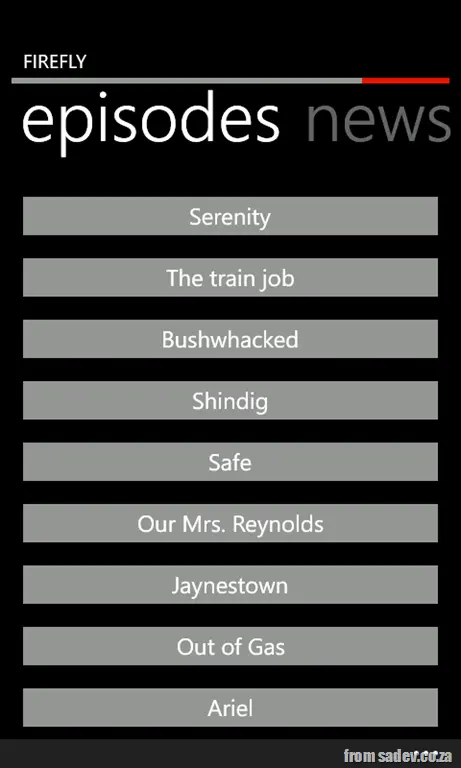
 I am a browncoat—if you know what that means, then you will be excited to see my new application for Windows Phone 7: a Firefly hub app containing news, images, sounds, and ringtones from the show and from the movie, Serenity.
This started as me wanting a soundboard for the show, but grew much larger 😊
This is the first app I’ve created since my UX training, and I hope that many of the tools and skills I learned in that training come through in the application.





This post is part of a series, to see the other posts in the series go to the series index.
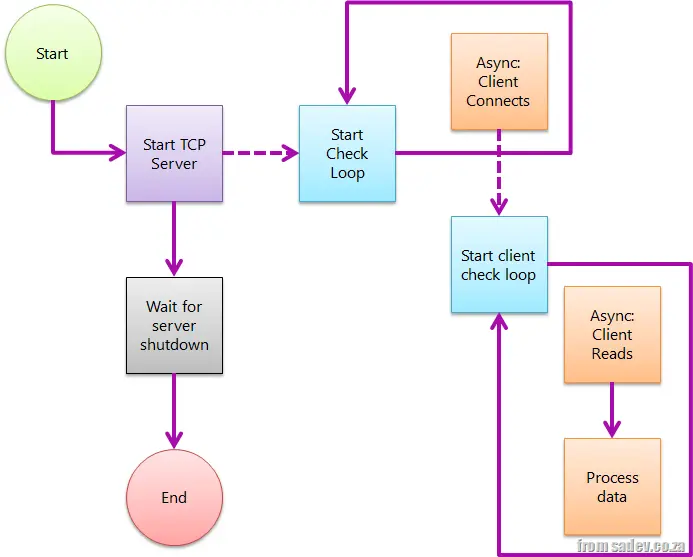
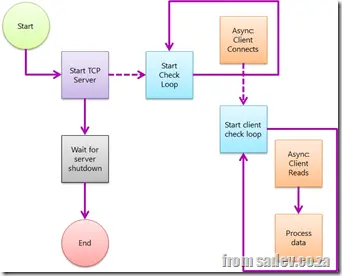 Scenario 3 is a great solution to the problem, but the issue was that its complexity far exceeded that of scenario 1 or scenario 2. We were calling other methods, using recursive-like behaviors, and all sorts of non-obvious things that were difficult to grasp.
Fortunately, Microsoft addressed this issue, and with .NET 4.5, we gained some help through its new async features, particularly the _async_ and _await_ keywords.
In short, async informs the compiler that a method will spawn an asynchronous process and will return to the caller at some point, while await designates the point in the code where execution pauses asynchronously.
Using these, I was able to modify the code to closely resemble the structure of scenario 1 (including the Boolean continueRunningServer flag). However, the two methods are enhanced with the async keyword and use await with _AcceptTcpClientAsync_ and _ReadAsync_—new methods in the TCP stack that return Task<T>, a fundamental requirement for async calls.
I think this is a fantastic improvement, and I cannot wait for .NET 4.5 to ship! 😊
class Program
{
    private const int BufferSize = 4096;
    private static bool ServerRunning = true;

    static void Main(string[] args)
    {
        var tcpServer = new TcpListener(IPAddress.Any, 9000);
        try
        {
            tcpServer.Start();

            ListenForClients(tcpServer);

            Console.WriteLine("Press <kbd>Enter</kbd> to shut down");
            Console.ReadLine();
        }
        finally
        {
            tcpServer.Stop();
        }
    }

    private static async void ListenForClients(TcpListener tcpServer)
    {
        while (ServerRunning)
        {
            var tcpClient = await tcpServer.AcceptTcpClientAsync();
            Console.WriteLine("Connected");
            ProcessClient(tcpClient);
        }
    }

    private static async void ProcessClient(TcpClient tcpClient)
    {
        while (ServerRunning)
        {
            var stream = tcpClient.GetStream();
            var buffer = new byte[BufferSize];
            var amountRead = await stream.ReadAsync(buffer, 0, BufferSize);

            var message = Encoding.ASCII.GetString(buffer, 0, amountRead);
            Console.WriteLine("Client sent: {0}", message);
        }
    }
}
This post is part of a series, to see the other posts in the series go to the series index.
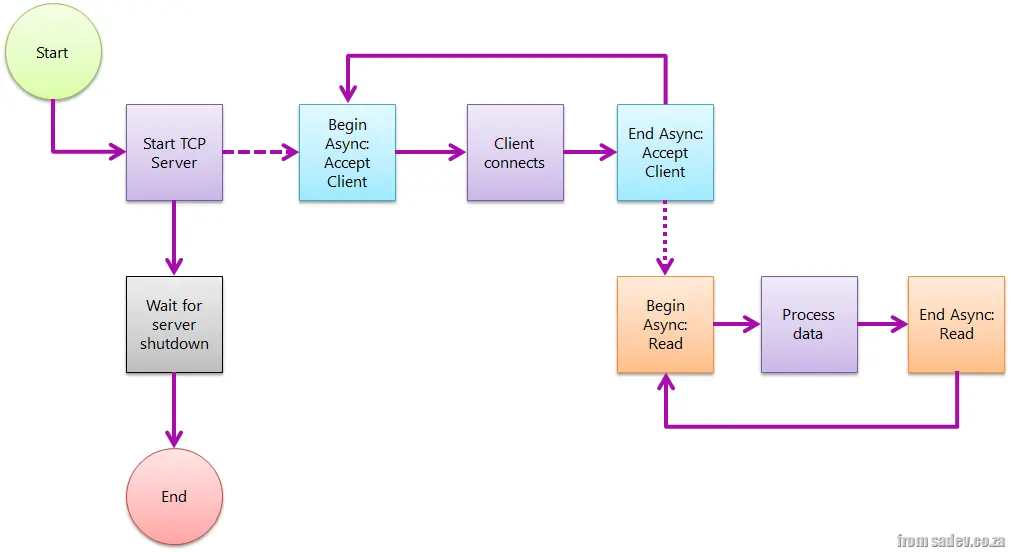
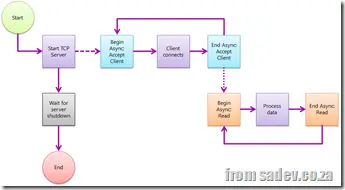 The first two posts (post 1, post 2) in this series were really just to set the stage and help explain problems with TCP servers that do blocking. The code and method aren't wrong—they work for some scenarios—but if you want a really robust model, a model that fixes these issues without adding any extra technical problems, you need to use a non-blocking server.
We start the server the same way, but instead of using the blocking _AcceptTcpClient method, we use the non-blocking method _BeginAcceptTcpClient, which implements the async (or begin/end) pattern—I’ll refer to it as async from here on. Mark Pearl has a great post explaining the async pattern.
When a client connects, it triggers the code set up in the async callback, where we call _EndAcceptTcpClient to complete the async process and retrieve the _TcpClient object.
We repeat this process for reading from the client by switching from _Read to _BeginRead.
The advantage of this model is that the only blocking point is ReadLine, making it easy to shut down the server. We also don’t have to worry about thread management (threads are still used internally, but we don’t need to manage them), and clients can now connect and send data at any time—it doesn’t matter!
This pattern requires significantly more code and is more complex to set up, but once you understand the async pattern (call begin > pass the state with necessary info > call end to retrieve more data), it becomes much easier.
class Program
{
    private const int BufferSize = 4096;

    static void Main(string[] args)
    {
        var tcpServer = new TcpListener(IPAddress.Any, 9000);
        try
        {
            tcpServer.Start();

            tcpServer.BeginAcceptTcpClient(ClientConnection, tcpServer);

            Console.WriteLine("Press <kbd>Enter</kbd> to shut down");
            Console.ReadLine();
        }
        finally
        {
            tcpServer.Stop();
        }
    }

    private static void ClientConnection(IAsyncResult asyncResult)
    {
        Console.WriteLine("Client connected");
        var tcpServer = asyncResult.AsyncState as TcpListener;
        var tcpClientConnection = tcpServer.EndAcceptTcpClient(asyncResult);
        tcpServer.BeginAcceptTcpClient(ClientConnection, tcpServer);

        var stream = tcpClientConnection.GetStream();
        var buffer = new byte[BufferSize];
        var clientData = new ClientReadData()
        {
            Buffer = buffer,
            Stream = stream
        };

        stream.BeginRead(buffer, 0, BufferSize, ClientRead, clientData);
    }

    private class ClientReadData
    {
        public byte[] Buffer { get; set; }
        public NetworkStream Stream { get; set; }
    }

    private static void ClientRead(IAsyncResult asyncResult)
    {
        var clientReadData = asyncResult.AsyncState as ClientReadData;
        var amountRead = clientReadData.Stream.EndRead(asyncResult);
        var message = Encoding.ASCII.GetString(clientReadData.Buffer, 0, amountRead);
        Console.WriteLine("Client sent: {0}", message);

        clientReadData.Stream.BeginRead(clientReadData.Buffer, 0, BufferSize, ClientRead, clientReadData);
    }
}
This post is part of a series; to see the other posts in the series, go to the series index.
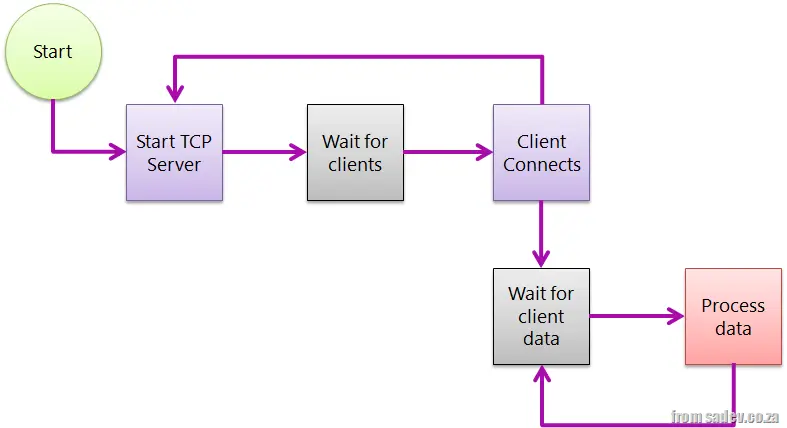
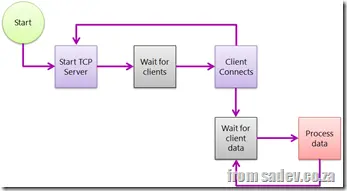 In the previous post, we looked at the simplest of all TCP server scenarios. But what about the third issue highlighted in that post: it assumes your clients will connect, pass data, and disconnect? What if clients connect optimistically so they can send data at some point in the future?
This is very common for games, where the client connection process is slow or even the smallest overhead should be eliminated.
In this mode, rather than read data and disconnect, we add a loop for reading and read until we get an end-of-message notice before ending the connection.
The problem with extending the simple model to this scenario is that we now have a blocking action: code cannot continue until something happens, in both the server thread and in all the client connection threads. So now shutting down the server isn’t just related to the server—we need clients to disconnect properly first.
What is common here is to send a message to all clients saying the server will shut down and then have them disconnect. This assumes we have smart clients and/or control them, but in scenarios where you don’t control the TCP clients, it could be problematic. We’ll look at a way to solve this in the next post. For now, the code below shows how this is implemented. Compared to scenario 1, it contains one small change:
class Program
{
    private const int BufferSize = 4096;
    private static bool ServerRunning = true;

    static void Main(string[] args)
    {
        new Thread(RunTCPServer).Start();
        Console.WriteLine("Press <kbd>Enter</kbd> to shut down");
        Console.ReadLine();
        ServerRunning = false;
    }

    private static void RunTCPServer()
    {
        var tcpServer = new TcpListener(IPAddress.Any, 9000);
        try
        {
            tcpServer.Start();
            while (ServerRunning)
            {
                var tcpClientConnection = tcpServer.AcceptTcpClient();
                Console.WriteLine("Client connection");

                // Spawn thread to deal with it
                new Thread(ClientConnection).Start(tcpClientConnection);
            }
        }
        finally
        {
            tcpServer.Stop();
        }
    }

    private static void ClientConnection(object state)
    {
        var tcpClientConnection = state as TcpClient;
        var stream = tcpClientConnection.GetStream();
        var buffer = new byte[BufferSize];
        while (ServerRunning)  // New in scenario 2
        {
            var amountRead = stream.Read(buffer, 0, BufferSize);
            var message = Encoding.ASCII.GetString(buffer, 0, amountRead);
            Console.WriteLine("Client sent: {0}", message);
        }
    }
}
This post is part of a series, to see the other posts in the series go to the series index.
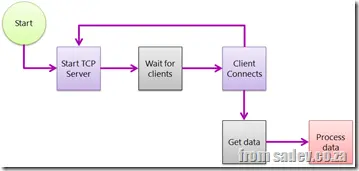 Writing a TCP server is something that modern business .NET developers don’t need to worry about—we have WCF, which has abstracted us from understanding TCP servers and clients for business apps—but for some systems, we still need to write a TCP server or client.
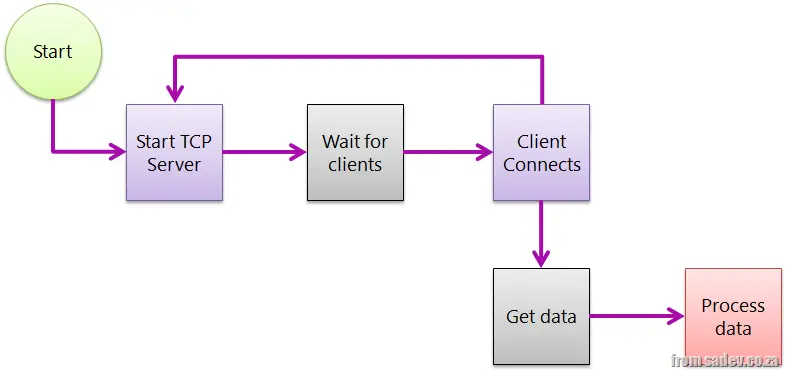
Microsoft has optimized the .NET framework for common scenarios—for example, doing something like SMTP, where a server runs continuously and clients connect when they have data, provide the data, and disconnect. So what you might do is start a server (in its own thread so you can still perform other tasks in the app) and wait for client connections. At this point, you’re blocking processing until a client connects. When a client connects, you retrieve the data and process it (in a new thread so you can allow more clients to connect).
The advantage of this is that the model is simple and fairly easy to set up, but there are a few problems with this approach:
- You have this blocking point while waiting for clients, making shutdown difficult. Since a server’s role is to always be up, this is not an optimized path—there’s no graceful way to stop it. Essentially, you’ll need to use Task Manager to kill the process.
- You deal with extensive threading and must manually handle threads. Threads are difficult to understand and prone to failure, so this opens up potential problems.
- You assume the client will connect, send data at once, and then disconnect. Again, this is the “normal” scenario (think HTTP or SMTP), but there are cases where this is not possible.
Below is a sample implementation for a console application:
class Program
{
private const int BufferSize = 4096;
private static bool ServerRunning = true;
static void Main(string[] args)
{
new Thread(RunTCPServer).Start();
Console.WriteLine("Press <kbd>Enter</kbd> to shut down");
Console.ReadLine();
ServerRunning = false;
}
private static void RunTCPServer()
{
var tcpServer = new TcpListener(IPAddress.Any, 9000);
try
{
tcpServer.Start();
while (ServerRunning)
{
var tcpClientConnection = tcpServer.AcceptTcpClient();
Console.WriteLine("Client connected");
new Thread(ClientConnection).Start(tcpClientConnection);
}
}
finally
{
tcpServer.Stop();
}
}
private static void ClientConnection(object state)
{
var tcpClientConnection = state as TcpClient;
var stream = tcpClientConnection.GetStream();
var buffer = new byte[BufferSize];
var amountRead = stream.Read(buffer, 0, BufferSize);
var message = Encoding.ASCII.GetString(buffer, 0, amountRead);
Console.WriteLine("Client sent: {0}", message);
}
}
This page provides links to each of the posts in this series. If a post is not linked yet, check back in a few days as they will all be up soon!
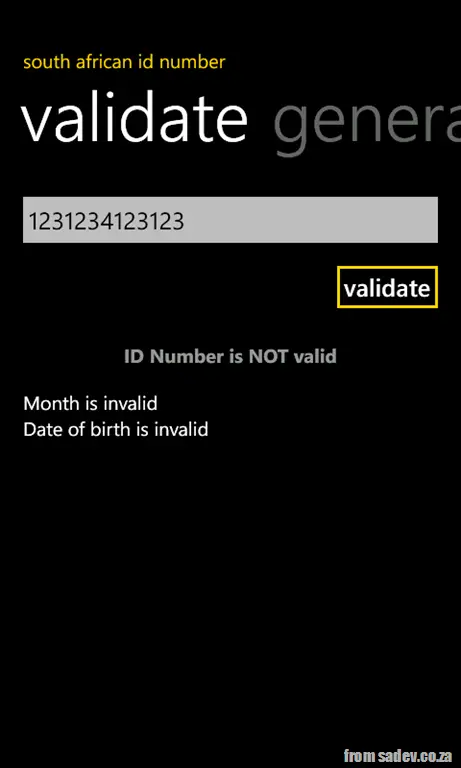
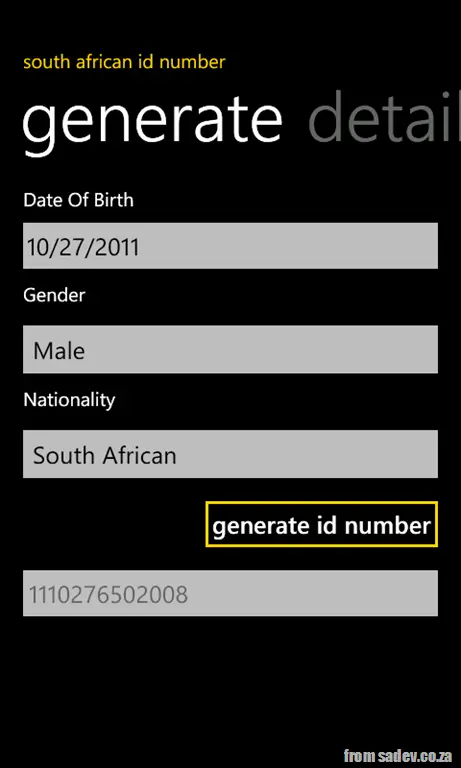
I have a few Windows Phone 7 apps, and two of those are the SA ID Number Tools and the AA Rates Calculator. You may be familiar with the AA Rates one from my friend, Rudi Grobler, who used it in his TechEd talks to show a UI that did not follow the guidelines correctly 😒
I took this and the Windows Phone UX training I attended to heart and put a lot of work into updating them to better align with the WP7 UI guidelines.
AA Rates Calculator
The first thing is that this application has dropped the yellow background, which made sense for an AA tool (their color is yellow), and now uses black or white depending on your theme. All controls have been updated to reflect that too. I’ve also fixed the alignment issues Rudi was quick to point out.
I now use the highlight color and larger typography to make the key information stand out—this was something I learned at the UX camp.
In addition, I’ve added some new features:
- The ability to share your rate via email or social networks (Twitter, Facebook, etc.)
- A yellow-branded progress bar to show how much data is in the app
- A fuel price page so you can always have the latest fuel price information
- Updated information pickers with larger selections, making it easier for people with big hands like me
- The option to display fuel prices on a live tile!



SA ID Number Tools
Again, I dropped the background green (which was a photo of my ID book cover) and switched to a pivot control instead of a panorama control (which was heavier). The green/gold theme has mostly been replaced, with gold used selectively in the application. I’ve also carefully adjusted font sizes and colors to make the information stand out more.



Hopefully, these changes make these apps feel faster, easier to use, and more integrated into your phone than before!
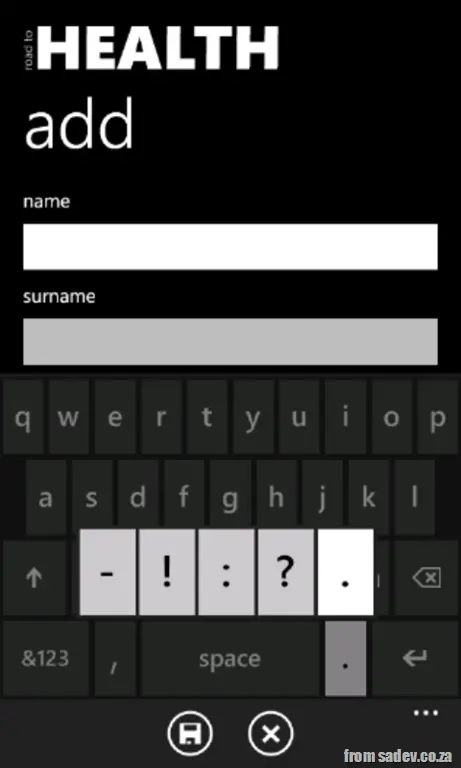
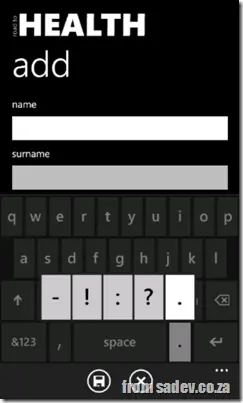 The keyboard on WP7 is an amazing area you’ll often encounter, so it’s no surprise it contains some hidden gems to improve your experience—like double tap.
Today’s hidden gem is the ability to press and hold keys to reveal pop-ups with additional options, which can save you from navigating to the symbols or numbers section—or even grant access to features you’d never find elsewhere.
If you look at the screenshot, you’ll see the dot key has been pressed and held, revealing a pop-up with dash, exclamation mark, colon, question mark, and dot—much easier than digging through the symbols menu.
Other keys with this behavior also work on uppercase (where applicable):
- e → ê è ë é
- t → þ
- y → ý ÿ
- u → ù ú û ü
- i → ì í î ï
- o → ò ó ô ö ø œ
- a → ä á â à å æ
- s → ß §
- d → ð
- c → ç ©
- n → ñ
- m → ɥ
- 1 → ⅓ ¼ ½
- 2 → ² ⅔
- 3 → ¾ ³
- 0 → °
- £ → $ ¢ € ¥ ¤
- ( → < { [
- ) → > } ]
- - → _ ~ ¬ ·
- ! → ¡
- ’ → ´ `
- " → « » “ ”
- ? → ¿
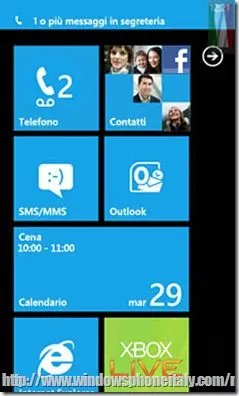
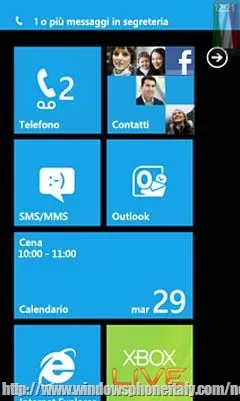
Windows Phone 7 supports small pop-up notifications called toasts (because they appear like bread in a toaster). You’ll see these when you receive a text message (SMS) or notifications from games (like Tanks) or chat programs like WhatsApp.
These notifications stay visible briefly, but you can dismiss them quickly—just swipe across them, as if flicking them away, and they’ll vanish from the screen.
I use this feature often with WhatsApp when I receive multiple messages in quick succession, allowing me to clear the first one to see the second toast underneath. It’s also useful while gaming—swiping away an SMS lets me stay focused on playing. Another great UX touch in Windows Phone 7.


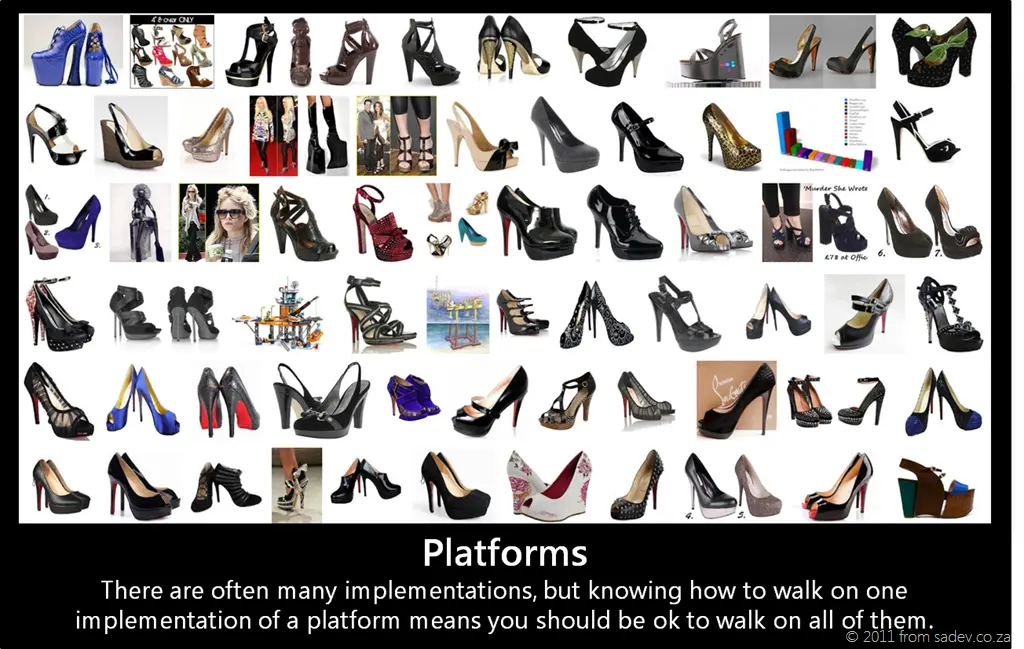 I recently read an insightful post about how being a developer is less about coding and more about tooling, and while I do not agree with all of the post, the fact that we—as developers—are tool-obsessed rings very true. This obsession with tools becomes a white-hot rage when our favorite tool is threatened with extinction or causes a world of panic when a competing tool is proposed without enough information about it.
 Why am I bringing this up? Because of the discussions I’ve been having about another tool recently: Silverlight. We’re approaching panic stage over this tool due to rumors of its demise. However, it is very important to take a step back and see what the platform is—and how knowing the platform means that a tool can evolve, and we’re still able to work, code, and make money.