Note: Before you read this post, it is using the public consumer preview (beta) of Windows 8, Visual Studio 11, and .NET 4.5, so I expect some issues will likely be resolved in later releases.
With the beta of Win8, Visual Studio 11, and .NET 4.5 now out, I thought I should post again (first post about this can be found here – recommended reading to see how it has improved) how it has improved or changed since the alpha. This is not meant to be an exhaustive list, but rather a list of the most common things (where "most common" is what I use, because I am pretty common 😜).
Namespaces
Namespaces have been polished, and there is much better alignment of the new awesomeness to the old—so this is getting much better.
#if NETFX_CORE
    using Windows.UI.Xaml.Controls;
    using Windows.UI.Xaml;
    using Windows.UI.Core;
    using Windows.UI.Xaml.Controls.Primitives;
#else
    using System.Windows.Controls;
    using System.Windows.Controls.Primitives;
#endif
Duplication of INotifyPropertyChanged, ICommand, and INotifyCollectionChanged is SOLVED!
I mentioned the EPIC FAIL of the duplication of core interfaces—that has been fixed! 😊 😊 😊
ObservableCollection<T> is broken SOLVED!
The double facepalm that was breaking ObservableCollection<T> has also been fixed—so this means your Metro-style apps are more like your WPF and Silverlight apps than ever before.
User Controls must be created on the main thread SOLVED!
I no longer get the stupid behavior where a user control had to be created on the main thread, and thankfully, that has been fixed! You can now create user controls on other threads! 😊 😊
IValueConverter has been changed
Previously, the Convert and ConvertBack methods' second parameter was a string; now, it has been changed to a Type. This is a good move as it allows for better comparisons, but it means any IValueConverters from the alpha will be broken—though it's an easy fix:ui
public object Convert(object value, string typeName, object parameter, string language)
public object Convert(object value, Type typeName, object parameter, string language)
One of the key business aspects not included with LightSwitch 2011 is a great set of charting controls, and often I need to have a few for the projects I'm working on. Thankfully, with the Silverlight Toolkit and a touch of code, I can have BRILLIANT charts for no extra cost!
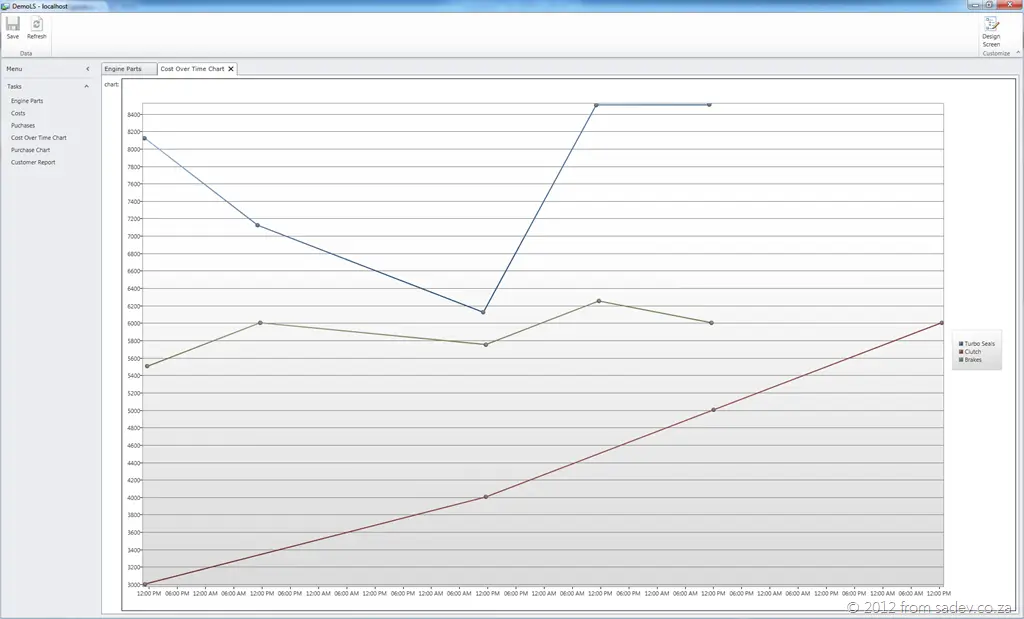
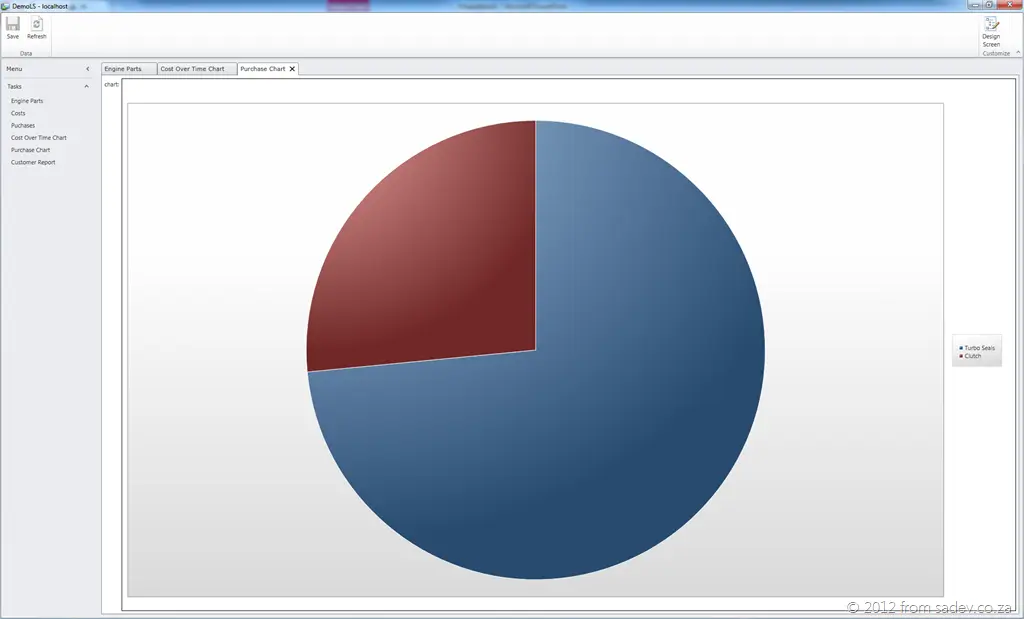
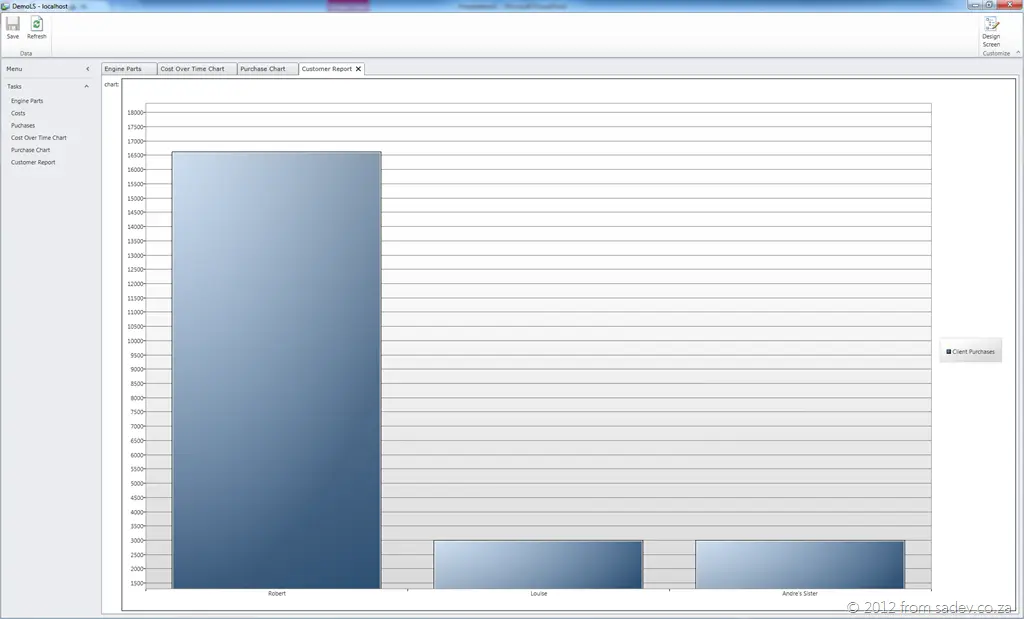
Below are three charts using the Silverlight Toolkit in LightSwitch, which I think look FANTASTIC, and it’s fairly easy to do in four easy-to-follow stages.
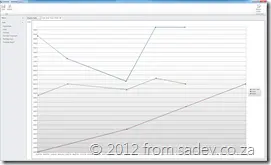
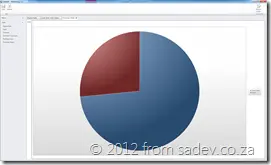
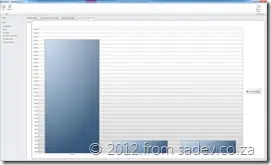
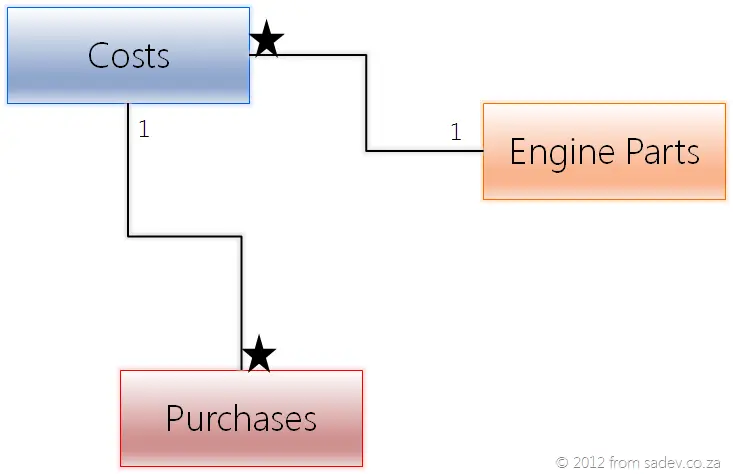
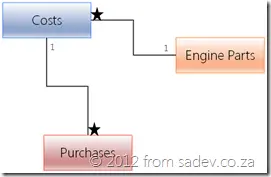
For this tutorial, I have a simple structure of engine parts, costs over time, and purchases, which looks a little like the image below—I’ve already created the data structure and UI for adding those in LightSwitch.
Stage 1: Get the toolkit
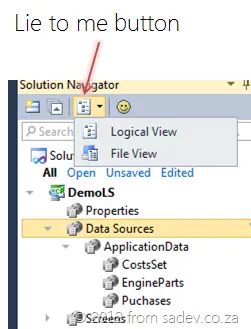
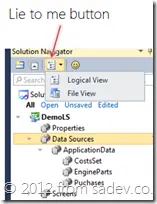
To start, we need to switch out of the Logical View and into the Files View. To do this in Solution Explorer, click the View drop-down (that’s what I call it) and change the view.
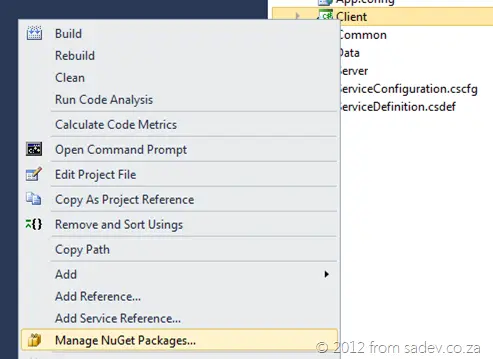
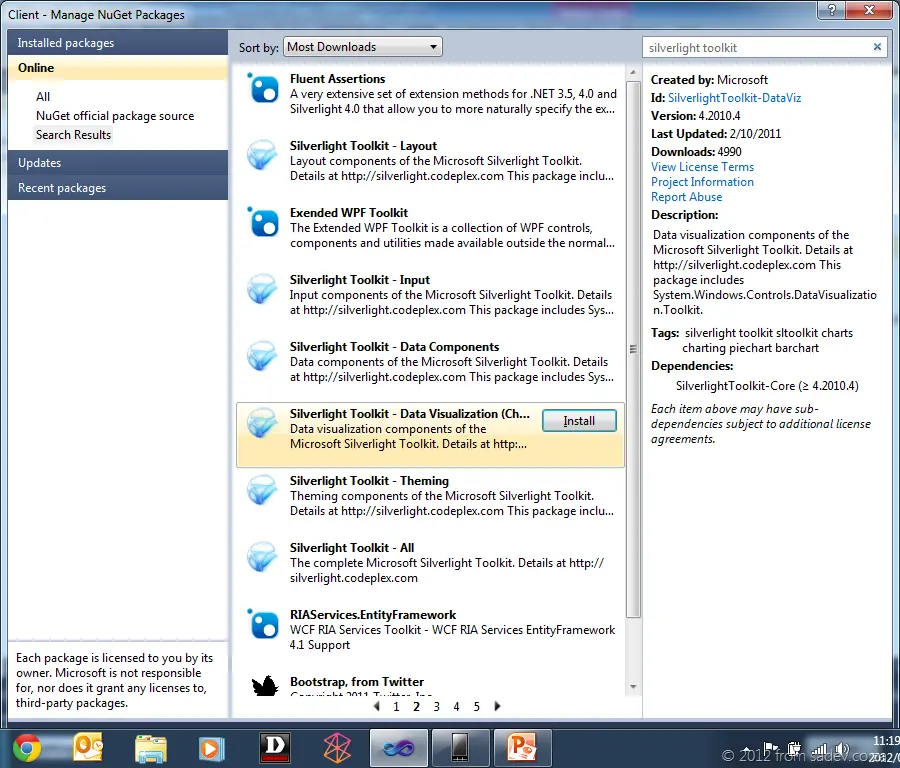
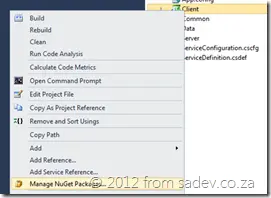
Next, right-click on the client project and select Manage NuGet Packages. If you don’t have NuGet yet, stop, download it from www.nuget.org, install it, and then come back.
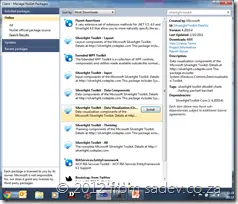
In NuGet, search for the Silverlight Toolkit and install the Data Visualization package. Now, unfortunately, LightSwitch isn’t great with NuGet, so we’re using this to get the packages, but they won’t be properly installed as you might expect.
Stage 2: Create the screen and add the control
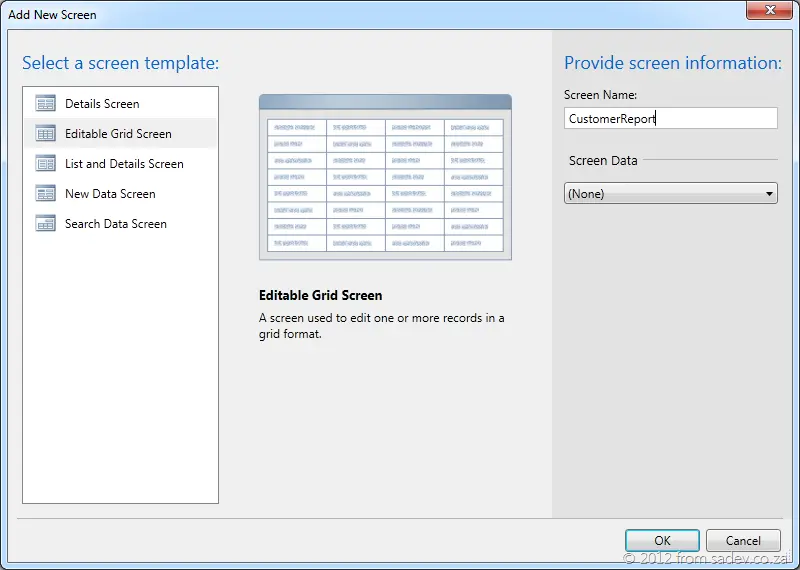
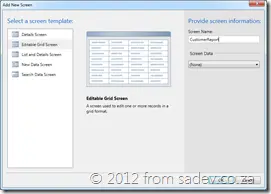
Now switch back to the Logical View and add a new Editable Grid Screen. Give it a nice name but do not select any Screen Data.
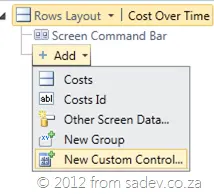
In your new screen, click the Add button at the bottom and select New Custom Control. If you don’t have that option, you’ve selected the Add option for the Screen Command Bar, so make sure the Rows Layout is selected at the top.
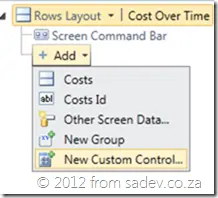
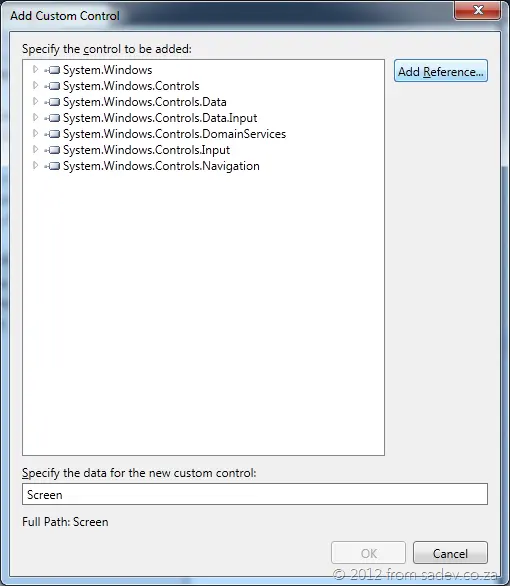
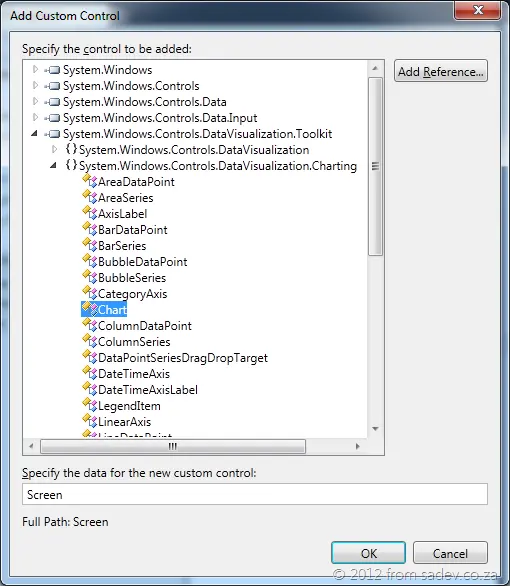
Now we need to add the assemblies for the Silverlight Toolkit packages. To do this, press the Add Reference button in the Add Custom Control screen.
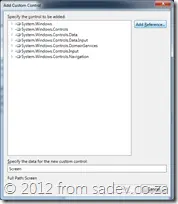
Browse to the packages folder in the root of the LightSwitch project and add the two assemblies. Once done, browse the System.Windows.Controls.DataVisualization.Toolkit assembly and go to System.Windows.Controls.DataVisualization.Charting.Chart, then select OK.
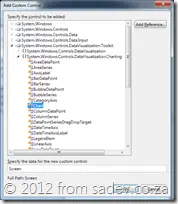
Stage 3: Configure the chart control in LightSwitch
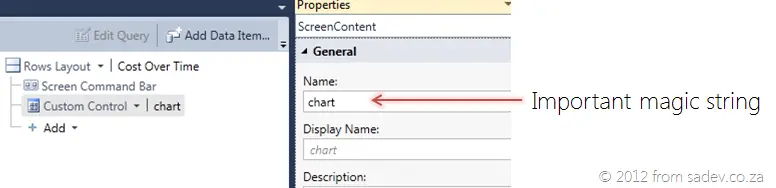
The control should now be listed. Next, go to its properties and give the chart a name—this is important, so name it something memorable.
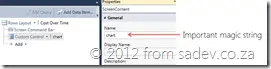
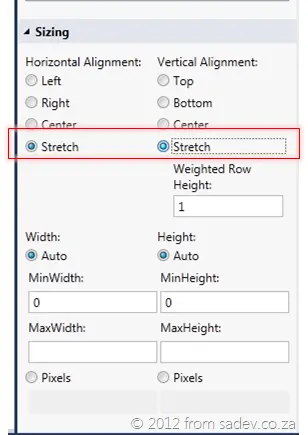
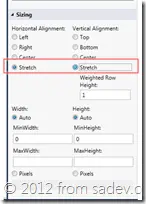
Now, change the sizing of the chart control to be Stretch for both Horizontal and Vertical Alignment. This allows the chart to use all the space on the screen!
Stage 4: Add some code to get the data and put it in the chart
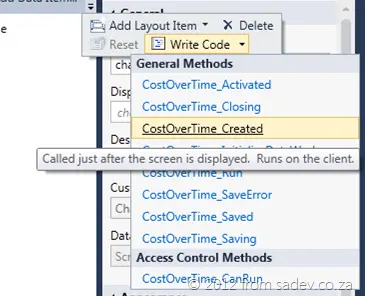
Now we need to add the code to get the data and render the chart. We’ll do this in the Created event for the screen (to get there, click the Write Code button in the toolbar and select the event).
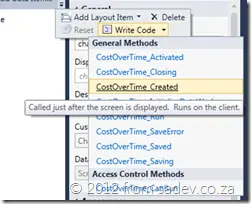
Here’s the code we add to the event:
- Find the chart control.
- Get the data from the DataWorkspace into a list.
- Set the chart to use the data.
partial void CostOverTimeChart_Created()
{
var chart = this.FindControl("chart");
chart.ControlAvailable += (s, e) =>
{
this.Details.Dispatcher.BeginInvoke(() =>
{
var dataPoints = (from Costs c in this.DataWorkspace.ApplicationData.CostsSet
group c by c.EnginePart).ToList();
var chartControl = e.Control as Chart;
chartControl.Dispatcher.BeginInvoke(() =>
{
chartControl.Series.Clear();
foreach (var group in dataPoints)
{
chartControl.Series.Add(new LineSeries()
{
Title = group.Key,
IndependentValuePath = "PointInTime",
DependentValuePath = "Cost",
ItemsSource = group
});
}
});
});
};
}
If we dive into the code:
- Line 4: We use the
FindControl method with the magic string we named the chart to find the control wrapping it. - Line 5: We attach to the event for when the chart is available.
- Line 7: We use the dispatcher for the screen to run a call to the DataWorkspace to get the data and put it into a list. We need to dispatch this because the DataWorkspace is on a separate thread.
- Line 12: We get the actual chart control from the event arguments.
- Line 13: To set the values on the control, we use the chart’s dispatcher because it is also separately threaded.
- Line 15: We clear any existing series and add new ones. This code is nothing special to LightSwitch—just standard Silverlight charting.
Wrap-up
It seems like a lot of work, and it is! You could make this easier by wrapping it in a custom LightSwitch control, which would give you great reuse, but that’s a lot of work too. In the long run, if you use many charts, you’ll save time by building the custom control—but if you only need one or two, this is quicker and less of a learning curve.
Below, you’ll find a link to the sample project I used to create all these charts—it includes all the code too. Make sure you have NuGet installed before you use it!
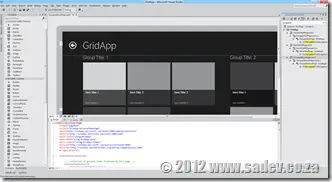
The last few hours have been a buzz of excitement for .NET developers as the covers have been lifted on the next releases of TFS, Visual Studio, and .NET 4.5—however, there is a problem. There is so much information wrapped in nice marketing and business talk that you will spend hours trying to get through it all. Here are the crib notes. Following each note is a number in braces; this is the number of the source, so you can go to it for more information if you wish:
- .NET 4.5, Visual Studio 11, and TFS 11 betas will be available on the 29th of February [1].
- You can use the products in production from beta (technically called a go-live license) [2].
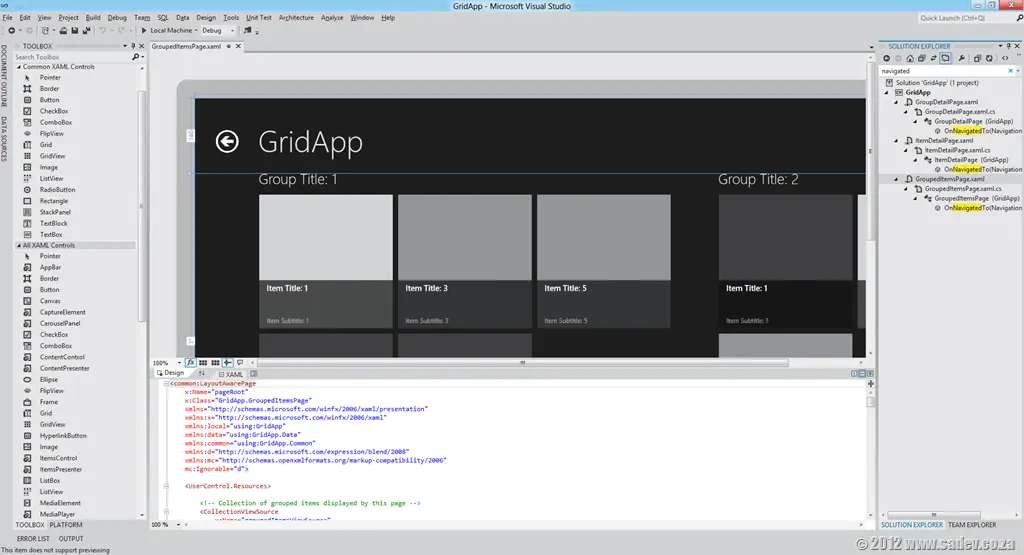
- Visual Studio 11 has had a UI polish: a similar layout but with fewer toolbars by default, less color (icons are monotone), and a touch of Metro-like design (white space and typography) [2].
- Five editions (or SKUs) of Visual Studio will ship: Express, Test Professional, Professional, Premium, and Ultimate—same as we have in 2010 [3].
- TFS will have at least two editions: Express (think TFS Basic but FREE) and another edition. We may have more than that [8].
- Visual Studio Professional and up will include LightSwitch! [3].
- The architecture tool diagrams can now be read in the Professional and Premium versions too (in 2010, it was Premium only). Creation still requires Ultimate [4].
- IntelliTrace is supported in production (still an Ultimate-only feature) [4].
- Windows Phone 7 tools are included with Professional and higher editions of Visual Studio 11 [4].
- Express will have two versions: Windows (WPF, WinRT, etc.) and Web (ASP.NET, MVC, etc.) [5].
- There are two themes for Visual Studio: Light (pictured above) and Dark, which feels like Expression Blend’s style [6].
- Quick Launch is a new search feature that allows you to search for any command or option in Visual Studio [6].
- Search has been added to most used tool windows, like Solution Explorer [6].
- ASP.NET MVC 4 has a bunch of evolutionary improvements—nothing to get overly excited about, IMHO [7].
- ASP.NET Web API is a big new feature for both MVC and WebForms for building APIs for the web. Think services like WCF but built for the modern web [9].
- Visual Studio 11 is a code name—expect a name change by release [10].
- Workflow hubs in Visual Studio 11 allow you to focus on a task in a single place rather than having to move around multiple windows [11].
- Preview tabs allow you to sneak a peek at documents without needing to actually open them [10].
- C# 5 (yes, it’s version 5 of C# shipping with .NET 4.5—who says this isn’t confusing?) has support for async [10].
- A new code compare tool and UI that doesn’t suck [11].
- New code review tool support in TFS and Visual Studio [12].
- A new mockup design tool ships with Visual Studio/TFS, allowing you to build mock user interfaces in PowerPoint. Think Sketchflow without the code or Balsamiq [13].
- New Visual Studio Metro-themed logo [14]:

Sources:
- http://blogs.msdn.com/b/somasegar/archive/2012/02/23/the-road-to-visual-studio-11-beta-and-net-4-5-beta.aspx
- http://blogs.msdn.com/b/jasonz/archive/2012/02/23/sneak-preview-of-visual-studio-11-and-net-framework-4-5-beta.aspx
- http://www.microsoft.com/visualstudio/en-us/products/beta-products
- http://www.microsoft.com/visualstudio/en-us/products/features-chart
- http://www.microsoft.com/visualstudio/en-us/products/beta-express
- http://blogs.msdn.com/b/visualstudio/
- http://weblogs.asp.net/scottgu/archive/2012/02/19/asp-net-mvc-4-beta.aspx
- http://blogs.msdn.com/b/bharry/archive/2012/02/23/coming-soon-tfs-express.aspx
- http://weblogs.asp.net/scottgu/archive/2012/02/23/asp-net-web-api-part-1.aspx
- http://www.microsoft.com/presspass/features/2012/feb12/02-23VisualStudioBetaPreview.mspx
- http://www.microsoft.com/presspass/ImageGallery/ImageDetails.mspx?id=2c8135ad-fefd-48c2-888f-83b6987a4e87
- http://www.microsoft.com/presspass/ImageGallery/ImageDetails.mspx?id=2a0b1cf8-9d74-4603-a2d1-03d8ef989a8c
- http://www.microsoft.com/presspass/ImageGallery/ImageDetails.mspx?id=240cbb53-9dd5-4262-b0cc-cdb9a57485d3
- http://www.microsoft.com/presspass/imagegallery/images/products/developer/vs/logo_vs11beta_print.jpg
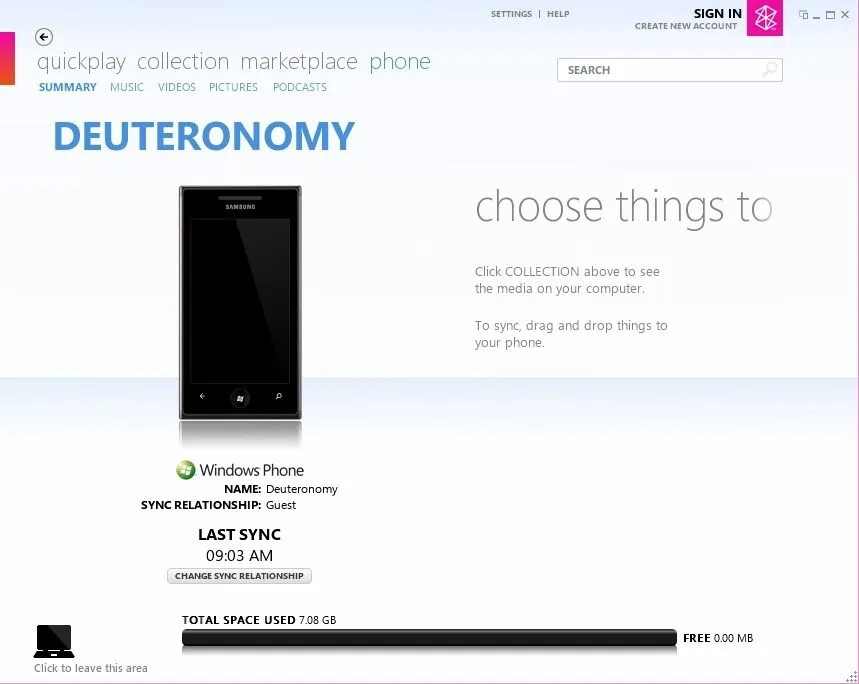
My Windows Phone the other day started acting badly—any icon from an application I installed refused to load, Internet Explorer would just show a black screen, and the performance was VERY poor. The cause? I’d used this awesome device too much and had run out of space:
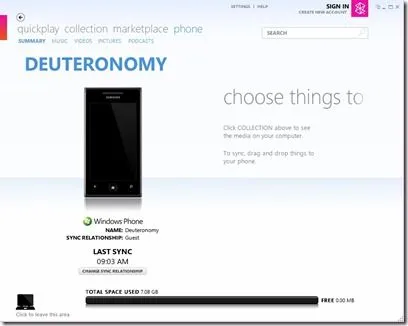
Using the Zune software was the only way to see that!
What had happened was that I hadn’t installed new apps, but I had done a bunch of updates the day it started, and so it seems the updates filled it up. Once I cleaned up some unused apps & games, I freed up a few gigs—and everything started working fantastically again!
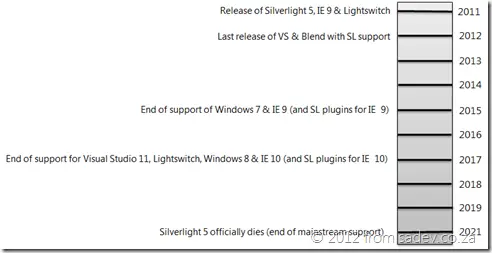 When you ask Microsoft, “Microsoft, WTF is going on with Silverlight 5? Is it the last version of Silverlight? Will you support more versions?”, you get given a link to the Silverlight Product Support Lifecycle Page (this has happened more than once to me). This page lists when Microsoft will support Silverlight, and you’ll see that for releases 1 through 4, support lasted between two and three years. For Silverlight 5, it’s a decade—this implies that this release will be with us for some time, so it’s a safe bet that it will be the last one. Before I continue: this post is about Silverlight on the desktop, not Silverlight on the phone, which is a different thing altogether. I have very different views on Silverlight on the phone.
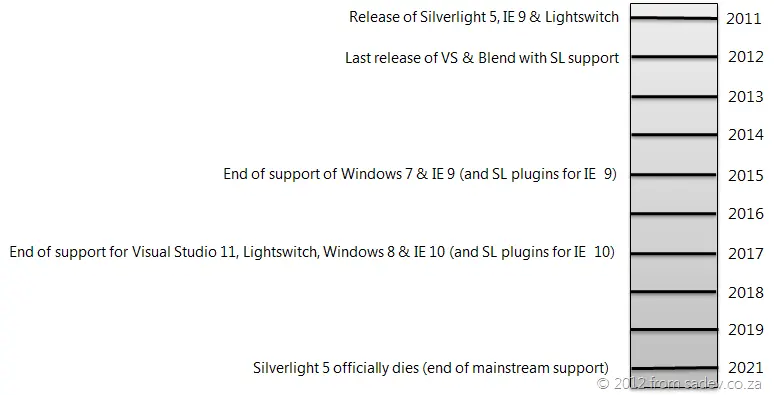
So what does that really mean for us? Mainstream support will end in 2021. Does that mean browsers will work and Visual Studio will work? Maybe—that’s the real answer. Mainstream support (as defined on the Microsoft website) means:
- You can contact Microsoft for help, whether or not you pay for it. I’ve used this in the past to get hotfixes and installation help for other products—it’s great!
- Security patches.
- The ability to request non-security hotfixes (e.g., if you find a bug, log it with support, wait, and eventually get a fix).
But it does not mean tools or browsers will support it! Both are listed on the Silverlight page, so they’ve given us this info too. Tooling support is promised for at least 12 months post-release, meaning Visual Studio & Blend releases 12 months after Silverlight 5’s launch will support it. That means we can expect Visual Studio 2012 and Blend 5 (not VS 11) to support it. However, there’s no guarantee for further tooling updates—so VS 2012 & Blend 5 are likely the last releases to support Silverlight. Visual Studio typically follows a 5-year support trend, so expect tooling bugs to go unfixed after that. Another tool to consider is LightSwitch, which is based on Silverlight. Its lifecycle? 2017—so don’t expect current LightSwitch projects to continue until then!
In reality, those are just tools—we can keep using them long after their official end of life (as the SQL team will tell you if you try to create reports for SQL 2000 or 2005). The real concern is our customers’ interface with Silverlight: the browser. The support lifecycle page links to a list of supported browsers with an interesting caveat: support lasts until mainstream Silverlight support ends (2021) or until the browser’s own support ends—whichever is sooner. That means if IE’s support ends earlier, Silverlight support stops too. The latest browser listed is IE 9, and looking it up reveals nothing—IE is a component, so its lifecycle is tied to Windows 7, which ends support in 2015!
I’m running the Windows 8 beta and know Silverlight 5 works with IE 10, so if Microsoft follows the same lifecycle and this is the last release, we can expect browser support only until 2017.
The reality is: your OS, browser, and tools will all drop support in 2017—that’s the real end of life for me, and it’s five years away. Sure, you can get security hotfixes for another four years, but what good are they when your tools, OS, and browser can’t be updated? For me, 2017 is the real end-of-life date.
Finally, let’s be clear: these are assumptions and estimates based on past support cycles. Microsoft could be planning something else and just not communicating it—but since they’re not, this is all we have to go on. There’s another Silverlight—the one powering Windows Phone apps. I consider these two separate products (similar features but different tools and requirements), so my views here don’t apply to Windows Phone 7. I do believe Silverlight for Windows Phone will stick around much longer.
Update 29 February 2012: There is now a post covering the Consumer Preview/Beta changes: How different is Metro Style (WinRT) development really? The beta post
Note: Before you read this post, it is using the public technical preview of Windows 8, VS 11 & .NET 4.5, so I expect some issues will likely be resolved in later releases.
Recently, I have been working on an MVVM framework (it’s the new Hello World project for developers) and wanted to make sure it worked with WPF, Silverlight, and the new hotness: WinRT (or Metro or Windows 8, depending on who you ask). So I started to retrofit the framework and build a demo application at the same time to show it off. I quickly found a bunch of issues you need to take care of when moving to WinRT.
Namespaces
It has been mentioned since //Build that we will have new namespaces, so this should not be a surprise. In my MVVM framework, it looks like this:
#if WINRT
    using Windows.UI.Xaml;
    using Windows.UI.Xaml.Controls;
    using Windows.UI.Xaml.Input;
    using Windows.UI.Xaml.Controls.Primitives;
    using Windows.UI.Core;
    using Windows.UI.Xaml.Data;
#else
    using System.Windows;
    using System.Windows.Controls;
    using System.Windows.Input;
    using System.Windows.Controls.Primitives;
    using System.ComponentModel;
#endif
You should be able to spot an almost one-to-one mapping there, except for the last few—but we’ll get to those.
Duplication of INotifyPropertyChanged, ICommand, & INotifyCollectionChanged

This issue will affect every developer in WinRT, and it’s a massive fail on Microsoft’s part. The INotifyPropertyChanged, ICommand, and INotifyCollectionChanged interfaces—used in every XAML-based system—are not the same ones used in WinRT XAML-based systems. In fact, the framework has two of each—one in the old namespace and one in the new namespace. So your databinding will just break with no compiler errors! To fix this, you must switch the namespaces.
ObservableCollection<T> is broken

Hand in hand with the previous issue is that the trusted ObservableCollection<T> no longer works. It implements the old (and wrong) INotifyCollectionChanged, so all bindings to it are broken. You must bind to a class that implements IVector<T> instead. One problem: The framework doesn’t ship with an implementation! So to bind to collections, you need to build your own collection class or grab a shim (as I chose to).
Proxies & WebRequest
😊 😊 I used WebRequest in the demo to pull images from Flickr, and you know what just worked? Proxy settings. The first time ever in .NET! I hope whoever decided that proxies should just work gets an award! 😊 😊
Reflection has added a whole new layer
In non-WinRT, we can get all kinds of info on a type directly by working with that type (e.g., Type.GetType). However, in WinRT, that’s not the case! Type.GetType is no longer enough. Once you’ve gotten the type, you need to call GetTypeInfo() on it to retrieve all the information. Why this extra layer exists is beyond me.
#if WINRT
                if (control != null && typeof(ButtonBase).GetTypeInfo().IsAssignableFrom(control.GetType().GetTypeInfo()))
#else
#if SILVERLIGHT
                if (control != null && typeof(ButtonBase).IsAssignableFrom(control.GetType()))
#else
                if (control != null && control is ICommandSource)
#endif
#endif
MIA Types & Methods
For an MVVM framework, you’ll need a bit of reflection, so the first thing I noticed is that the super-handy Type.EmptyTypes is gone! So to get as close to a single codebase as possible, I’m now doing this nonsense:
🙁
#if WINRT
        private readonly Type[] EmptyTypes = new Type[] { };
#else
        private readonly Type[] EmptyTypes = Type.EmptyTypes;
#endif
There are a fair number of missing properties and methods—like Type.GetType lacking some of its beloved overloads:
#if WINRT
            var viewType = Type.GetType(viewName);
#else
            var viewType = Type.GetType(viewName, true, true);
#endif
Lastly, don’t expect familiar methods like GetConstructor, GetMethod, or GetProperty to exist. Now, we must work with collections we can iterate over. I admit it’s a better option, but some helper methods would’ve been useful.
public static MethodInfo GetMethod(this Type type, string methodName, Type[] parameters)
{
    var results = from m in type.GetTypeInfo().DeclaredMethods
                  where m.Name == methodName
                  let methodParameters = m.GetParameters().Select(_ => _.ParameterType).ToArray()
                  where methodParameters.Length == parameters.Length &&
                        !methodParameters.Except(parameters).Any() &&
                        !parameters.Except(methodParameters).Any()
                  select m;

    return results.FirstOrDefault();
}
So be aware: when working with reflection in WinRT, expect things to work differently.
User Controls must be created on the main thread!
This one I don’t understand at all. In WPF and Silverlight, a background thread can create a user control and pass the content to a Window on the main thread—a super useful feature for creating content and then popping it into the foreground almost instantly! However, WinRT has different ideas: all user controls must be created on the main thread—yuck!
#if WINRT
                Window.Current.Dispatcher.Invoke(CoreDispatcherPriority.High, (s, e) =>
                    {
#endif
                        shell = (IShell)typeof(TShell).GetConstructor(EmptyTypes).Invoke(null);
#if WINRT
                    }, this, null);
#endif
Simpson Fail Image from: http://www.thebuzzmedia.com/creator-of-wikipedia-fail-fast-fail-often/
Double face palm image from: http://tvtropes.org/pmwiki/pmwiki.php/Main/FacePalm
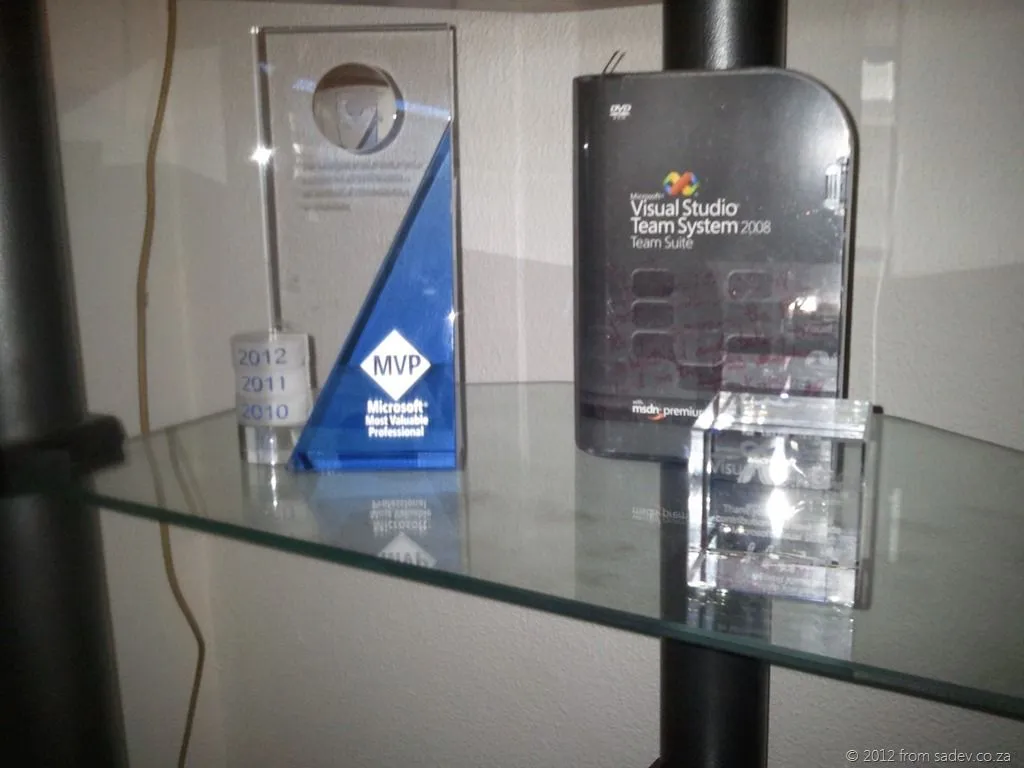
 Being an MVP gets you very little—some status boost among those who misunderstand it (MVPs are not awarded for technical skill), since many people think MVP = expert—plus a MSDN subscription, a lot of paperwork (including multiple NDAs), some access to product teams (this varies from team to team—some interactions are great, others poor), and a trophy.
To the right is my MVP trophy (as well as the ALM Rangers award and the MVP of the Year cube), and I think it looks pretty awesome. But how does it get to me?
In this post, I take a slightly tongue-in-cheek look at the box the MVP award comes in and what it’s saying about MVP’s.



Above, you can see the three years of trophy boxes. Let’s analyze those covers. I’m assuming the person on each box represents MVP’s in general:
- MVP’s are always dressed in smart casual—chinos and a blue shirt are required. Hah, not likely.
- MVP’s have neck problems, causing them to tilt their heads. This is probably true, given all the time spent hunched over machines.
- MVP’s always have their laptops with them. Also likely true. Next year, he’d better include a Windows 8 tablet, though.
- Interesting that the 2010 guy got one cover while the 2011 guy returned in 2012. Guess the 2010 guy wasn’t re-awarded 😉
- The 2011 guy has shrunk in 2012—are we shrinking away, or did Mr. 2011 not do enough work?
- In 2010 and 2011, the ghosts of MVP’s past clearly stand in support of the MVP. By 2012, they’re no longer concerned and are just chatting among themselves.
What would I change? Easy—use a photo from the MVP Summit with real MVP’s engaging with each other. It would be even better to have new 2012 MVP’s (first-timers) pose together for it. That way, there’s extra incentive for 2013: a box featuring real MVP’s that could include you.

Being a professional developer means following standards—standards set by smarter people (smarter than me at least)—and when you start to break those standards, you’ll go wrong. I know this! However, last Friday, I broke many rules and failed because I thought I knew better this one time. So this post is a retrospective of what went wrong, so that I never forget again.
The project is a fairly complex backend system for a special mobile device, and when I say complex, I mean in size and scope: VB.NET, C#, Java, JavaScript, and a ton of inline SQL. The work itself is done by three different companies, each with its own agreements, policies, and methodologies. That sounds like a recipe for disaster, but it isn’t—we’ve exceeded every goal. That is, until Friday.
On Friday, we were told the customer was coming at 9 a.m. on Monday for a demo. We had eight hours to prepare. The software was in a state between alpha and beta, with known issues that needed resolving by demo time. We worked hard and made great progress until about 3 p.m., when we hit an issue that everyone in the room thought was on the mobile device. The first problem? The mobile dev company wasn’t onsite, so we were really guessing.

We started experimenting with fixes, pushing seven builds to QA in an hour—lucky if we got five in a day normally. At the same time, we were also adding bug fixes and tweaks for other issues. Then, the answer came in from the mobile device developer: they were breaking because their expectations of the spec didn’t match ours. More fixes and adjustments—and then the server just stopped.
At this point, I checked my watch. I had a two-year-old son at school, and it was almost time to pick him up. Tick. Tock. As a single parent, I had to leave—and soon. The mobile guys had gone offline completely. Another dev from the third company was rushing to propose (she said yes 😊)! We were all rushing: skipping testing, skipping local builds before checkins… I even checked in code without comments. No matter what I tried, it kept breaking. Tick. Tock. Same error every time. I couldn’t find it. The PM was looking worried, and I felt the weight of needing to solve it. Out of time.
I apologized and left, feeling terrible. I had failed. I had let a client down.
Saturday, I sat down to dig into the code. Without the time pressure, I finally read the stack trace properly—not assuming what it was saying, as I had been in my rushed state—and quickly found the issue. Resolved it with one code check-in (built locally first, with a check-in comment, assigned to work items). It worked. The test client worked too!
In retrospect, what I should have done was simple: we knew there was a demo, even if it was last-minute. We should have chosen what to show before the cut-off time after lunch—and then not included broken things. Better to show 80% working flawlessly than rush for 100% and end up breaking everything.
I should’ve also stepped back earlier to clear my mind—gotten coffee or something. Stepping away often helps; how many times have you asked for help only to realize you’d solved it yourself in the process?
Finally, skipping the standards that make us professionals leads to disaster. I should’ve ensured:
- Building locally before check-ins
- Adding check-in comments
- Assigning each check-in to a work item
- Testing locally before check-ins
- If we have a deadline, everyone needs to be in the room to make it happen—we win or lose as a team
- The more detailed the spec, the better for everyone
- Keeping check-ins small and focused
Monday came and went. The customer loved it, and the demo was great. We succeeded. It required a sacrifice from the team—some of their weekends—and one that, if we’d acted more professionally and kept our heads, could’ve been avoided. This doesn’t happen often to me; I’m usually surrounded by professionals who pull each other back when needed. This post is a reminder: that’s why we do that for each other, and what others can learn.
Management is doing things right; leadership is doing the right things —Peter Drucker.

364 days ago & 829 days ago, I blogged about being awarded a MVP from Microsoft, and I am proud to announce that I have been awarded an MVP for a third time!
Thank you to all who were part of making this happen—I am truly honoured by all of you.
What is an MVP? In short, it’s a thank-you for helping Microsoft communities. The long version can be found here.
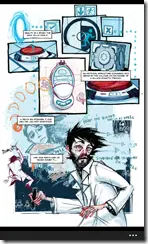
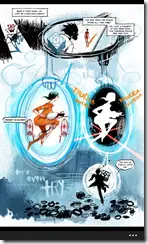
If you do not know what Portal is, then you are dead to me! DEAD! But since I know everyone knows of Portal, that won’t be an issue. What you may not have known is that Valve created a comic book that chronicles the gap between the end of Portal 1 and the beginning of Portal 2, and your character (Chell) ends up back inside the facility.
This comic is called Lab Rat, and you can view it in super great detail at http://www.thinkwithportals.com/comic/.
But what about when you are traveling during this festive season and want to read it quickly—or show your family so they can be caught up before you take them through Portal 2 on Christmas day? Well, for my seventh WP7 app (yes, I’ve built 7 Windows Phone apps this year!), let me introduce Lab Rat.
In addition to offering the comic in your pocket, you can save any page—with or without text—to your phone for use as a login screen or any such thing! Awesome!
In no way should you think this is an alternative to going online—the detail of this comic should be seen at the best resolution possible—but this makes a great companion experience.