Windows Phone 8 Announced Source: http://live.theverge.com/windows-phone-developer-summit-2012/ Out by Christmas (America fall, really) Same core as Windows 8 (i.e., desktop & phone are one platform!) + Hardware-wise, it should mean a wider range of form factors, price points, and capabilities.
- That means a bunch of things: kernel, networking, multimedia, driver support—that stuff will be shared between the two platforms.
- IPv6
- Improved Bluetooth
- Hardware-accelerated Direct3D
- Manufacturers will be able to reuse the same hardware drivers they built for Windows 8 on Windows Phone 8.
- "Dual-core & more...." CPU support New resolutions
- 800×480 (what we have today)
- 1280×768
- 1280×720
- All 7.5 apps will run without changes on all resolutions!
- Can optimize if you want—OPTIONAL Removable MicroSD support
- Phones, music, videos & apps can all be put on the microSD IE 10 built-in
- Same HTML rendering as the desktop version Native game development
- DirectX is mentioned
- I’m reading that to mean C++ support
- Same drivers as Windows 8, so games can be ported quickly & easily NFC support
- Ability to share between devices
- Will have a "mobile wallet"
- Credit & debit cards
- Loyalty & membership cards
- Mobile wallet can work without NFC for some scenarios
- All marketplace purchases now in the wallet In-App Purchases Supported 😊
- Can do operator billing
- Needs carrier "secure SIM"
- Tap & Share (contact, files, etc.) between devices built in!
Nokia mapping technology included in Windows Phone 8
- It will use NAVTEQ data, offline map support, map control for developers, and turn-by-turn directions.
- Includes My Commute—remembers your daily route and shows alternatives that can improve performance.
Enterprise
- Encryption & Secure Boot
- LOB app dev
- Businesses can run custom secure app stores
- Device management
- Same tools we use today for Windows can be used to manage the phone!
- Familiar Office apps
- (I read that as "normal Office")
New menu UI
- No more right-hand side (apps list)
- Just the main screen
- Icons can be "normal," double-wide, & small (one-quarter size)
- Any tile can be any size
- Double-wide for custom apps, finally 😊
Windows Phone Upgrade Story
Dev Features
- Built-in SQLite DB!
- Speech platform will be open to all!
- Can integrate any app into voice search
- Can respond with voice prompts (can you say Siri?)
- Can develop in C#, VB, C++, or HTML5!
- Can mix & match
Built-in VoIP technology
- Skype fully integrated—looks & feels like a normal call
- VoIP apps, not just Skype, can run in the background
Apps that use location can run in the background
- Think maps (direction apps!)
Camera
- Self-timer
- Action shot for burst mode
- Panorama
- Group shot (take multiple photos and swap faces—get rid of those closed eyes)
Lightswitch Recap
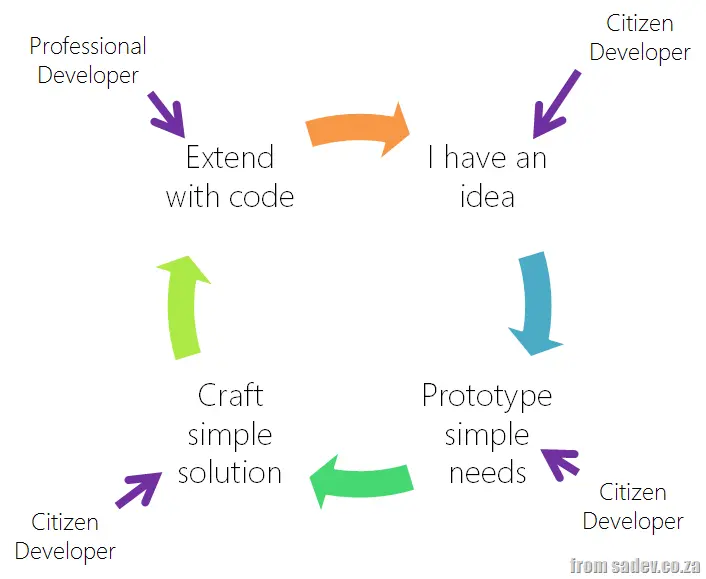
For you to understand the rest of this post, it is vital that you have a high-level understanding of Lightswitch and how it works. Lightswitch is a RAPID development platform from Microsoft that makes development of line-of-business (LOB) apps really easy. The team at Microsoft often talks about citizen developers—i.e., people who are not full-time developers but are the “IT guy” in the department or company that need to put together a great-looking solution. The team also talks about no-code solutions—where you can build great systems without code.
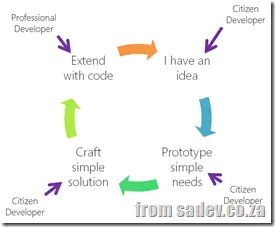 Both statements from the team are true and false at the same time. Sure, your accountant can build a CRM system with no code in Lightswitch, but Lightswitch’s true value is that it is a professional development tool. In reality, unless it’s a really simple solution, you will need a touch of code.
What’s great is that Lightswitch allows citizen developers to write a system that can be matured by professional developers later on—its power is that it does not lock you into being too simple or too complex a development system.
For me, the value proposition is that you get real rapid development: citizen developers can put together and extend solutions that are well-architected. And when the need arises, a professional developer can extend that solution and hand it back over to the citizen developer—it is the circle of Lightswitch.
Architecture
When you craft (avoiding the development term here on purpose) a Lightswitch application, you create a multi-tier architecture, which is either two-tier (client & database) or three-tier (client, server & database). Two-tier is really three-tier, but the server & client are just one package.
The database can be any supported by Lightswitch; the middle tier is OData, and the front end is Silverlight. The choice of front end has recently hurt Lightswitch because Silverlight is dying. However, if you step back for a second and think about it, Lightswitch provides the easiest and fastest way to build a complete (and I mean complete—authentication, methods, proper design) OData solution. You could always ignore the client portion and build on top of the OData server.
Making an HTML Client
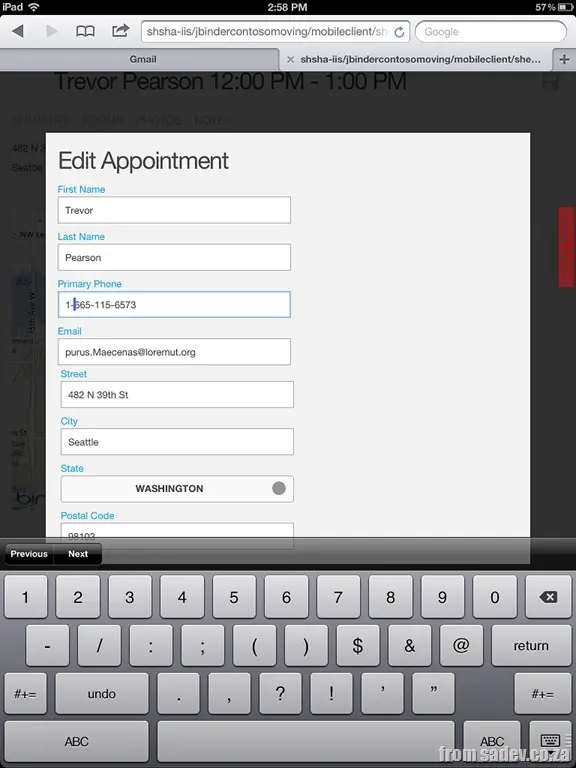
The HTML client mode for Lightswitch is a recently announced new feature that allows you to build a client that runs in a browser—not just Internet Explorer on Windows (Dynamics CRM, I’m looking at your shameful behavior)—but pretty much any browser, say on an iPad:
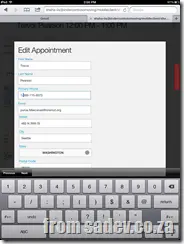
This is possible because of two things: the OData server, which allows any technology to connect to it, and the second piece of the Lightswitch system—the LSML file.
I hope you’ve never heard of the LSML file, as it is not a nice place to go—it is a MASSIVE (even simple demos I build are thousands of lines) XML file that stores ALL of the Lightswitch system in a “Lightswitch domain language.” This enables the team to take that information, parse it, and produce output based on it. So the concept of producing a parser that creates HTML rather than Silverlight is really simple: just build the parser.
What do we know about this HTML client so far?
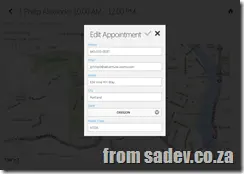
It is early days—in fact, there are no bits available yet—but we do know some things from the demos and screenshots that are available.
- Multiple themes will be supported (there is a dark & a light at least)—thanks to the jQuery Mobile that powers it.
- It is a separate client—so you will have a Silverlight experience and then also have the HTML experience added in.
- It follows the true Lightswitch model of being easy to build with no code, but if you need that little extra, the JavaScript can be edited.
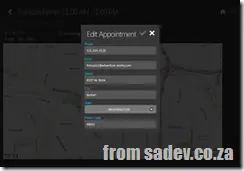
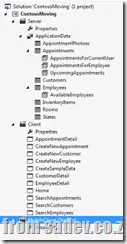
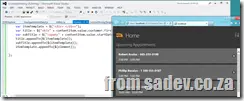
The Important Two Issues
To wrap this up, it is a very exciting time for the Lightswitch world with so much happening that I think it is important to take a step back and find a few key aspects about this amazing feature that will help position it. Two really stand out from all the announcements:
Separate Client
This is not a Silverlight-to-HTML generator—it is separate. This means that awesome Silverlight chart you use today will not magically work in the HTML client. This has both advantages and disadvantages, but if you think about the dying of Silverlight, I’m very glad they have a whole new growth path.
It also allows for the real scenario of supporting a rich experience in Silverlight in a company (where we control all the machines and know we can run Silverlight for a long time still) and having a mobile or companion experience in HTML for those people on the road. Sure, they don’t get the great sales forecast chart, but they can still capture their sales on their iPad.
Web Developers
A recent survey of app developers looked at what they are building today, what they were building, and what they intend to build in the future (future = one year in this survey). Interestingly, there are only TWO platforms that are getting growth in the future: HTML & Windows Phone. Android, iPhone, and many others are all expected to decline.
If you think about those numbers and add in the MASSIVE investments in HTML development that are in Windows 8, it should not surprise you that web development is a MAJOR area in the future of all developers. It also means that web developers can start to have way more opportunities in the market outside of building websites & portals, and that is very exciting—as that little garage web designer company today could be a major line-of-business developer in a few years.
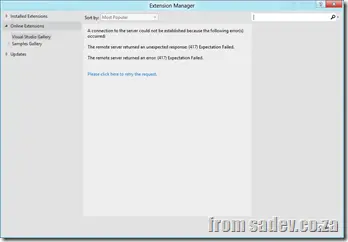
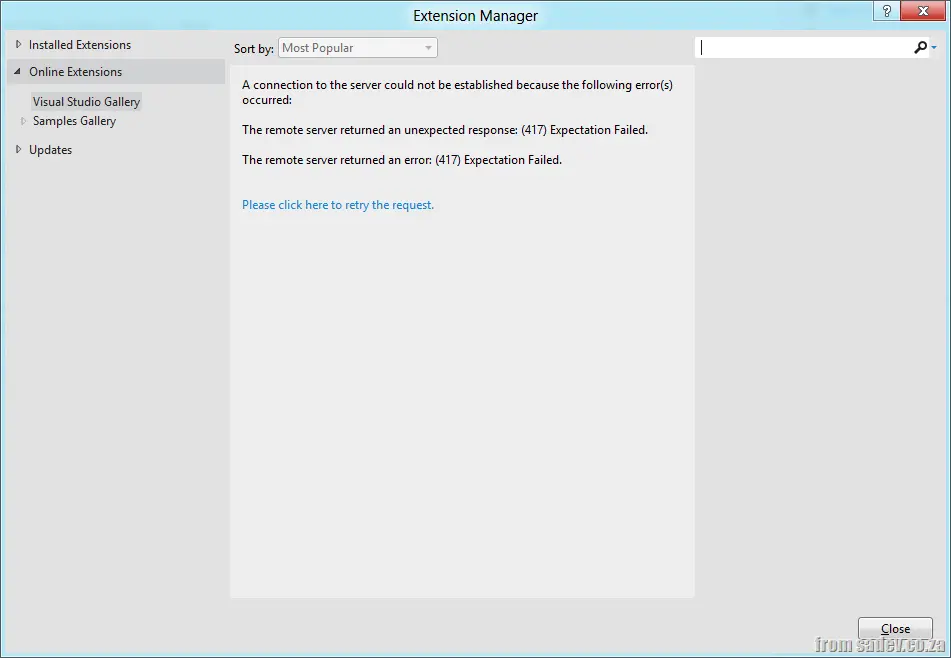
With Visual Studio 2012, there is increased importance placed on the Extension Manager component. Not only does it provide a great integrated experience with the Visual Studio gallery for downloading and updating extensions, but it will also be used to deliver updates for Visual Studio itself!
At work, it would constantly fail with error 417 – expectation failed, so working with our facilities team, we were able to identify the problem as an issue with the proxy server we use, Squid.
Squid seems unable to handle the HTTP status code 100, and will then fail with error 417. To solve this, you simply need to add the following to your squid.conf file:
ignore_expect_100 on
Other posts in this series can be found on the Series Index Page.
Introduction
Culture settings in .NET are a very important but often ignored part of development—they define how numbers, dates, and currencies are displayed and parsed, and your application can easily break when it is exposed to a new culture.
In .NET 4, we could do three things:
- Ignore it
- Set it manually everywhere
- If we were using threads, we could set the thread culture.
So let’s see how that works:
Console.WriteLine(string.Format("1) {0:C}", 182.23));
Console.WriteLine(string.Format(CultureInfo.InvariantCulture, "2) {0:C}", 182.23));
new Thread(() =>
{
Console.WriteLine(string.Format("3) {0:C}", 182.23));
}).Start();
var t = new Thread(() =>
{
Console.WriteLine(string.Format("4) {0:C}", 182.23));
});
t.CurrentCulture = new CultureInfo("en-us");
t.Start();
Console.ReadLine();

You can see in the capture above that lines 1 & 3 use the South African culture settings—it gets this from the operating system. What if I want to force, say, an American culture globally? There was no way before .NET 4.5 to do that.
What .NET 4.5 adds?
By merely adding one line to the top of the project, all threads—including the one we are in—get the same culture:
CultureInfo.DefaultThreadCurrentCulture = new CultureInfo("en-us");

Other posts in this series can be found on the Series Index Page. # Introduction
While regular expression matching in .NET is quite fast, there are times when it may take too long for your needs. Until now, you had little choice but to wait. In .NET 4.5, you gain the ability to enforce a timeout on regular expressions if they run too long.
Problem
Let’s examine a deliberately absurd example to demonstrate the issue: checking a string of fifty million characters—where only one differs—against a regular expression looking for fifty million letters. It’s not practical, but creating a truly slow regex is difficult.
static Regex match = new Regex(@"\w{50000000}", RegexOptions.None);
static void Main(string[] args)
{
    var sw = Stopwatch.StartNew();
    Console.WriteLine(match.IsMatch(String.Empty.PadRight(49999999, 'a') + "!"));
    sw.Stop();
    Console.WriteLine(sw.Elapsed);
    Console.ReadLine();
}
This takes 13.5 seconds on my machine!
Solution
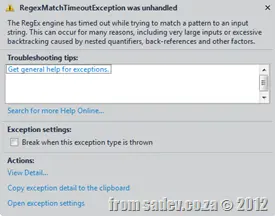 To leverage the new timeout feature, simply modify the
 Regex constructor by adding a third parameter:
static Regex match = new Regex(@"\w{50000000}", RegexOptions.None, TimeSpan.FromSeconds(5));
Now, after five seconds, a RegexMatchTimeoutException is thrown.
Other posts in this series can be found on the Series Index Page
Introduction
We have seen the IDataFlowBlock, in three different implementations, and now we will look at a few more.
BroadcastBlock
In the BatchBlock we saw that if you had multiple subscribers, messages are delivered to subscribers in a round-robin way. But what if you want to send the same message to all subscribers? The solution is the BroadcastBlock<T>.
static BroadcastBlock<string> pubSub = new BroadcastBlock<string>(s =>
{
return s + " relayed from publisher";
});
static async void Process()
{
var message = await pubSub.ReceiveAsync();
Console.WriteLine(message);
}
static void Main(string[] args)
{
for (int i = 0; i < 5; i++)
{
Process();
}
pubSub.Post(DateTime.Now.ToLongTimeString());
Console.ReadLine();
}

TransformBlock<TInput,TOutput>
The next interesting block is the transform block, which works similarly to the action block, except that the input and output can be different types. So we can transform the data internally.
static TransformBlock<int, string> pubSub = new TransformBlock<int, string>(i =>
{
    return string.Format("we got: {0}", i);
});

static async void Process()
{
    while (true)
    {
        var message = await pubSub.ReceiveAsync();
        Console.WriteLine(message);
    }
}

static void Main(string[] args)
{
    Process();

    for (int i = 0; i < 10; i++)
    {
        pubSub.Post(i);
        Thread.Sleep(1000);
    }

    Console.ReadLine();
}

Other posts in this series can be found on the Series Index Page.
Introduction
We have spent a number of posts looking at IDataFlowBlock, BatchedBlocks, and some other interesting blocks, but as a final interesting bit for blocks is the ISourceBlock interface—which is implemented on the "publisher"-like blocks—and it has a very interesting method: LinkTo. The goal of LinkTo is to chain blocks together to do interesting and amazing things!
It's in the name
The final interesting point—and likely the most important—is in the name of the assembly all this goodness comes from: System.Threading.Tasks.DataFlow. All of this is handled by multiple tasks (and likely multiple threads) under the covers, without you needing to worry about it. When we look at the TPL in .NET 4 and how it made working with multi-threaded processing easier, the final goal here is to make multi-threaded data processing easier—and it does!
Demo LinkTo
In this demo, what we want to do is take in DateTimes as fast as possible, then convert them to strings, and send them in batches to the three subscribers. Sounds complex, but with the ability to LinkTo, this is very easy.
static BufferBlock<DateTime> bufferPublisher = new BufferBlock<DateTime>();
static TransformBlock<DateTime, string> transformPublisher = new TransformBlock<DateTime, string>(d =>
{
    return d.ToLongTimeString();
});

static BatchBlock<string> batchPublisher = new BatchBlock<string>(5);

static ActionBlock<string[]> subscriber1 = new ActionBlock<string[]>(s =>
{
    Console.WriteLine("Subscriber 1: {0}", s);
});

static ActionBlock<string[]> subscriber2 = new ActionBlock<string[]>(s =>
{
    Console.WriteLine("Subscriber 2: {0}", s);
});

static ActionBlock<string[]> subscriber3 = new ActionBlock<string[]>(s =>
{
    Console.WriteLine("Subscriber 3: {0}", s);
});

static void Main(string[] args)
{
    batchPublisher.AsObservable().Subscribe(subscriber1.AsObserver());
    batchPublisher.AsObservable().Subscribe(subscriber2.AsObserver());
    batchPublisher.AsObservable().Subscribe(subscriber3.AsObserver());

    transformPublisher.LinkTo(batchPublisher);
    bufferPublisher.LinkTo(transformPublisher);

    for (int i = 0; i < 100; i++)
    {
        bufferPublisher.Post(DateTime.Now);
        Thread.Sleep(200);
    }

    Console.ReadLine();
}

Other posts in this series can be found on the Series Index Page. # Introduction
We previously looked at the IDataFlowBlock interface in its simplest implementation, ActionBlock<TInput>. Today, however, we're going to look at more complex implementations that give amazing powers.
BatchBlock
[ ] Where
 ActionBlock<TInput> could only be a subscriber, BatchBlock<T> is more than that – it can be a subscriber and a publisher rolled into one! As such, the usage is rather different: we do not pass in the receive method in the constructor. Instead, we call the Receive method to get the latest messages and pass them to the subscriber.
The interesting thing about BatchBlock is that it batches up messages into groups, so rather than getting each message one at a time, you get groups of messages. As such, you could wait a long time for enough messages to arrive, so thankfully, they also include a ReceiveAsync, which works with C#'s async methods.
In the sample below, you can see how I create a BatchBlock with a batch size of 3, so messages get processed in groups of three. This also means the last two messages (since we are sending 20) are never processed.
static BatchBlock<string> pubSub = new BatchBlock<string>(3);
static int counter = 0;

static async void Process()
{
    while (true)
    {
        var messages = await pubSub.ReceiveAsync();
        foreach (var item in messages)
        {
            counter++;
            Console.WriteLine("Got message number {0}: {1}", counter, item);
        }
    }
}

static void Main(string[] args)
{
    Process();

    for (int i = 0; i < 20; i++)
    {
        Task.Factory.StartNew(() =>
        {
            Thread.Sleep(new Random().Next(200, 1000));
            pubSub.Post(DateTime.Now.ToLongTimeString());
        });
    }

    Console.ReadLine();
}
BatchedJoinBlock<T1,T2>
The second block implementation we look at is the BatchedJoinBlock<T1,T2>, which is similar to BatchBlock<T>, except that it has multiple type inputs. This allows you to have a single publisher that can send messages to different subscribers based on type! The batching works the same as before, but be careful: batch sizes are based on all messages, regardless of type.
static BatchedJoinBlock<string, int> pubSub = new BatchedJoinBlock<string, int>(3);
static int stringCounter = 0;
static int intCounter = 0;

static async void Process()
{
    while (true)
    {
        var messages = await pubSub.ReceiveAsync();
        foreach (var item in messages.Item1)
        {
            stringCounter++;
            Console.WriteLine("Got STRING message number {0}: {1}", stringCounter, item);
        }

        foreach (var item in messages.Item2)
        {
            intCounter++;
            Console.WriteLine("Got INT message number {0}: {1}", intCounter, item);
        }
    }
}

static void Main(string[] args)
{
    Process();

    for (int i = 0; i < 20; i++)
    {
        Task.Factory.StartNew(() =>
        {
            Thread.Sleep(new Random().Next(200, 1000));
            pubSub.Target1.SendAsync(DateTime.Now.ToLongTimeString());
        });

        Task.Factory.StartNew(() =>
        {
            Thread.Sleep(new Random().Next(200, 1000));
            pubSub.Target2.SendAsync(new Random().Next(1, 99));
        });
    }

    Console.ReadLine();
}
Multiple Subscribers
[ ] So what happens when you add multiple subscribers to the system? It handles each processing in a round-robin way. The sample below is the same as the
 BatchBlock<T> example above, but has three subscribers (A, B, & C) and a batch size of two.
static BatchBlock<string> pubSub = new BatchBlock<string>(2);
static int counter = 0;

static async void Process(string id)
{
    while (true)
    {
        var messages = await pubSub.ReceiveAsync();
        foreach (var item in messages)
        {
            counter++;
            Console.WriteLine("{2} - Got message number {0}: {1}", counter, item, id);
        }
    }
}

static void Main(string[] args)
{
    Process("A");
    Process("B");
    Process("C");

    for (int i = 0; i < 11; i++)
    {
        Task.Factory.StartNew(() =>
        {
            Thread.Sleep(new Random().Next(200, 1000));
            pubSub.Post(DateTime.Now.ToLongTimeString());
        });
    }

    Console.ReadLine();
}
This page lists just the various posts in the .NET 4.5 Baby Steps series. If the page is grey or not a link, it is because the post is not published yet, and you should check back soon.
Other posts in this series can be found on the Series Index Page.
Introduction
A new interface in .NET is the IDataFlowBlock, which is implemented in many interesting ways, so to look at those we will start off with the simplest implementation. ActionBlock<TInput> is a completely new class in .NET 4.5 and provides a way of working with data in a very task-oriented way. I simplistically think of this as the implementation of the IObserver interface we got in .NET 4—but do not limit your thinking to just that.
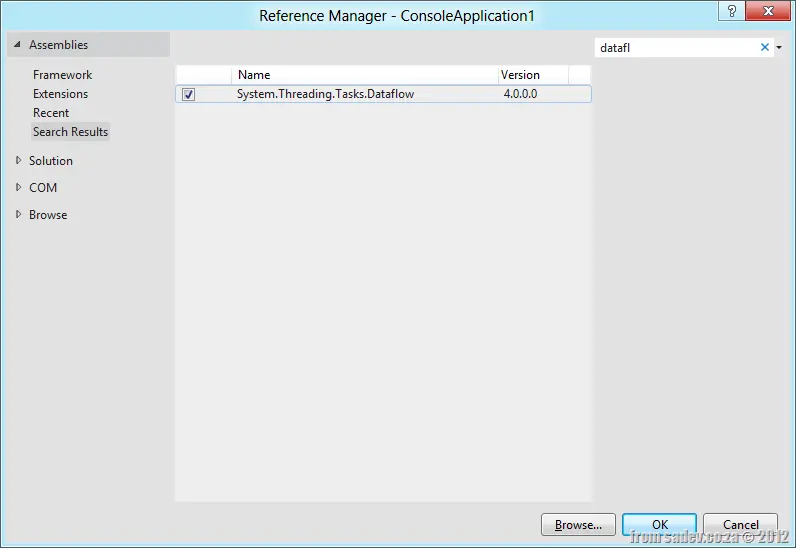
To use it, you first must add a reference to System.Threading.Tasks.Dataflow [sic].
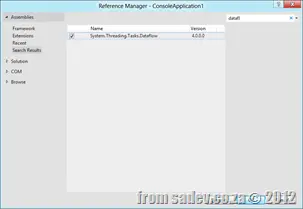
In this simple first example, I am doing a fairly simple Pub/Sub demo:
var subscriber = new ActionBlock<string>(input =>
    {
        Console.WriteLine("Got: {0}", input);
    });

for (int i = 0; i < 10; i++)
{
    Task.Factory.StartNew(() =>
        {
            Thread.Sleep(new Random().Next(200, 1000));
            subscriber.Post(DateTime.Now.ToLongTimeString());
        });
}

Console.ReadLine();
 # As
# As IObserver<T>
So the first fantastic feature is that it does have the ability (via extension method) to be an IObserver<T>, so it really solves the need to build up your own subscriber classes when implementing a pub/sub model.
First is the code for the publisher class—this is normal for the IObservable<T> as we had in .NET 4. This just means our new code can play well with our existing code.
public class Publisher : IObservable<string>
{
    List<IObserver<string>> subscribers = new List<IObserver<string>>();

    public IDisposable Subscribe(IObserver<string> observer)
    {
        subscribers.Add(observer);
        return null;
    }

    public void Send()
    {
        foreach (var item in subscribers)
        {
            item.OnNext(DateTime.Now.ToLongTimeString());
        }
    }
}
For our demo code, which produces the same as above:
var publisher = new Publisher();

var subscriber = new ActionBlock<string>(input =>
    {
        Console.WriteLine("Got: {0}", input);
    });

publisher.Subscribe(subscriber.AsObserver());

for (int i = 0; i < 10; i++)
{
    Task.Factory.StartNew(() =>
        {
            Thread.Sleep(new Random().Next(200, 1000));
            publisher.Send();
        });
}
Complete
The next awesome feature is the Complete method, which can be used to stop accepting input when called—this is great for services where you want to shut down.
In this demo code, it will run until you press Enter:
var subscriber = new ActionBlock<string>(input =>
    {
        Console.WriteLine("Got: {0}", input);
    });

Task.Factory.StartNew(() =>
    {
        while (true)
        {
            Thread.Sleep(new Random().Next(200, 1000));
            subscriber.Post(DateTime.Now.ToLongTimeString());
        }
    });

Console.WriteLine("Press any key to stop input");
Console.ReadLine();
subscriber.Complete();


![CropperCapture[1]](/files/CropperCapture1_2.gif)