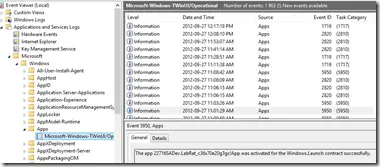
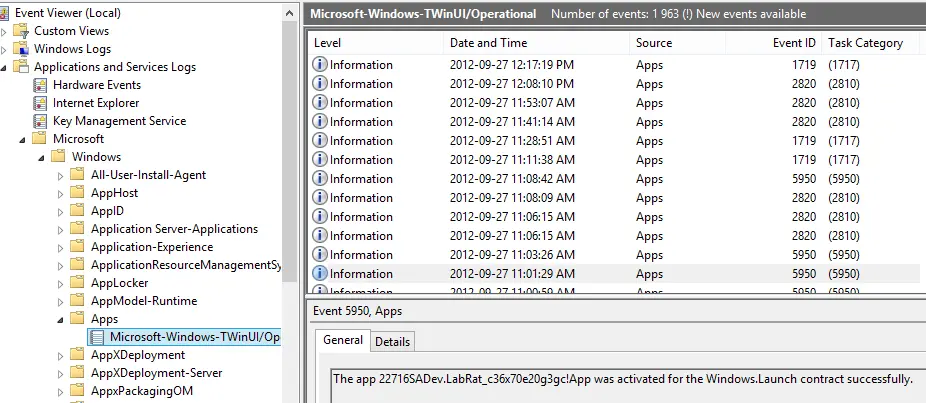
 A lot of guides for developing Windows Store apps mention an event log where you can see information from the apps—this is especially important for those working with background processing, live tiles, and secondary tiles. In the documentation, it’s referred to either as TWinUI or Microsoft-Windows-TWinUI, but you may struggle to find it in the Event Viewer because the group it belongs to isn’t named that.
To locate it, go to:
- Application and Services Logs
- Microsoft
- Windows
- Apps
And there it is! Happy debugging.

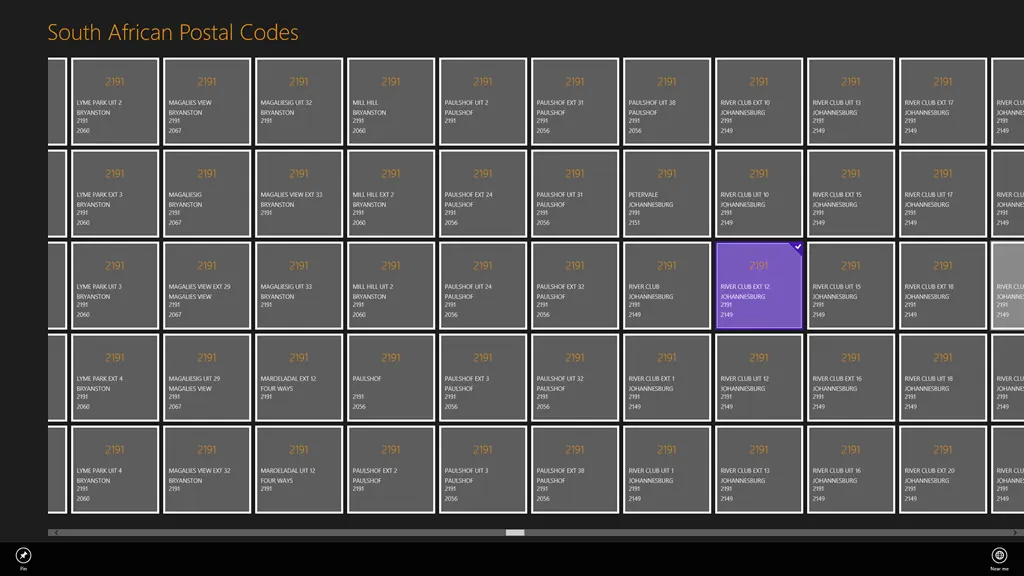
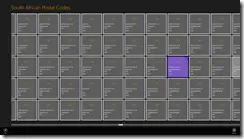
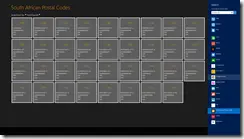
South Africa, like many countries in the world, uses a numerical postal code system to help determine where to deliver mail—however, besides some high-level consistency, there’s very little rhyme or reason in the numbers.
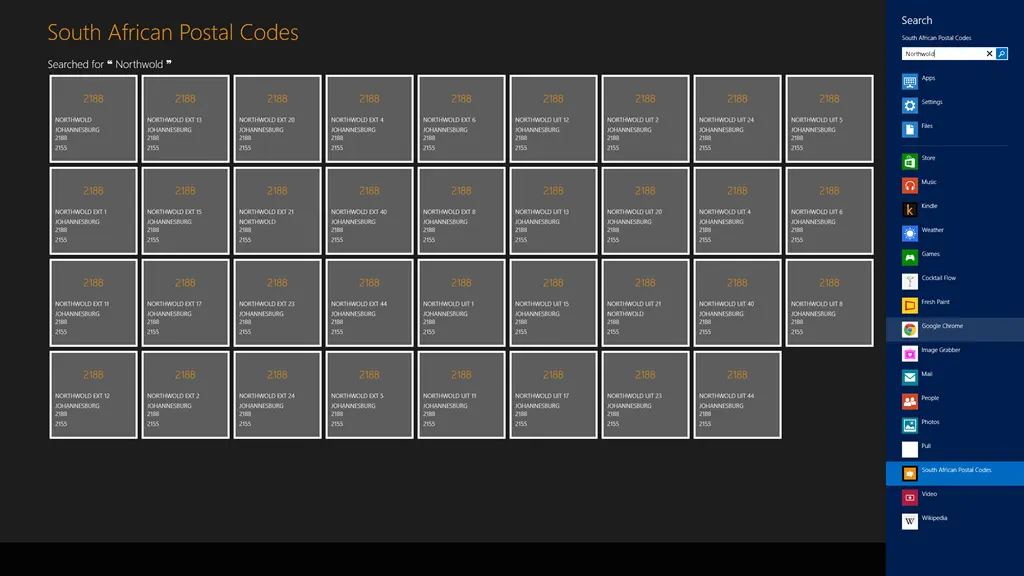
This little tool lets you search, share, browse, and pin the postal codes you need—when you need them!
This tool was inspired by my Postal Code apps for Windows Phone 7 and allowed me to experiment with how you can take and share development resources (including code) between platforms.

This app is also in the Apptivate competition, so please go there and vote for it by clicking the image below:

South African Postal Codes uses icons created by the awesome (and free) Metro Studio 2.

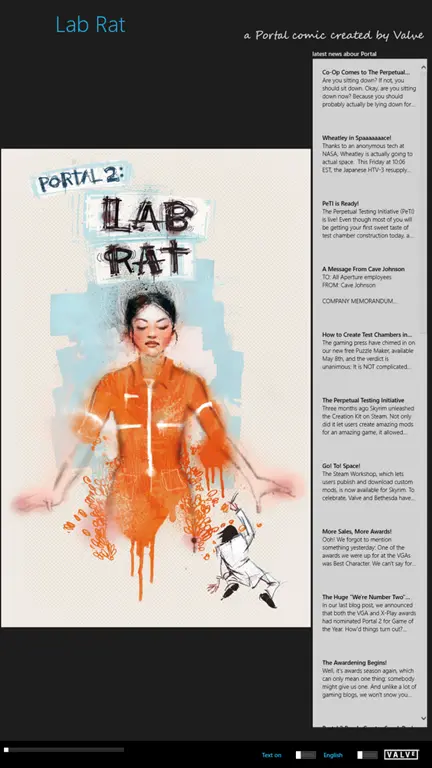
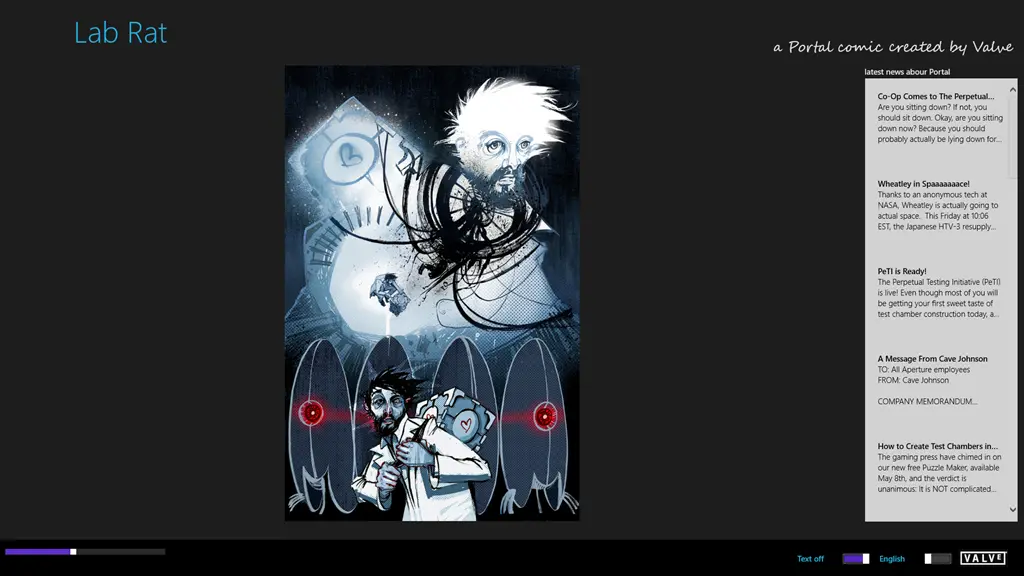
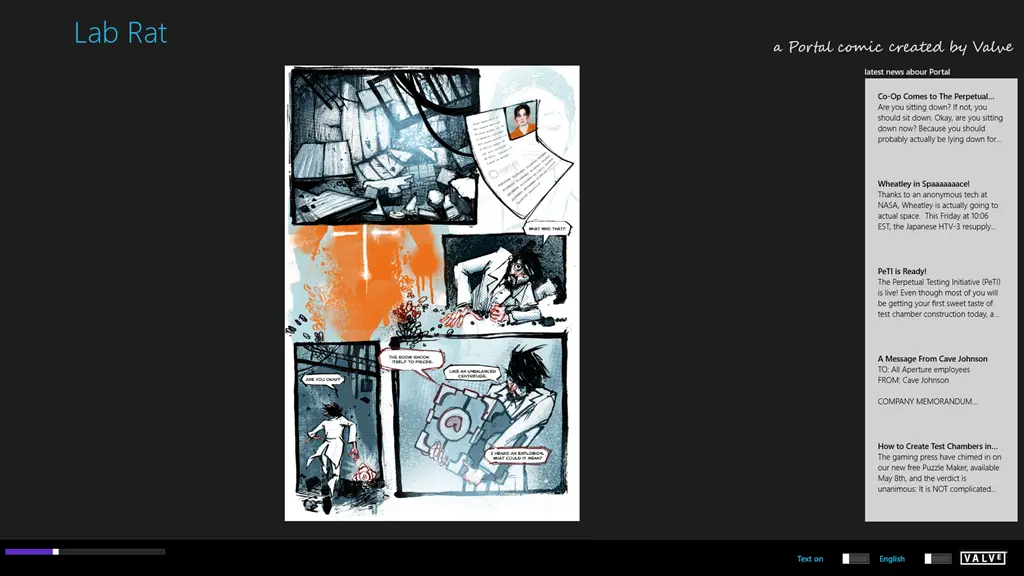
I love Portal, both the first & second games were amazing, but what happened between them is never clearly explained in the games. Valve released an amazing comic book called Lab Rat a while ago that explained it! I enjoyed it so much I created a Windows Phone app for it. One of the things I had to do in that app was use very low-resolution images, and I was never happy with that.
Now I am proud to announce that not only have I solved that, but I also get to share my second Windows Store app—Lab Rat!
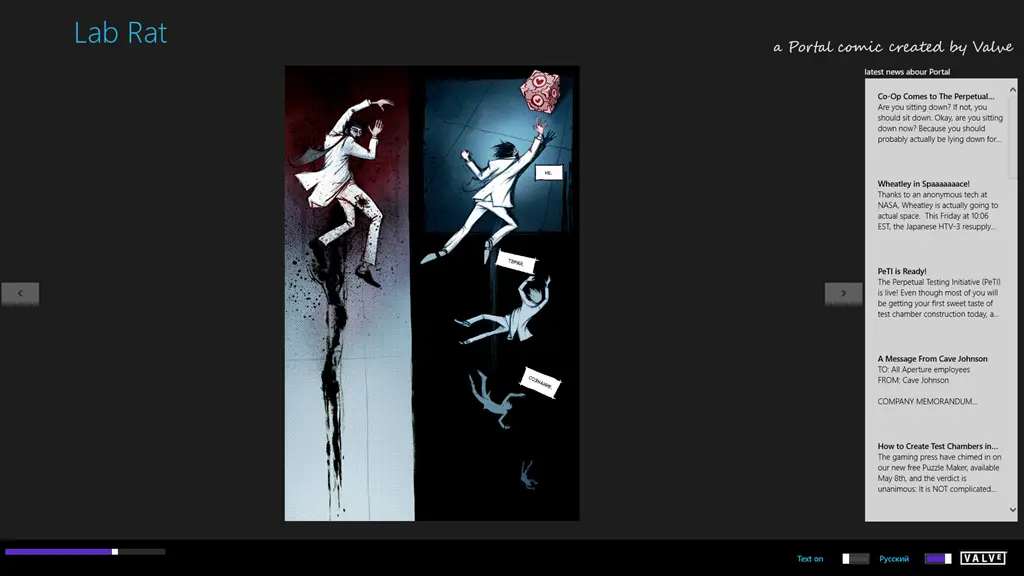
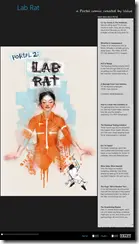
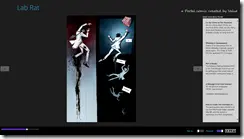
This is a great Microsoft-style experience—high-resolution images, full-screen, touch—it all just works amazingly well together (see images below).
Having a new platform let me bring in ridiculously high-resolution images too (which is why this download is over 250 MB worth of content), but not only the original English images but also the images without text (as in the Windows Phone app) and, for the first time, the Russian version too!
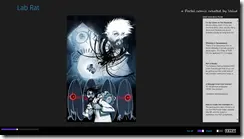
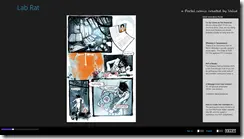
Updates
Release 2 - 9 October 2012
- Added the ability to zoom and pan images.
- Minor tweaks.
Recently on a Windows Phone project, I got a bug raised that I was formatting the currency for South Africa incorrectly (in particular, the use of a comma to separate the Rands and cents—i.e., the decimal mark)—which sparked an investigation into what the correct way to format the currency in the country I live in? tl;dr: The comma is the decimal mark for South Africa. As I am a developer, my first stops were Microsoft and IBM, both of which1 have guides on this that state the decimal mark for South Africa is a comma. Wikipedia also states that officially the comma has been adopted as the decimal mark. Not happy with that vague "official"—I dug further to try and find a more authoritative source, which led me to the University of Johannesburg (UJ) style guide, meant to assist students with correct language style in their documents. The very interesting bit is in section 6 (bold and underline added by me):
Note the spaces and commas in the following: 3 000 (or 3000); 3 500; 2 354 701; R5,87. The so-called Continental System (also used in South Africa) requires that the decimal point be replaced by a comma. However, it is not always possible to do this, since many computer programs require a decimal point for calculations.
So UJ agrees with the usage of the comma—but for me, this also gave me a clue to find more info in something called the Continental System, which didn’t lead anywhere 🤷
I then happened to find the 2012 Winter School textbook for Grade 10 Maths Literacy, which also states:
South Africa officially uses a decimal comma, with a space as thousands separators. Example: 1 450 789,32 = one million; four hundred thousand; fifty thousand; zero thousands; seven hundreds; eighty; nine; three tenths; two hundredths.
Finally! I found some official documentation on the subject, first up: the Government Editorial Style Guide, which states:
Write decimal and negative numbers as numerals: 3,3 and −4. Use the decimal comma, not the decimal point: 17,4 million. ... Use a space, not commas, to indicate thousands: 3 000, 20 000.
However, the best source I found was a document titled The South African Measurement System and its original document by EE Publishers, which has the following:
Finally, it is worth noting that, in Table 1, the grouping of thousands (in threes) and the use of the decimal comma, as opposed to the decimal point, was effected to be in accordance with the applicable legislation of South Africa: “where the magnitude of a quantity is expressed in terms of a unit, a comma on the line is used as the decimal sign in the numerical part of the expression and the digits are separated into groups of three digits on either side of the comma by means of spaces...” [2]. The exception was made, for land registration purposes, by the then Director-General of Surveys, who judged, in his Circular No. 2 of 1971: “it has been decided to abandon the writing of areas, such as 45 236 1 ha, with a space after the 3rd decimal figure and to advocate that, as in the past, the four figures be grouped together, viz. 45 2361 ha.”
Here, a space was left between the number and the symbol of a unit, as required [2].
These rules were highlighted in an old Land Survey Act No. 9 of 1927 (Regulation 24.1), but an amended Land Survey Act No. 8 of 1997 does not contain such information.
English-speaking countries (plus China, India, and Japan) use the decimal point. There seems to be a general tendency to formally declare its use worldwide, and the International Organisation for Standardization (ISO) also tends toward using the decimal point over the decimal comma. In view of South African law, however, the comma shall still be employed in South Africa as “the only recognised decimal indicator for all numbers” [3].
References
[1] DR Hendrikz: South African Units of Length and Area, Department of Lands, Trigonometrical Survey, Special Publication No. 2, 1944. [2] Measuring Units and National Measuring Standards Act, 1973 (Act No. 76 of 1973), Government Gazette No. 4326, 5 July 1974. [3] The International Metric System (SI): Guide to the use of the SI in South Africa, The Council of the South African Bureau of Standards, M 33a, 1992. [4] Measurement Units and Measurement Standards Act, 2006 (Act No. 18 of 2006), Government Gazette No. 29752, 28 March 2007. [5] T Zakiewicz: “Units of Length Measure & Geodetic Standards at the Cape, 1813–1912”, History of Surveying and Land Tenure, Collected Papers, Vol. 2, The Institute of Professional Land Surveyors & Geomaticians of the Western Cape, May 2004.
WOW! That gives the official acts, and a great depth of knowledge into the subject matter—and for me, answers it once and for all: we use a comma!
The two final locations I found in my searches provided some interesting information on the comma as a decimal mark (i.e., not specific to South Africa). First up is the Wikipedia page for International System of Units, which states:
The 10th resolution of CGPM in 2003 declared that “the symbol for the decimal marker shall be either the point on the line or the comma on the line.” In practice, the decimal point is used in English-speaking countries and most of Asia, and the comma in most of Latin America and in continental European languages.
Secondly is a forum answer about the use of the comma:
Sender: Franck Menuge Subject: comma as decimal separator
Could somebody tell me the origin of the use of a ‘comma’ as a decimal separator and of a ‘dot’ for thousands in the French numeric system, ex. 1.234,56? Is it only used in France or in other European countries? Why is it different in the UK?
Many thanks,
Hi Frank,
The comma as a decimal separator is used in several continental European countries, including Germany, Austria, Switzerland, Belgium, Luxembourg, and—we think—also Italy and the Netherlands. The notational convention of using a punctuation mark to separate the fractional part of a number seems to have begun with John Napier, a Scot, in his book “Descriptio” published in 1616. In this book, he proposed using a decimal point (period) to separate the whole number part from the decimal part of a number. In the following year, 1617, in his book “Rhabdologia”, he proposed a point or a comma as the decimal separator. In his writing, he used both. To quote Cajori,
“Napier vacillated between period and comma; mathematicians have been vacillating in this matter ever since,”
Florin Cajori, “A History of Mathematical Notation”, 1974, page 324.
By 1619, the decimal point had become standard in England.
In Earliest Uses of Mathematical Symbols under Grouping, the claim is made that the modern system of separating a numeral into groups of three with commas first appeared in 1795 in the article “Numeration” in “Mathematical and Philosophical Dictionary” by Hutton. Again, the reference is from Cajori.
The confusion doesn’t stop there. In the school system in North America, teachers have started to use a space rather than a comma to separate the digits in a numeral into groups of three. Thus, the number thirty-one thousand three hundred twenty-four and six tenths is written 31 324.6. One last point: Notice that the decimal point in the number 31 324.6 is on the line, whereas it is our understanding that in the UK, you would write this number

with the decimal point floating above the line.
In North America, the period floating above the line indicates multiplication, so

Note: Since, for some reason, people reference this a lot, I decided to update this and found the original Microsoft & IBM links are now dead 😔.
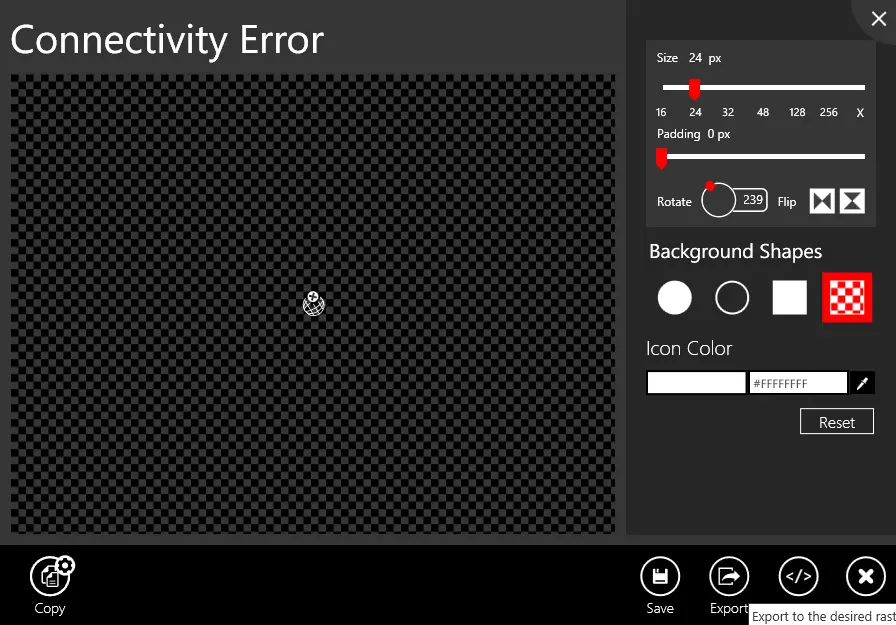
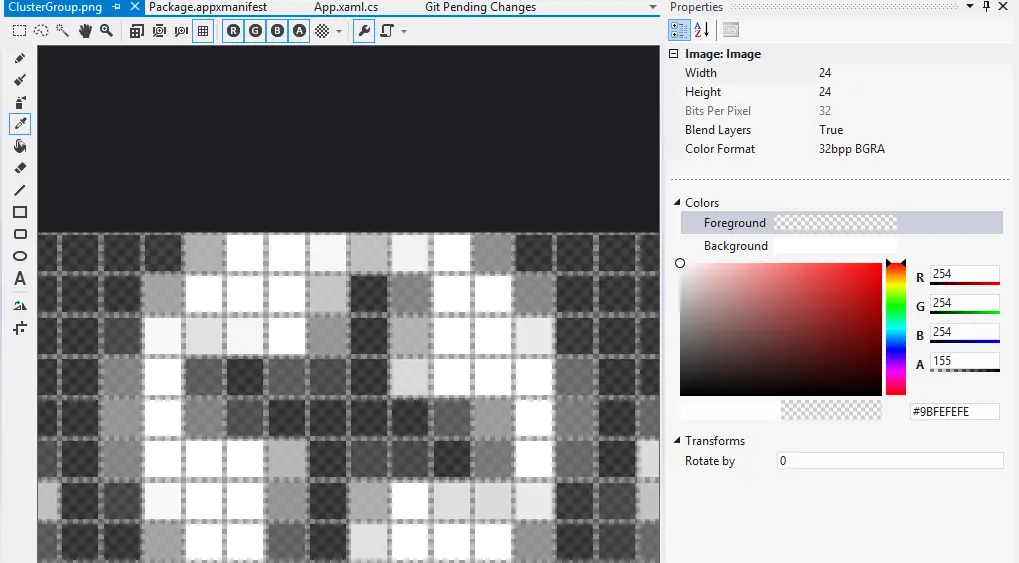
 In a recent application, I made use of the amazing Metro Studio tool for the logo of the application and needed to create a lock screen image. Lock screen images must be white & transparent and 24px square, so I used the tool to create the image as shown below.
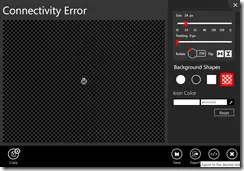
However, I kept getting an error when trying to certify the app:
Image reference "ClusterGroup.png": The image "\ClusterGroup.png" has an ABGR value "0x9BFEFEFE" at position (8, 0) that is not valid. The pixel must be white (##FFFFFF) or transparent (00######).
Huh?! My image is white & transparent! Using the awesomely improved graphic editor in Visual Studio 2012, I went to check the pixel (column 8, row 0) from the error message. I used the eyedropper tool to get the color into the right-hand window, and sure enough, it isn’t white. It is a grey color used for anti-aliasing. (This has been reported to Syncfusion – but there was no response at the time of publishing.)
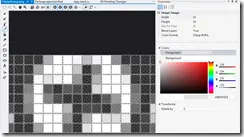
The problem is that this isn’t valid—you can only have:
- Fully transparent (alpha channel must be 00######, RGB can be anything)
- White (RGB must be fully opaque, e.g., ##FFFFFF, with transparency allowed: #77FFFFFF, etc.).
The solution is to use transparency for anti-aliasing rather than grey. For me, the fix was to manually edit the pixels to resolve this issue.
This app was previously named Bing My Lockscreen but has now been renamed to Amazing Lock Screen.
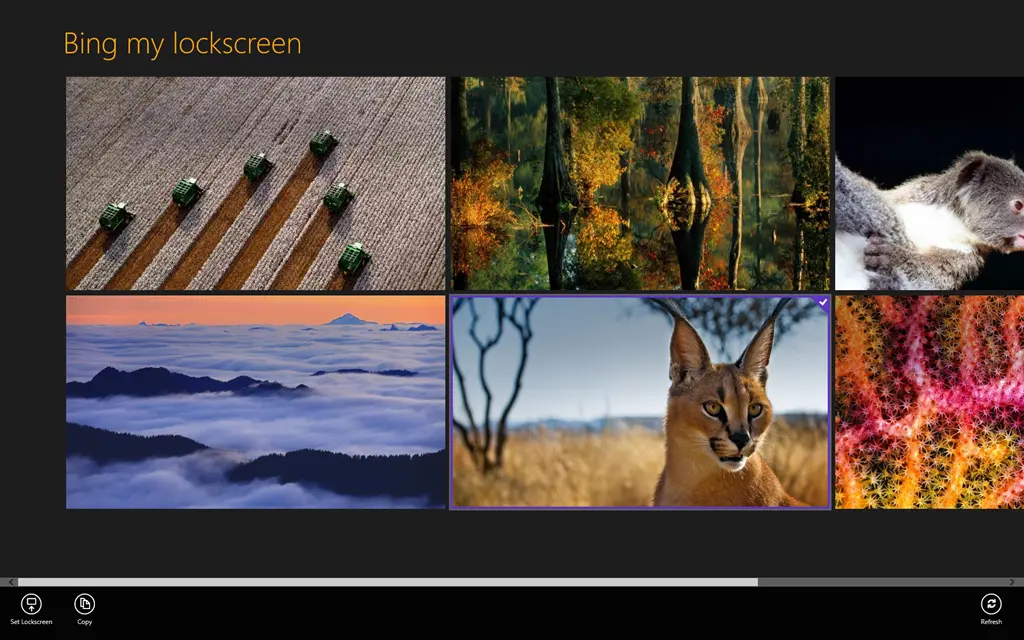
 I am very proud to announce my very first Windows 8 application: Amazing Lock Screen – which does pretty much what the title says it does. In short: Bing has the greatest images, and now you can use them for your lock screen!
Bing My Lockscreen allows you to select from the eight most recent 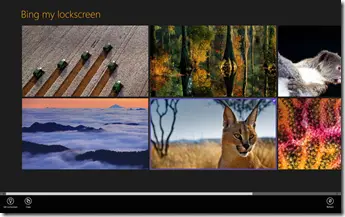 Bing images and quickly select which of them to set as your lock screen.
In addition, Amazing Lock Screen allows you to automatically have your lock screen updated daily with the latest image from Bing—thus ensuring a constant supply of inspiring and interesting new content for you!
You can get the app from the store using the download link below!
Bing My Lockscreen makes use of icons created by the awesome (and free) Metro Studio 2.
One of my applications had two sets of images—one with English and the other with Russian. While it’s great to support both languages, I didn’t want to fully localize the application, such as changing all the labels, because I don’t have the time & resources to do that. When I set up the project, I put the English images in a folder named Comic/en and the Russian images in Comic/ru.
When I built the application, I noticed some smart messages in the compiler about finding localized content—which I thought was nice and just ignored.
 The text there reads:
MakePRI : warning 0xdef00522: Resources found for language(s) 'en, ru' but no resources found for default language(s): 'en-US'. Change the default language or qualify resources with the default language. http://go.microsoft.com/fwlink/?LinkId=231899
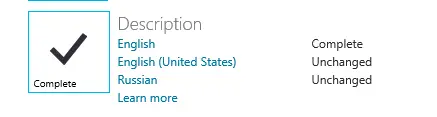
The problem is that when you upload to the Windows Store, that information is used to determine which markets your application should be localized for. This meant I needed to submit descriptions for English, US-English, and Russian! This would have allowed me to write the descriptions in different languages, but since that’s outside my scope, it became a hassle.
The “fix” was to prefix the folder with lang (so en became langen)—this tricked the compiler into not seeing this as localized and removed the problem.
With one of my earliest apps, I kept having a problem with a COM exception being raised when trying to set up the Share & Settings event handlers. A key factor was that it didn’t happen all the time. I had the following code in the constructor of my ViewModel class:
this.DTM = Windows.ApplicationModel.DataTransfer.DataTransferManager.GetForCurrentView();
DTM.DataRequested += ShareRequest;
Eventually, I figured out that the exception was raised if the event was already attached. But this was in my view model class and in the constructor of the class—so it should have been new and fresh every time—which didn’t make much sense to me. However, the answer was in front of me the entire time: GetForCurrentView.
Windows 8 apps can be built in one of two ways:
- Page Model – This is the same model as Windows Phone 7, where when you want new UI, you navigate to an entirely new page (or view).
- Composition Model – In this model, you have a single page and inject content in the form of user controls. I was working with AtomicMVVM, which follows this pattern.
The problem with the composition model is that events are tied to the page (or view). Since I never changed the page (I just swapped content in and out), the event handlers were never being reset.
The solution for me was to make it possible for view models to declare whether they support Share or Settings and then have a single place in the constructor to set up charm configuration. I used a simple interface-based system, and the following code should illustrate it. Since the event handler was now attached only once, the exception disappeared. This also makes my views smart about Share & Settings events and what to pass to them.
bootstrapper.AfterStartCompletes += () =>
{
SettingsPane.GetForCurrentView().CommandsRequested += SettingCommandsRequested;
};
void SettingCommandsRequested(SettingsPane sender, SettingsPaneCommandsRequestedEventArgs args)
{
var settings = Bootstrapper.CurrentViewModel as ISettings;
args.Request.ApplicationCommands.Clear();
if (settings != null)
{
settings.LoadCommands(args.Request.ApplicationCommands);
}
}
For a complete example of this, see the Metro Demo in the AtomicMVVM samples: MetroDemo.
The call to pin a secondary tile looks like this:
SecondaryTile(
    string tileId,
    string shortName,
    string displayName,
    string arguments,
    TileOptions tileOptions,
    Uri logoReference
);
The important part for this post is the last parameter: Uri logoReference. This is the path to the image you want to show on the tile—but I had a problem: I didn’t want to show an image! I just had some text I wanted to display on the tile. After a lot of digging, the solution was non-trivial—generate an image at runtime. This was made even harder because the Render method in WPF does not exist in the XAML implementation used in WinRT.
WinRT does include a WritableBitmap class, which allows you to create an in-memory bitmap, manipulate the pixels, and save to a file format using BitmapEncoder classes. The problem for me was that I did not want to fiddle with pixels manually—this led me to WritableBitmapEx, which is a great library for having primitives (fill, line, circle, etc.). The only downside was that I wanted text, not just graphic primitives.
 (original)
More searching led me to two posts on Stack Overflow which provided a solution:
- Create a sprite map using a free tool called SpriteFont201
- Use the code provided in the answers with
WritableBitmapEx to extract the sprites and combine them with a WritableBitmap.
I took the code and adjusted it slightly so text would always be centered and allowed me to play with font scaling. I’ve attached the modified code below.
In the end, the code I used looks like this:
public async Task<StorageFile> CreateImage()
{
    uint width = 512;
    uint height = 512;
    var writableBitmap = BitmapFactory.New((int)width, (int)height);
    writableBitmap.Clear((App.Current.Resources["SecondTileColour"] as SolidColorBrush).Color);

    writableBitmap.DrawStringHorizontallyCentered(this.DisplayPostalCode, 50, "title", Colors.White, 4);
    writableBitmap.DrawStringHorizontallyCentered(this.Town, 175, "title", Colors.White, 2);
    writableBitmap.DrawStringHorizontallyCentered(this.City, 275, "title", Colors.White, 2);
    writableBitmap.DrawStringHorizontallyCentered(string.Format("box code: {0}", this.BoxCode), 375, "title", Colors.White, 2);
    writableBitmap.DrawStringHorizontallyCentered(string.Format("street code: {0}", this.StreetCode), 450, "title", Colors.White, 2);

    var file = await Windows.Storage.ApplicationData.Current.LocalFolder.CreateFileAsync(
        Guid.NewGuid().ToString("N"),
        Windows.Storage.CreationCollisionOption.ReplaceExisting
    );

    using (var fileStream = await file.OpenAsync(Windows.Storage.FileAccessMode.ReadWrite))
    {
        var encoder = await BitmapEncoder.CreateAsync(BitmapEncoder.PngEncoderId, fileStream);

        encoder.SetPixelData(
            BitmapPixelFormat.Bgra8,
            BitmapAlphaMode.Straight,
            width,
            height,
            96,
            96,
            writableBitmap.ToByteArray()
        );

        await encoder.FlushAsync();
    }

    return file;
}
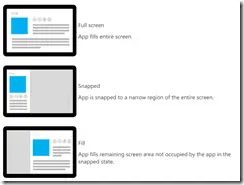
Being a share target seems like a great idea to get people to use your application more, however it does have a fairly complex problem: if I do a share to my application while it’s running, what happens—does it start a new instance or use the existing instance? You may say this can’t happen since Windows 8 doesn’t allow more than one application to run at a time… but you would be wrong.
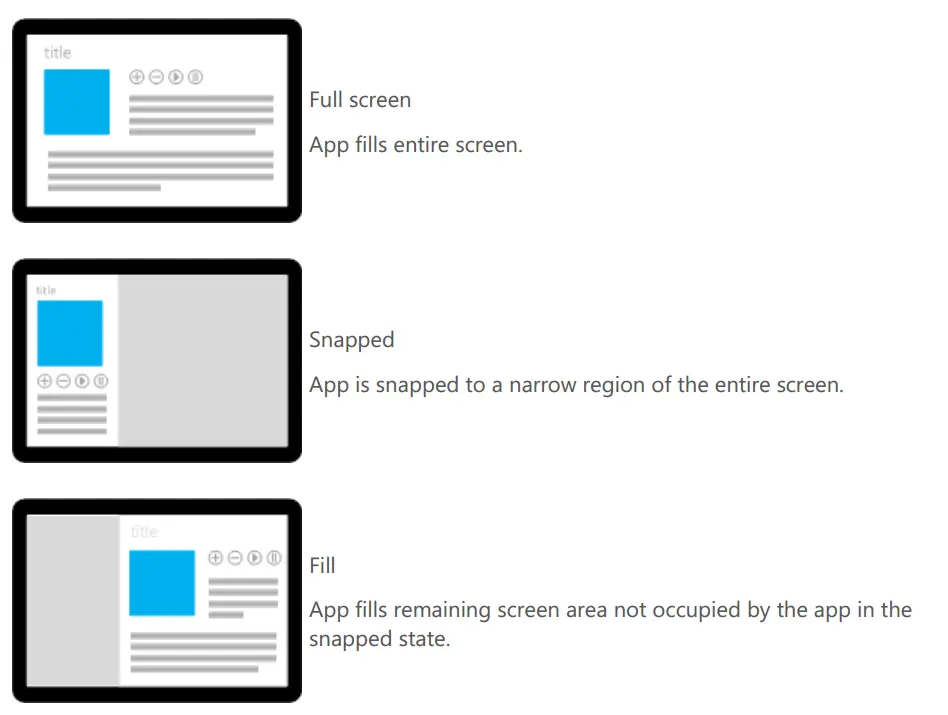
Snap view in Windows 8 allows for two Metro-style applications to run side by side, thus allowing two apps to run at the same time. In fact, you can run three apps at a time: one snapped, one filled, and then you do a share target, which launches a third app!
So back to the question: what happens if your app is running in snapped view and you share from the filled app to your app, which is currently snapped? The answer is that it uses your existing application but from a separate thread.
To test this, I put a simple Boolean field into the constructor of my App class and set it to true. Then, when the _OnShareTargetActivated event was raised, I checked the value of that Boolean field—and it was true if the app was running!
You should come up with a solution for this (or at least test it). In my case, the _OnShareTargetActivated wrote to the application store, and my main UI, which used that, would poll for changes. I had to do this rather than triggering the UI directly because the _OnShareTargetActivated was launched in a separate thread, and trying to trigger it caused a cross-thread issue. (I did try dispatcher fixes, but that led to a variety of COM issues.)


 A lot of guides for developing Windows Store apps mention an event log where you can see information from the apps—this is especially important for those working with background processing, live tiles, and secondary tiles. In the documentation, it’s referred to either as TWinUI or Microsoft-Windows-TWinUI, but you may struggle to find it in the Event Viewer because the group it belongs to isn’t named that.