Before I start, thank you to Mike Geyser for bringing this up on Twitter.
Recently, I wrote about what is the correct way to display currency in South Africa, which was meant as an interest post rather than anything related to Windows 8 or development—but it seems to be serendipitous in its timing. The post referred to the currency format and how you should use a comma to separate Rands and Cents. Windows has always (at least as far back as Windows 98) respected this as the correct currency format in South Africa.
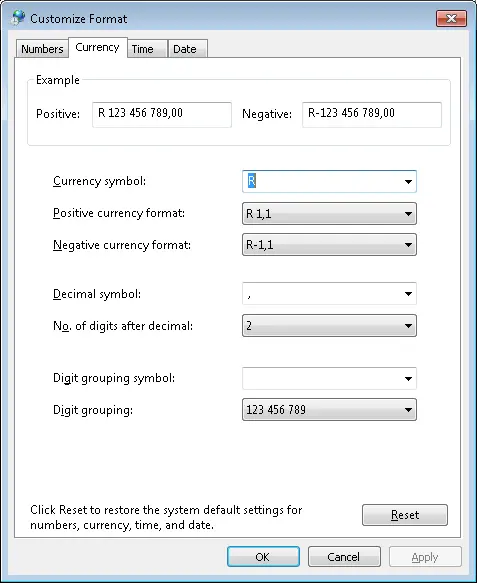
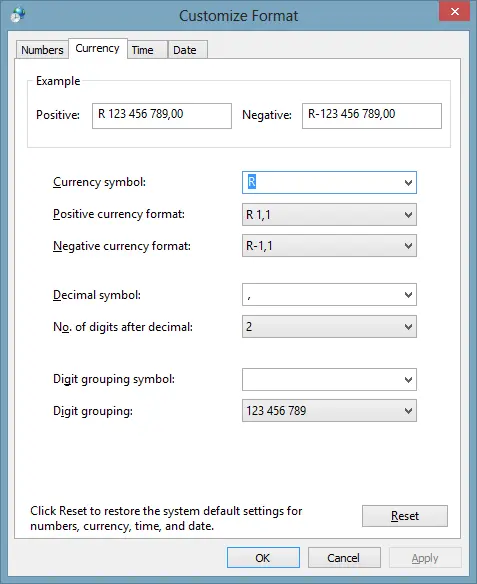
Here you can see Windows 7 (left) and Windows 8 (right) have the same settings.
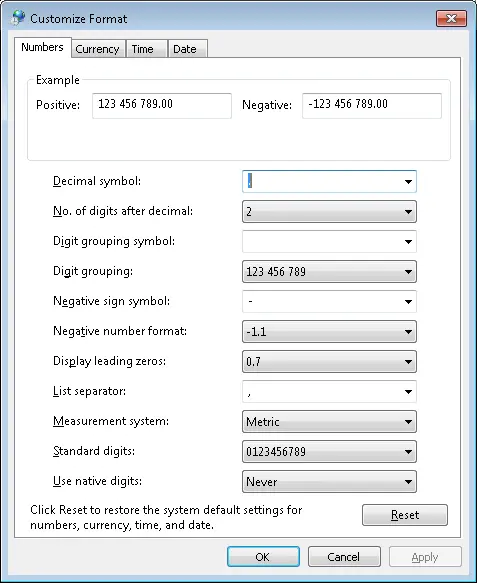
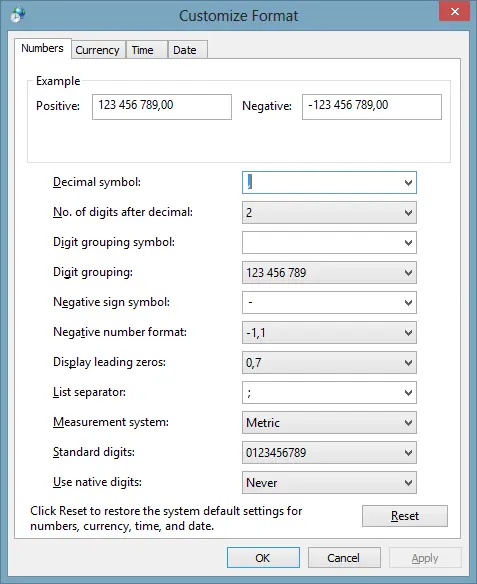
However, with Windows 8, Microsoft decided to be correct everywhere. If you compare the number format settings in Windows 7 (left), it uses a full stop, whereas Windows 8 (right) uses a comma for number formatting.
The problem is that the number format setting is used in .NET for parsing, which means that all numeric code parsing code will break in Windows 8 if you have South African formatting set!
var testOne = Decimal.Parse("10.2"); // works in Windows 7 and before—exception in Windows 8var testTwo = Decimal.Parse("10,2"); // works in Windows 8 but fails in Windows 7 and before
The exception that will be raised is: System.FormatException: Input string was not in a correct format.
To be fair, Microsoft has said you should never write code like that—you should always provide the culture settings when parsing (this code always works):
var rightWay = Decimal.Parse("10.2", CultureInfo.InvariantCulture);
Set culture globally With .NET 4.5, you can use the new DefaultThreadCurrentCulture once at the start of your app in code, and you will be fine for the rest.
CultureInfo.DefaultThreadCurrentCulture = CultureInfo.InvariantCulture;
var anotherWay = Decimal.Parse("10.2");
In summary, when migrating to Windows 8, make sure you properly test your applications and test them on the culture that the users will use.
When you start with development of Windows Store apps, you may want to run tasks in the background, and an important aspect of that is deciding whether you want to be a lock screen app or not. Microsoft has a guide, which is essential reading—so this post should be seen as a cheat sheet for a portion of that document.
Triggers
Background tasks kick off on a trigger, so what triggers lock screen and non-lock screen apps can use. Non-lock screen apps can run background tasks based on:
Background task trigger type
Trigger event
When the background task is triggered
MaintenanceTrigger
MaintenanceTrigger
It’s time for maintenance background tasks.
SystemEventTrigger
InternetAvailable
The internet becomes available.
SystemEventTrigger
LockScreenApplicationAdded
An app tile is added to the lock screen.
SystemEventTrigger
LockScreenApplicationRemoved
An app tile is removed from the lock screen.
SystemEventTrigger
NetworkStateChange
A network change (e.g., cost or connectivity) occurs.
SystemEventTrigger
OnlineIdConnectedStateChange
The online ID associated with the account changes.
SystemEventTrigger
ServicingComplete
The system finishes updating an application.
SystemEventTrigger
SessionDisconnected
The session is disconnected.
SystemEventTrigger
SmsReceived
A new SMS message is received by an installed mobile broadband device.
SystemEventTrigger
TimeZoneChange
The time zone changes on the device (e.g., daylight saving time).
Lock screen apps can use those and much more; the extra triggers for lock screen apps are:
Background task trigger type
Trigger event
When the background task is triggered
ControlChannelTrigger
ControlChannelTrigger
On incoming messages on the control channel.
PushNotificationTrigger
PushNotificationTrigger
A raw notification arrives on the WNS channel.
SystemEventTrigger
ControlChannelReset
A network channel is reset.
SystemEventTrigger
SessionDisconnected
The session is disconnected.
SystemEventTrigger
UserAway
The user becomes absent.
SystemEventTrigger
UserPresent
The user becomes present.
TimeTrigger
TimeTrigger
A time event occurs.
CPU
Now that we know when background tasks will run, how much CPU they can consume during execution depends on whether they’re for lock screen or non-lock screen apps.
Before diving into the table, there are three key things to note:
This applies per app, not per background task.
The refresh period determines when resources reset. Multiple background tasks share the pool, and unused time is lost at refresh.
A CPU second ≠ a real second; CPU time is only counted when the CPU is actively working (e.g., I/O like downloads doesn’t count).
CPU resource quota
Refresh period
Lock screen app
2 CPU seconds
15 minutes
Non-lock screen app
1 CPU second
2 hours
Bandwidth
Like CPU, bandwidth limits depend on whether you’re a lock screen app, but your average internet speed also matters. Unlike CPU, bandwidth uses two buckets:
Daily cap: Accumulated limit (smaller periods cannot exceed this).
The table assumes 1 Mb/s (WiFi) or 10 Mb/s (wired), but slower speeds reduce allocations.
Average throughput
Lock screen apps
Non-lock screen apps
Every 15 min
Per day
Every 2 hours
1 Mb/s
0.469 Mb
4.69 Mb
10 Mb/s
4.69 Mb
450 Mb
Global Pool
If the dedicated resources aren’t enough, Windows has a shared global pool for CPU/bandwidth. It’s not guaranteed, but you may still get extra (e.g., if you need 2.5 CPU seconds). However, abusive apps can block yours. The pool refreshes every 15 minutes.
To test without the global pool (highly recommended!), disable it via registry:
The network trigger feature supports two resource types for push notifications or keep-alive triggers:
Hardware slot: Allows background network notifications even in low-power/connected-standby mode.
Software slot: Allows background notifications but not in low-power/connected-standby.
Slots are optional for Windows Notification Service (WNS) but required for network triggers.
By default, apps use software slots (triggered when not in connected standby). Hardware slots work in all states (including connected standby), but only devices with connected-standby-capable network hardware support them. Apps can’t use slots in Sleep/Hibernate or when shut down.
Limitations:
Max 5 network triggers per app.
First 3 lock screen apps get 3 hardware slots each; others are restricted to software slots.
So you’ve created your background task and now you want to test it—do you wait 15 minutes and hope it runs? Nah—there’s an easier way (which is unfortunately hard to find).
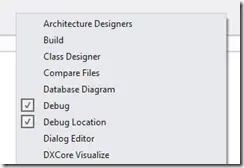
First, launch your app as normal, and then while it’s running, swap to VS (this is where multiple monitors come in handy). You should see the Debug Location toolbar.
If you don’t see it, right-click the toolbar/menu area, and you’ll be able to enable it.
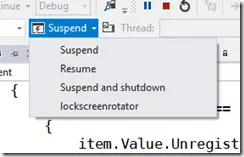
This toolbar is very useful for testing Suspend & Shutdown scenarios for your application. What’s not obvious, though, is that if you click the little arrow next to the suspend button, all your registered background tasks will appear in a dropdown list. You can then click the one you want to trigger it immediately—great for testing!
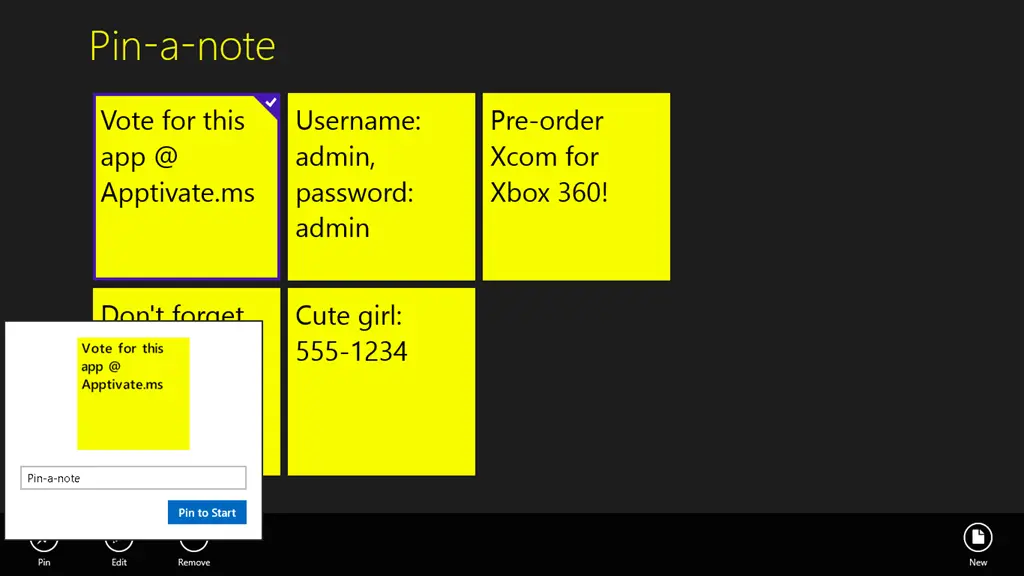
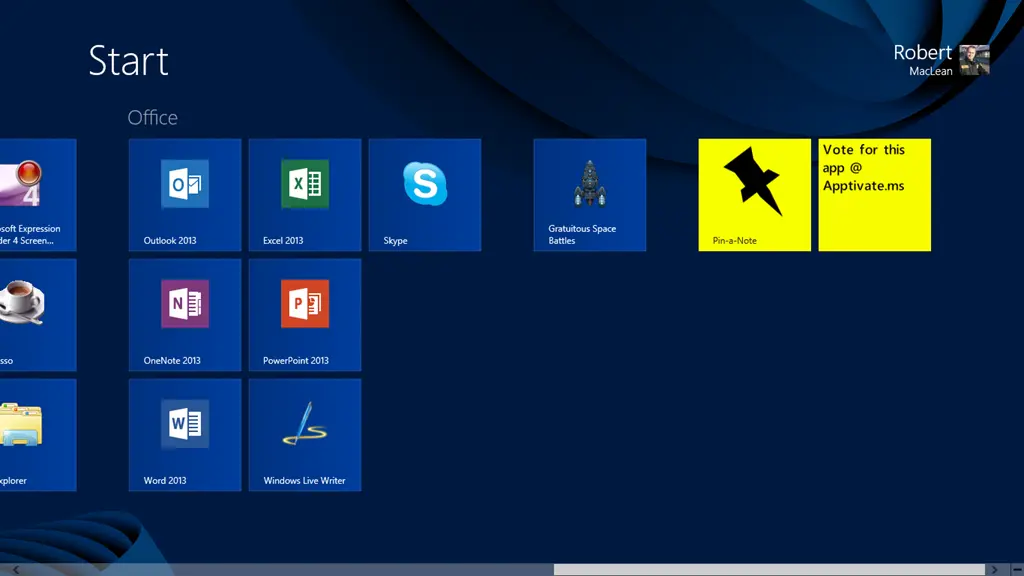
Do you wish you could stick a note to your start screen? Now you can!
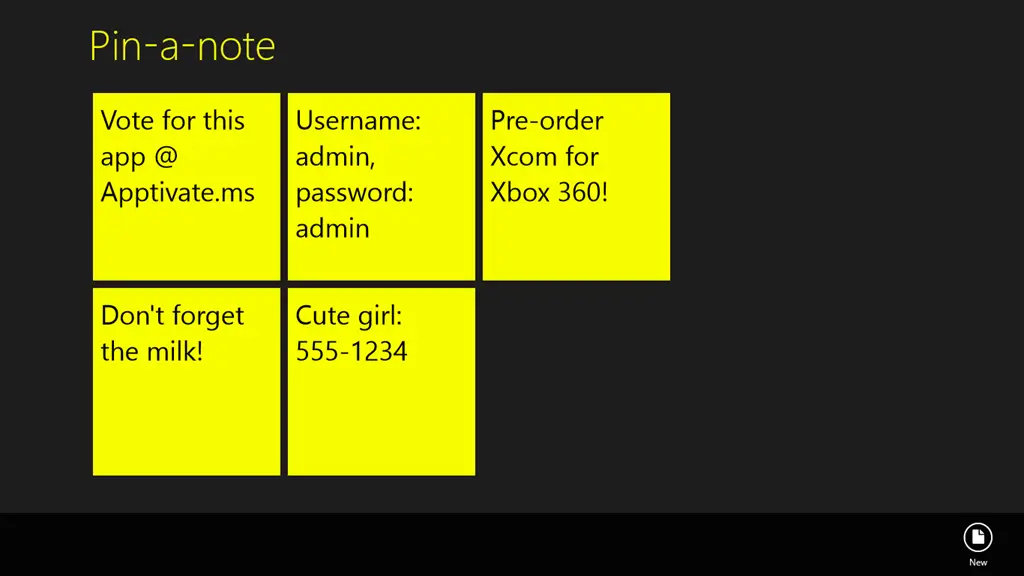
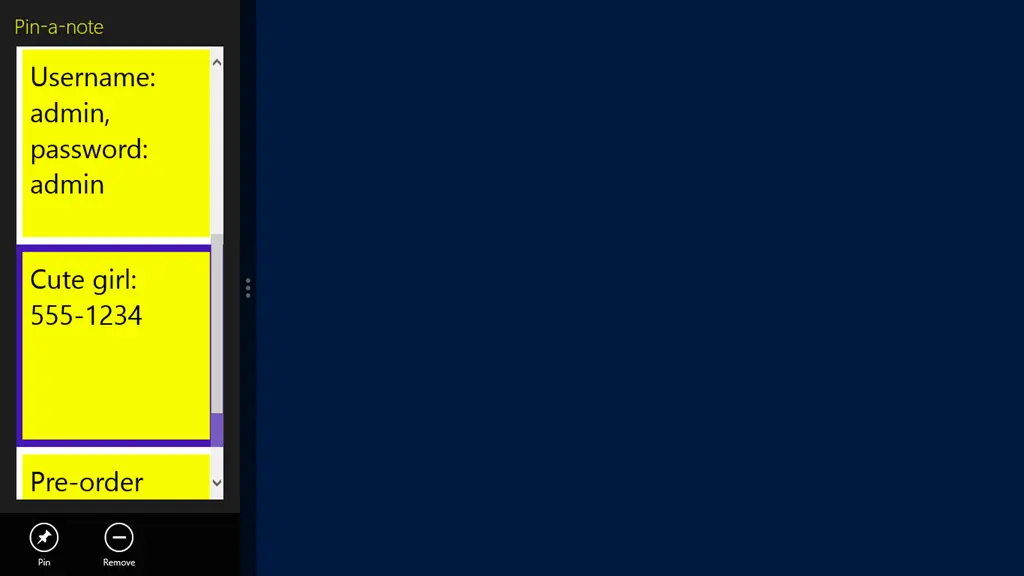
Pin-a-Note allows you to store your notes in this fantastic application and then pin any of them to the start screen, so you can easily see them at any point!
Compared to the sticky notes gadget in Windows, this has some advantages and disadvantages—you have less text space but save considerable memory. However, notes automatically sync to all your devices, and you can have non-pinned notes kept in the app too.
Video
Screenshots
Pin-a-Note makes use of icons created by the awesome **(and free) Metro Studio 2.
Updates
16 October 2012
When you click edit/add, the keyboard moves to the text field—allowing you to type straight away!
Hitting Enter in the text box could be used to add/update the note!
Selecting a note will make the AppBar visible if it currently isn’t.
Clicking pin will show the progress ring while we render the note.
Included a training popup to help people get started!
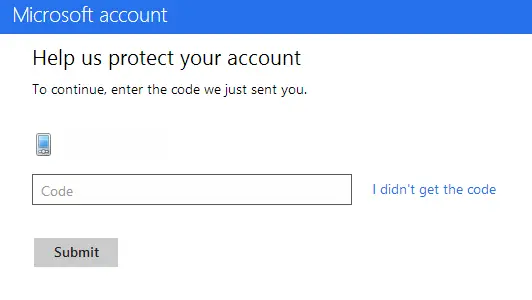
When you get to publishing, you may find it annoying to go to the dashboard as you're often asked to put in a SMS code for verification. The cause here is that your browser is seen as insecure, and thus you must confirm the login. So what’s the solution?
Step 1: Make sure you log in to Windows 8 with the same credentials as you use in the store.
Step 2: When you added your Microsoft Account to Windows 8, it would’ve emailed you a link to verify the computer. Make sure you’ve clicked that link.
Step 3: Use IE 10 and log in to the dashboard.
And—problem solved! Now it will only ask you to log in and confirm the login when the session expires.
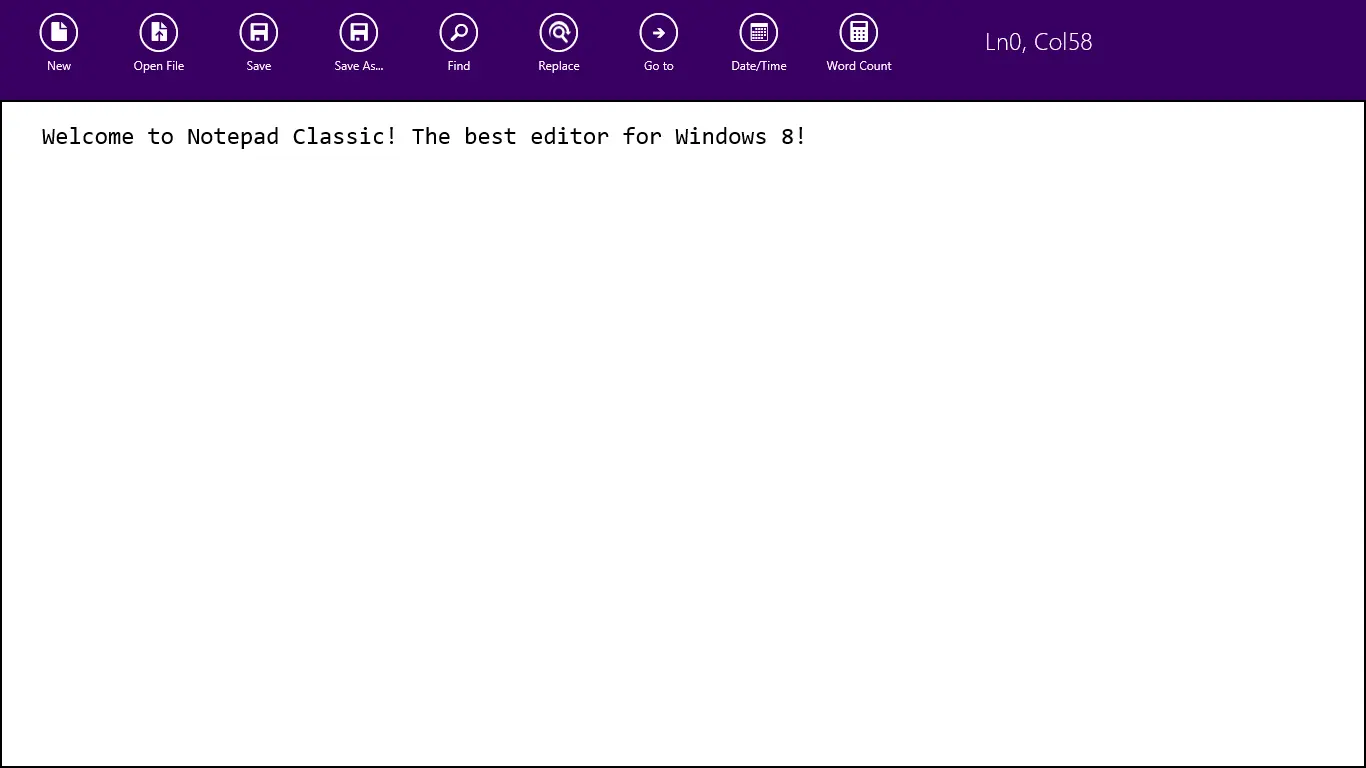
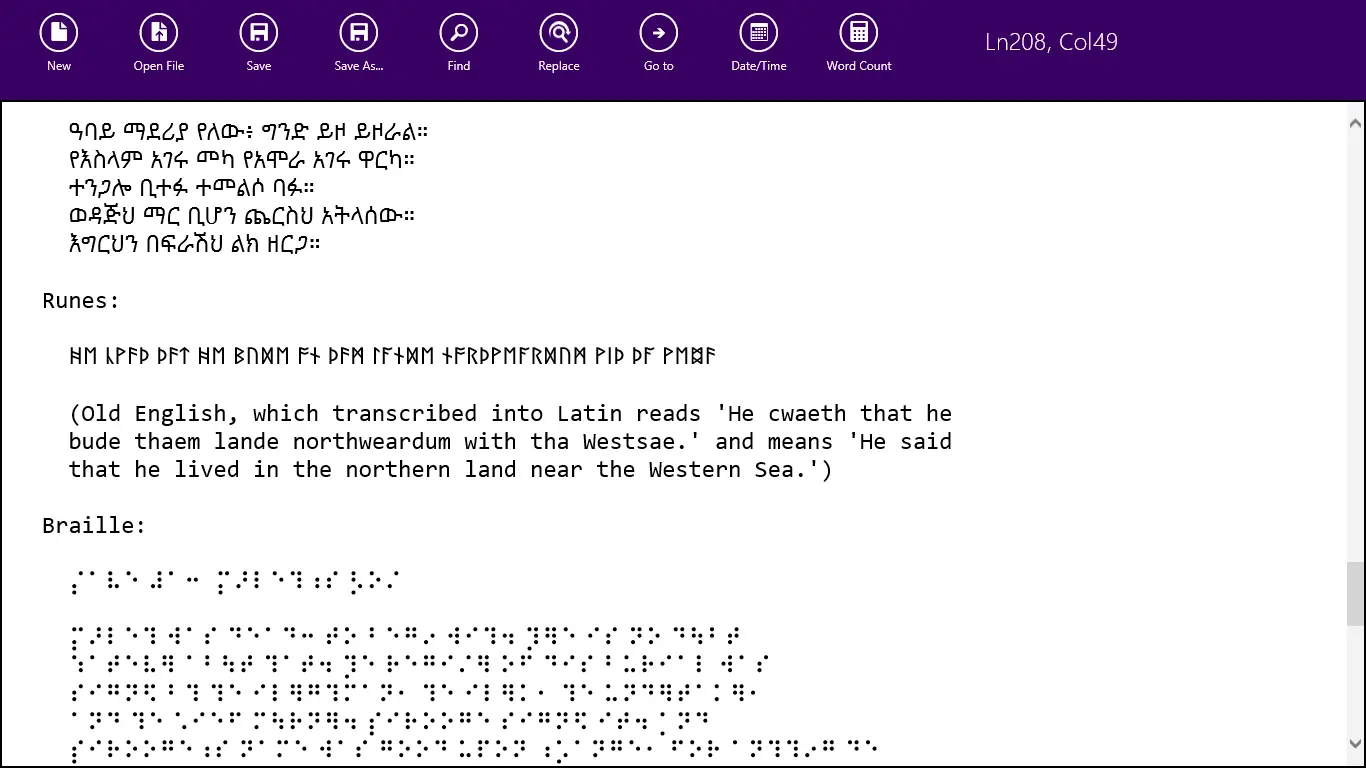
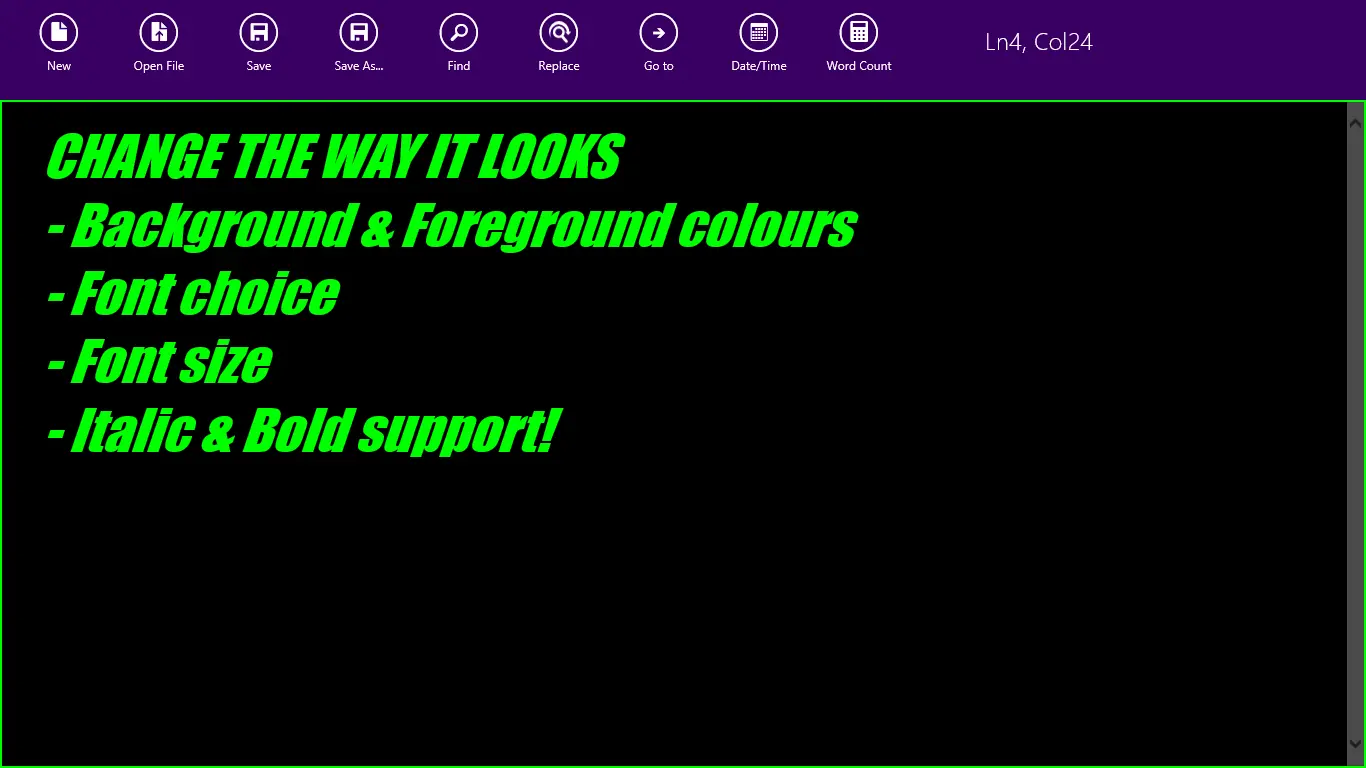
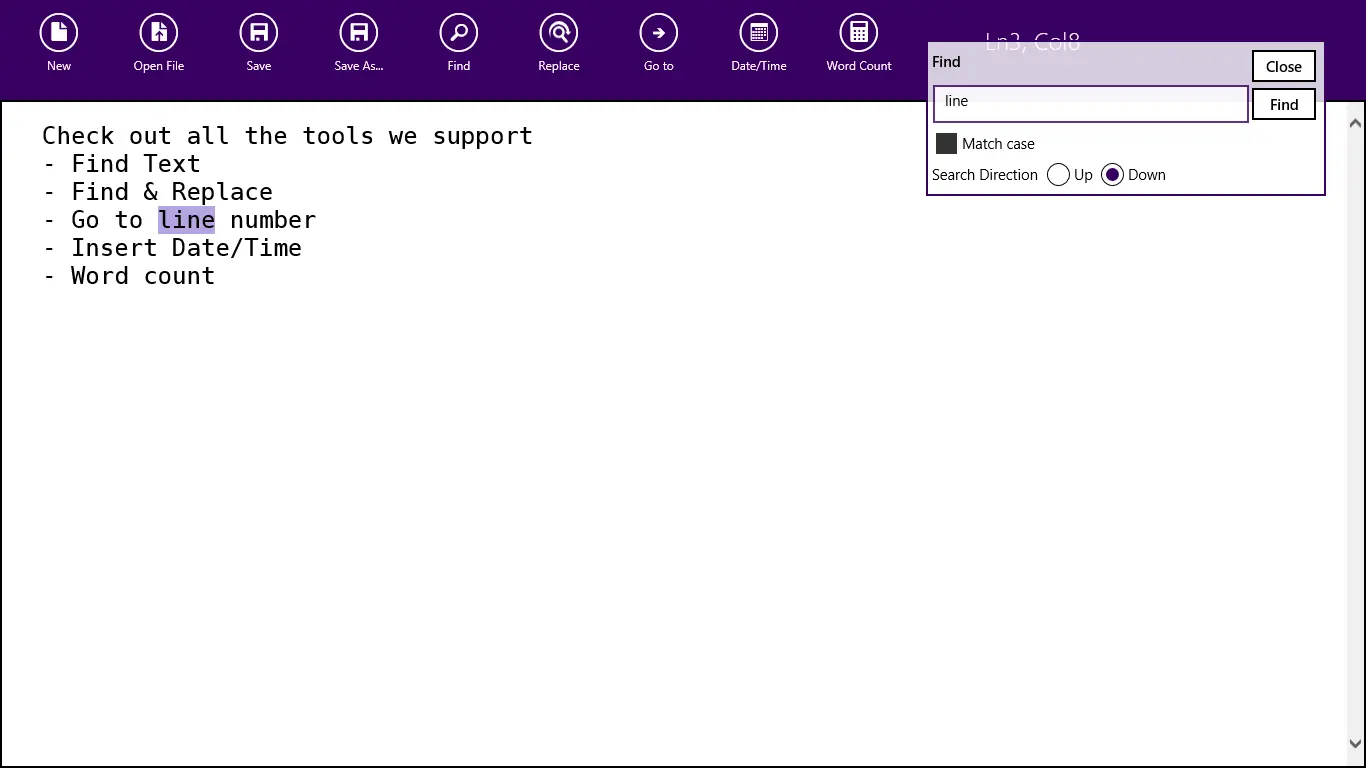
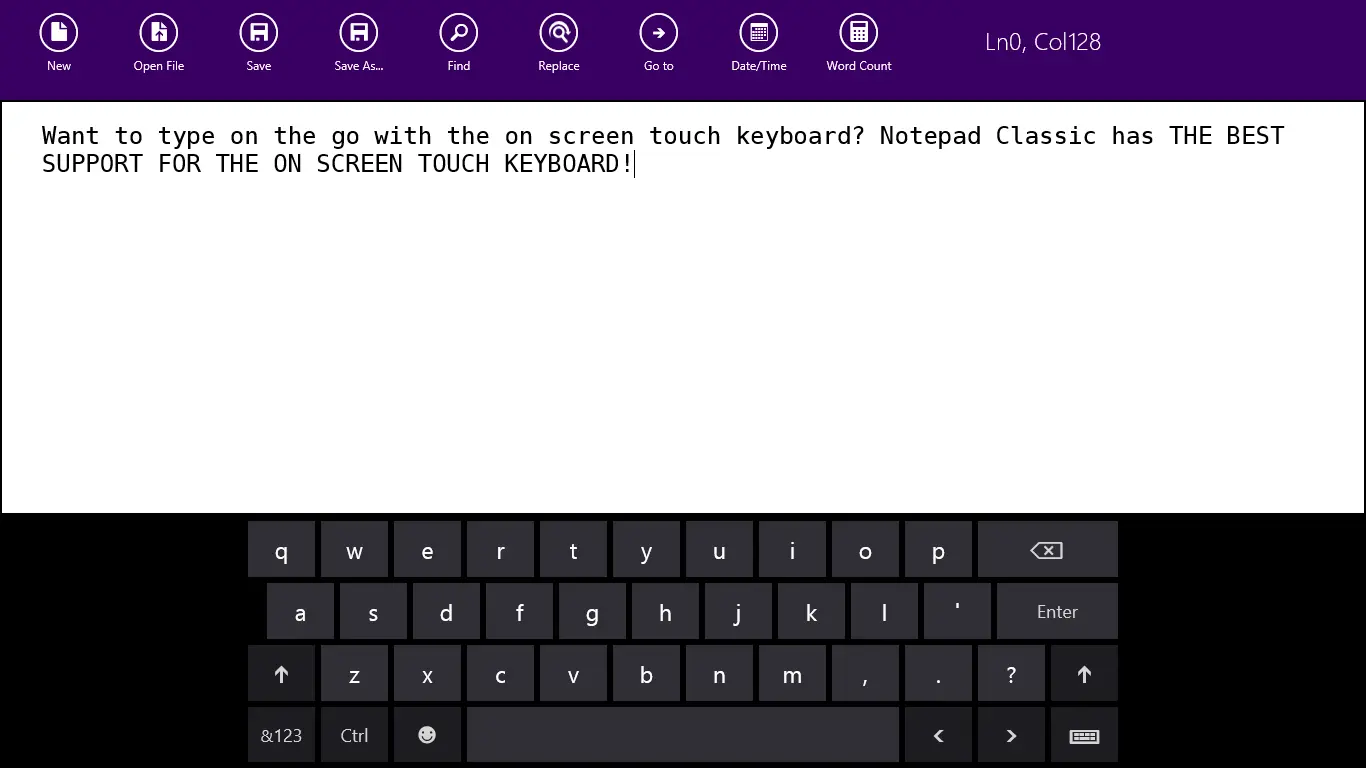
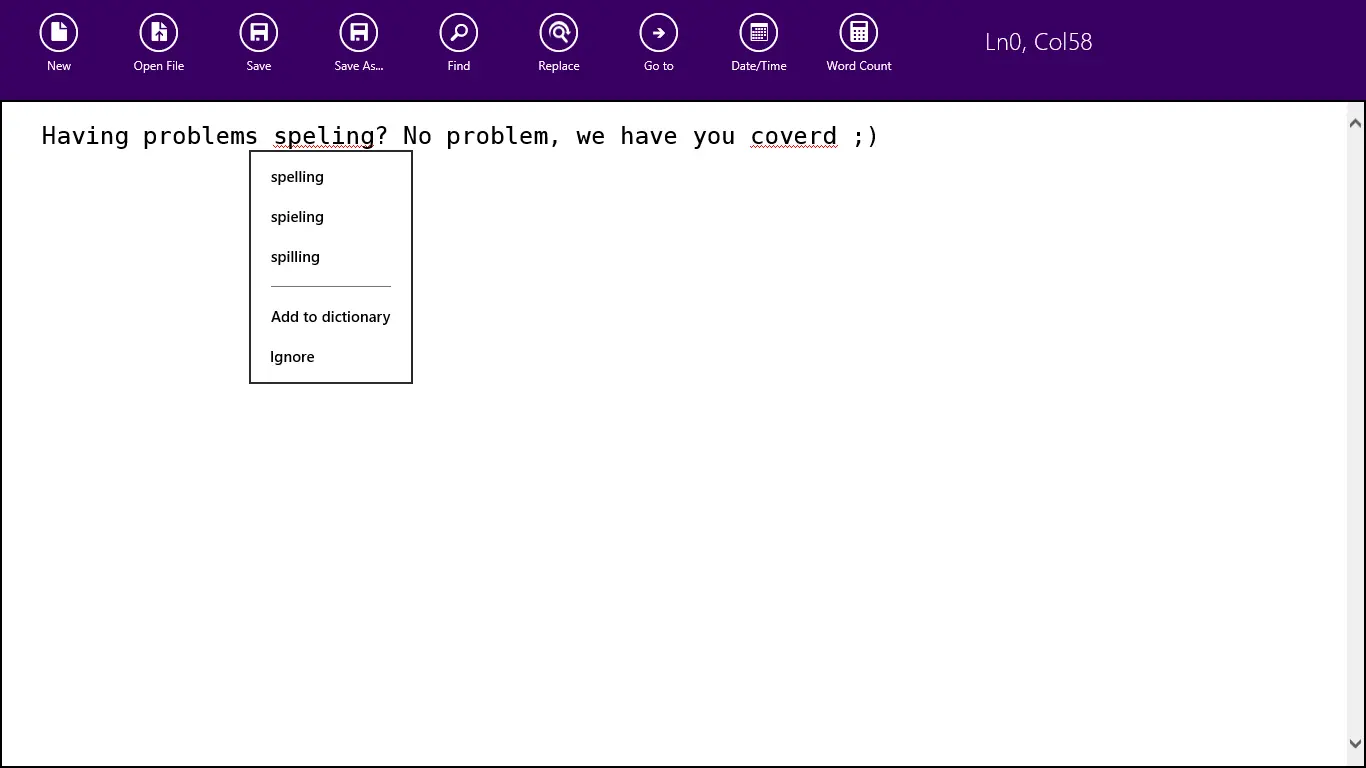
Sometimes you just need a simple tool for a simple job, and while Microsoft offers the fantastic OneNote MX, available for Windows 8, it may be just too much. With that in mind, let me introduce a simpler text editor: NOTEPAD CLASSIC! Notepad Classic is just that—a simple text editor. Enjoy
Video
Screenshots
Notepad Classic makes use of icons created by the awesome (and free) Metro Studio 2.
Updates
15 October 2012
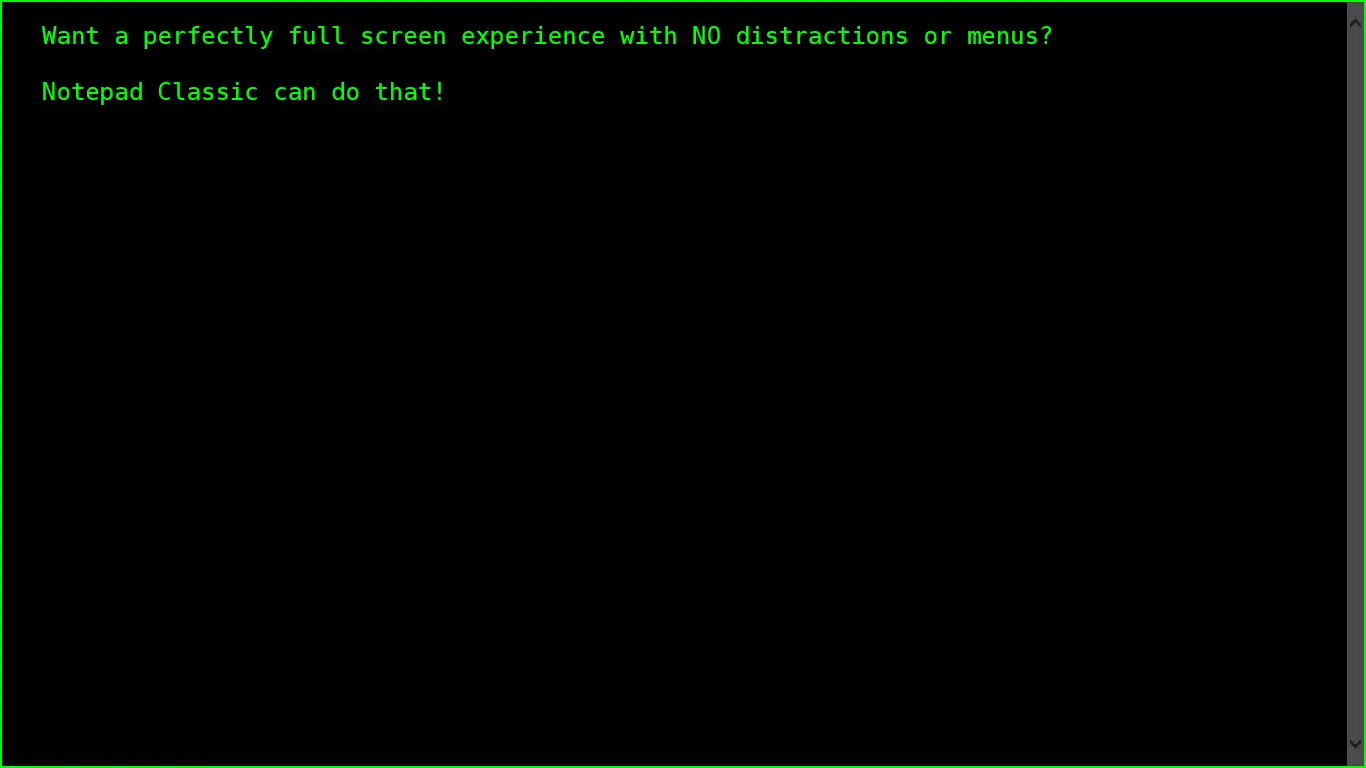
Made the menu act like the Store app does, so you can hide them away now if you want.
Added color options for foreground and background colors
Added some color to the appbar
Added feedback and privacy policy links
Fixed the dirty flag (so less prompting to save when not needed)
I often think of age restrictions as "this is for adults only" vs. "this is for everyone," but Microsoft has a far more nuanced approach:
3+: Suitable for young children (three or older)
7+: Suitable for ages 7 and older
12+: Suitable for ages 12 and older
16+: Suitable for ages 16 and older
Finally, Adult-Only apps
Content
Adult-only apps are not allowed in the store—so we’ll focus on the four other categories. The obvious factor in ratings is content, a major influencer. For example, at 3+, the guidelines state:
These applications are considered appropriate for young children. There may be minimal comic violence in non-realistic, cartoon form. Characters should not resemble or be associated with real-life characters. There should be no content that could be frightening, and there should be no nudity or references to sexual or criminal activity.
At 16+, however:
Apps with this age rating can depict realistic violence with minimal blood, and they can depict sexual activity. They can also contain drug or tobacco use and criminal activities, and more profanity than would be allowed in a 12+ app.
None of that should be surprising to any developer—just a bit of reading when you submit should keep you out of trouble.
Platform Access
Ratings serve a second role: controlling what can and cannot be used. Only at 12+ can apps access online services, personal information, or enable features like microphones or webcams. This can lead to issues when submitting.
My experience is that obvious online access is heavily restricted, but I’ve seen 3+ apps that still access services (e.g., to load pictures). Technically, nothing stops an app from doing this—it’s more of an honor system, enforced during content review when submitting.
Here’s an interesting requirement of Windows Store apps: they must run on a low-power computer. If (like me) you fail this, you get the error message shown in the screenshot—which suggests a test tool exists.
The problem with this tool is that it can test only HTML apps. So what can XAML developers do to help avoid this situation? Use Task Manager—it’s that easy! Just watch your memory usage while using your application. Once you have that, there are two things you can do.
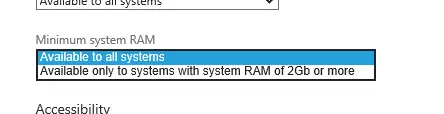
First, at the bottom of the Selling details page is an option to specify whether you need more than 2 GB of RAM—something that feels excessive for the types of apps I build, but perhaps useful for game developers. If your app exceeds 2 GB of RAM, make sure you set this.
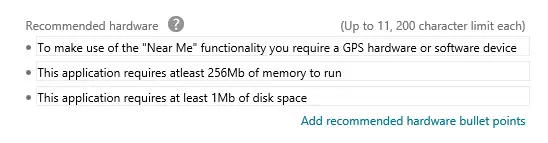
Second, under the Description page, there’s an optional Recommended hardware section:
Here, you have free-form space to specify conditions about your application, including disk space and memory usage. I resubmitted the app that originally failed with just this information specified, and it passed—so it appears that this is taken into account.
During development of Zune, then Windows Phone, and finally Windows 8, the term Metro was used to define the UI design style. This was later extended to explain what a desktop app is versus a Windows 8 app. However, Microsoft has stopped using the name and recommended developers do the same—so what should we call these things?
Metro apps – These are now called Windows Store apps. Visual Studio uses this name too, so it shouldn’t be too surprising. Note: one pedantic pro-tip: app’s is always lowercase.
Metro as in the style – As I explained, Metro started as a way to explain the UI design; it is now known as the Microsoft design style.
Metro principles – Finally, we often talk about the 8 traits or principles of a great Metro/Windows Store app, and one of those is Embrace Metro/Windows design style principles:
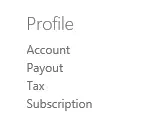
Development is done—and not just done, but done-done. You’ve logged into the Dashboard and want to submit your application. There are two things you must complete before publishing successfully, and both are under Profile in the right-hand menu.
Payout
Payout sets up which account will receive payment—if this isn’t set up, your app won’t even pass certification! You might assume this only applies to paid apps—but it doesn’t. All apps, even free ones, require this setup first.
When you set up payout, Microsoft will ask for one of three values (based on what I’ve observed):
Credit card CVV – the simplest option.
Transaction amount – Microsoft will process a test transaction; enter the cents portion of that amount.
Transaction code – Microsoft will process a test transaction, and you’ll need the magic code in the description.
Below is an example from my account statement: if they ask for an amount, it would be 29 cents; if they ask for a code, it would be 851.
Two critical notes about payout:
Limited attempts: You get only a few tries to input the correct details. If you get them all wrong, your account will be locked, forcing you to contact support for escalation—this can take DAYS.
Transactions take time: If you don’t get a CVV check, you’ll receive one of the transaction checks. These may take time to appear, especially if you’re outside America—wait up to two days before acting. Do not guess, or you’ll hit your attempt limit.
Tax
The second requirement is tax compliance—everyone must complete this. However, invalid tax forms won’t block certification; they’ll only block publishing. The form itself is easy, but frustratingly, the status stays marked as "invalid" even after submission until Microsoft verifies it. Interpret "invalid" as either incomplete or still processing.