In a recent project, I was required to come up with a suggestion for logging, and while the existing view of using a text file is used by many popular applications and is well understood, it felt like reinventing the wheel.
In the past, I’ve used great libraries like Enterprise Library or Log4Net to ensure I didn’t need to reinvent the wheel—but really only to ever write to a log file. I began to question whether I should use the Windows Event Log instead, since it offers many other features, especially around the viewer.
The viewer can not only provide a simple view but also offers sorting, filtering, exporting, remote connections (you can open the event logs on other machines), monitoring (through tools like System Center Operations Manager), and forwarding.
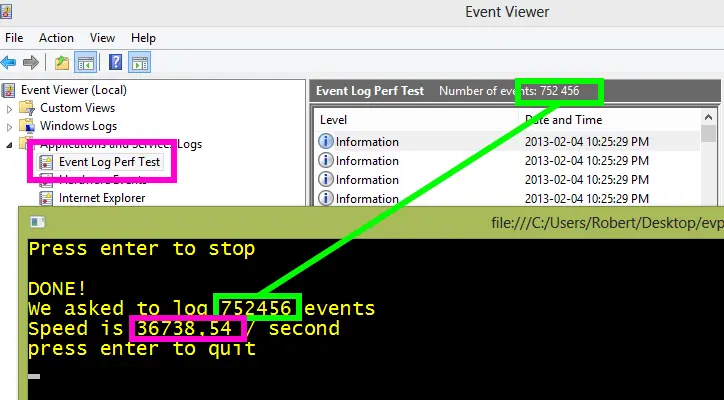
The big question for me has always been: Can it handle the load I want to throw at it? So to test this, I wrote a small application—available for download or feedback at Bitbucket—which spins up a few threads (on my machine, 4 is the magic number; above that, there’s no major improvement). It just writes as much data as quickly as possible to an event log.
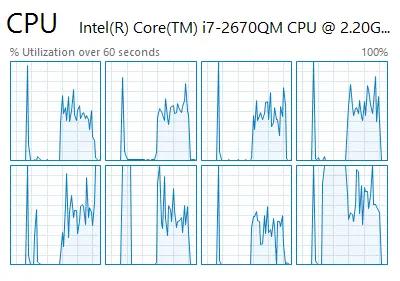
Every time I’ve run it, I’ve managed to hit close to 40,000 writes per second! Monitoring CPU at the time, it averages between 30% to 50%—not a minor load, but understandable given the volume.
There isn’t much I have that needs that sort of speed, and if I do, there’s ETW. So help me chant: DEATH TO THE TEXT FILE, LONG LIVE THE EVENT LOG!
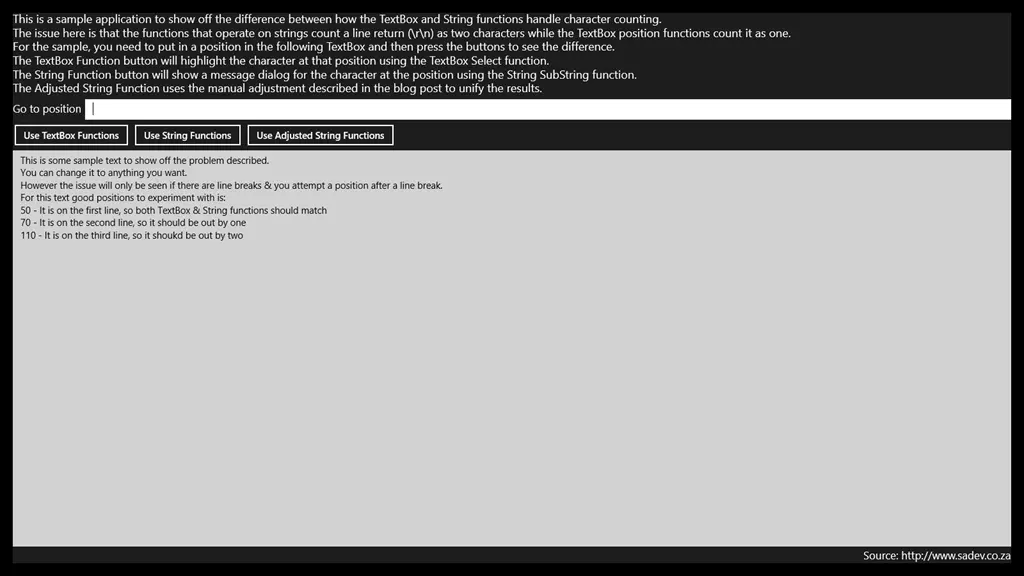
One of the toughest problems I faced when I built Notepad Classic was an issue where many functions—like Go To and Find—were always off by a few characters. After some experimenting, I noticed a pattern: the offset equaled the line number (0-based).
For example:
No issue on the first line (line index 0);
Off by one on the second line (line index 1);
Off by two on the third line (line index 2);
Off by three on the fourth line, and so on…
Problem
It turned out that string functions count a line break (i.e., \r\n) as two characters—which is correct, since it consists of a \rand a \n. However, TextBox functions like Select treat \r\n as a single character because that’s how it appears visually (a line break is one visual character). This discrepancy caused the "off by one × line count" error.
Solution
To fix this, I compensated by calculating the number of line breaks before a given position and adjusting the results accordingly (+1 for each \r\n).
I love Git – it lets me work the way I want and wherever I may be. I love TFS – it has everything companies need for development projects. This is why I love Git-tf, as it gives me Git but with all the professional tooling from TFS that serious development needs. However, I have found that upgrading Git-tf isn’t obvious, and in fact, you may get it wrong without knowing!
I was doing it wrong
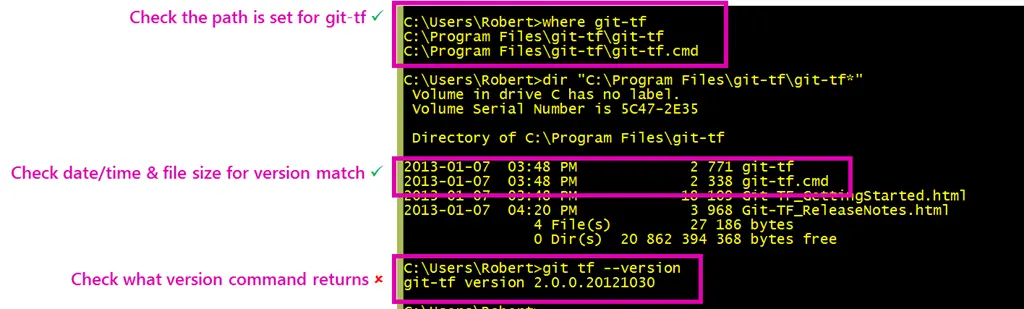
Since it is just a file copy deploy (i.e., drop files into a folder), I had assumed that you could just do a file replacement when a new version—however, I noticed recently the version numbers didn’t match up after an "upgrade."
Solution
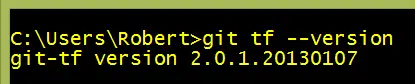
The solution is to delete all the files in the folder first—then you copy the files into that folder. Once you do that, it just works!
It is odd, but it works—and that is what matters.
Special thanks to Richard Banks for pointing out this solution to me 😊
January first—most people celebrate the ability of gravity working for another year and other physics-related awesomeness at midnight. However, for 943 people, they get a special celebration at about 5 p.m. (SAST) when they are told they are MVPs.
For the fourth time, I have been honored to be placed into that special group by being awarded an MVP for ALM.
Thank you to everyone who has been a part of helping me gain this award for the work I did in 2012!
I ♥ NDepend, it is an amazingly powerful tool that is brutally honest and unforgiving, and the rewards it brings are massive. Building Windows Store apps without it has always worried me—how do I know if this is going right? Thankfully, yesterday the NDepend team released 4.1, which includes support for Windows Store apps, including the ability to analyze the .winmd files too!
This not only means I have personal benefits but also signifies something greater. NDepend is truly cutting-edge, and the fact that they’ve released a professional tool for Windows Store apps shows the community’s commitment to the platform! This means that developing Windows Store apps will get easier and better in the future.
This tip is aimed at presenting, but is just as useful for those who want to focus in Windows 8 without distractions!
Windows 8 is a great operating system to use, especially for its background tasks system, which ensures other applications don’t drain your CPU & memory. However, there’s a downside to background tasks!
Previously, if I wanted to block annoying Skype popups (e.g., during my talks), I’d simply shut down Skype—no popups would occur. But in Windows 8, since the application isn’t running, how do we stop them?
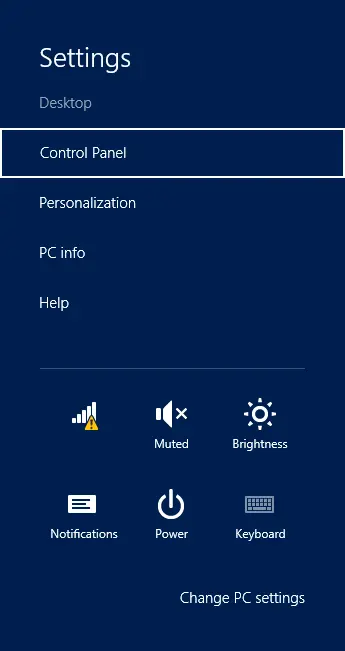
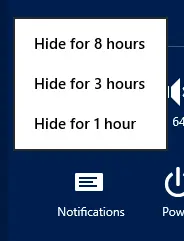
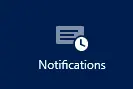
The solution is simple: bring up the Settings charm (see image on the left), and in the bottom-right corner, you’ll find an option called Notifications. If you tap that, you’ll get the choice to block notifications for 1, 3, or 8 hours.
I tend to use 3 hours for my 1-hour talks, allowing time for setup and clean-up.
Once disabled, the icon changes to show it’s disabled. If you want notifications back—say, when you’re finished—simply tap the icon again to re-enable them.
What’s great is that live tiles and background tasks still run—just no popups anymore.
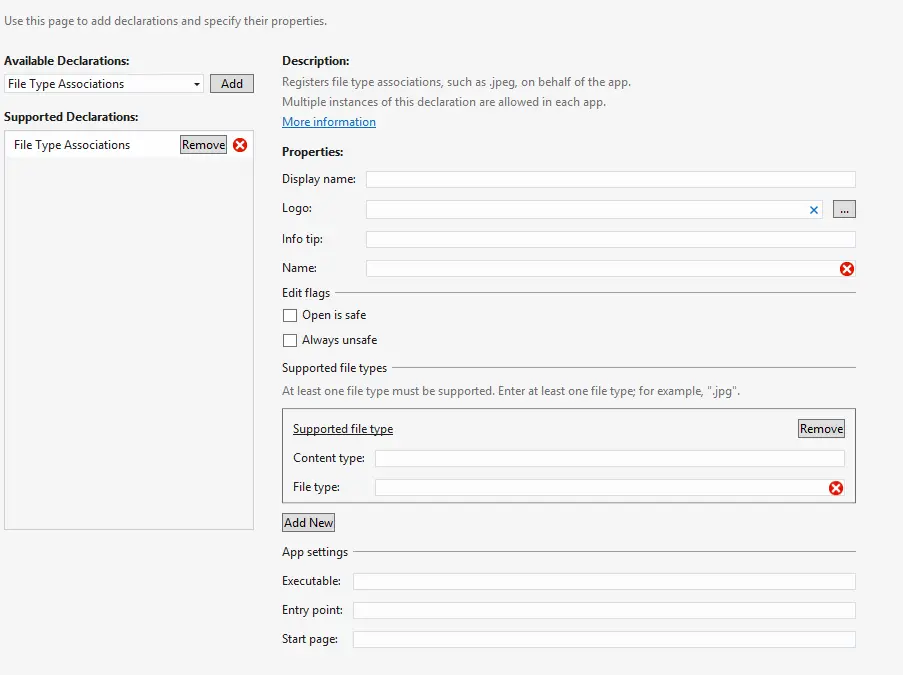
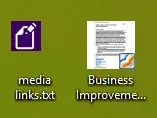
One of the declarations you can have with a Windows Store app is the file type association, which lets file types become associated with your application. This means you can customize the icon for the file type—and if the user double-clicks an associated file, it will launch the application.
One of the properties of this declaration is the logo property, which is the icon to use for the file type. The logo is optional, and if you do not specify it or specify it incorrectly, it uses the application’s small icon (i.e., the 30×30 one)—which doesn’t look great.
The solution to this is to correctly specify the logo—but that isn’t as straightforward as it seems. First, you don’t just need one image, but four icons with different resolutions:
16×16
32×32
48×48
256×256
Next, you need to name them correctly. The format is <name>.targetsize-<resolution>.<extension>, so for example, if you wanted to use MyLogo.png as the filename, you would have:
MyLogo.targetsize-16.png
MyLogo.targetsize-32.png
MyLogo.targetsize-48.png
MyLogo.targetsize-256.png
Lastly, you need to put the correct logo name in the manifest. Since you have four icons, what do you use? You use the name + extension (e.g., MyLogo.png), and Windows 8 is smart enough to figure out the resolution, insert the target size, and get the right image for the right display!
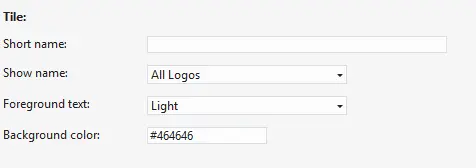
When you are configuring the appxmanifest for your Windows Store app, one of the options is the background color for the tile—you should always set this!
It is used for two things. First, if your image is transparent, this is the color that will show through—for example, in Notepad Classic, that’s what I do: the actual image is just plain white with transparency.
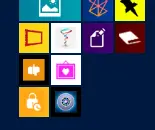
The second case—less obvious—is when a small icon is needed, such as when you perform a pinch gesture on the Start screen (semantic zoom). The background color serves as a border around the image. Below is a screenshot from my machine, and you’ll notice two apps have an ugly black border—that’s because they don’t have a matching background color set!
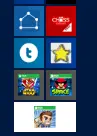
This isn’t always possible, especially for games with rich tile icons—see Angry Birds in the screenshot below—but I’d still suggest choosing a similar color where possible. For example, the top two below have matching colors, and Jetpack Joyride (the last one) uses white, which is better than that ugly gray.
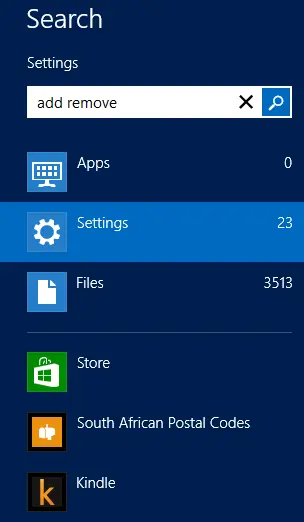
Another location where the small icon appears is in the search charm.
How rich are you? Did you ever wonder? I did, so I built this little tool to tell me exactly how rich I am! The tool uses data from the South Africa 2011 Census1 and nothing is sent or stored when you use this tool.
The tool
My thoughts
What really struck me is just how much better off I am than many people in South Africa. It’s very sobering.
Footnotes
The numbers may seem off from the 51 million people that StatsSA reported; that’s because I’ve removed people who answered "not applicable" or "not specified," which lowered the population count to 46,867,063—still enough of a dataset to work with.
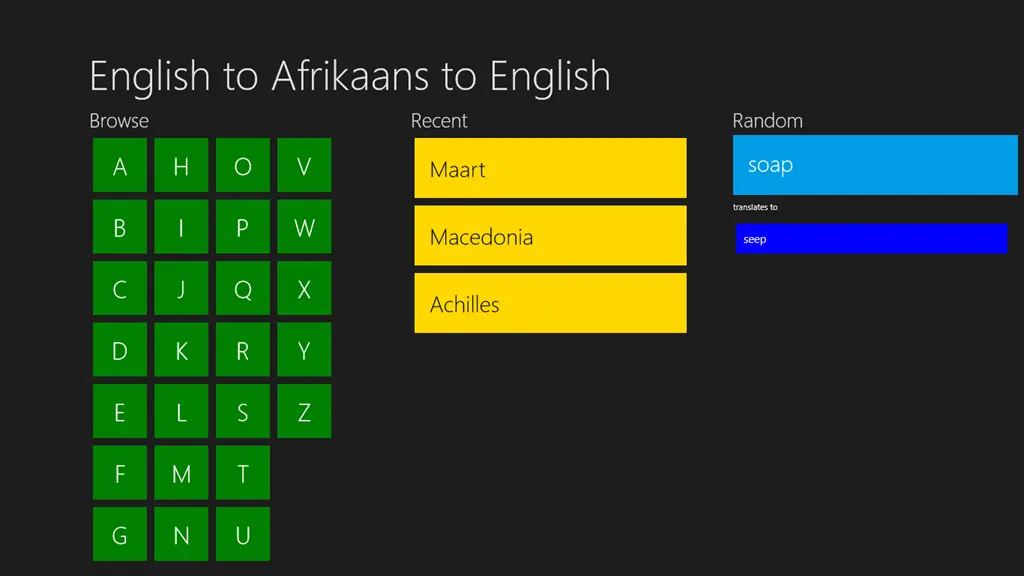
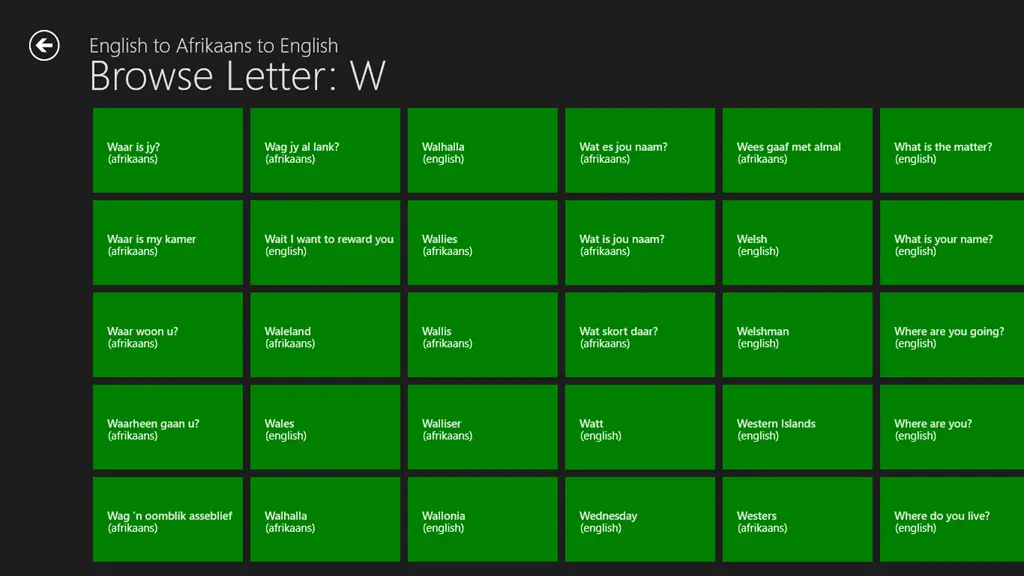
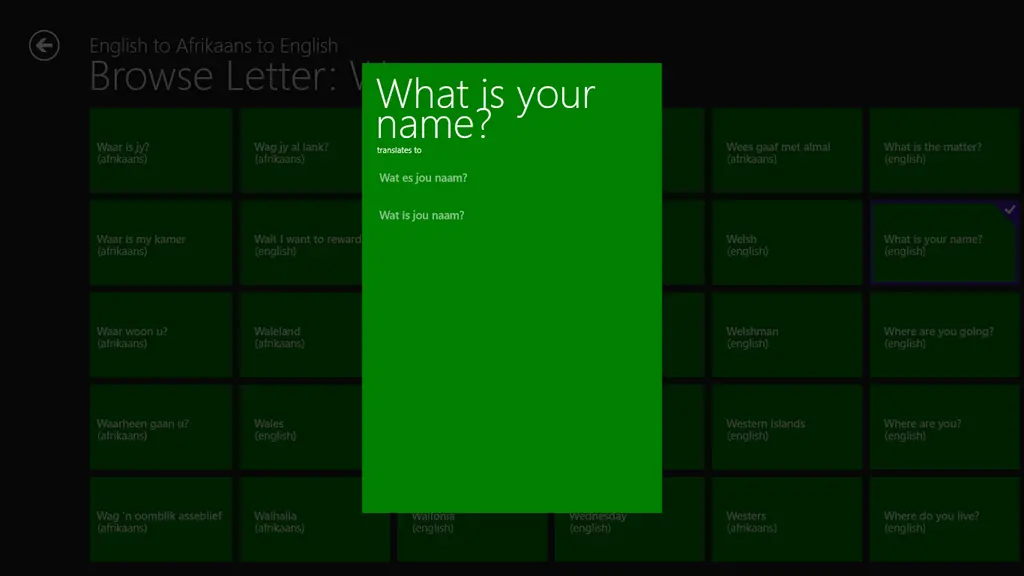
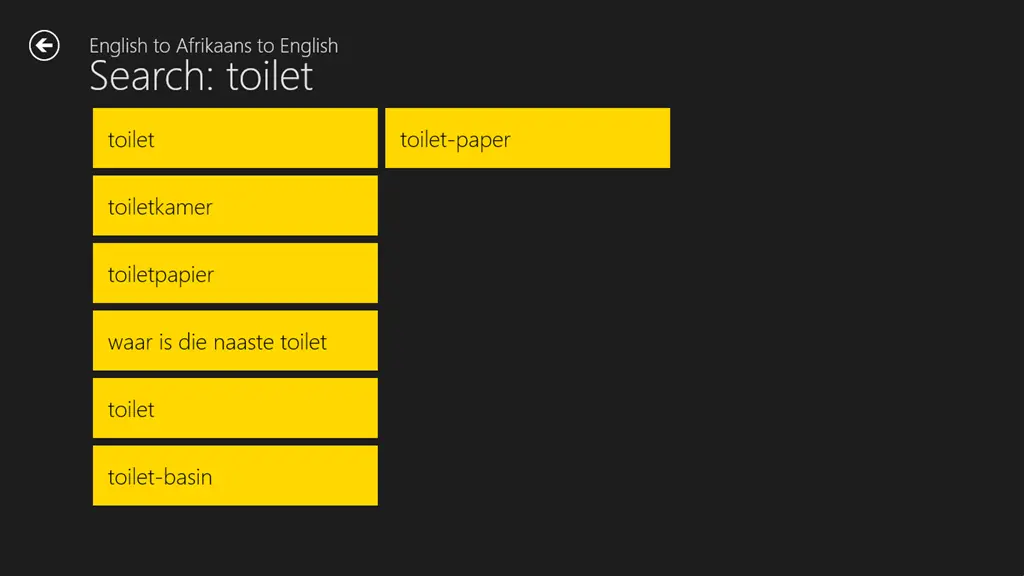
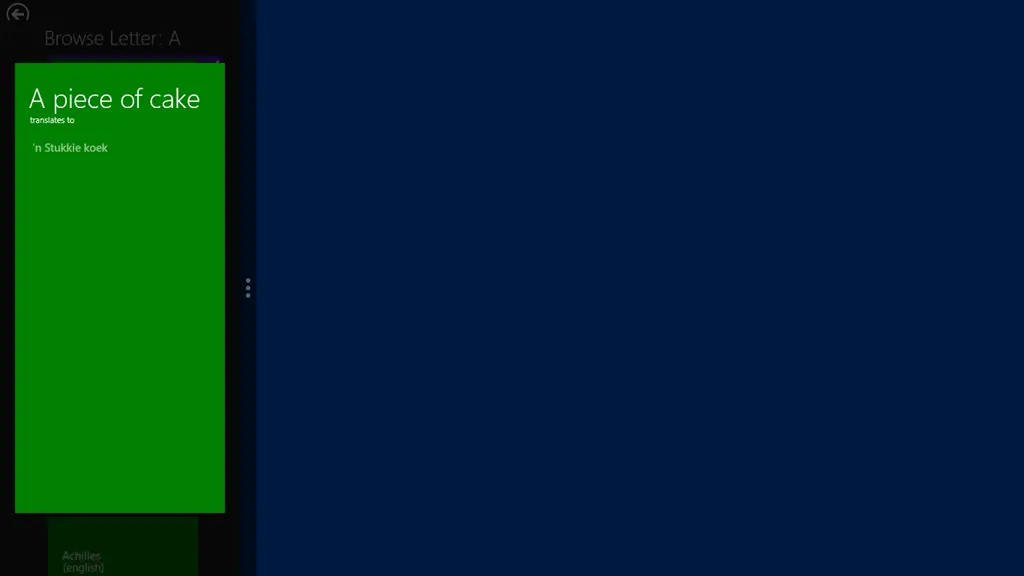
South Africa, the amazing country I live in, has 11 official languages, including Afrikaans—which I can muddle my way through speaking. However, I often struggle with it, and that inspired me to create an app to help with a phrase book that translates English to Afrikaans and back again!
I see real value in this on a tablet for people visiting South Africa on holiday, as they can quickly find out what "jou ma se..." means—though I usually recommend ducking when that phrase comes up.
While I did some initial planning for this app (finding content, prototyping UIs, etc.), most of the work was done at the recent WowzApp event, an event aimed at students (though we had professionals and even a 13-year-old participant).



 ]
]