Today I presented at TechEd Africa 2013 the first of my talks—a massive two-hour overview of what’s new in .NET 4.5 & Visual Studio 2012! If you click more (below), you’ll be able to grab the slides, and my demo script if you’re wanting to see what I was doing.
For those who couldn’t attend, part one is very similar to this presentation, which I gave last year!
I am a proud ALM Ranger and one of the projects I’m part of is the ALM Rangers Treasure Map – we’ve just started work on version two of it, and part of that is an effort to increase the transparency of the project. To facilitate this, each team member will be blogging about their experiences and thoughts on what they’re doing for all to see. None of these should be seen as statements of fact or official Microsoft views—rather, these are personal views of people working on a project. You can find a table of contents for all posts on Willy-Peter’s blog.
Lastly, these notes are written with those involved in mind, so I won’t explain everything—that said, if you’d like to know more about something, just post a comment and I’ll go into a lot more detail on it for you.
My first set of design notes
With the overview done, I’ll start with my first set of design notes, which focus on how we could fulfill the following Epic: As Alex, the technology consultant, I would like to view my progress through the guidance on the live tile without launching the application.
This epic is broken into two features, which I’ll break down below.
Feature: Enable users to track their progress through the guidance, sync to the cloud, and track it on a live tile.
The first thing I like to do with designs like this is to create a simplified list of goals—really no more than three or four items that I can then explore in more detail. So for this feature, the distilled list of goals would be:
Cloud sync
Live tile – I don’t see this as cloud-push live tile (e.g., sports app) but rather an app-generated live tile (e.g., photo app).
Chart rendering to image for the live tile.
We need cloud sync
Windows RT already supports this, and it’s a fairly simple task to implement. I’m proposing a small wrapper layer around the built-in aspects to give us a consistent way to work with this data. There’s some overlap here with the features of another epic (As Alex, the technology consultant, I would like to be able to mark treasure items as complete within the ALM guidance, see the same progress on all my devices where the application is installed, and be able to show/hide completed items)—so this may be a feature that gets moved out of here and into the other one.
Technically, the two APIs for cloud sync in Windows RT are:
Windows.Storage.ApplicationData.Current.RoamingSettings – Gives a key/value store. Each key/value can be up to 8 KB with a max of 64 KB.
Windows.Storage.ApplicationData.Current.RoamingFolder – Gives blob storage. Storage has a quota that can be obtained via code.
My idea is to create a simple API that allows us to do something like:
ToggleStatus(Status.Done, <item id>);
This would store the data in either a small XML file in the roaming folder or in roaming settings as a key/value. I propose this style so we could extend it to work for favorites too. From the discussions already, the key/value store might be the easiest way to do this.
This API also needs to support the map pages, where we can ask:
GetStatusCount(<group id>, Status.Done) // returns int
GetItems(<group id>, Status.Done)       // returns IEnumerable of the items
Impact on code: All new code. A new API for our app, and sprinkling ToggleStatus around the app in the right places.
We need live tile
This is straightforward—really, we need to design what it should look like. We need both small and wide designs. Live tiles can take images or text, so if we’re planning on charts, it will mean rendering an image (see below). My thinking is that on app startup—and potentially every time ToggleStatus is called—we update the tile in a separate thread/task. The API here is simply:
Impact on code: All new code. New logic in app startup and integration with ToggleStatus.
Note: We could push this via a service, but that would mean an external dependency, and we’re really trying to avoid that. So keeping everything in-app makes me feel happier.
We need to do chart rendering to image for the live tile
This is going to be tough—we have some drawing primitives in the runtime, but we’ll likely need to rely on third-party code, particularly WriteableBitmapEx (MS-PL license). Once that’s done, we can figure out a way to generate a chart. (Intentional use of “nice,” since how nice it is will depend on how much work we put in.)
While this is possible, maybe a chart should be a stretch goal because anytime we add an external dependency, it also needs to meet Microsoft’s quality gates and legal requirements, which can add extra time to the project. So shifting the chart to a stretch goal (i.e., if everything else comes together) or pushing it to the next version might be better.
This may not be the only option—so we need to check with internal contacts at Microsoft for advice on this.
Impact on code: New dependency on WriteableBitmapEx + all new code. No impact outside these items.
Feature: Add ALM blog tracking/news to the app + live tile.
My understanding of the distilled list of goals for this:
Grab the Rangers RSS feed into the app
Show the RSS feed in the app
Show the RSS feed on the live tile
Grab Rangers RSS feed into app
This is pretty simple—we have a pre-configured list of URLs (which can be placed in an XML file) that we parse on startup (in a separate thread/task) using Windows RT’s SyndicationClient API. My feeling is this is just temp data, so we can store it in memory—but I’d love some feedback on that?
Impact on code: New API that wraps this. Changes to the XML file and its API. Some additional startup logic.
Show RSS feed in app
This is really just a ListView with items displayed. Minor impact—but it needs a design.
Show RSS feed on live tile
This is easy—just grab a few items from the feeds (from above) and send them to the live tile immediately. We need to plan this with the stats display since we only have five tiles to rotate through. Maybe 1 or 2 for stats and the rest for top news articles from the feeds? I’m thinking simple text will be best.
Question: What happens when I tap that item? We can detect which tile was shown, so do we just go to the general feed view (easy and low impact) or try to find the exact item (more tricky since we’d need to persist some data to match it all together)? This is more of a UX design issue than a dev feature.
Code impact (general feed): None—it will just be part of the above logic.
Code impact (matching item): No impact on existing code, but the scope for the first implementation is bigger since we’d need to persist some info on the feed locally so we can quickly launch to the item and show something.
I have a fancy laptop that seems to delight in giving me headaches, and the latest is to do with Windows Store app development. The problem is simple: you edit the XAML and nothing happens! You need to trigger a full redraw of the screen to get it to render the changes—the below video may explain it better:
The issue here is that my fancy laptop has two graphics cards: a low-powered Intel one (great for battery—average for performance) and a high-powered NVIDIA one (bad for battery—great for performance). Add to this that it uses a new technology from NVIDIA called Optimus, which allows individual parts of the screen to be rendered by each card—the best explanation of this can be found on SuperUser.
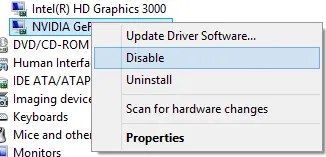
So what is the solution to this problem? Disable one of the graphics cards—yeah, that’s the workaround at this point. I am doing this by using Device Manager to disable the NVIDIA one.
That fixes the rendering issue and allows Visual Studio to work properly—not great by any stretch of the imagination.
In 2010, I wrote a post about how to find the best sessions at TechEd, which is as valid today as it was then—except for one thing, the decoding sessions part:
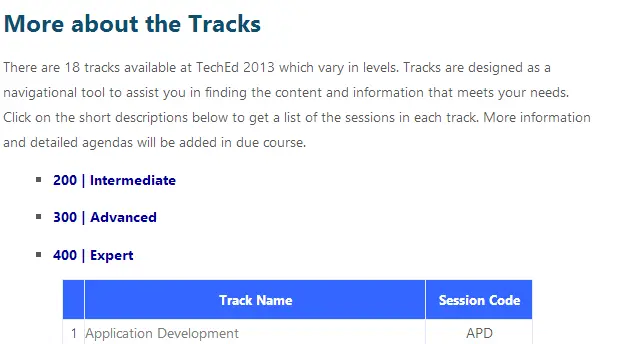
Every session at TechEd has a code, and this code contains key information that helps you get to the right sessions easily. If I look at one of the sessions I am presenting, the code associated is APS309, but what does that mean?
APS – This is the track, or the high-level concept that the session is part of. APS, in this case, refers to Application Server. Microsoft has a great guide to all these TLAs (three-letter acronyms) on the technical track page. The only item missing from there is WTB, which stands for Whiteboard (I’ll cover that next).
3 – This digit indicates the session’s level, ranging from 1 to 4:
1 indicates an introductory session—ideal for attendees with no prior knowledge. Expect a slow pace, broad concepts, and little depth.
2 indicates a beginner session—assumes some prior exposure. Covers usage scenarios with moderate pace and depth.
3 indicates a technical session—best for those actively working with the tech. Often fast-paced, deep, or exploring new areas.
4 indicates a deep-dive session—for advanced attendees only.
TechEd this year still uses these codes to help you identify talks, but you’ll no longer find level-100 sessions (that first digit). This doesn’t mean introductory sessions are gone—far from it. Instead, Microsoft has reclassified all level-100 sessions as level-200, meaning a 200-level session could still be introductory or beginner-friendly.
This makes the next piece of advice from that post even more critical for selecting the right talks:
The next step is to read the abstract for each topic—it’s the session’s blueprint. Take my example again: the title is Intro to Workflow Services and Windows Server AppFabric, but the abstract reveals deeper details:
It starts with Workflow Foundation (WF), targeting developers familiar with it.
Then it covers WF + Windows Communication Foundation (WCF) integration in .NET 4.
Finally, it addresses AppFabric and hosting.
The abstract clarifies that while the title sounds beginner-friendly, the content assumes more expertise than a true "intro" level. Always read between the lines!
Note: The content of this post has been modified by an AI during migration. The original content has been preserved as much and was originally written without AI.
Visual Studio is great, but if you’re using external tools like Git or Blend at the same time, the constant prompting to update/reload files can be annoying. In this short video, I show a great option that you can enable in Visual Studio to make the experience a lot more pleasurable.
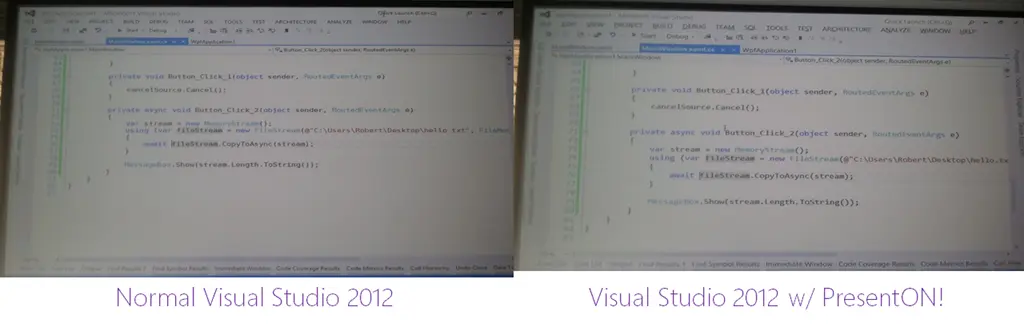
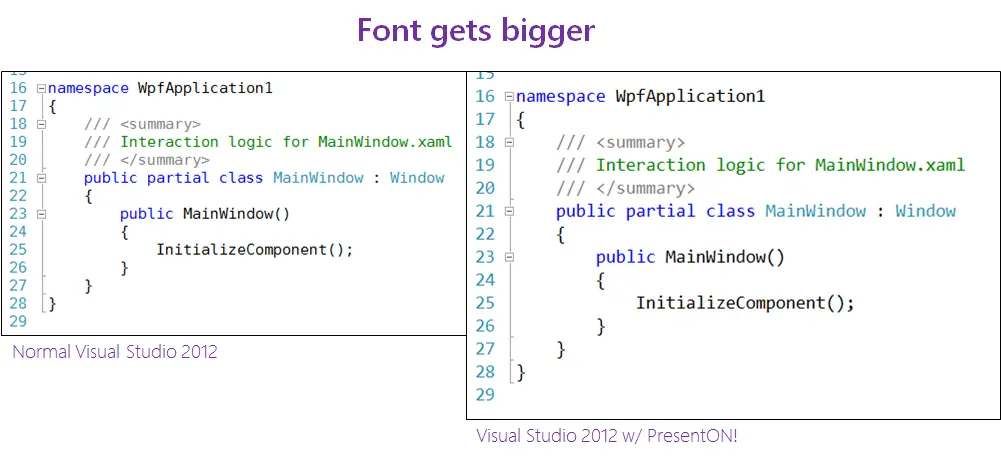
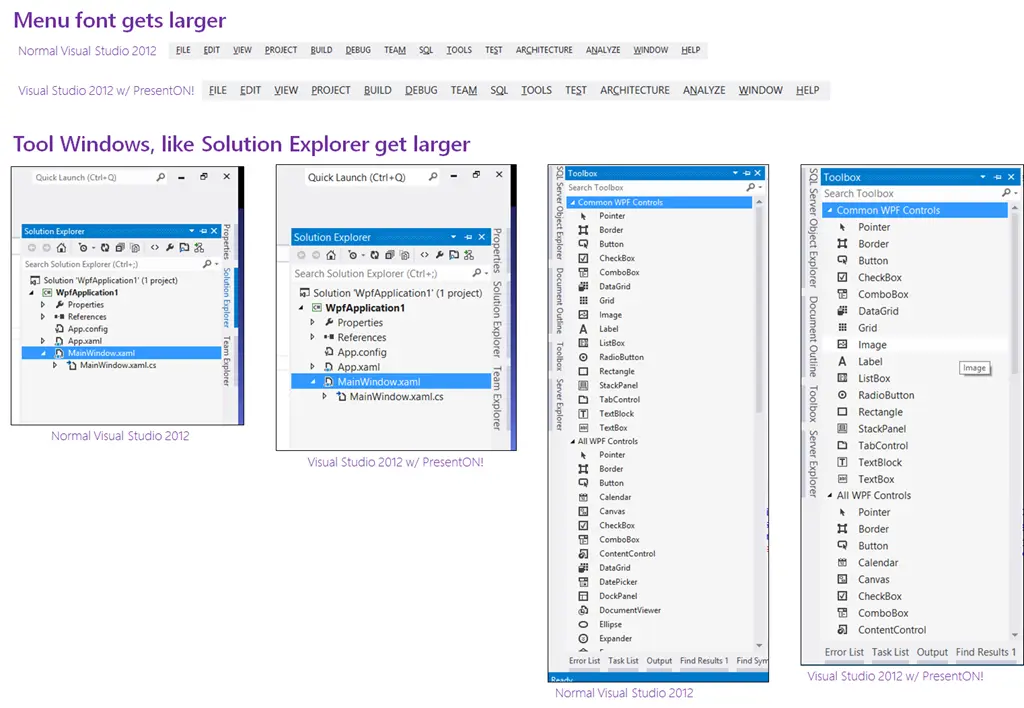
It sounds a bit like something Inspector Gadget may say: PRESENT ON! But this is a command in Visual Studio that makes VS shine for presentations. I spoke about it in my video on presenter tricks, but I love it so much it needs its own blog post too! Simply put, it makes the entire VS look better:
To show this, I took a photo (with a camera phone) when off and when on during a talk I recently gave. Just looking at the difference—the second is easier to see what is going on.
While it does a lot, let me highlight some of the critical differences:
So how do you use this?
First, you must download the Productivity Power Tools extension from Microsoft. This is a free extension and not only gives you this but also provides a lot more awesome functionality.
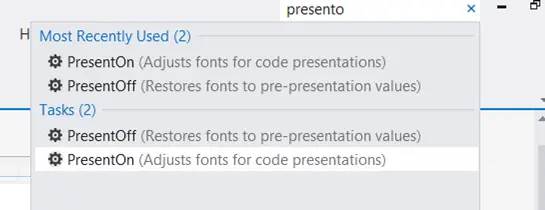
Next, go to the Quick Launch box in Visual Studio 2012.
Now type: PRESENTON and hit Enter (or click the item in the list when it appears). BOOM! Done! Happy audiences!
When you're finished, just type PRESENTOFF in Quick Launch and you're back to normal.
As TechEd is fast approaching, I thought it would be a great time to share some tricks I’ll be using to make my technical presentations a success. These are five tricks that focus on technical presentations on Windows:
ZoomIt: An essential tool to focus the audience and magnify content
Turning off Windows 8 notifications
Switching to High Performance mode in Windows, so everything runs amazingly
Turning off Presenter View in PowerPoint 2013
The amazing PresentOn option in Visual Studio, which makes VS look amazing on stage!
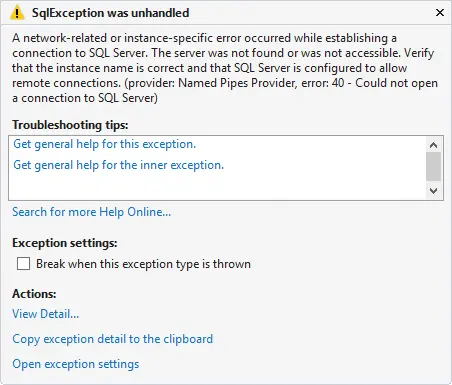
You are trying something simple – just open a connection to a LocalDB instance from .NET, but it is failing with a SqlException with the following message:
A network-related or instance-specific error occurred while establishing a connection to SQL Server. The server was not found or was not accessible. Verify that the instance name is correct and that SQL Server is configured to allow remote connections. (provider: Named Pipes Provider, error: 40 - Could not open a connection to SQL Server)
You know LocalDB is working, since you copied the connection string from within Visual Studio, but it just doesn’t work!
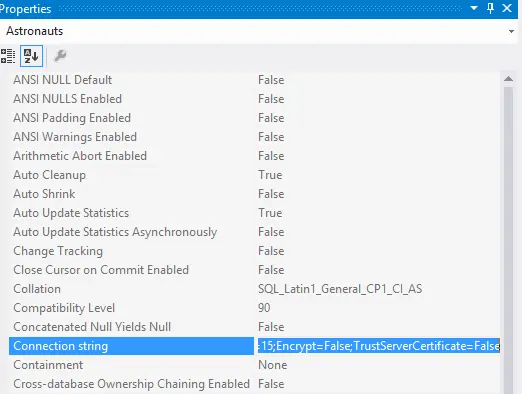
The cause of this issue is the connection string, though it may not be obvious at first glance:
var sqlConnection = new SqlConnection("Data Source=(localdb)\v11.0;Initial Catalog=Astronauts;Integrated Security=True;Connect Timeout=5");
The root cause is the Data Source and the backslash (\v in it). Normally, when you have a backslash, it complains unless it is part of a valid escape sequence like \r or \t. Since it’s not complaining here, it must be treating it as a valid escape sequence—perhaps one you’re not familiar with, like \v, which stands for vertical tab.
The solution is simple: escape the backslash itself by adding another one:
var sqlConnection = new SqlConnection("Data Source=(localdb)\\v11.0;Initial Catalog=Astronauts;Integrated Security=True;Connect Timeout=5");
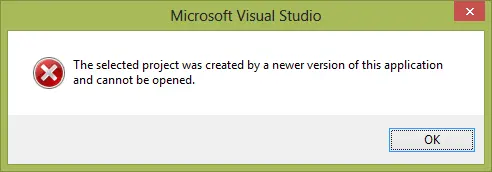
You may have run into this annoying dialog when creating an HTML application with Visual Studio 2012 LightSwitch after installing Update 2 CTP 4. The issue does not appear when creating a “normal” application.
The cause of this is a conflict between the old bits that came with the Office Dev tools update and the new bits that came in the Visual Studio update.
Prevent it in future!
You can prevent this by following these steps [source]:
Before installing CTP 4, you must uninstall HTML Client Preview 2 and clear the Application Manifest cache:
Open Add or Remove Programs.
Select the entry for Microsoft LightSwitch HTML Client Preview 2 for Visual Studio 2012.
Right-click the entry and select Uninstall.
Select the entry for Windows Azure Tools for LightSwitch HTML Client Preview 2 for Visual Studio 2012 – June 2012 SP1.
Right-click the entry and select Uninstall.
Clear your application manifest cache by deleting the following folders:
%localappdata%\Microsoft\MSBuild\VSLS\11.3
%localappdata%\Microsoft\VisualStudio\11.3
How do I fix it?
While the above is useful information ahead of time, it is not helpful after the fact. So how do you fix your Visual Studio to be able to access the fantastic new LightSwitch bits?
Your mileage may vary with this, since this was found through trial and error as it was fixed on my machine.
First, shut down Visual Studio, then follow the steps above. Once done, run the CTP 4 installer again and choose the uninstall option. Once it is completely uninstalled, reinstall the CTP.
Finally, make sure you double-check that you’ve cleaned the manifest cache (step 6 above)—it won’t hurt to do it again either. Just ensure Visual Studio is closed when you do it.
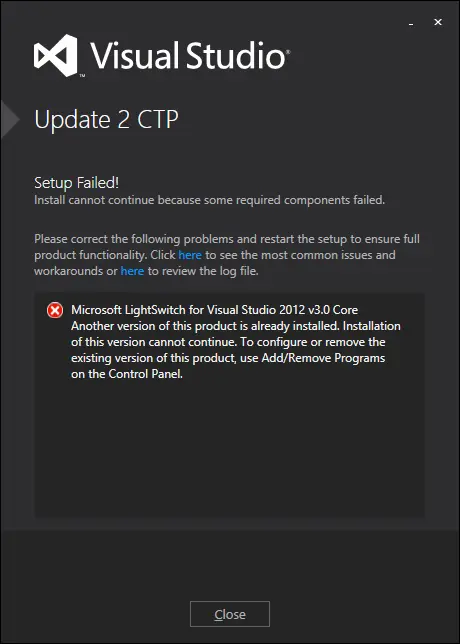
Do not try a repair
You may think a repair is as good as an uninstall/reinstall of the CTP. It isn’t—since it gives you this lovely fun:
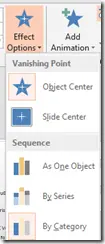
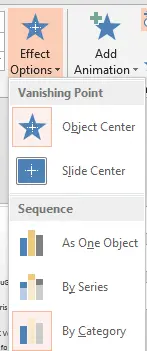
While this is pretty awesome in itself—because it’s Microsoft Office—you can easily copy and paste it into PowerPoint for presentations. Then, by simply changing the Effect Options ► Sequence to By Category, you can get a great effect where each event pops in one by one.