CSS media queries used to scare me. The problem is that I know CSS, but media queries look so much more complex—and having to rely on browser tools to get them correct was never a great experience. Thankfully, Visual Studio + Web Essentials has made great strides in making media queries easier to use, so much so that now I think they’re kinda boring and need a new thing to scare me… like closure 😉
Snippets
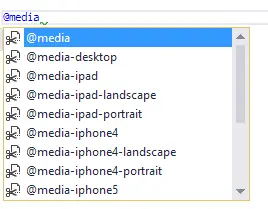
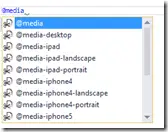 Web Essentials has snippets for CSS media queries, and these are a great help. First, there’s the
 @media snippet, which gets you set up with a basic media query. The real power, though, is in the device-specific ones that produce the right set of CSS—and takes a lot of the searching for the right settings away.
Browser Link
I’ve demoed Browser Link many times & written about it before—it’s awesome. It gives any browser the ability to have a two-way connection with Visual Studio. That means the browser can send data to Visual Studio, useful for detecting things that happen only when rendering the DOM. Browser Link + Visual Studio can also send data to the browser—for example, telling it to refresh because the page has changed. Since it works with any browser, you can have multiple browsers open and work with all of them at once.
Browser Link isn’t an ASP.NET feature; it’s a web + Visual Studio feature. So if you’re using PHP or pure HTML (like in the video below), it just works.
For media queries, Browser Link can read browser dimensions into Visual Studio. This means all you need to do is set the browser to the right size, press Ctrl+Space on the right property of the media query, and it will show you the dimensions the browser is at that very moment! It means getting the exact right size for the browser window for sizing is trivial—you can work visually in your browser and have all the power in your tools.
Check out this video for how it works!
Have you got any awesome features in Visual Studio that are kinda hidden? Share them in the comments.
 A project I was recently working on ran up against an interesting bug—and, unfortunately, it was a bug we had to ship the app with in the end. My main reason for sharing this is in the hope that if you find this same bug, you know you’re not alone, and maybe it gives you some ideas for what to do.
The Issue
The app itself is an audio streaming app, but it’s not real streaming—it’s actually HTTP progressive downloading and plays the file as it downloads. The problem we had? When it finished playing one file, it wouldn’t load the next one. Part of the pain for us is that this is a pretty hard scenario to identify, as it has these requirements for the bug to reveal itself:
- It’s related to network only. If the file was already on disk, it would work every time.
- It happens only when on battery. Plug the phone in—or use the emulator (which is always “plugged in”)—and the issue won’t appear.
- The screen must be locked and off. Any interaction with the device causes the problem to disappear.
- If it’s playing a file, it will finish that file fine. The issue only happens when skipping to the next file.
- It won’t raise any errors or exceptions—it just silently fails to play the next file.
- This uses background audio, so it’s not that the app is being suspended.
We tried everything as a team and couldn’t solve it, so we escalated to Windows Phone support. This was the first time I dealt with premier Windows Phone dev support—and while they cost a lot, they knew their stuff and could help confirm our understanding while also suggesting workarounds.
Root Cause
The cause is this: when the phone is on battery and there’s no interaction, it lowers the signal strength of the antennas to save power—but this also means HTTP connections could be too slow to work properly, so the audio won’t play.
Workarounds
This doesn’t seem to happen with Windows Phone 8.0 Silverlight apps, which handle background audio differently. However, moving from Universal apps to that may be too costly (it was for us). The other option is to use real streaming, which is less impacted by this issue—and it also lets you do smart server-side optimizations to keep things running smoothly.
Future
This happened on Windows Phone 8.1 and still happens on Windows 10 for phones. The official response is “by design,” though I think it’s more of an unexpected side effect of several design decisions—but it could change. If you think it should, please vote on the User Voice item so the product team knows how many people care about resolving it.
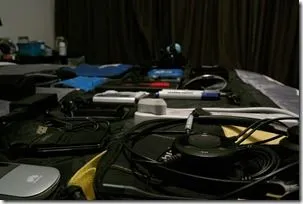 The developers I know who refer to themselves as “craftsmen” will, at length, tell you how methodology, principles and practice are all that matters to becoming a successful developer—tools are not important. Often they say this from behind a MacBook Air, running Visual Studio with ReSharper or some other combination of best-of-breed tooling. None of them code in Notepad, oddly enough.
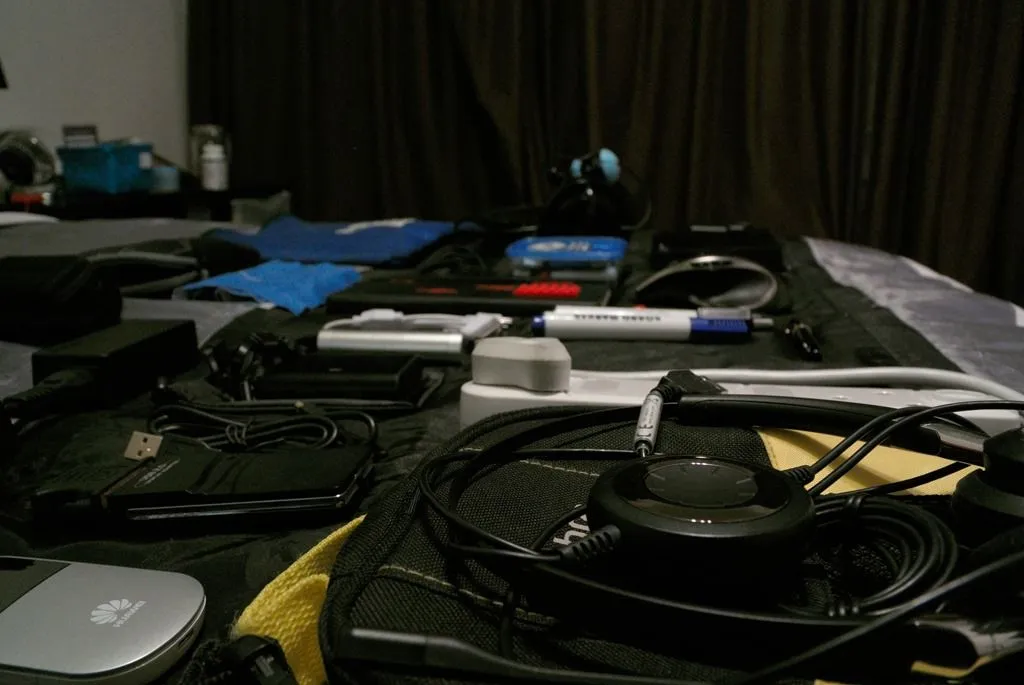
Everyone really does care about their tools, and I am totally behind the idea that you are more than your tools—but good tools help. That’s why I want to share what’s in my bag and why it’s there.
Daily Driver
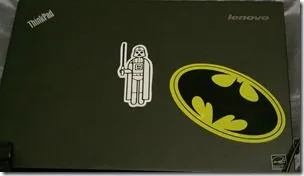
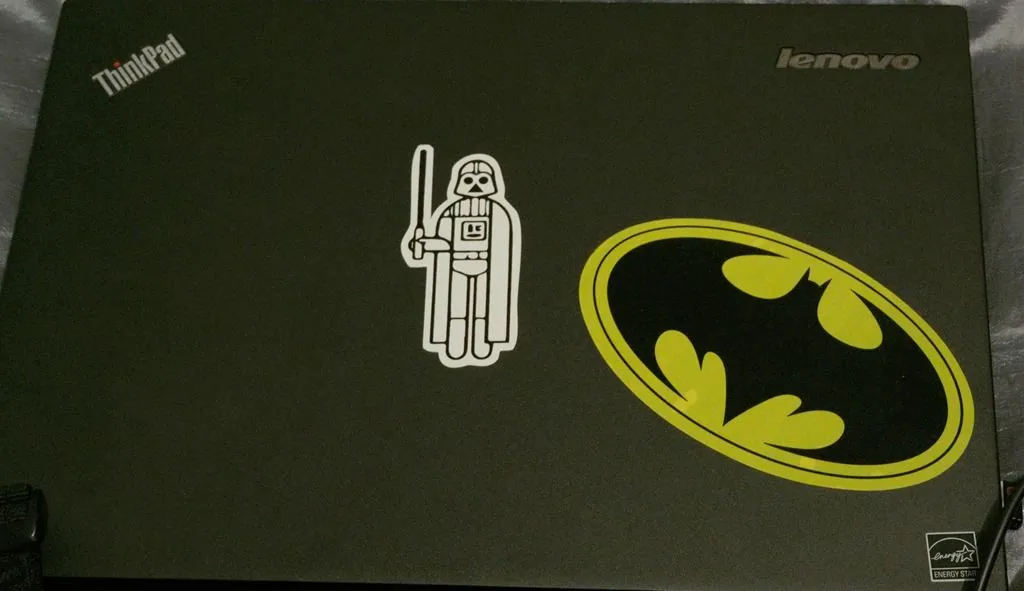
My daily development machine is a Lenovo ThinkPad T440s—it is the best machine I’ve ever worked on. Weight? It’s basically air. It handles app and web development with no issue. Has a backlit keyboard that’s turned off 95% of the time, but in those rare moments of darkness, I can turn it on with a keyboard shortcut. Great performance overall. The touchpad is the best I’ve ever seen, and considering I think touchpads are evil, that says a lot.
One thing that really stands out is the touchscreen—I can’t imagine modern development being done without one. It’s essential for testing web and apps.
Why do I carry it?
Simple: It’s what I use to do my job! 😛 And it gives me a place to put stickers.
Audio Out

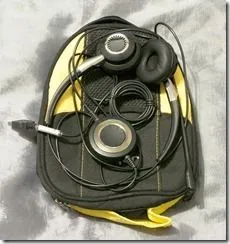

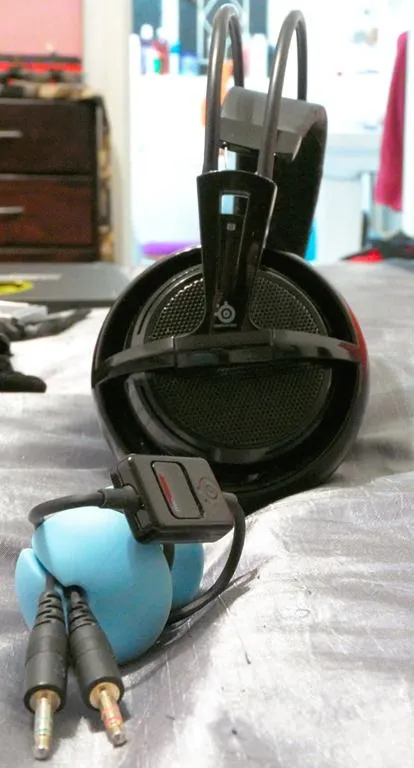
I carry three sets of headphones with me. My primary ones are a set of super-comfy large SteelSeries Siberia V2. They have a built-in mic, which is serviceable, but since the laptop doesn’t have an audio-in jack, there isn’t much use. Thankfully, the mic slides into the headphones, so it’s never in the way. When you have headphones on for hours, comfort wins—and these deliver.
I also carry a company-supplied Jabra headset. This has a USB connection, so the audio input works, plus it’s designed to work with Microsoft Lync—so it has a bunch of cool tricks on the control dial. Not great for comfort or quality, but for a meeting where I want to keep my hands on the keyboard, it’s okay.
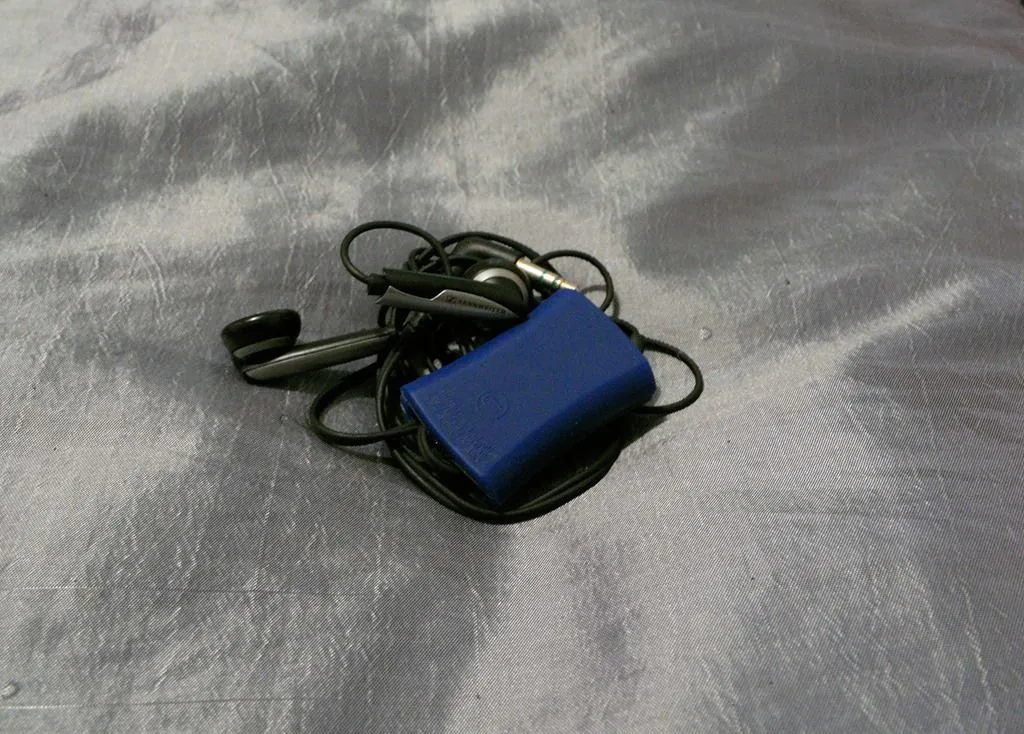
Last is my tiny Sennheiser—these don’t get used often as they’re the backup.
Both my sets have something to wrap the cables with—the big ones using the fantastic Apple Core which I got at JSinSA.
Why do I carry it?
You need to focus, and having music or podcasts will help. It also means less disturbance to your coworkers.
The issue with large headphones I use at home and work is that I might leave them at home, then be stuck with no audio the next day—so the small Sennheiser runs as a backup for me. This means they seldom leave the bag, but having a small, high-quality backup has come in handy many times.
Audio In
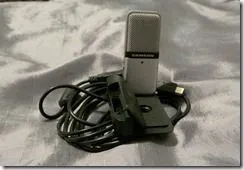
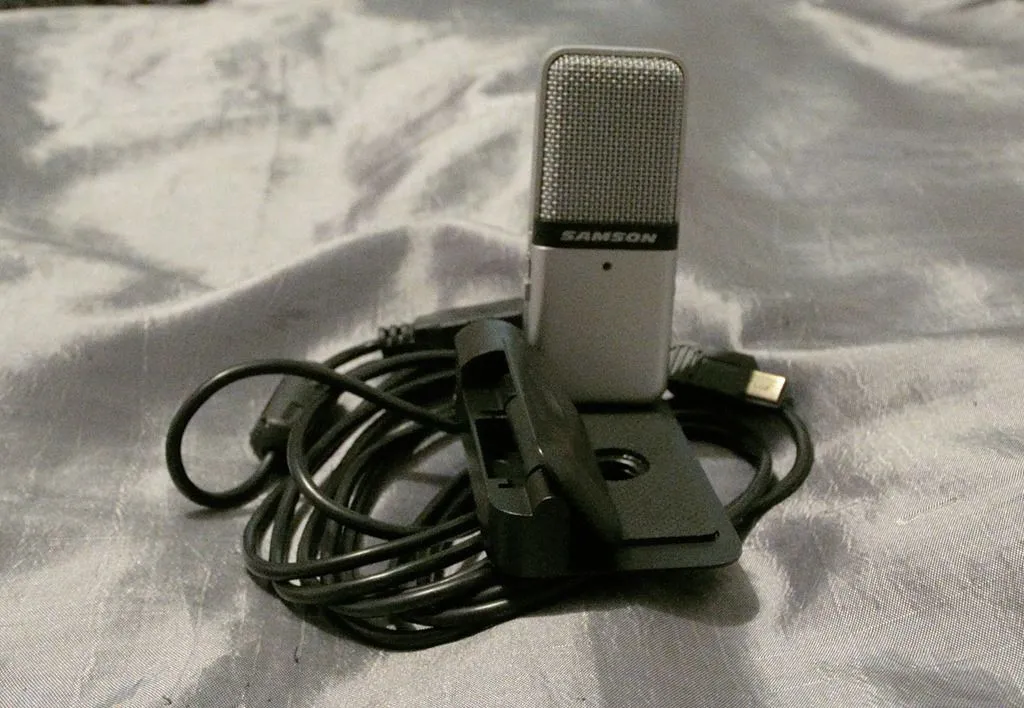
I have a small Samson GoMic that connects via USB. The audio quality is okay. Considering it’s a sub-R900 (~$90) mic, it’s pretty good for that price range and a million times better than the laptop’s built-in offering. It has three nice features:
A clip/stand/base. In the picture, it’s standing on its base, which folds flat. It can also attach to the top of the laptop screen via the clip, as the mic is on a ball joint and swivels to almost any direction (check the link—they demo this well).
A side switch, which toggles between front-facing mode and an omnidirectional mic. The omnidirectional setting is great for daily standups where the team and client aren’t together—it captures more audio.
A stupidly long cable, which we often pass around during standups and easily handles the length of our boardroom table.
Why do I carry it?
Meetings—whether a standup or more formal—require something to capture audio. For a modern developer, this is essential.
Storage

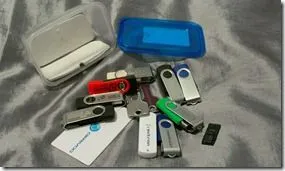
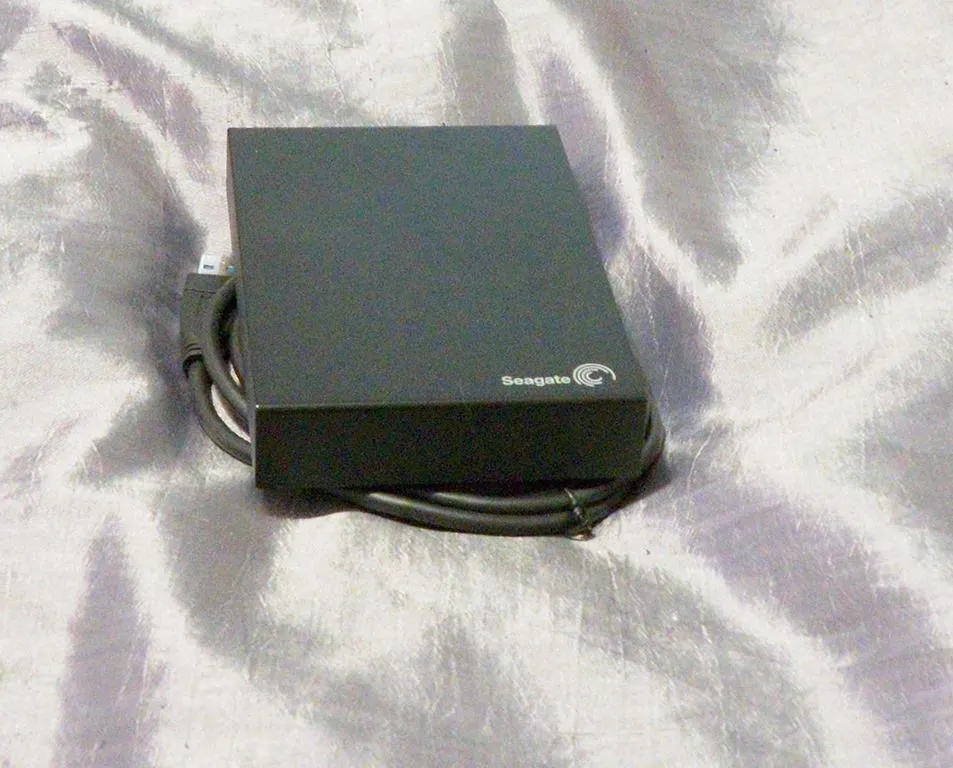
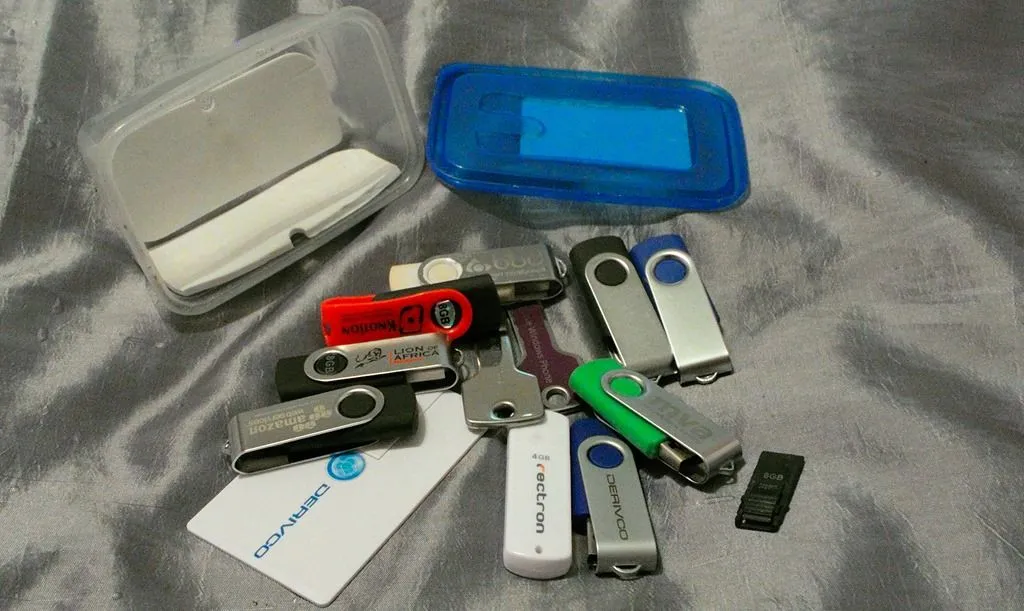
Nothing too fancy here. A large Seagate hard drive, mostly for backups. I also have a tiny plastic box containing a lot of USB sticks. Since I switched to carrying them in a box, I lose fewer of them—now I have the problem of having too many (if that’s even possible).
Why do I carry it?
You will lose data. Have backups—simple as that.
The USB sticks are great for sharing files, and if they break or get lost, there’s no issue.
Mouse

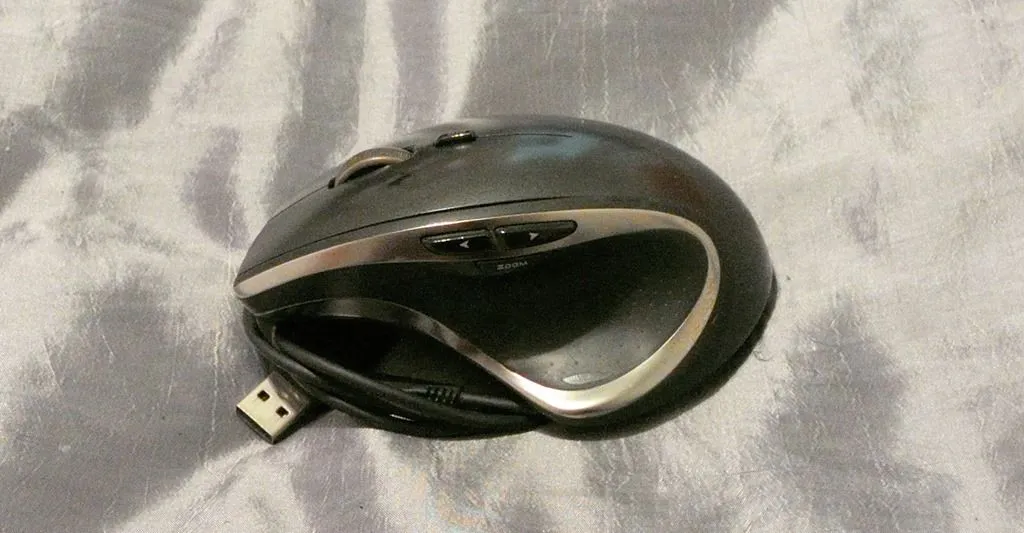
I’ve written about my mouse before (and it’s the exact same mouse—it’s 6 years old now), and I still stand by that: the Logitech Performance Mouse MX is the best mouse you can get, and you owe it to your hands to be happy.
Why do I carry it?
Touchpads and touchscreens can’t beat the performance of a real mouse.
Bags

My laptop bag is a Targus Novice II Backpack (it’s not exactly that bag, but it’s close). The bag isn’t anything special, but Targus as a company is. With my last Targus bag, the zip broke (from squeezing too much in), and all they asked for was a photo and the service tag removed. They stand by their bags and back that belief. That interaction alone has made me a very loyal customer.
I also have some smaller bags worth mentioning:
- A Targus hard drive bag—nice and padded. It fits the hard drive, its USB cable, and my small headphones easily.
- The hard shell case that came with the Samson mic. It’s great but had no space for the cable (a stupid oversight). Thankfully, my last Samson mic came with a bag, so now the cable and mic/shell go in that bag.
- My SUPER DIRTY organizer, which has three pouches. It stores my laptop charger and mouse in an easily accessible bag (I can pull it out of my laptop bag without looking) and doubles as a handy mouse pad—which is why it’s so filthy.
Why do I carry it?
Ignoring the laptop bag and its obvious use, the hard drive bag and mic bag keep devices safe—especially since they’re carried to and from the office daily and on many trips. The organizer is just brilliant; I can’t imagine not having it. Being able to set up quickly because I’m not digging in my bag for my power cable is a game-changer.
Writing

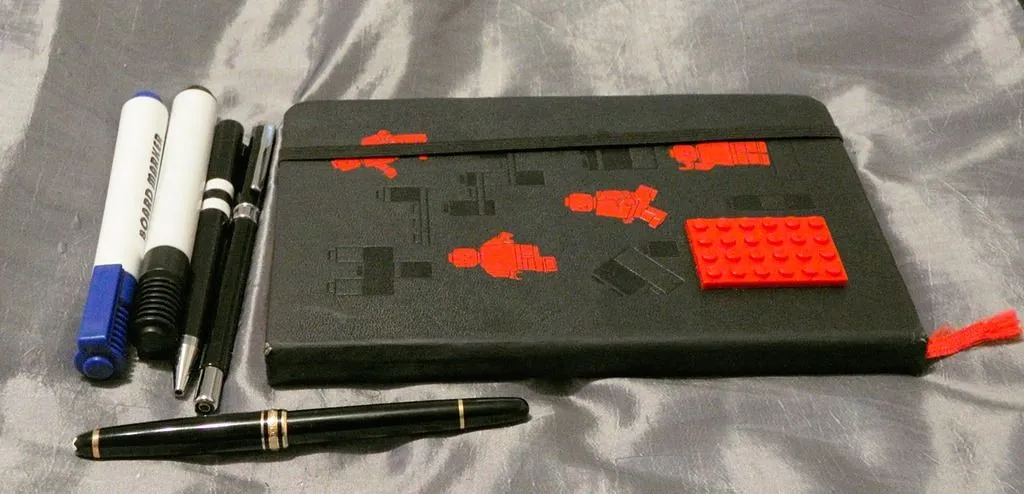
To take notes, I use a Lego Moleskine—it’s awesome, the best paper I’ve ever seen. I carry a few pens with me and, of course, a few whiteboard markers.
Why do I carry it?
I take a lot of notes—every single meeting. I seldom read them. The reason to take them is twofold:
- It helps me remember better by combining listening with an active action, reinforcing ideas in my brain more than just consuming them (doing is better than listening).
- It gives me confidence that, if something is forgotten, I can find it.
Always carry your own whiteboard markers—meeting rooms often don’t have them.
Odds and Ends



I carry a few odd things in my bag too:
- A couple of microfiber cloths and a deck of planning poker cards.
- A MiFi device and a USB graphics card. The graphics card lets me output to USB and has connectors for different screen types.
- A few battery packs.
Why do I carry it?
The microfiber cloths are for the touchscreen.
The reason to carry planning poker cards is that we use them all the time in my teams—I have enough for 6 or 7 people, so it covers a team well.
The MiFi is legacy—before my phone had a Wi-Fi hotspot, it did that job. It’s still useful for creating a small Wi-Fi network if the main network fails.
The USB graphics card handles cases where projectors refuse to work with my laptop or if I need an extra output (e.g., video recording on one, projector on the other).
Battery packs? Eskom.
Power Strip

The best thing I’ve added to my bag in the last 12 months is a power strip.
Why do I carry it?
Plugs can be scarce, and this covers me and two more people, plus space for two-prong plugs like cellphone chargers. When traveling overseas, I buy one plug converter, slap this in, and everything is easy to set up—no more plugging my cellphone into my laptop to charge. It’s so useful; I wonder why I didn’t carry one before.
What’s Missing?
What’s missing in my bag? At the moment, I think there are a few items missing:
- A network cable: I’m tired of either missing cables or damaged clips.
- A stylus: Drawing is more important than ever for a developer, and a good one would help improve it.
What’s in my bag? Is there anything you think I’m missing? Let me know in the comments!
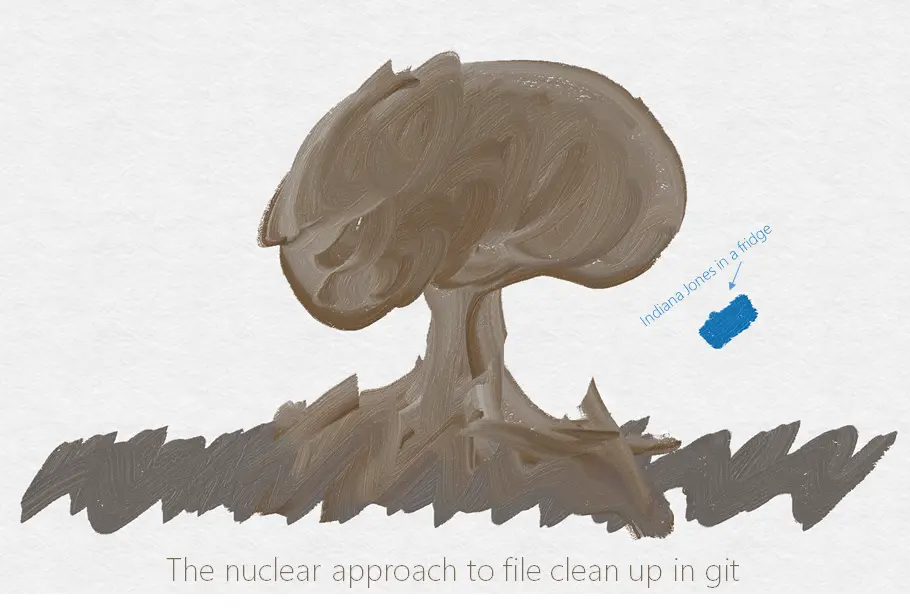
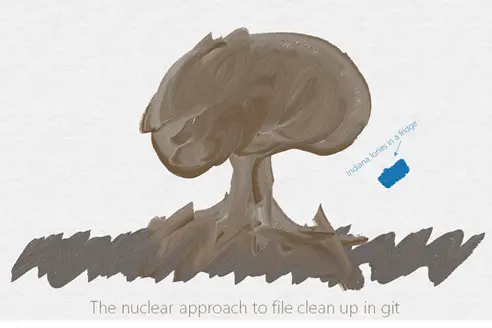 Or how do I remove a file from Git, including the history. This came out of a discussion with some ALM Rangers (in fact, the title was from Willy-Peter himself!) and I thought it was too good not to share. In addition, I’ve added some other information I’ve learned since then!
Before you start
Make a copy of your Git repo before you start! We are going to mess with your repo, so if you have a backup and something goes wrong, you can just roll back.
Revert
If you have ever made a mistake on a computer, you know it the moment your finger lifts off the Enter key. So you may just want to undo that last commit quickly and use the revert command in Git, which appears to remove it, but the problem is that it remains in the history. This means that everyone needs to get it when they clone or pull the repo.
Amend
If the very last commit added the offending file and you have not pushed your repo yet, there is a simple process to solve it. First, delete the file. Then run another commit with the --a and --amend switches.
--a tells Git to automatically stage all modified & deleted files.--amend tells Git to rewrite the last commit.- If the only thing was that file, you may need to add a
--allow-empty switch to tell Git to accept a commit with nothing in it.
For example, if I want to remove the password.txt file:
del password.txt
git commit --a --amend
Rebase
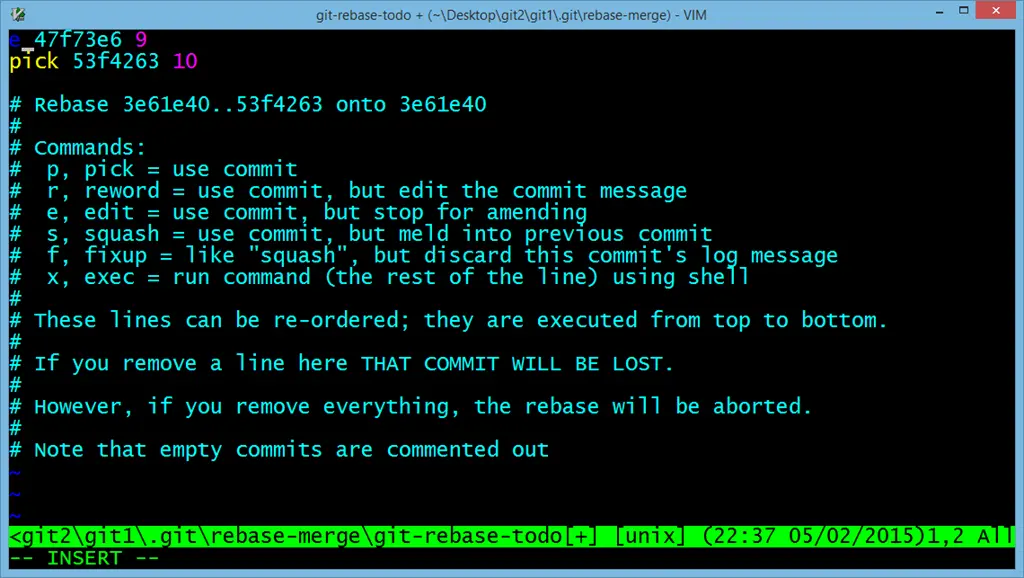
What if it isn’t the last commit, but a few back? Once again, if you have not pushed your repo, an option would be to rewrite history (you may want to look at that link—it goes into deep detail on what rewriting history means). Step one is to kick off a rebase and, in the editor, go to the commit with the issue and change it from a pick to an edit. For example:
git rebase -i origin/master
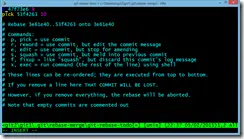
(In the picture above, I am going to remove the file added in commit 47f73e6.)
You will then be dropped back to the command prompt, and you can step through the commits you set to edit. You can make the changes (either edit the file or delete it) and then use the same amend as before. Once you’ve finished that, you step the rebase forward by doing git rebase --continue.
For example:
del password.txt
git commit --a --amend
git rebase --continue
Filter-Branch
What if you have pushed? Or perhaps you need something more? Git includes a solution for this, called filter-branch, which was totally unknown to me before this discussion. filter-branch is not only useful to remove files but can also change the details of a number of commits (e.g., updating your email associated with your commits).
Let’s get rid of the file, for example, password.txt:
git filter-branch --tree-filter 'rm -f password.txt' HEAD
Note – On Windows, you will use double quotes (") like above, but on Linux, it would be a single quote ('). Once done, you need to push to Git, but you will need to use --force and --all switches:
git push --force --all
Your next issue is that all your team members still have the file (if they already pulled), so they need to clean up too. The way they do this is to run rebase but using the --onto switch this time. For example:
git rebase --onto origin/master master
Those members who haven’t pulled since that file got into the repo can pull as normal and don’t need to worry about this.
BFG
There is also a standalone tool called BFG Repo Cleaner. It has nice documentation and is blindingly fast! One nice feature: you can say remove all files above a certain size or x number of the largest files.
GC
Once you’ve done all of this, run a garbage collection by using the gc command, which may return disk space from orphaned files. To do this, run:
git gc --auto
That’s it! Have you ever messed up a file (I have—I committed my Azure password once in a file!)? Share what happened and how you fixed it!
 I am having a lot of fun with a new project—one where the customer insisted we write unit tests (how rare is that 😁). It’s still very early days, so by the end, I might realize this was wrong. But for now, I’m pretty proud of one specific test: 50 lines of C# + XUnit, with 18 asserts. If standard unit tests are asteroids, this is a planet-sized one.
Is this the norm for the project?
No—it won’t be. Most tests will stay under 10 lines, with just one or two assertions. I estimate planet-sized tests will cover no more than 5% of the total.
"You’re doing unit tests wrong!"
No—but I’m ignoring some advice, and that’s okay. Why does that advice exist? Because experienced developers know: the larger (and more complex) a test is, the more brittle it becomes, and the more time you’ll waste maintaining it. The value vs. risk tradeoff matters—high value + low risk is great, but high risk + low value? Not so much.
Here’s the twist: for those 5% of tests, we accept high risk because they validate massive value—end-to-end workflows a normal unit test can’t catch.
So what does it really test?
I don’t think calling it a "unit test" is accurate. While it uses XUnit and lives in the unit test project, it’s more of a process test. It simulates how a user would walk through a full workflow, exercising interactions that a single unit test might miss.
I initially thought to call these integration tests, but since everything’s mocked and injected, that doesn’t quite fit. Another way to frame it: a chain of unit tests, each following arrange-act-assert—but stitched together into a single test.
I’ve used these before, and their value is huge. They often find issues far earlier than standard unit tests because they test coupled scenarios—where complexity ironically increases their worth.
Why so many asserts?
Simple: assert every assumption. For a unit test, assumptions are simple. For a process test? Complexity demands more assertions at each step.
Ever written a "planet-sized" or process test? What did you discover in them?
The first sign of a problem was when the app crashed while I was testing a new feature I’d put in. The error in VS indicated a XAML issue, which was odd since I wasn’t working with XAML at that point. I restarted the app, and no error occurred. "Meh, whatever" was my response. The second sign of a problem was when another developer on the team told me about it a week later. My response? I shrugged it off and told him to restart. The third sign was when the testers logged a bug about it—finally, someone was making this a real issue. You may have heard that a developer and tester are better than two developers—this is a great example of why: two different perspectives on what really is an issue does help.

The app we were building was a Windows Store app for Windows 8.1, using XAML and C#. It was built with the Universal App Platform—and it was big, with over 40 screens! The XAML for our custom controls and styles ran over 2,000 lines. The bug could be anywhere, but it had four key traits:
- The error suggested a XAML issue related to a ContentPresenter: Failed to assign to property 'Windows.UI.Xaml.Controls.ContentPresenter.Content'.
- It only happened when navigating between pages.
- It wasn’t limited to any one page—it could occur on any.
- It was intermittent—make-you-scream levels of intermittent. (I’ll introduce Heather later, but she told us it happened about 1 in 40 times on average!)
So how did we fix this? Here’s the story of the dumb things I did before the smart fix.
Starting to Understand the Problem
Step one: We knew it was a XAML issue affecting every page, so what was common across all of them? First, we had our styles.xaml, where we defined common colors and styles. Second, there was a custom control called PageLayout—essentially a wrapper for shared layout and functionality (similar to the Frame control). Since the error mentioned a ContentPresenter, and PageLayout had four of them, we suspected it was the culprit. I reviewed the XAML, as did another dev—no obvious issues.
But here’s the key clue: When we tweaked PageLayout's XAML, the line numbers in the error changed. So the problem was there—but what was causing it?
Windows Debugging
One day, the app crashed while running outside of Visual Studio. Windows’ automatic memory dump feature saved our bacon—we had a crash dump to analyze! Using Visual Studio, we followed this MSDN guide. Two hours later… nothing new. The error was: Unhandled exception at 0x7582B152 (combase.dll) in triagedump.dmp: 0xC000027B: An application-internal exception has occurred (parameters: 0x055C31F8, 0x00000004).
I also got stuck because I didn’t have the Debugging Tools for Windows—a 1GB download wasn’t happening at work. But it might have been a blessing in disguise. Still, I found this helpful Wintellect video on OS-level debugging.
The Birth of Heather
After hours of manually triggering the crash by tweaking XAML and navigating screens (and risking carpal tunnel syndrome), I thought: Couldn’t I automate this? I didn’t need clicks—I just needed page navigation.
So I created a minimal Universal App with a single page, copied PageLayout (300 lines of XAML), and added a button that auto-navigated between pages. You can see the result here.
I named it Heather Speed Crash—and it delivered. It reproduced the crash reliably, reducing 20+ clicks and 5 minutes of manual work to one click in under 60 seconds. That made debugging far more efficient. Plus, the codebase was now <500 lines (vs. the original’s thousands).
Through further refinement (this version), we narrowed it down to PageLayout itself—not something it used. Intermittent bugs are painful—but the trick is reproducing them faster.
Two Lines of XAML
Between debugging and diving deeper, I realized I was stuck. So I posted the issue on Stack Overflow and, days later, the MSDN forums. Writing it out systematically didn’t reveal the answer this time—but on MSDN, someone suggested isolating the problematic ContentPresenter.
With Heather, I could test this:
- Commented out all four ContentPresenters—it worked. So the bug was in one of them.
- Uncommented them one by one—only two caused crashes. Now we were down to two lines of XAML.
Those two weren’t used on every page, so their Content was bound to null by default. That was the only difference. I set a default value for each—the crashes stopped. Oddly, if I set a default for just one and left the other null, the issue also resolved.
The root cause? A deep XAML layout bug triggered when two ContentPresenters with null Content coexisted on a page. During layout calculations, the engine crashed trying to size controls with null content.
The fix: Set both ContentPresenters to Visibility="Collapsed" by default and only make them visible if they have content.
tl;dr: Someone was dumb and used a good idea to excuse being lazy. It gave me an idea—I created a micro site to share simple rules for better email!
Sentenc.es is a novel idea to improve meaningful email communication by applying discipline to how you respond. The suggestion it offers is to limit your responses to a certain number of sentences—or fewer. They have pages for two, three, four, and five sentence lengths.
 Picture from Intersection Consulting
I’m all for ideas to improve email—I get a lot of it. Sometimes, it feels like I’m drowning in it. I use unroll.me and a million filters in my email client to cope. I also love the idea that senten.ce offers: being disciplined in responses. But there’s a problem.
The problem, of course, is people. This was highlighted recently when I questioned someone about why their emails were short, rude, and insulting. Their response: “You misunderstood my tone.” When pressed further, it turned out he couldn’t craft his emails properly—not because he was rude, but because he blindly followed the three-sentence rule.
 Picture from darkuncle
The mistake here—one made not just with this idea but with many—is focusing too much on discipline that you lose sight of the bigger picture. I’ve seen this in scrum too, where teams “do it by the book” even when it’s hurting them. Agile can help with scrum, but what about the “sentence sheep”?
The solution!
I decided to create a micro site called Rules for Better Mail, which—like senten.ce—has rules I think are better. Share it, put it at the bottom of your emails, ignore it, contribute to it, or do whatever you feel like. I’m not your mom—you don’t have to listen to me.
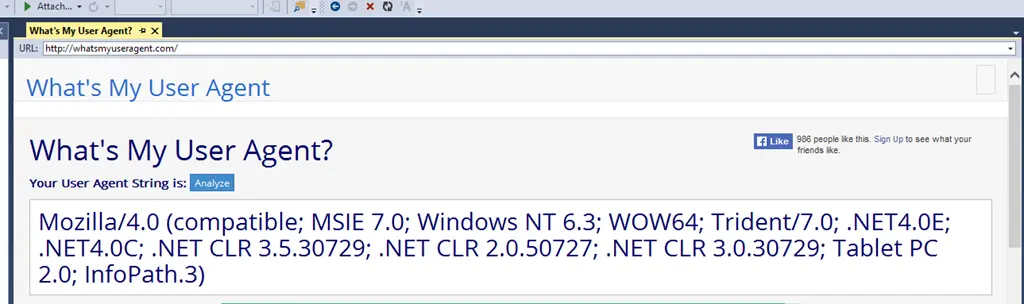
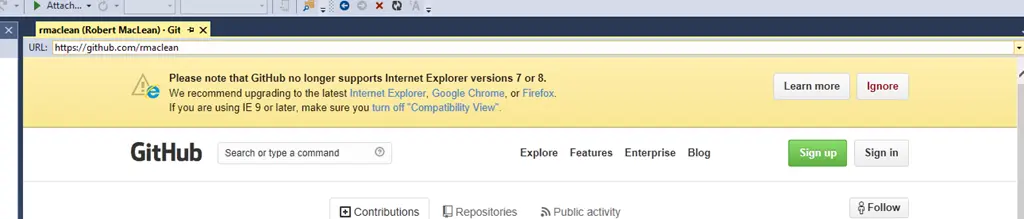
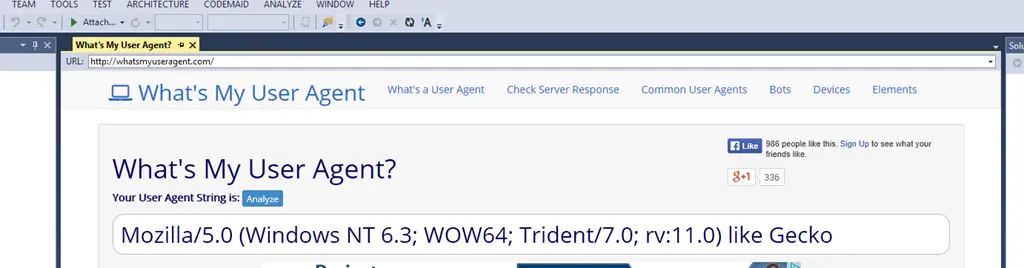
Visual Studio has an embedded browser, but it uses the IE 7 render path—really, that’s pretty messed up.
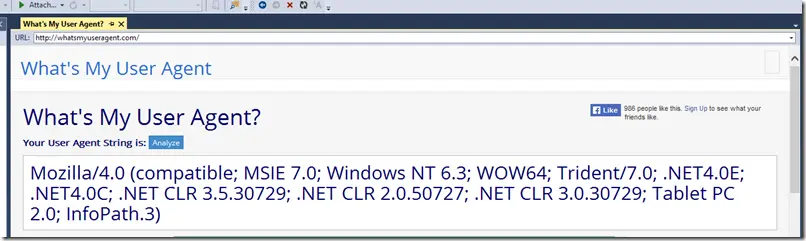
And worse, it can cause the internet to break.
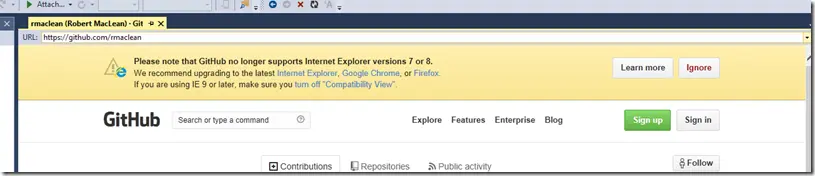
Thankfully, you can fix this yourself with a quick registry addition. Note: Fiddling with the registry can break your device, so be careful—this comes with the usual “this works on my machine” disclaimer, and you do this at your own risk.
The key you need to care about is:
HKEY_LOCAL_MACHINE\SOFTWARE\Wow6432Node\Microsoft\Internet Explorer\Main\FeatureControl\FEATURE_BROWSER_EMULATION
Note: The Wow6432Node bit is needed since Visual Studio is a 32-bit process. Inside, add a new DWORD key named devenv.exe.
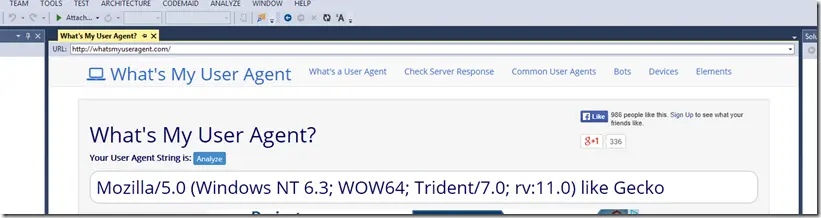
I set the value to (HEX) 2AF9—since I have IE 11 on my Windows 8.1 machine—but you can pick from the list to best suit your needs. Now it just works!
No more issues on GitHub.

A much better-looking user agent.
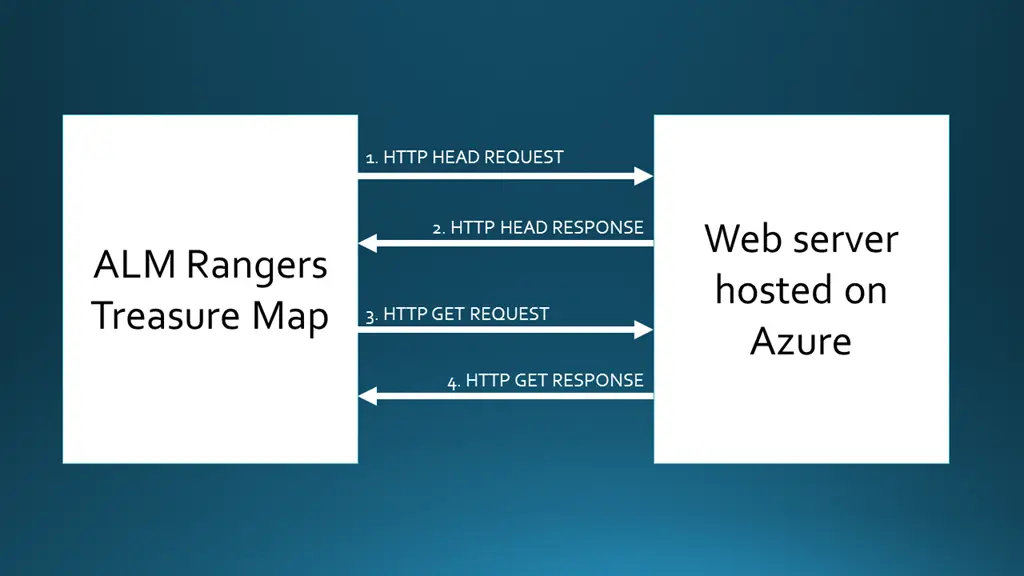
In the next release of the ALM Rangers Treasure Map, one of the new features is a way to update content remotely in the app. The mechanism chosen for this is intentionally simplistic, as it allows us to run this with minimal infrastructure and focus on app development rather than building server-side code.
How it works?
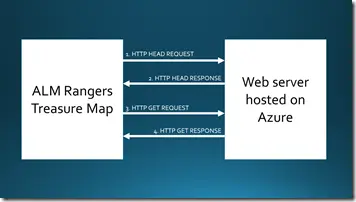 The system is very simple, but first, let’s look at how content is handled internally. We store all content in XML and have a folder full of images (we will call this collectively Assets). One of the changes needed in this release was code that copies the assets from the install location to the sandbox location—the reason for this is because we cannot write to the install location.
The update mechanism really just connects to a web server and downloads a ZIP file, extracts it, and overwrites the XML and images. We do have some extra logic internally that ensures we do not waste your bandwidth—this is done by checking the If-Modified-Since header in our request, so we can see if new content is available.
Setting up Azure
Unfortunately, not every server supports the If-Modified-Since headers, but thankfully, Azure Websites do support them. Using Azure Websites allows us many ways to push content to it, making the workflow for updating content very easy. It is also very easy to set up the site:
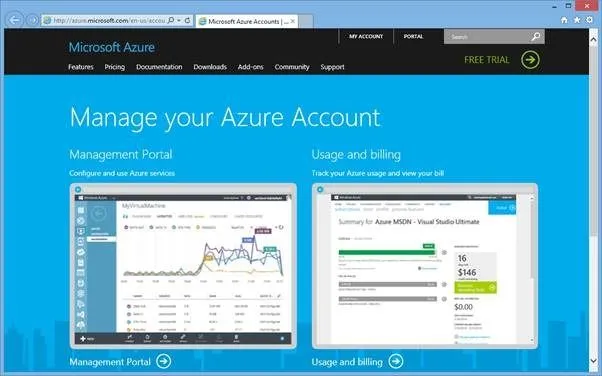
Log in to the management portal: http://azure.microsoft.com/en-us/account/

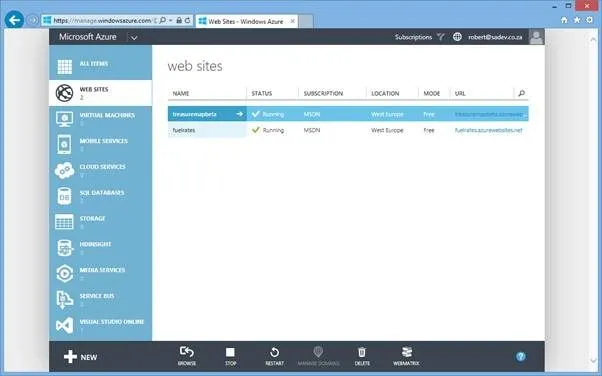
In the management portal, go to Websites.
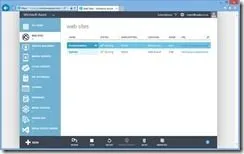
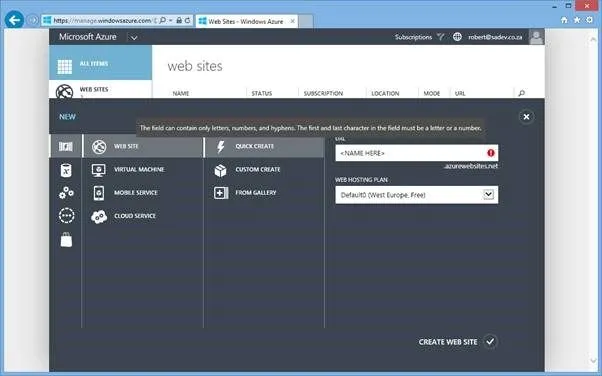
Click New (lower left-hand corner). If Website is not pre-selected, select it. Click Quick Create, specify a URL and hosting plan, and then click Create Website.
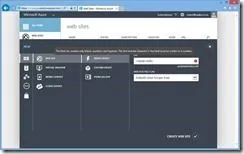
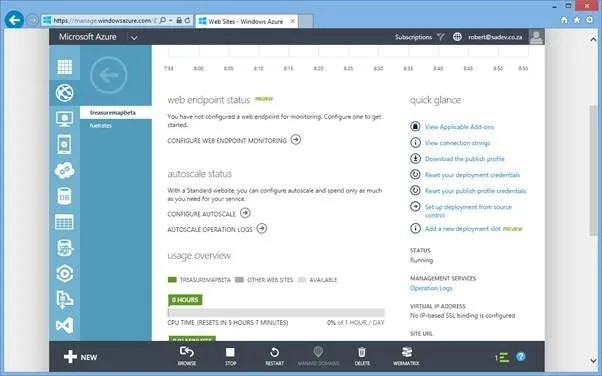
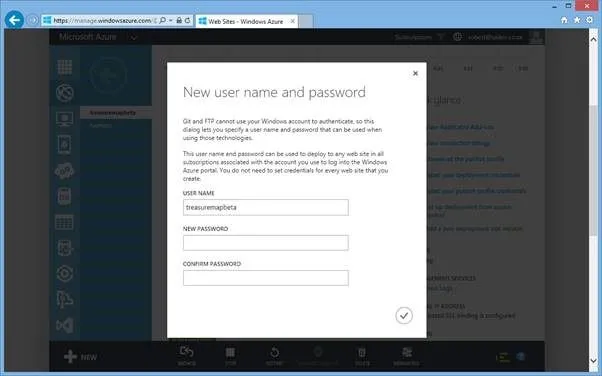
Next, click on the website you created and then Reset your deployment credentials.
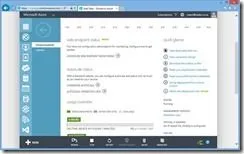
Specify a username and password, then click OK.
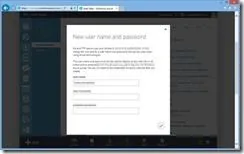
And that’s it!
Crafting the content
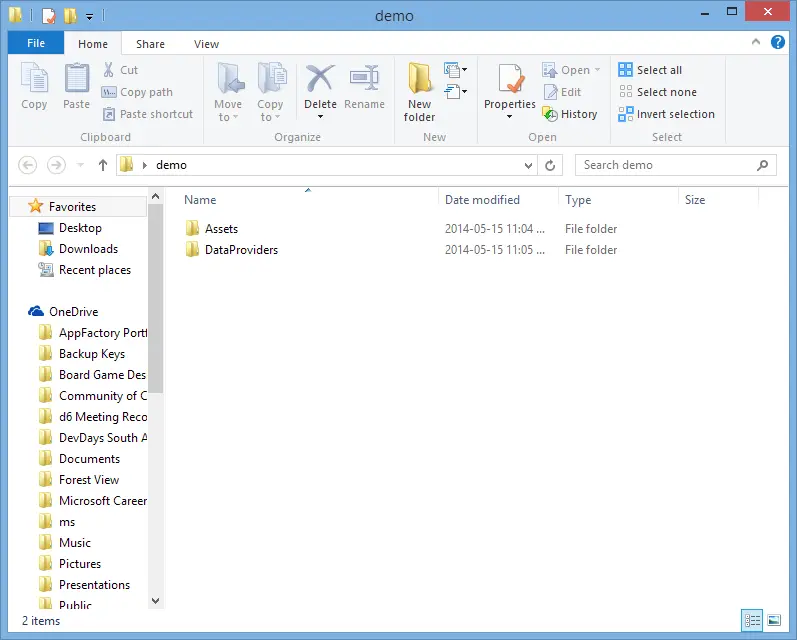
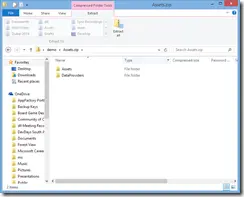
So how do we build the ZIP file that needs to be uploaded? Since we have two different sets of assets—the first being the art (images, photos, logos, etc.) and the second being the data (as XML)—these are stored in two different locations for the app: DataProviders, which contains the data, and Assets, which contains the images. So we set up the two folders, place the new items and data to be replaced in the right folders:
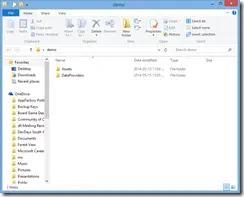
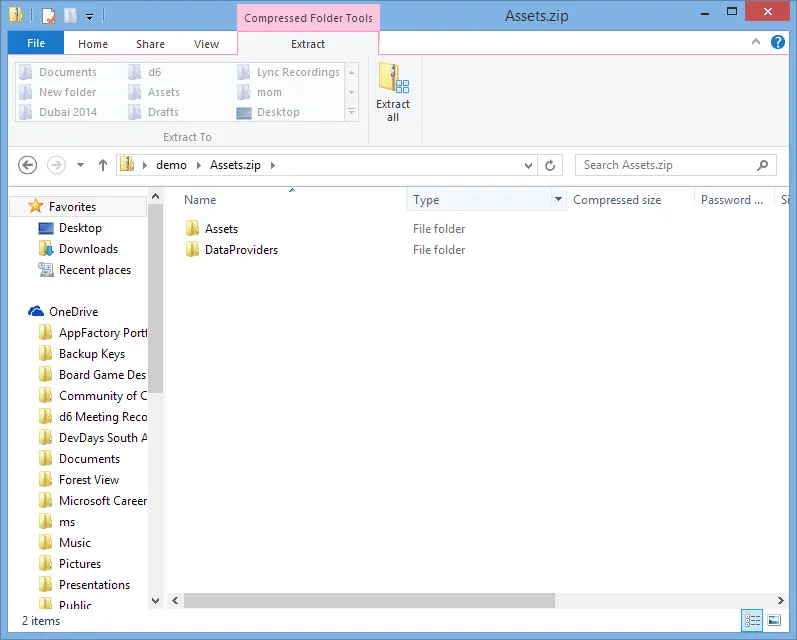
We then compress those folders into a normal ZIP file and upload it. It is that simple.
This year we launched the first annual user group, and let me say thank you to every single one of you for taking the time to help us improve it. For this survey, all questions were optional, so you may see some differences in the numbers. This post is meant to share the data, and I’m not going to speculate about what this could mean or how we will adjust the group based on it at this point. Let’s have a look at the data!
Comments
The final item in the survey is the first I want to discuss—the comments. Many were along the line of congratulations, which is awesome, but there are four I want to highlight here.
More code, please, e.g., everyone has talked about "everything must be unit tested," yet not once have I seen the actual code. I AM UNIT TESTING, but I feel the coverage is not enough, so it would be helpful to have a real-life example of 100% coverage regarding test-driven development.
We will be having the awesome Martin Cronje in June doing a talk exactly on this! Another idea would be to attend CodeRetreats, where this is a major focus of the events. A personal comment based on the talks I have given: the time for a presenter is limited, so if they are talking about SignalR and adding unit tests, not only does it take time away from the talk but can also confuse the audience.
A suggestion for some of the discussions is to have a practical aspect where coders can code.
I love the idea of the audience coding along with the talk, but there are logistical reasons this doesn’t work well in our format. The presentation style is the one that works best.
Have more advice for novice/beginners to programming.
Below, I’ll talk about what type of events we run most often. While the bulk of our talks are technology-focused—which can be tough for novices—we have a big chunk that are about methodologies, theories, stories, and patterns. These are perfect for novices since they share valuable information that doesn’t rely on technical understanding.
I haven’t attended for some time due to other commitments, but for some time, I thought it would be beneficial to have a bit more conversation/talks about open-source languages and projects. I understand the group was initially primarily started around Microsoft products, and that’s great—but in my field, open-source is more dominant. It’s just an observation, though. Nothing against the setup of the group per se.
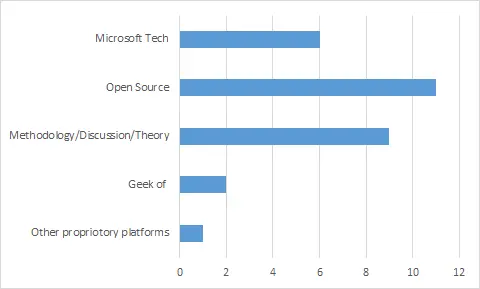
I disagree with this view—having a look at our past events, the breakdown of the sessions is as follows:
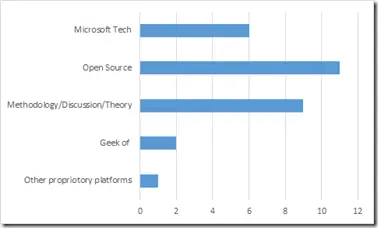
There are a few events that fit into multiple categories. A great example is Bringing hipsterism and skinny jeans to .Net with ScriptCS. This is a talk about Microsoft technology (C# & .NET) but focused on an open-source technology built on top of it (ScriptCS).
Looking at the numbers—we’re more about open-source technology and developer improvement than Microsoft.
Overall, how satisfied or dissatisfied are you with the Developer User Group?
The first and most important question was how satisfied or dissatisfied people were, on a scale from 1 to 5 (1 being bad—5 being great), and we hit an average of just over 4! 😊
How likely are you to recommend the Developer User Group?
The second question is very important for us because we want to grow the group, and being recommended is the best way for that. Here, we did a scale from 1 to 5 and scored even better, averaging over 4.4!
Overall, how do you find the complexity of the sessions?
The third question is about how members find the content—also on a 1 to 5 scale, with 1 being too simplistic and 5 being too complex. The "just right" spot is 3, and we came in almost exactly at that!
Start time
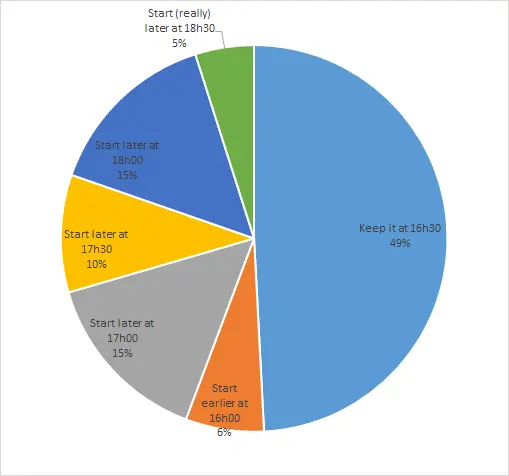
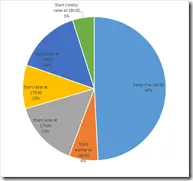 The most-discussed issue in the group is the start time—it’s brought up almost every month in the comments. Keeping the time the same really outperformed the other options, both individually and when grouped into early (16h00/16h30), medium (17h00/17h30), and late (18h00/18h30). We’re planning to use the early start time to allow for longer sessions with multiple topics going forward, so hopefully, that will enable people to get the best of both worlds.
- Keep it at 16h30: 49%
- Start earlier at 16h00: 6%
- Start later at 17h00: 15%
- Start later at 17h30: 10%
- Start later at 18h00: 15%
- Start (really) later at 18h30: 5%
What do you hope to gain from the Developer User Group?
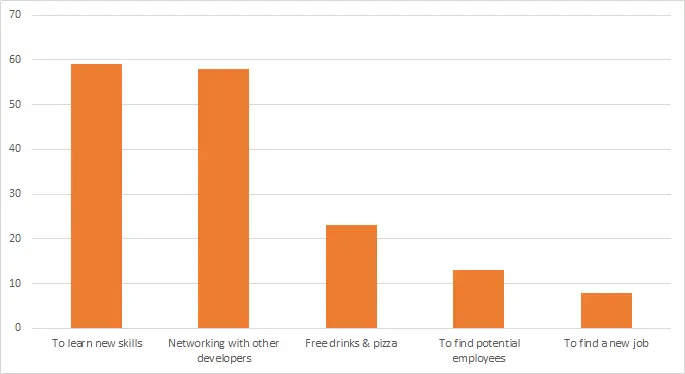
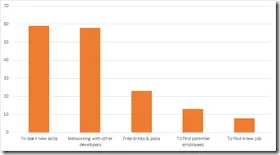 The only item allowing multiple options—also one of the most important—is: What do you want? Almost everyone said learning new skills and networking.
- To learn new skills: 95%
- Networking with other developers: 93%
- Free drinks & pizza: 37%
- To find potential employees: 20%
- To find a new job: 12%
Age
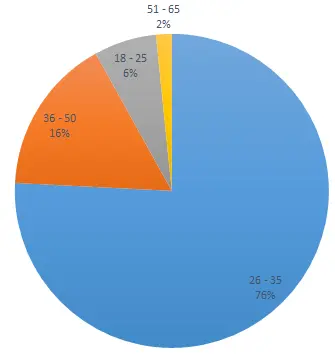
 Moving into the group’s demographics—the first one is age, with the majority between 26–35.
- 26–35: 75%
- 36–50: 16%
- 18–25: 6%
- 51–65: 1%
What is your level?
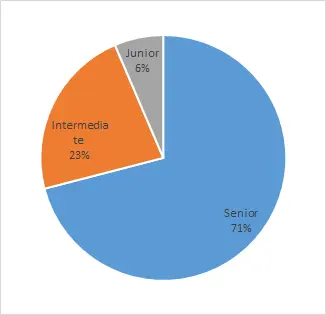
 Next is the level, showing a strong skew toward the senior tier.
- Senior: 70%
- Intermediate: 22%
- Junior: 6%
What is your primary programming language?
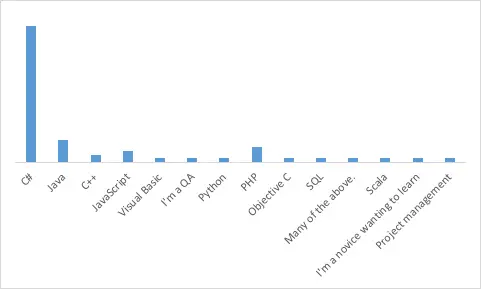
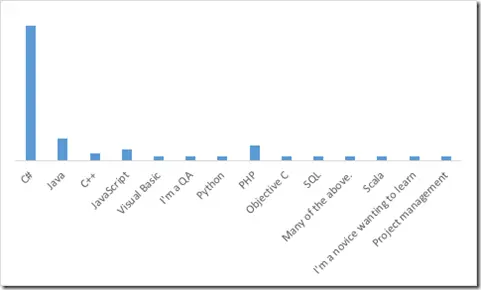 The third demographic—vital for planning content—is the primary development language. We have a great mix, but the strongest community is C#.
- C#: 59%
- Java: 9%
- C++: 3%
- JavaScript: 4%
- Visual Basic: 1%
- I’m a QA: 1%
- Python: 1%
- PHP: 1%
- Objective-C: 1%
- SQL: 1%
- Many of the above: 1%
- Scala: 1%
- I’m a novice wanting to learn: 1%
- Project management: 1%
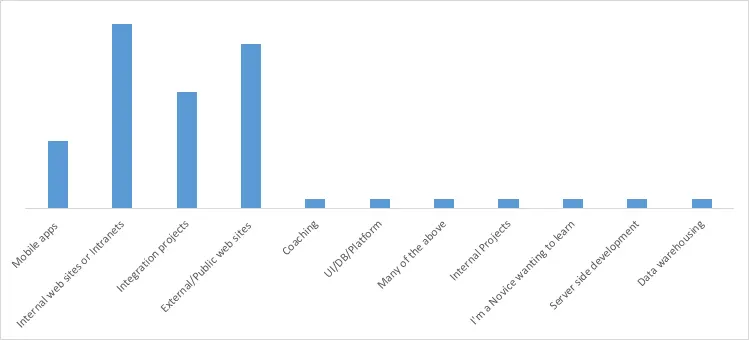
What is your primary type of development work?
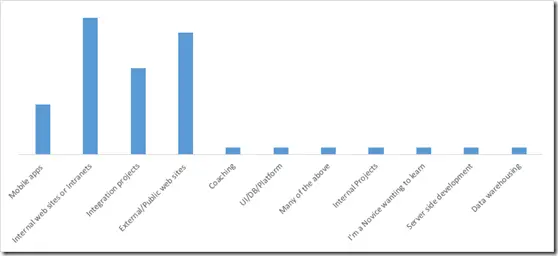 In line with planning content, knowing what people are doing is vital. Web work (internal and external) is a strong lead, followed by integration and mobile.
- Mobile apps: 11%
- Internal web sites or Intranets: 30%
- Integration projects: 19%
- External/Public web sites: 27%
- Coaching: 1%
- UI/DB/Platform: 1%
- Many of the above: 1%
- Internal Projects: 1%
- I’m a novice wanting to learn: 1%
- Server-side development: 1%
- Data warehousing: 1%
Organisation size
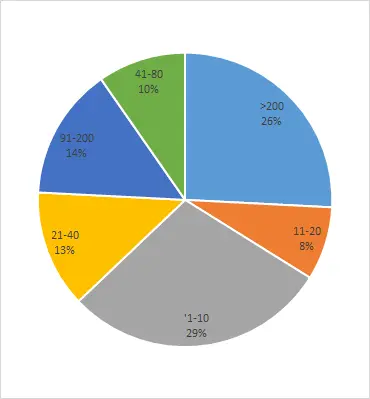
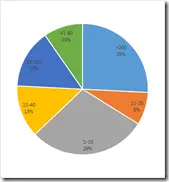 How big are the companies that developers come from? Here’s a strong split between small (under 20 employees) and large (over 90), which seems accurate for the South African industry.
- >200: 25%
- 11–20: 8%
- 1–10: 29%
- 21–40: 12%
- 91–200: 14%
- 41–80: 9%
Role in purchasing?
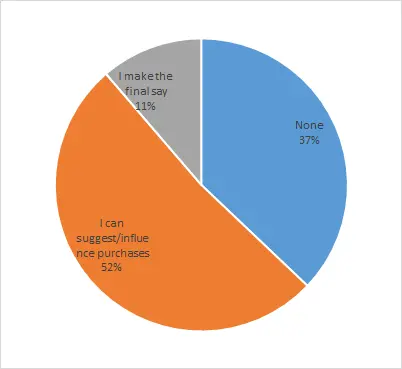
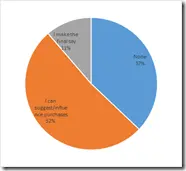 Finally, a question we can use when discussing with sponsors: what role people have in purchasing. Here, the results show some influence—or none.
- None: 37%
- I can suggest/influence purchases: 51%
- I make the final say: 11%


 Web Essentials has snippets for CSS media queries, and these are a great help. First, there’s the