Workflow Foundation Activity Template


WF has two types of activities you can create: the easy one and the hard one. That’s not really their names (though it would be cool)—the first (easy) is a composite activity. This is the one that Visual Studio lets you create, and in effect, it’s just another sequential workflow that you build up and reuse.
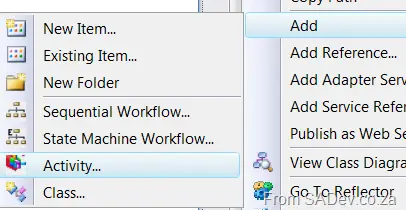
However, when you use them, they look like sequence activities. If you want something that looks like a “real” (read: what you get out of the box) activity, you’ll need to create the hard one—which is simply called an activity (so clear a name, ain’t it). The smallest this can be is one class, and the biggest it can be is five classes, all with basically the same structure. So it’s weird there’s no easy way to build these—say, with a template. Well, I’ve created one that sets up the base for an activity and lets you get going as quickly as possible.
Usage
To use it, select File → New Project, and under Visual C#, My Templates will include the template called WF Activity. Some things to note from that little sentence:
- You need Visual Studio 2008 (yeah, that wasn’t clear, but I needed to sneak it in somewhere).
- It’s C# only.
- It creates a project for your new activity for ease of packaging purposes.
- And for some reason, if I put a space in the name, it crashes my Visual Studio—so, um, that could just be me.
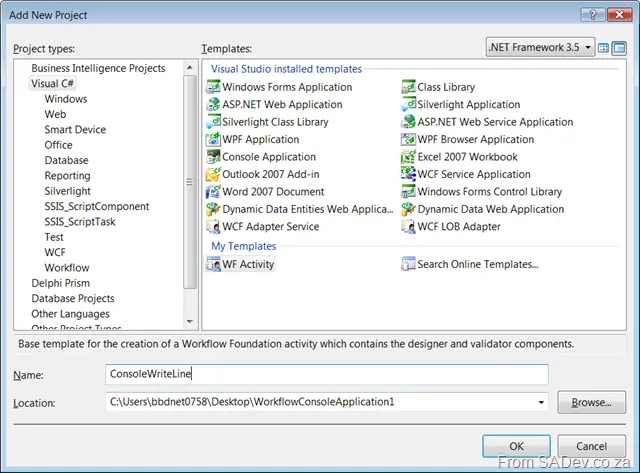
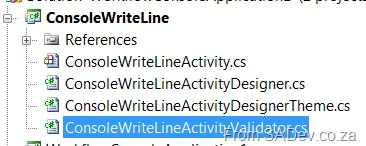
When you create it, it generates four files, all starting with the name you choose (which will also be the name for your activity, so I don’t suggest putting Activity in it). For example, mine was called ConsoleWriteLine, so my files are:
ConsoleWriteLineActivity.csConsoleWriteLineActivityDesigner.csConsoleWriteLineActivityDesignerTheme.csConsoleWriteLineActivityValidator.cs
Special Features
I’ll come back to what they do, but I wanted to point out that I’ve taken special care with the code so that if you run code analysis (FxCop), it reports no issues—except for the project not being signed and COM visibility stuff. StyleCop also reports no issues. I’ve also added three TODOs (if you use the VS task list):
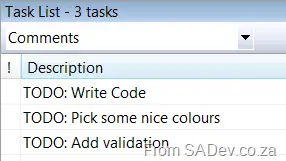
- The first one (Write Code) takes you to the
Executemethod in the{Project}Activity.csfile. This is what runs when your activity executes. - The second one (Pick some nice colors) takes you to
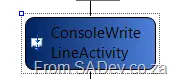
{Project}ActivityDesignerTheme.cs, where you can specify the start and end colors for the gradient. By default, it’s dark to light blue.
- The third one (Add validation) takes you to the
Validatemethod in{Project}ActivityValidator.cs, where you can add any design-time validation you need. It even includes a sample of how to add a validation failure message.

What do I need to add to use it?
Basically, all you need to do to get started is:
- Add the properties you need to the
{Project}Activity.csfile. - Add the code as indicated by the task item.
- Compile and use.
Optionally, you can:
- Change the colors
- Add validation
- Add an icon
- Change what’s shown on the component
The text display is controlled via the SetText method in {Project}ActivityDesigner.cs and has been wired up to respond to property changes. So you can have the text update dynamically if the properties change with minimal code.
How do I deploy it?
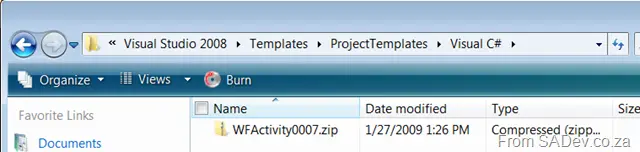
To use it, simply dump the ZIP file in: Visual Studio 2008 > Templates > ProjectTemplates > Visual C# in your Documents folder, then restart Visual Studio!
Where can I get it?
Note: My hosting provider corrupts ZIP files, so it’s uploaded in 7-Zip format—you’ll need to extract it.
Hopefully, you get some productivity benefit from this component or it helps you learn how to write your own. And if it does, please leave a comment so I know (and get that warm fuzzy feeling I like so much).