Windows Store app Development Snack: File Type Association Icons


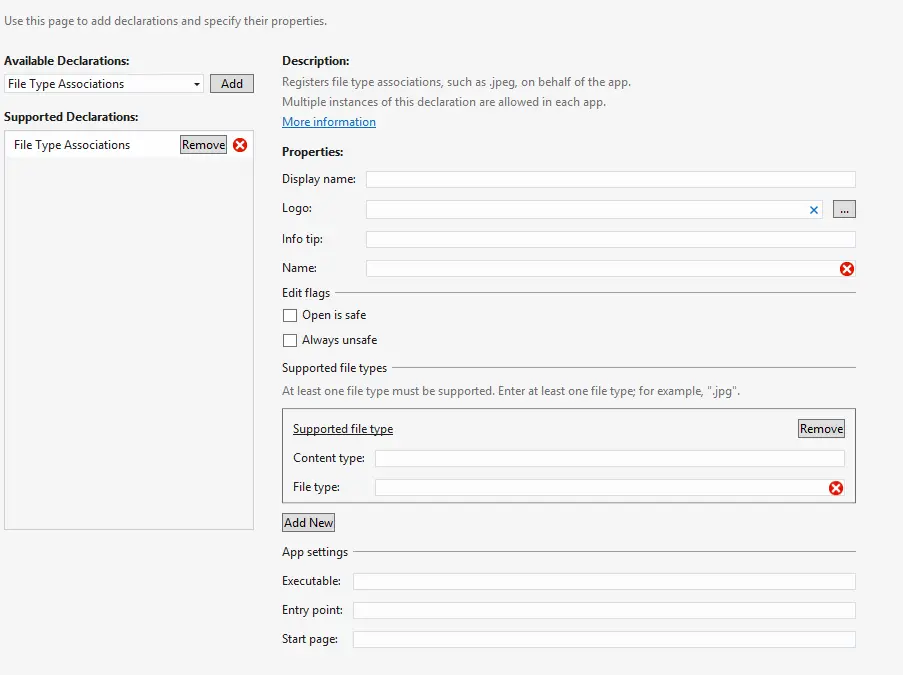
One of the declarations you can have with a Windows Store app is the file type association, which lets file types become associated with your application. This means you can customize the icon for the file type—and if the user double-clicks an associated file, it will launch the application.
One of the properties of this declaration is the logo property, which is the icon to use for the file type. The logo is optional, and if you do not specify it or specify it incorrectly, it uses the application’s small icon (i.e., the 30×30 one)—which doesn’t look great.

The solution to this is to correctly specify the logo—but that isn’t as straightforward as it seems. First, you don’t just need one image, but four icons with different resolutions:
- 16×16
- 32×32
- 48×48
- 256×256
Next, you need to name them correctly. The format is <name>.targetsize-<resolution>.<extension>, so for example, if you wanted to use MyLogo.png as the filename, you would have:
MyLogo.targetsize-16.pngMyLogo.targetsize-32.pngMyLogo.targetsize-48.pngMyLogo.targetsize-256.png
Lastly, you need to put the correct logo name in the manifest. Since you have four icons, what do you use? You use the name + extension (e.g., MyLogo.png), and Windows 8 is smart enough to figure out the resolution, insert the target size, and get the right image for the right display!