Windows Store app Development Snack: Debugging Share Target experiences


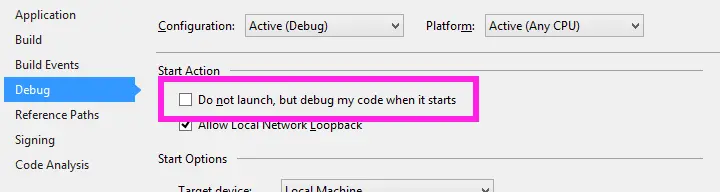
The debugging experience for Windows Store apps is fantastic—you have all these great tools in Visual Studio when you are running your application. But what about scenarios where you need to debug when your app isn’t running?
For example, when you are a Share Target: the Share Source is the running application, while the Share Target is launched by Windows when the user selects the target. If you need to debug the target, how do you do that?
The trick lies in the project settings, under the Debug section. There’s an option called Do not launch, but debug my code when it starts. If you enable it and then press F5, Visual Studio will enter debug mode without running any code. Then, when Windows launches your app—say, the Share Target—Visual Studio will attach to it automatically and deliver that fantastic debugging experience!