Windows Store app Development Snack: Debugging a background task


So you’ve created your background task and now you want to test it—do you wait 15 minutes and hope it runs? Nah—there’s an easier way (which is unfortunately hard to find).
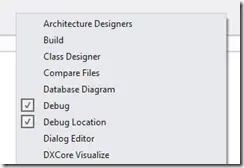
First, launch your app as normal, and then while it’s running, swap to VS (this is where multiple monitors come in handy). You should see the Debug Location toolbar.

If you don’t see it, right-click the toolbar/menu area, and you’ll be able to enable it.
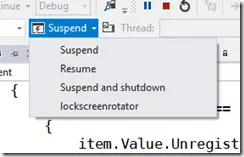
This toolbar is very useful for testing Suspend & Shutdown scenarios for your application. What’s not obvious, though, is that if you click the little arrow next to the suspend button, all your registered background tasks will appear in a dropdown list. You can then click the one you want to trigger it immediately—great for testing!