Upgrading to SharePoint 2010: In the field experience


Last week, I was able to upgrade BB&D’s internal intranet site from SharePoint 2007 to SharePoint 2010! So you can properly understand what happened, let me cover a little bit about the intranet first. Our intranet is a small deployment—just a single server deployment—however, it is kept up to date with technology, so it is running on SQL Server 2008 with SP1, Windows Server 2008 R2 on a 64-bit virtual machine. We have also avoided heavy customization, instead focusing on small tweaks and adjustments. A good example is that we do not have a customized master page but rather use the theme options to achieve the color scheme we want.
The first step I took was to download the prerequisites for SharePoint 2010, and using the option on the installer, it was a breeze. I’ve seen this before with Dynamics CRM, and once again, I am impressed by how a very simple feature makes such a big difference. The next step was the install, which was painless and quick.
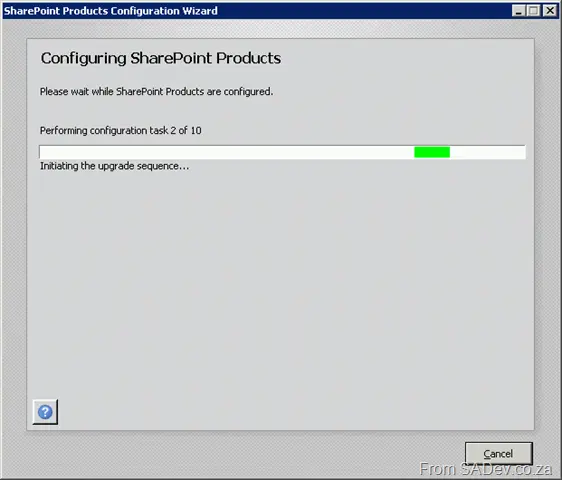
Once installed, the configuration manager had to run, and this is where I encountered two issues. The first problem was that I got stuck on Task 1! The cause here was that a dialog box had appeared behind the main window (telling me to do the same for all servers in the farm) and wouldn’t go away until I clicked OK. This annoying little bug cost me a few minutes.
The second issue was that the SharePoint 2010 install needed to perform some Active Directory queries, and this meant my user account did not have sufficient permissions. Not having adequate permissions resulted in the installer producing a very unhelpful error at step 3:
`System.ThrowHelper.ThrowKeyNotFoundException()`
  at `System.Collections.Generic.Dictionary`2.get_Item(TKey key)`
  at `Microsoft.SharePoint.Utilities.SPUtility.GetUserPropertyFromAD(SPWebApplication webApplication, String ginName, String propertyName)`
  at `Microsoft.SharePoint.Administration.SPManagedAccount.GetUserAccountControl(String username)`
  at `Microsoft.SharePoint.Administration.SPManagedAccount.Update()`
  at `Microsoft.SharePoint.Administration.SPProcessIdentity.Update()`
  at `Microsoft.SharePoint.Administration.SPApplicationPool.Update()`
  at `Microsoft.SharePoint.Administration.SPProcessIdentity.UpgradeToV4ManagedAccount()`
  at `Microsoft.SharePoint.Administration.SPConfigurationDatabase.ResolveObjectAndClassVersions(SPLog log)`
  at `Microsoft.SharePoint.Upgrade.SPConfigurationDatabaseSequence2.Upgrade()`
  at `Microsoft.SharePoint.Upgrade.SPUpgradeSession.Upgrade(Object o, Boolean bRecurse)`
It took ages to figure this out, mostly because it is not a documented requirement. To get the correct permissions, you need to get a domain admin to do the following on the domain controller:
- Open Active Directory Users and Computers.
- Select Advanced Features from the View menu. Failing to do this means that the tab in step 4 won’t be visible.
- Right-click your AD account and select Properties.
- Select the Security tab.
- Select Authenticated Users in the Group or user names field.
- Allow Full Control permissions.
- Repeat this process for any SharePoint service accounts you may have created.
- Ensure this change replicates to all domain controllers.
- Connect to your SharePoint server and open a command prompt (
cmd.exe). Typegpupdate /force. This will force the changes to the machine, as it may have a cached version. - Finally, reboot the SharePoint server and start the configuration wizard again.
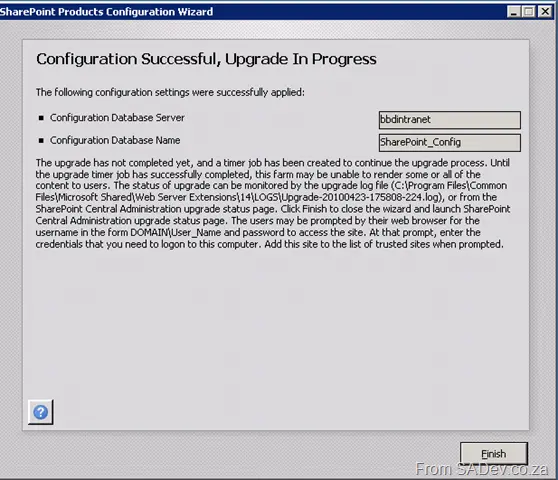
After all that was done, the configuration wizard completed, and the upgrade process started in Central Admin. The upgrade process also took a while, but once done, everything just worked.
Lastly, we applied some theme tweaks and ran a quick test—it was done. One thing that is important to remember about this process is that the entire time it was happening, the current intranet was live, so plan your deployment accordingly. This is easily the best experience I’ve ever had installing or upgrading SharePoint—and it shows that the product is maturing.