Slide.Show and SharePoint: Part II - Getting the data


This is a multi-part series. The other parts can be found at:
- Slide.Show and SharePoint: Part I – Configuring Slide.Show
- Slide.Show and SharePoint: Part III – Deploy and final config
In Part I, we focused on getting Slide.Show to work with the Content Editor Web Part (CEWP). The next step is extracting the image information from the picture library so Slide.Show can display it. The first point to understand is how Slide.Show locates the images. It does this using a DataProvider, which is essentially an XML file reader. By default, it looks for a file named Data.XML in the same directory as the configuration file. However, this can be overridden with a custom DataProvider—for example, the Flickr provider used in Part I.
Unfortunately, there is no SharePoint DataProvider yet, so we have two options:
- Create a custom provider, or
- Format SharePoint data into a format that Slide.Show can natively process.
Both require development, but I prefer the second option. This way, I’m not heavily investing in Slide.Show itself—I’m investing in a tool to extract the data and then formatting it for Slide.Show. If a better solution emerges in the future, I can easily adapt the formatting part without major changes.
Another advantage is personal: I prefer C# development (which I’ll use for the provider) over JavaScript, thanks to Visual Studio’s robust documentation and tooling.
The Required XML Format
Slide.Show expects XML structured like this:
<data>
    <album ...>
        <slide .../>
        <slide .../>
        <slide .../>
        ...
    </album>
</data>
SharePoint doesn’t provide data in this exact format, so I wrote an ASP.NET page to handle this:

Step 1: Retrieving Data
The _Get_stage stage is straightforward: we connect to SharePoint’s Lists web service using the GetListItems method. The result is an XMLNode, which is tricky to work with due to:
- SharePoint’s heavy use of XML namespaces, making XPath queries cumbersome.
- The need for easier data manipulation before output.
For the first issue, I used John Wood’s solution to handle XMLNamespaceManager. The second issue led me to prefer C# over JavaScript for this task.
I converted the raw data into a simple class with slide properties, stored in a List<T> for easy LINQ queries (I avoid LINQ to XML due to SharePoint’s messy structure).
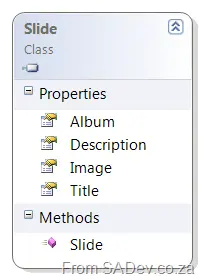
Step 2: Generating XML
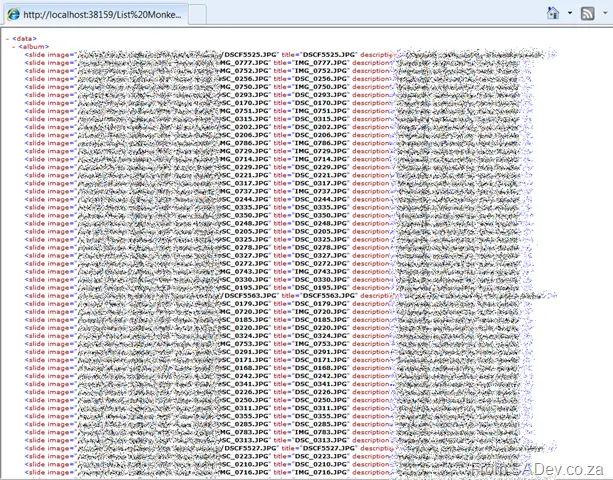
The _Provide stage takes my List<T> of slides and builds an XMLDocument for output. The process isn’t complex—just looping through slides and constructing the XML—but returning it requires a detour into ASP.NET’s page lifecycle.
Instead of relying on Page_Load, I override Render to:
- Set
Response.ContentType = "text/xml"(informing the caller—Slide.Show in this case—that the response is XML). - Write the final XML using
Response.Write(XMLDocument.OuterXML).
With this in place, visiting the ASP.NET page should display the formatted XML.
Reusability & Configuration
To make this reusable, I added:
- Security: Windows Authentication (ideal for intranet sites) via IIS configuration and
Lists.UseDefaultCredentials = true. - Query Parameters: Mandatory parameters for the Lists web service URL and picture library name/GUID, with optional filters:
view: Specifies a custom view (defaults to the default view).limit: Restricts the number of returned items (defaults to all).recurse: Toggles folder recursion (defaults totrue).group: Organizes slides into albums by folder (defaults tofalse).random: Randomizes item order (defaults totrue).
Example query: [http://sharepoint/addons/slideshow.aspx?url=http://sharepoint/site/_vti_bin/lists.asmx&list=Photo%20Gallery&group=true&random=false&limit=20](https://sharepoint/addons/slideshow.aspx?url=http://sharepoint/site/_vti_bin/lists.asmx&list=Photo%20Gallery&group=true&random=false&limit=20)
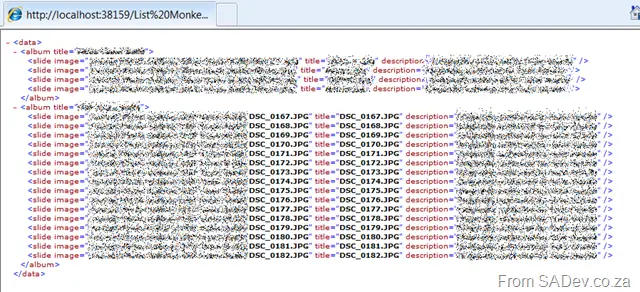
By default, this retrieves all images (across folders) in random order—a great fit for Slide.Show’s default settings (randomized display, large image sets).
The heavy lifting is done. The final steps—deploying the web app and configuring Slide.Show—are surprisingly simple and covered in Part III.