SharePoint Survey Permissions: Part 2 - Allow anonymous users to vote on surveys


Part 1, which covers permissions to allow users to vote but not edit the website, can be found here.
For the second post, I thought I would share the most confusing issue I’ve personally had with SharePoint survey permissions: namely, on a website where anonymous users will be voting, how do you let them participate? Since they are not members of the site, you need to take a few extra steps to get it working. Before I continue, I recommend you read the first post since I’ll refer back to some parts of it.
The first thing is: if you go to the permissions, you need to give anonymous users permission. However, there is no direct "anonymous user" option like we had with the domain group NT AUTHORITY\AUTHENTICATED USERS previously. But if you’ve configured anonymous access correctly, you’ll find a menu option under Settings that allows you to configure Anonymous Access.
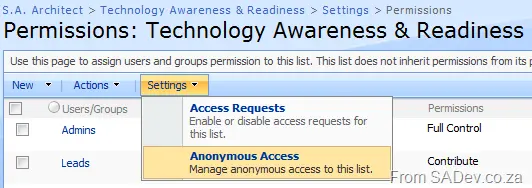 Settings → Anonymous Access.
You may find that it doesn’t work immediately—as it didn’t in my case—because everything is set to read-only. So you can’t give anonymous users permissions yet.
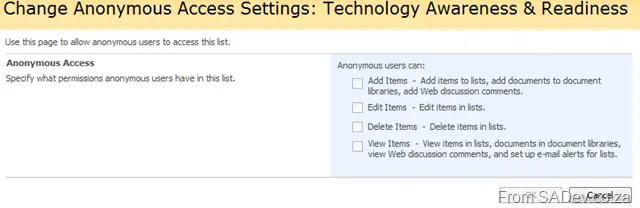 Read-only settings
To resolve this, go to the Advanced Settings for your survey and set Read Access to All Responses, then click OK. Don’t worry—you’ll revert this shortly.
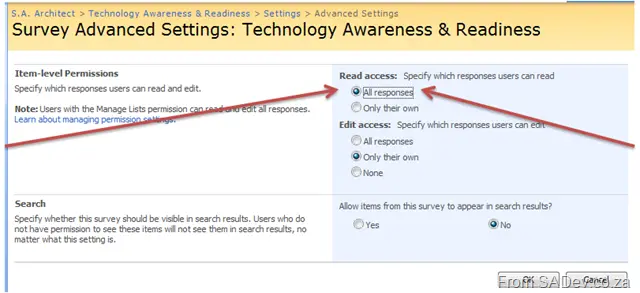 Survey advanced settings.
Now, if you return to the anonymous access settings section of the permissions, you’ll see that those options are no longer read-only! You can now configure anonymous access for your survey and click OK.
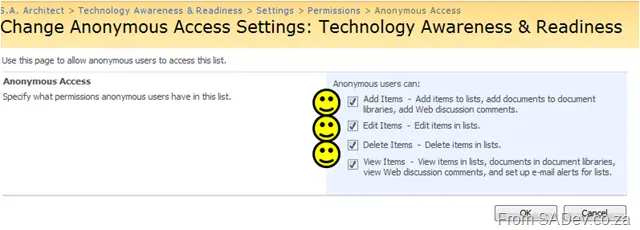 Settings now available
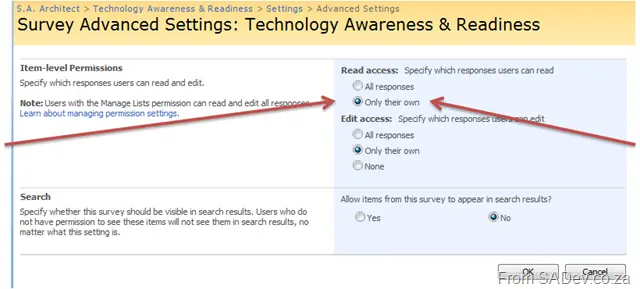
Finally, if you wish, you can go back to the Advanced Settings page and set Read Access to Only Their Own. Note: The anonymous settings you configured are preserved—they’re just set to read-only again, but your survey remains accessible to anonymous users.