SharePoint Search Tips and Tricks


I thought I would share some tips and tricks for improving the search experience with SharePoint:
| In any company, you will have people of different backgrounds and skills using SharePoint, and one of the first issues is that search isn’t fine-grained enough, and that users either don’t know or don’t feel comfortable with advanced search features to get it fine-grained. To make “normal” search easier, just add Faceted Search. If you are interested in what that is, go and check out the site. Next, improve usage by lighting up SharePoint search to browsers. Well, what does that mean? It means that when you go to a website with a modern browser, it “detects” the search functionality and allows you to add it to the built-in search functions in your browser, so you can search the SharePoint site from your browser without even going to it first! It does this using an open standard called Open Search. To do this, you first need to define an XML file that tells the browser what to do. Example: 
Really simple—basically, just the name and the encoding. The magic is handled by replacing the tag in the URL ({searchTerms}) with what the user is searching for. That file needs to be uploaded to a location on the SharePoint site where it can be read by users. The next step is exposing it to browsers; to do this, you just need to add a line to the <head> tag in your master page:
<link rel="search" type="application/opensearchdescription+xml" href="/search/searchdefinition.xml" title="BB&D Portal" />
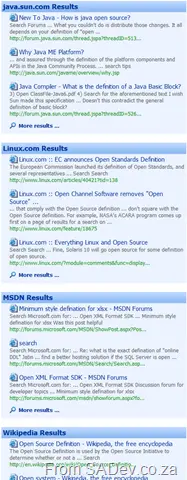
Now the browsers will see the tag and light up the search facility! This is really helpful for improving adoption of search. Next up, it would be great to search multiple locations, and you can thanks to a feature in SharePoint called federated search. With this feature, your search query actually calls other websites for results and places them in a special section of the site, defined by a web part. As I am personally interested in a lot of technologies, I think it would be great to have federated search to: Wikipedia, Linux.com, Java.Sun.com, MSDN.Microsoft.com, and TechNet.Microsoft.com, like shown on the left.
What you may notice is that MSDN already has support for federated search, but the rest don’t! So how do you get around that? Well, Live.com also has support for federated search and also supports limiting results to a specific site. So all that is needed is to create a search provider configuration for Live.com and limit it to the specified website. You can download the sample providers I created below:
- Linux.com Provider
- Java.Sun.com Provider
- Wikipedia Provider
- TechNet.Microsoft.com Provider
- MSDN.Microsoft.com Provider
|  |
|
The last tip is to implement a very clean landing page for the site with a search box on it. As the new landing page is cleaner and smaller than the rest, the initial feeling of SharePoint is that it is quicker and more responsive, and so it also improves adoption. To get the search box to search properly using just a tiny bit of HTML + JavaScript—which looks like this (assuming you have a textbox with an ID called query)—this will create the button:
<input type="button" width="100px" value="Search" onclick="window.location='/pages/SearchResults.aspx?k='+document.getElementById('query').value+'&s=All%20Sites';" />