Rangers Treasure Map v2.1: Snap re-invented


 As part of my work on the Microsoft ALM Rangers Treasure Map, I want to share how we changed snap for the 2.1 release.
Why?
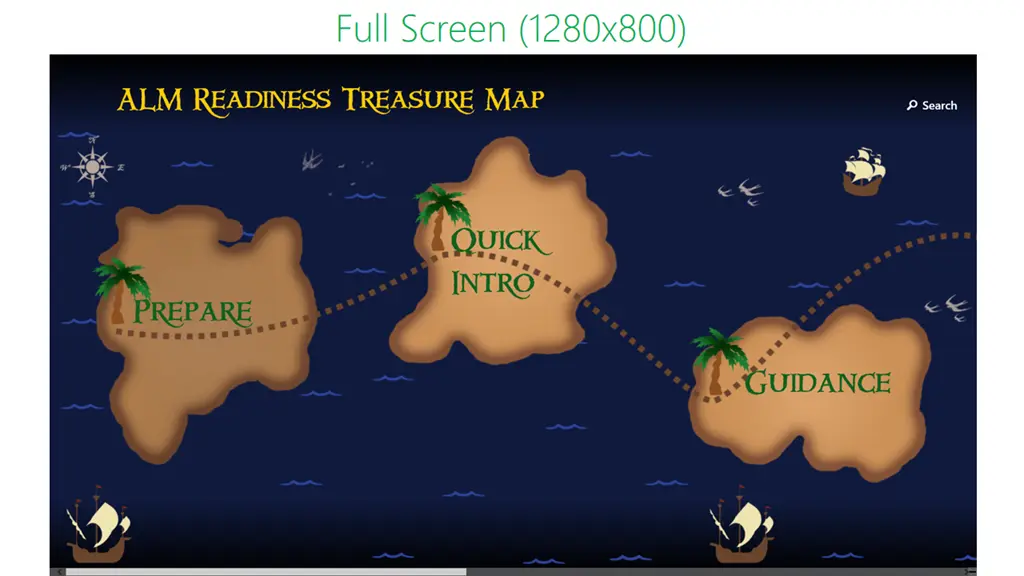
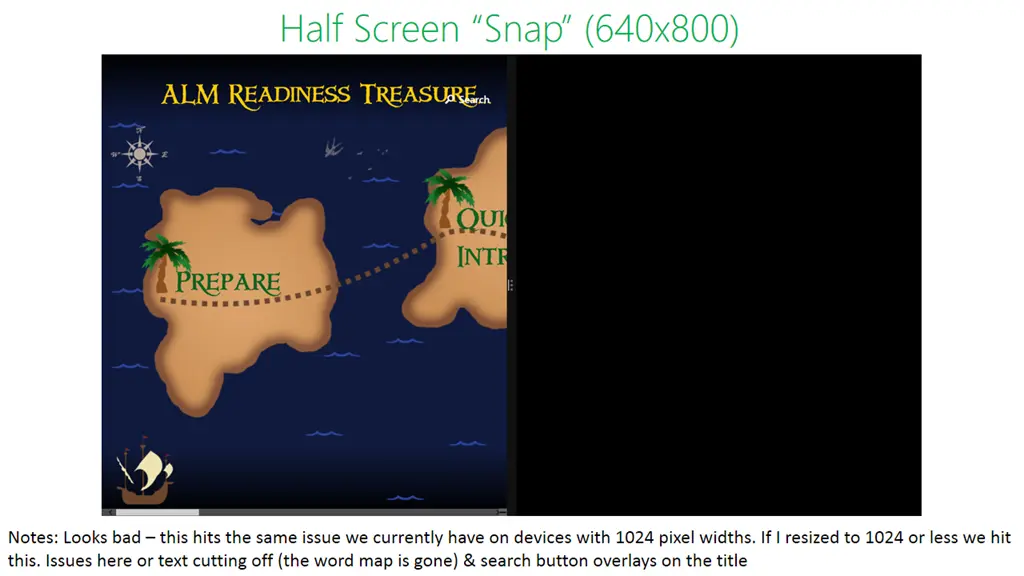
The first question is: why do we need to change snap for 2.1? The requirement is that 2.1 focuses primarily on supporting Windows 8.1, and Windows 8.1 handles snap differently from Windows 8. In short, in Windows 8, you had snap (fixed-width), fullscreen, and a third “middle” state—but Windows 8.1 only offers fullscreen and any width between that and a minimum threshold.
 Microsoft has written a great document covering what’s new at: http://msdn.microsoft.com/en-us/library/windows/apps/hh465371.aspx
Planning
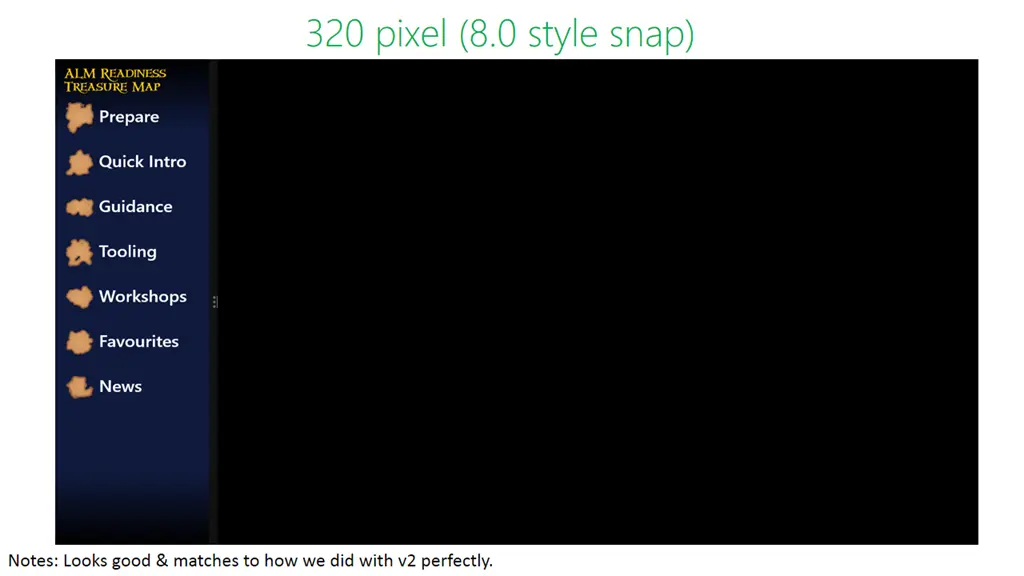
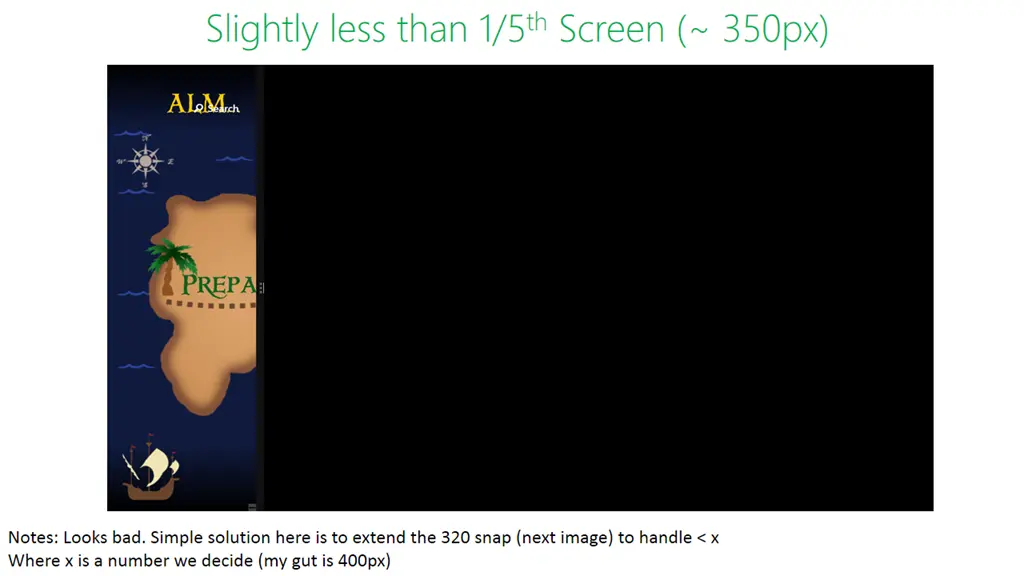
The first step was to investigate our current setup: I ran the app on Windows 8.1, played with the new snap experience, and took screenshots with annotations to guide our approach. You can see these images alongside/below this post.
Decisions
 Since this was a minor release, we decided not to overinvest. Instead of building something entirely new, we ensured everything worked as it did before.
To achieve this, we set a minimum width of 320 pixels (the default in Windows 8.1 was 500), aligning with our Windows 8 baseline.
Code
In version 1, we chose not to use the built-in State Manager approach for UI changes. You can learn more about our implementation in a video I did for Channel 9: 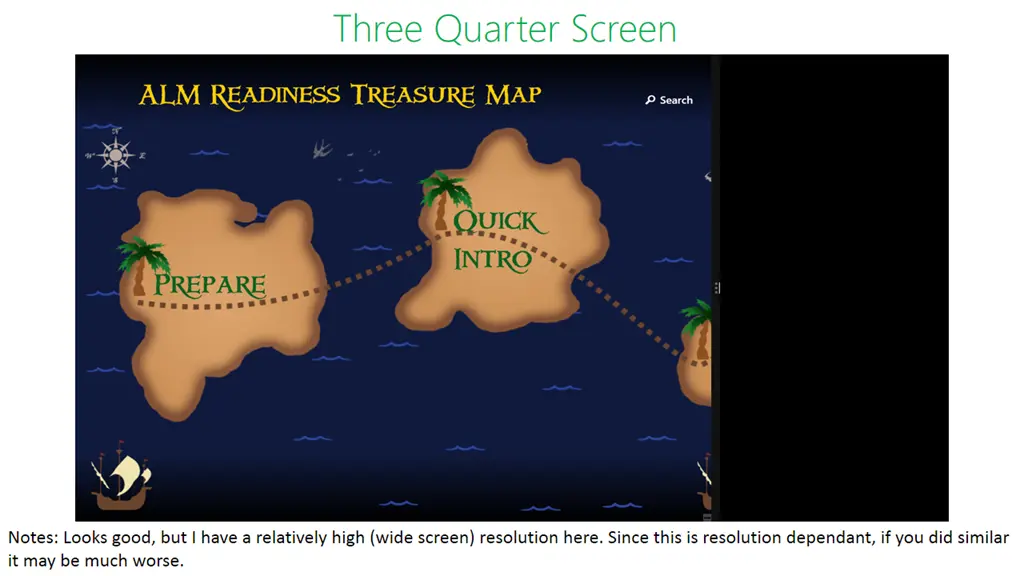
What did the code changes look like with our model? In the image below, you’ll see that instead of querying the current state (line 142, left), we now check the screen width and load the corresponding namespace based on that.
This minor change sufficed—made possible because we decoupled views from the start, avoiding a single, all-encompassing Visual State Manager-driven view.
