The Rangers Treasure Map Updating System


In the next release of the ALM Rangers Treasure Map, one of the new features is a way to update content remotely in the app. The mechanism chosen for this is intentionally simplistic, as it allows us to run this with minimal infrastructure and focus on app development rather than building server-side code.
How it works?
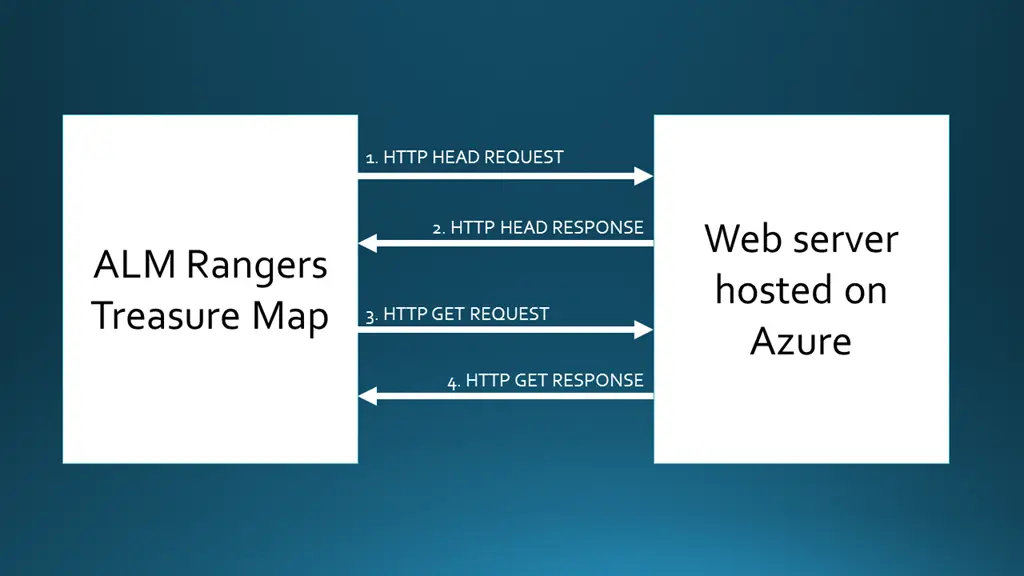 The system is very simple, but first, let’s look at how content is handled internally. We store all content in XML and have a folder full of images (we will call this collectively Assets). One of the changes needed in this release was code that copies the assets from the install location to the sandbox location—the reason for this is because we cannot write to the install location.
The update mechanism really just connects to a web server and downloads a ZIP file, extracts it, and overwrites the XML and images. We do have some extra logic internally that ensures we do not waste your bandwidth—this is done by checking the If-Modified-Since header in our request, so we can see if new content is available.
Setting up Azure
Unfortunately, not every server supports the If-Modified-Since headers, but thankfully, Azure Websites do support them. Using Azure Websites allows us many ways to push content to it, making the workflow for updating content very easy. It is also very easy to set up the site:
Log in to the management portal: http://azure.microsoft.com/en-us/account/
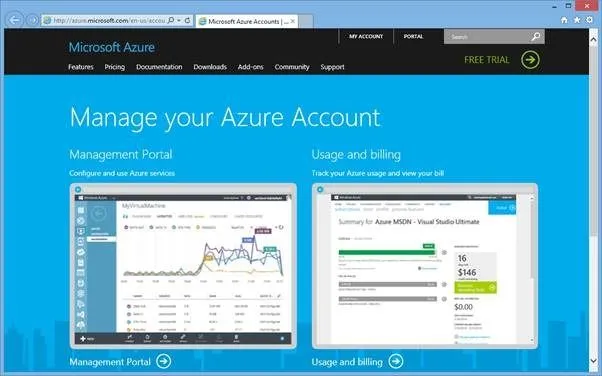
In the management portal, go to Websites.
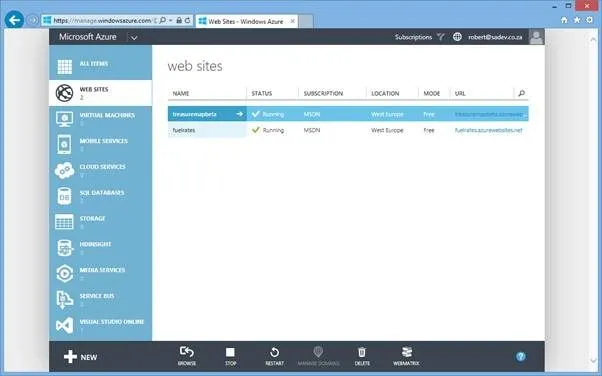
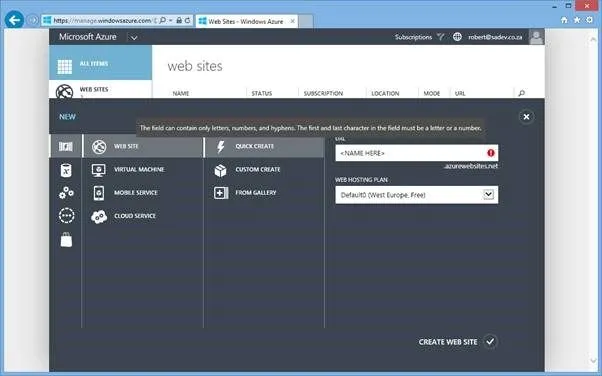
Click New (lower left-hand corner). If Website is not pre-selected, select it. Click Quick Create, specify a URL and hosting plan, and then click Create Website.
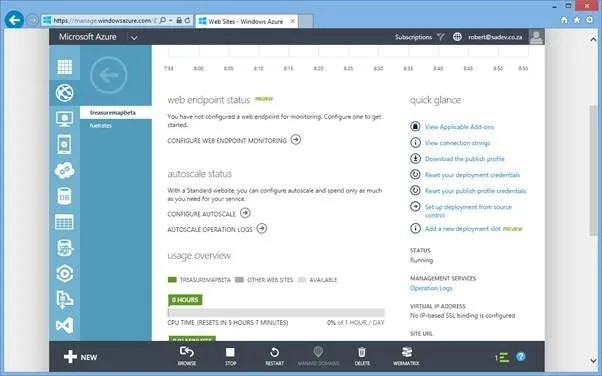
Next, click on the website you created and then Reset your deployment credentials.
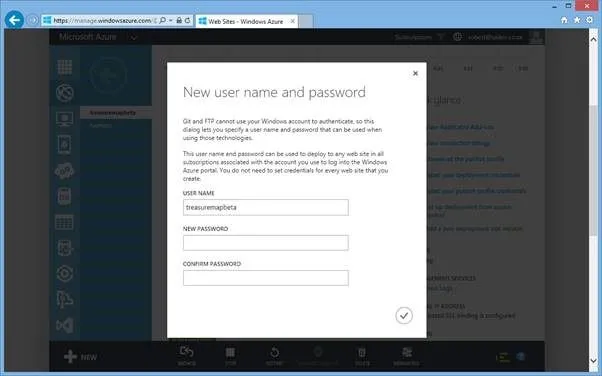
Specify a username and password, then click OK.
And that’s it!
Crafting the content
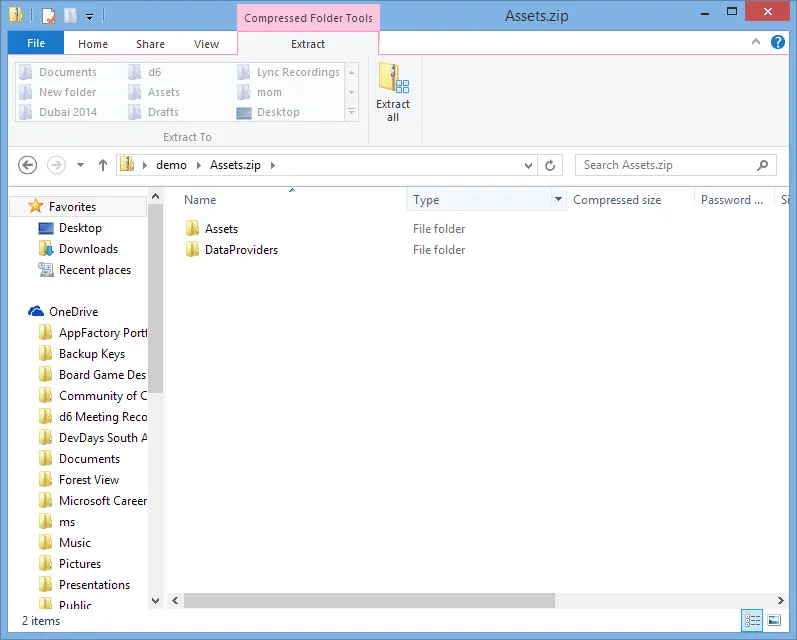
So how do we build the ZIP file that needs to be uploaded? Since we have two different sets of assets—the first being the art (images, photos, logos, etc.) and the second being the data (as XML)—these are stored in two different locations for the app: DataProviders, which contains the data, and Assets, which contains the images. So we set up the two folders, place the new items and data to be replaced in the right folders:
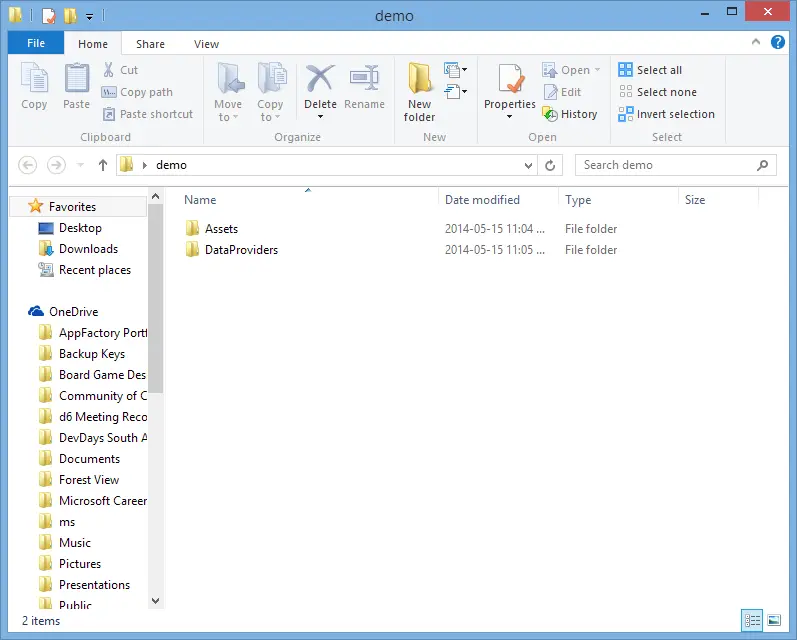
We then compress those folders into a normal ZIP file and upload it. It is that simple.