Pro tips for the Visual Studio Pro Power Tools


The team has released a new version of the tools, which solves a lot of the issues and provides a bunch of great new features. Please make sure you see and use the latest version.
At Tech·Ed North America on Monday, the Visual Studio Pro Power Tools were announced, and they are fantastic. A full rundown of them can be found on Brian Harry’s blog. However, there are some tips in the usage that may not be immediately obvious, so this post will explain some additional tips.
Add Reference Dialog
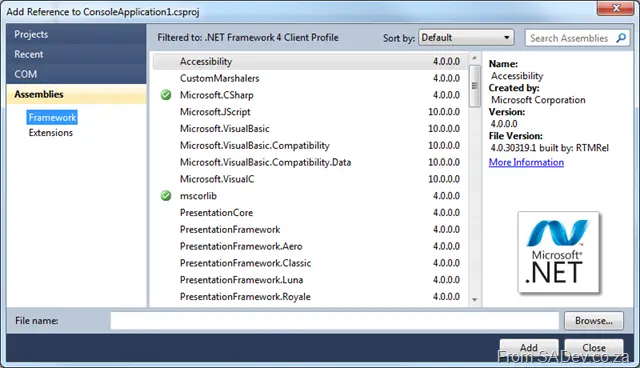
The new dialog is amazing and fits the UI experience of VS2010 far better than the out-of-the-box one. One thing to be aware of is that when you hit Add, it does not close the dialog—it marks the selected assembly and adds it in the background. This is great for adding multiple assemblies. If you want to remove an assembly, you can do it here too—just select an already added assembly (green checkmark), and the Add button becomes a Remove button.
Document Tab Well
This is one of the first things you’ll see, because the tabs are now a variety of colors. How can you control this? Go to Tools → Options → Environment → Document Tab Well to customize the settings. Setting the preset to Visual Studio 2010 is the same as disabling it.
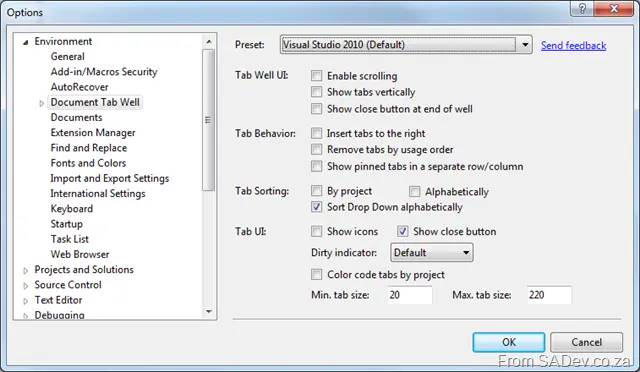
As a side note, if you’re thinking of disabling it, try the Dynamic Tab Well preset first. It is very similar to the standard VS2010 tabs but adds more features without overdoing it.
The shortcut to get to this part of the settings is to right-click on any blank space in the tab well and click Customize…

Highlight Current Line
Another feature that is immediately obvious—the gray background behind your current line of code. If this color doesn’t align with your color scheme, you can tweak it using Tools → Options → Environment → Fonts & Colors → Display Items → Current Line (Extension).
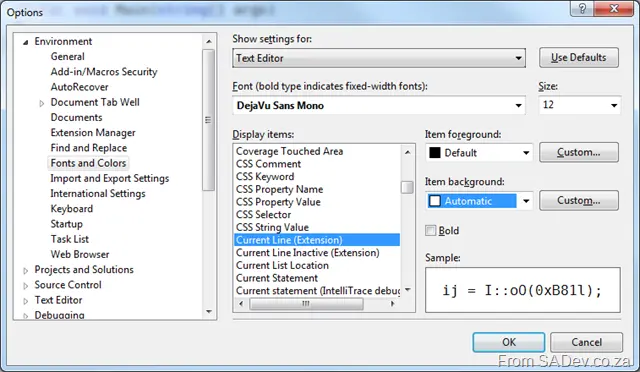
To “disable” it, set the background to Automatic.
Align Assignments
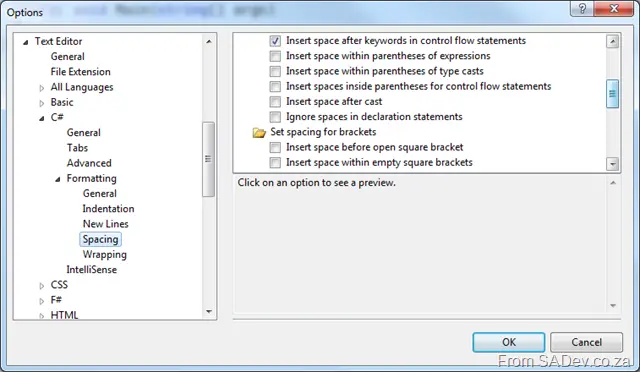
If this isn’t working for you, it might be because your C# settings are preventing it. To fix this, uncheck: Tools → Options → Text Editor → C# → Formatting → Spacing → Ignore spaces in declaration statements.
Colorized Parameter Help
Don’t like the colors of the new tooltips? Want them to match your theme?
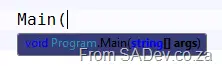
You can customize this via Tools → Options → Environment → Fonts & Colors → Display Items → Signature Help Tooltip Background.
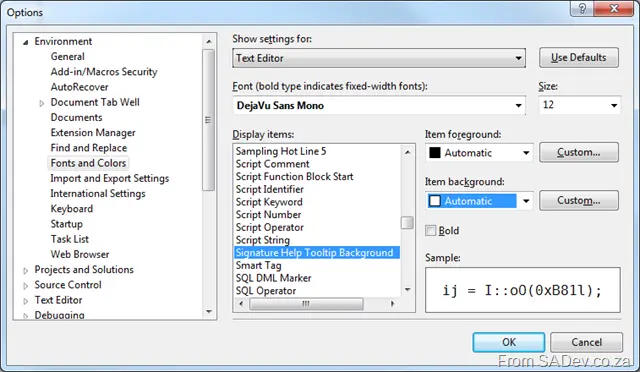
Note: The foreground color cannot be changed—only the background color.
Move Line Up/Down Commands
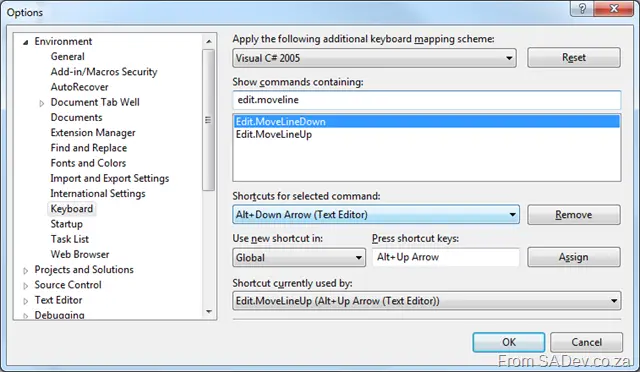
Already using Alt+↑ or Alt+↓ for something else? Or want to rebind these commands? You can do this in Tools → Options → Environment → Keyboard. The commands are:
Edit.MoveLineDownEdit.MoveLineUp
The Hack
Should you really dislike an extension—or a specific extension is conflicting (e.g., the tab well conflicts with another tab-management extension)—there is a completely unsupported hack to remove a specific feature while keeping others intact. Note that you’ll need to perform this for every update, and it is unsupported. If something goes wrong, you’re on your own. In short: only do this if you’re desperate.
Hack #1
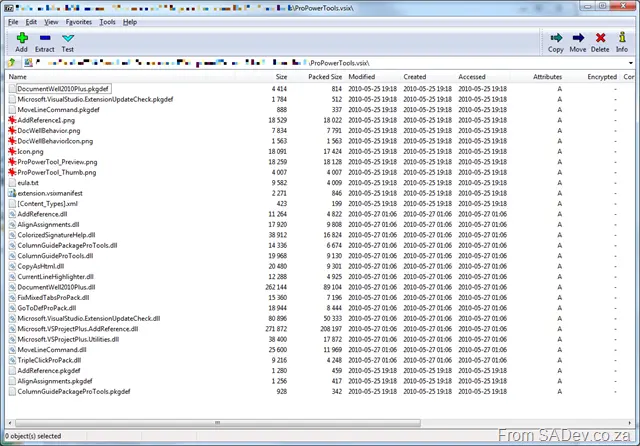
The VSIX file is just a ZIP file, which you can open in any archive tool. From there, you can see the assemblies for each extension and remove them if needed.
Hack #2
When an extension is installed, it is unpacked to: C:\Users\<Username>\AppData\Local\Microsoft\VisualStudio\10.0\Extensions Here, you’ll find directories for various authors, and under those, the extensions. To find the Pro Power Tools, go to: \Microsoft\Visual Studio 2010 Pro Power Tools\10.0.100525.1000 Here, you’ll see all the files. Simply delete or move out the assembly of the feature you don’t want—this will disable it.