Presenting on Windows 8 - Pro tip


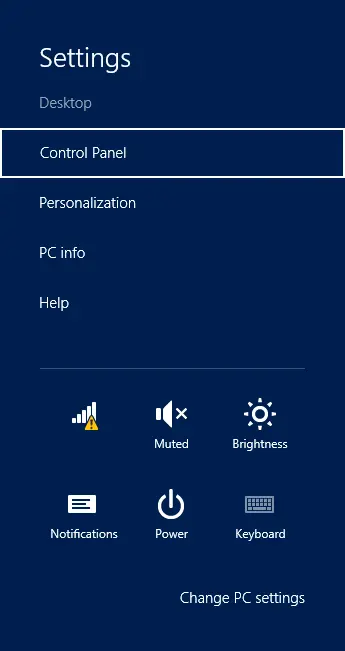
This tip is aimed at presenting, but is just as useful for those who want to focus in Windows 8 without distractions!
Windows 8 is a great operating system to use, especially for its background tasks system, which ensures other applications don’t drain your CPU & memory. However, there’s a downside to background tasks!
Previously, if I wanted to block annoying Skype popups (e.g., during my talks), I’d simply shut down Skype—no popups would occur. But in Windows 8, since the application isn’t running, how do we stop them?
The solution is simple: bring up the Settings charm (see image on the left), and in the bottom-right corner, you’ll find an option called Notifications. If you tap that, you’ll get the choice to block notifications for 1, 3, or 8 hours.
I tend to use 3 hours for my 1-hour talks, allowing time for setup and clean-up.
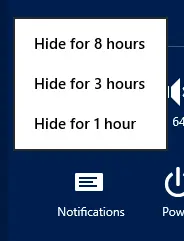
Once disabled, the icon changes to show it’s disabled. If you want notifications back—say, when you’re finished—simply tap the icon again to re-enable them.

What’s great is that live tiles and background tasks still run—just no popups anymore.