Podcasting Kit for Sharepoint + Sub Site = It can be done


Recently I aged about a hundred years due to my intention to deploy the August 2008 release of the Podcasting Kit for SharePoint on a sub-site due to the fact that there is so much hard coded into it (you can vote on that link for the work item to be done to fix this) that expects it to be at the root. Being stubborn and trying to show my elite SharePoint skills to all around me, I did not let little things like hard-coded values stop me. No, I gave up a few years of my boyish good looks to get it working—and in the end, I did! It’s not elegant, but it works and should tide you over until the fixed release comes along.
First off, let me say how great the August release is compared to the July release—it’s great. I actually don’t think you could’ve got this to work on the July release; there’s that much cleanup and streamlining in it. One of the things they did was streamline the documentation from a monolithic single beast to a lot of smaller, edible chunks. This is also a double-edged sword for first-timers, because it means you go through the install doc and think you’re done… when you aren’t. But I’ll cover that later on.
For the tale, assume the following facts:
- SharePoint is deployed to a site available at http://intranet
- We want the Podcasting Kit to be available at http://intranet/sites/multimedia
- I have created a life jacket file, which contains versions of all the files I changed and may be of use to you. Note: I have not tested it, so it may not work. Best case is a simple find-and-replace and upload, and you’re in business—but worst case, you need to follow the steps to get your files done.
- I am insane, and this could all be wrong. My mind might have made me believe it works.
Now, I want to tell my tale of heroism in defeating bugs so that future crazy people don’t need to do this themselves. If you have the August 08 install guide and are following along (good idea—since that’s what I’m doing to write this), I assume you’ve done your prerequisites and have a site collection as a sub-site (i.e., http://intranet/sites/multimedia) and are at Installation Method #1 (Easy Method). Easy method—that in itself should be a sign of the devil which awaits, because anything labeled easy never is. What you need to do is run the install to the root site (i.e., ssm.exe install PKSFull.xml http://intranet) and then uninstall it (i.e., ssm.exe uninstall PKSFull.xml http://intranet). I know it seems pointless, but the installer doesn’t clean up well and leaves a few files behind (the key stuff it leaves are CSS, XSL, and some JS files). Having these files at root helps us later. Now run the installer again but now to your site collection (i.e., ssm.exe install PKSFull.xml http://intranet/sites/multimedia).
The next steps in the guide—ratings DB, media encoder, and feature activation—work as documented. The user interface steps also work as expected, but make sure you “fix” their links to have your site collection. Here are a few examples:
- SmartPhone access: Make the URL /sites/multimedia/mobilepages/pksmobilehome.aspx
- Upload Podcasts: Make the URL [/sites/multimedia/PKS Podcasts/NewForm.aspx?RootFolder=%2FPKS%20Podcasts&Source=/sites/multimedia/pages/pkshomepage.aspx](https://intranet/sites/multimedia/PKS Podcasts/NewForm.aspx?RootFolder=%2FPKS%20Podcasts&Source=/sites/multimedia/pages/pkshomepage.aspx)

Moving swiftly along, the master and welcome pages instructions should work fine—until the first big hurdle: the SmartPhone page, where the hard coding comes in. The PKS uses a special web part called the Content Query Override Web Part, which is like the out-of-the-box Content Query Web Part but allows access to properties you normally couldn’t get. However, the PKS team configured it on their side, and importing it ensures doom and destruction if you’re on a sub-site. One of the properties that’s hard-coded is the path to the web URL for the site. If you simply open pksmobilehome.aspx, find the weburl tag, and change it to your site path (in my case, /sites/multimedia) prior to uploading, as per the document, you’ll be fine and can continue through the document happily, following the sections on Profiles, Silverlight 2.0, Ratings and Commenting, External File Store, and Media Encoder Service—bringing yourself merrily to the Pages section.
Before heading into the Pages section, we need to fix the XSL files so they point correctly. You can find these in All Site Content → Style Library → XSL Style Sheets. Best is to switch to Explorer view, get all the files out, and open them in a text editor that allows Find & Replace across multiple files (I used Visual Studio—how developer of me) to fix the URLs. There are hundreds of URLs, so I suggest doing a find-and-replace to fix them. As I said earlier, all changed files are in the life jacket file, including these. It may be easier to use mine—you just need to search for /sites/multimedia and replace it with whatever your URL is. Use it, don’t use it—whatever. Once done, re-upload the files and then check each one in as a major version.
The reporting page works great, but you’ll be stuck at the podcasterdetail.aspx page because you can’t actually get to those settings. Again, this is due to the Content Query Override Web Part, which has been pre-configured incorrectly. To solve it, export the web part before editing, save it to disk, then open it in a text editor and fix the paths. The key properties are:
- ItemXslLink
- WebUrl
- MainXslLink
- ItemXslLinkOverride
- MainXslLinkOverride
- Xsl
Once done, upload the web part (either to the Web Part gallery or directly onto the page), and you should now be able to work with it successfully.
Moving to podcastdetail.aspx, ensure the URL is correct for the XSLT Override Location on the Content Rating-Review Results Web Part. You can skip steps 9–15 (about the Content Editor Web Part, which shows the edit link), since it references a JS file I haven’t yet found or fixed—it’ll point to the wrong URL and won’t work. If you fix it, let me know! Setting up the web connections and search should be fine. If you lack metadata properties (like in my case), please read the troubleshooting guide—you assumed too much and thought life was easy… easy install, all that!
That should take you to the end of the guide, but not the end of our tale. Remember the double-edged sword of splitting the documentation? The next step isn’t obvious: go through the How To Apply Security Settings file and follow it—otherwise, you’ll end up with lots of mess. Also, be aware of a bug in PKS that can prevent non-admin users from viewing/downloading content. See here for details.

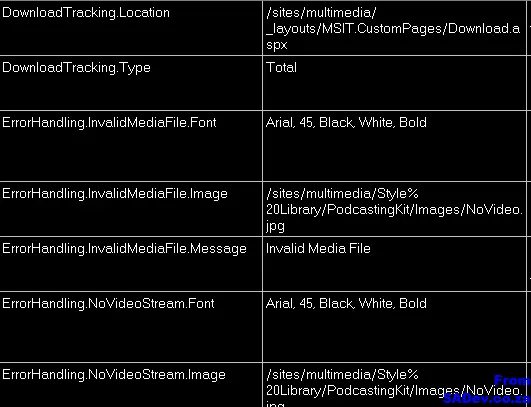
Now that security is sorted, we can fix the configuration. Go to All Site Content → Content Rating Configuration Settings. You were here earlier and need to ensure the item (the one with a GUID@GUID) points correctly. Then, head back to All Site Content → PKS Configuration Settings and set the following values to point to the correct URLs:
- DownloadTracking.Location
- ErrorHandling.InvalidMediaFile.Image
- ErrorHandling.NoVideoStream.Image
- Thumbnail.Custom.Images (note: you have multiple URLs in this value—get them all correct).
The main page pkshomepage.aspx suffers from the same issue as podcasterdetail.aspx—the Content Query Override Web Part is incorrectly configured. You can follow the same procedure (export, edit, upload) to solve it.
At this point, everything should work fine—but there’s a lurking bug. Anytime someone watches a video, it increments the download count stored in the PKS Podcasts list, which causes the File URL to update. Even though it originally pointed correctly to [/sites/multimedia/_layouts/MSIT.customfiles/Download.aspx](https://intranet/sites/multimedia/_layouts/MSIT.customfiles/Download.aspx), it gets updated to point to the root site again: [/_layouts/MSIT.customfiles/Download.aspx](https://intranet/_layouts/MSIT.customfiles/Download.aspx).


I’m not sure about all the circumstances around the bug (it doesn’t seem to affect admins). To fix it, I wrote a quick ASP.NET page that redirects requests back to the correct URL. The file is in the life jacket file and is called downloads.aspx. If you have a different sub-site path (e.g., not /sites/multimedia), open it and update the URL as needed.

Important Notes:
- You do not need Visual Studio for this. The file is a single ASPX page with inline code—the server will compile it at runtime.
- The fact that it points to a file called
realdownload.aspxis intentional.
Now, get to your SharePoint server (if you aren’t already) and navigate to: C:\Program Files\Common Files\Microsoft Shared\Web Server Extensions\12\TEMPLATE\LAYOUTS\MSIT.CustomPages. Rename the single file download.aspx to realdownload.aspx, then copy the download.aspx file from the life jacket file into this folder. Now, all requests will hit the custom file, which will redirect them back to the correct URL—fixing the bug.
Now, finally, you’re done! You can go through the workflow and series docs to get all your content up and (hopefully) enjoy your Podcasting Kit!
I want to thank a few people who helped me along: Michael Gannotti, Zlatan Dzinic, and of course the PKS team, who responded to my posts on the site!