Outlook 2013 Preview: The Case Of The Missing Email


Office 2013 is available in preview, and as the fan boy researcher I am, I’m running it. In the last week, I’ve had an odd problem—it started when someone told me they had emailed me, but I never received it. I logged a call with the IT desk at work, and they found it in OWA (Outlook Web Access). Suddenly, it appeared in Outlook too. "I am overworked and tired—maybe I just missed it," was my thought, so I left it and carried on, believing I needed a holiday.
Then yesterday, I was in OWA and saw I had 25 unread emails, while Outlook showed 0. I am not crazy.
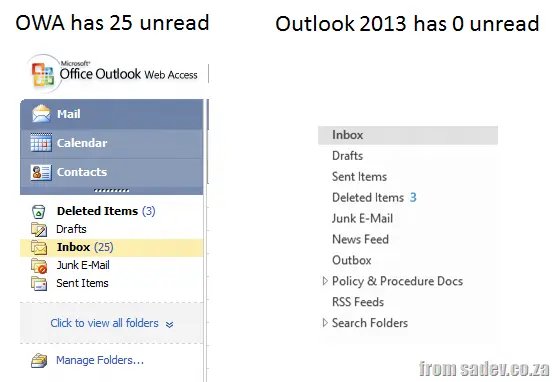
I logged a call again with the IT desk and received some awesome feedback—though it’s still too early to say it’s fixed, I’ll update this post as I learn more.
Patches
There’s already a patch available for Outlook 2013: http://support.microsoft.com/kb/2737132.
I’m not entirely sure what it does, but I trust patches bring their own kind of magic (a key trait of fan boys). Notably, Windows Update doesn’t push this patch out—so you must apply it manually.
Other Sources of Help
There’s a fantastic page with 29 common issues for Outlook 2013 worth reading: http://www.howto-outlook.com/faq/outlook2013newandchanged.htm.
One of those issues is about caching, which brings me to…
Caching in Outlook 2013 is Very Different
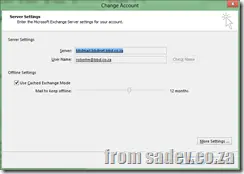
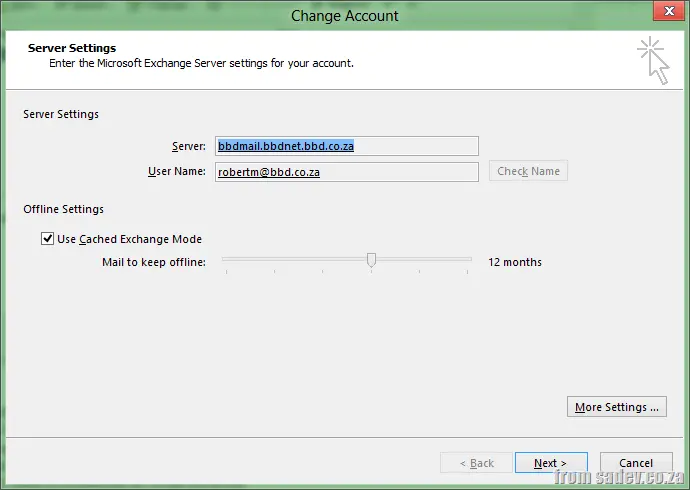
Before 2013, Outlook would fetch all mail from the server and store it locally in an OST file, giving you an offline copy of everything. Starting with Outlook 2013, this changed—by default, only the last 12 months are cached.
To revert to the old behavior:
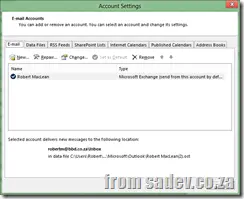
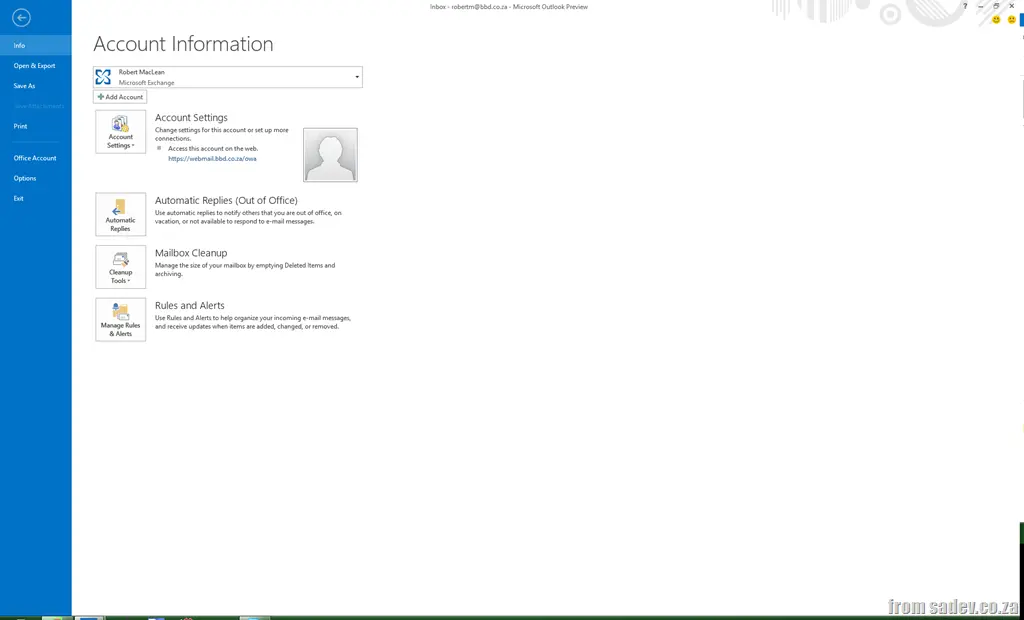
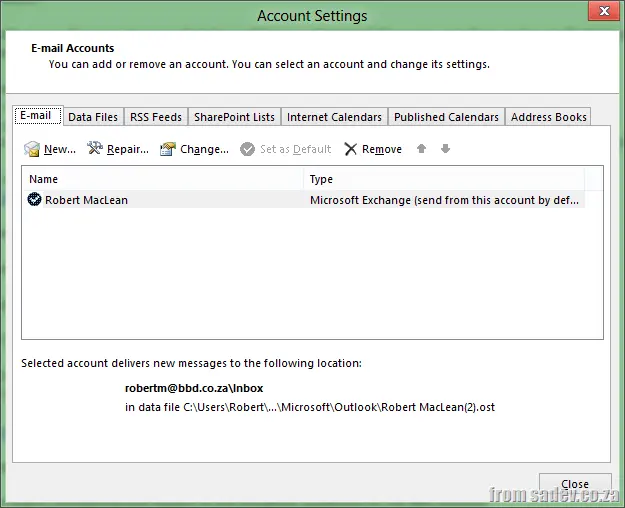
Click File, then Account Settings, then Account Settings again.

Double-click on your Exchange account.
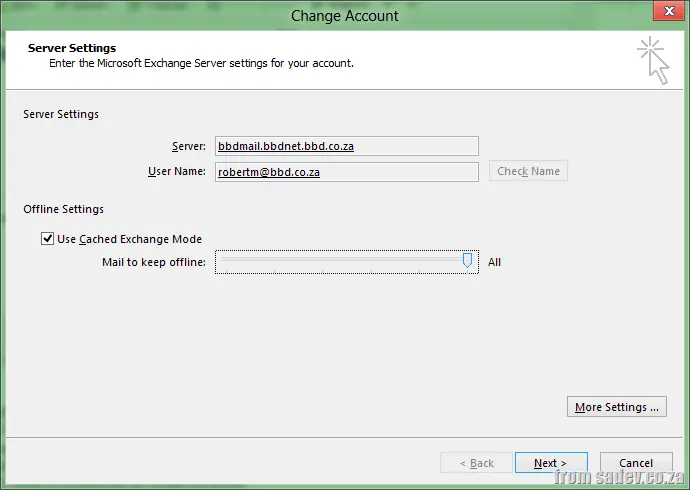
Here, you’ll find the "Mail to keep offline" slider.
Drag it all the way to the right to select "ALL", then restart Outlook.
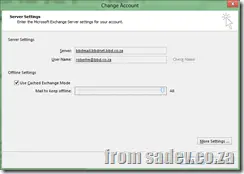
Finally, wait for it to update.


It’s a Preview
Lastly, a personal note—this is a preview, not a final release. After great preview experiences with Windows 8 and Visual Studio 2012, I forget how fragile previews can be. It’s crucial to always have a backup and a way to verify functionality. For me, that means checking OWA daily now.