Outlook 2007: POP3 and delayed email or how to avoid downloading RSS feeds too often.


I have been spoiled for a long time by living in an Exchange environment, so when I recently had to use a POP3 environment (even if it was just temporarily), I felt like I had gone back 15 years. One of the reasons it feels like I have gone from Vista to Windows 3.1 is that Exchange pushes mail down (or at least that is how it appears to work—I’m no Outlook expert), so mail arrives instantly when someone sends it. Unfortunately, POP3 is pull-based and doesn’t come down until Outlook checks for mail. The horrible part is that by default it is configured to check only every 30 minutes 😒 That could mean if someone misses your check window (like they would know) you could wait almost forever for their mail.
Thankfully, you can change that. First, go to Tools → Options [ ]. Next, go to Mail Setup and click the Send/Receive button. [
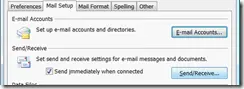 ]
]
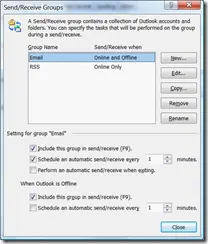
By default, you should have one group (called All Accounts), and below that, there is an option to schedule an automatic send/receive every x minutes. In the picture below, you’ll see it is set to 1 minute, which really helps (close enough to instant that it doesn’t matter). However, if you are like me, you also use Outlook for RSS feeds, and that change will mean you will now be downloading feeds every 1 minute!
You can fix that easily by splitting RSS and email check times. To do that, click the Edit button and remove RSS from being included, then click OK. If you are a perfectionist (which you may gather I am from my picture below), you could also click Rename to make it easier. Next, click the New button and, instead of selecting Email, just include RSS. Click OK, and now you should have two Send/Receive groups.
You can now click on RSS in the list and set a separate interval for how often it should check (once an hour is good). Click Close, OK, and you are done 😊 [