LightSwitch: Passing data between screens - Example 2: Passing an object and avoiding ugly global variables
Published on Estimated reading time: 3 minutes


For other posts in this series, see our series list.
In part 1, we did the simplest solution—passing a string to a screen. In this post, we will make two changes to that idea.
As with each part of this series, the code can be found on GitHub.
Example 2: Passing objects and avoiding ugly global variables
The core concept to learn in this example is that JavaScript is a dynamic language—it is fundamentally different from a static language like C# and those differences allow us to produce much cleaner code.
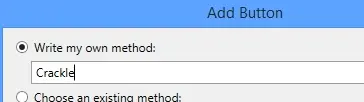
- We start again with a button, which we’ll name Crackle.
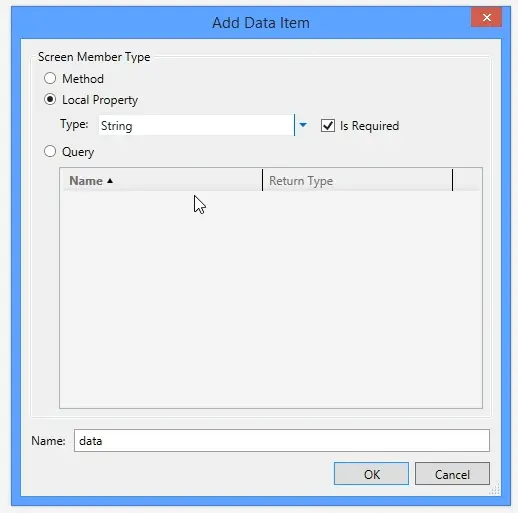
- We will also create a new screen, named Rice. On this new screen, add a data item with the following properties:
- Screen Member Type: Local Property
- Type: String
- Is Required: True
- Name:
data
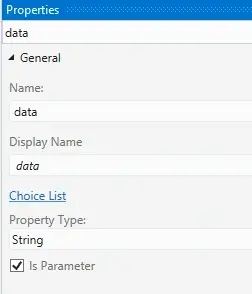
- Next, we modify the data item we added (
data), setting it to be a parameter.
- To display the data, we’ll use a custom control again—this time setting its data to Screen. We won’t rename this new custom control, so it remains ScreenContent, as seen in the property pane.
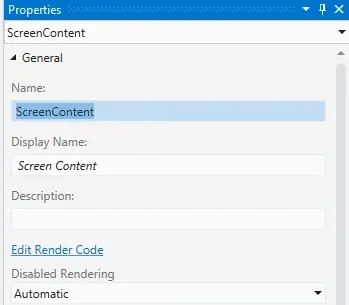
- Now, we add code to the create event for this new screen:
_screen.findContentItem("ScreenContent").tag = screen.data;_
Let’s break that down:
_screen.findContentItem("ScreenContent")_ – This method locates a control by name, returning it. We pass in the control added in step 4._.tag_– Here’s a key example of JavaScript’s dynamic nature. The custom control doesn’t have atagproperty by default, but referencing it dynamically adds it._screen.data_– This references the parameter we set up in step 3.
Using the tag this way lets us pass data to controls without relying on global variables, unlike in the first example.
- Next, we render the data. Instead of just a string (as in example 1), we’ll use an object with properties. Here’s how:
var data = contentItem.tag; element.innerText = "first name: " + data.firstname;- We access the
tagproperty of the control (passed as thecontentItemparameter), which we set in step 5. This value is assigned to a variable calleddata. Note: This isn’t the samedataas the screen’s data item from step 2. - We then set the
innerTextof our control to render something, accessing thefirstnameproperty from our variable.
- We access the
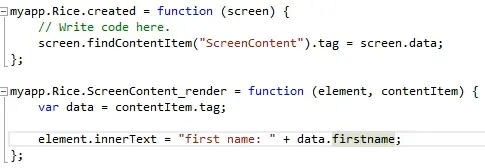
- Finally, we need to launch the screen. We go back to the button from step 1 and edit its execute code, adding:
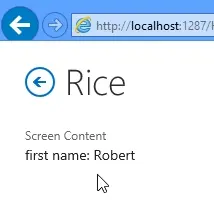
_myapp.showRice({ firstname: "Robert", surname: "MacLean" });_This differs from the last example by passing an object with two properties, demonstrating JavaScript’s dynamic nature again. Despite being “defined” as a string parameter, we can pass an object—valid in JavaScript—allowing us to access properties for rendering in step 6. This contrasts with static languages like C#, where you’d cast objects instead of dynamically redefining their type.

All done!