Lightswitch beta - No more files bug


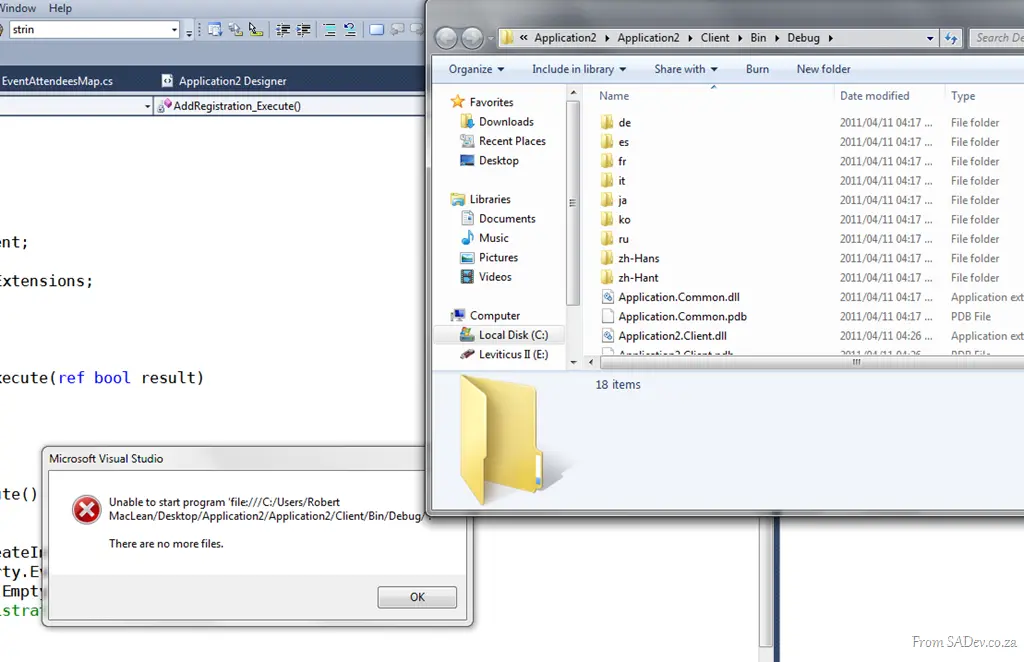 If you are working with the Visual Studio LightSwitch beta and you hit F5, you may sometimes get the useless error “There are no more files.”
This will appear shortly after an Explorer dialog opens, showing you files. I like to think this is LightSwitch’s way of mocking you: “Look, files—now there are no more files. Hahahaha!”
The cause of this is that you’ve edited code and something internally gets wonky. Thankfully, the workaround is simple: just open a screen or data source and hit F5 again, and it will work!
I’ve logged a bug on this, so if you have this issue too, please head over there and vote on it!
UPDATED! Info below...
Got to love Microsoft—it took 18 minutes, and they responded that this is a known bug! Here are the details on how to fix it:
This is a known issue. There is a setting under Tools | Options | Projects and Solutions | Build and Run called “For new solutions, use the currently selected project as the startup project”. If this option is enabled when you are using a LightSwitch project, you will see this behavior.
The problem is that, if this option is enabled when the LightSwitch project is created, the project associated with the code file will be used for the debugging startup project. For LightSwitch, the root project should always be the startup project.
This option is automatically enabled for the Web and Web Code VS profiles. By default, it is turned off for the General, VB, and C# VS profiles.
We have a fix that will be included in the RTM release, where we will ignore this option when a project is created and use the root LightSwitch project as the startup project instead.
To fix existing projects, you can right-click the root LightSwitch project and select “Set as Startup Project” in the context menu.