I dropped a large binary object in Git ... now what?


 Or how do I remove a file from Git, including the history. This came out of a discussion with some ALM Rangers (in fact, the title was from Willy-Peter himself!) and I thought it was too good not to share. In addition, I’ve added some other information I’ve learned since then!
Before you start
Make a copy of your Git repo before you start! We are going to mess with your repo, so if you have a backup and something goes wrong, you can just roll back.
Revert
If you have ever made a mistake on a computer, you know it the moment your finger lifts off the Enter key. So you may just want to undo that last commit quickly and use the revert command in Git, which appears to remove it, but the problem is that it remains in the history. This means that everyone needs to get it when they clone or pull the repo.
Amend
If the very last commit added the offending file and you have not pushed your repo yet, there is a simple process to solve it. First, delete the file. Then run another commit with the --a and --amend switches.
--atells Git to automatically stage all modified & deleted files.--amendtells Git to rewrite the last commit.- If the only thing was that file, you may need to add a
--allow-emptyswitch to tell Git to accept a commit with nothing in it.
For example, if I want to remove the password.txt file:
del password.txt
git commit --a --amend
Rebase
What if it isn’t the last commit, but a few back? Once again, if you have not pushed your repo, an option would be to rewrite history (you may want to look at that link—it goes into deep detail on what rewriting history means). Step one is to kick off a rebase and, in the editor, go to the commit with the issue and change it from a pick to an edit. For example:
git rebase -i origin/master
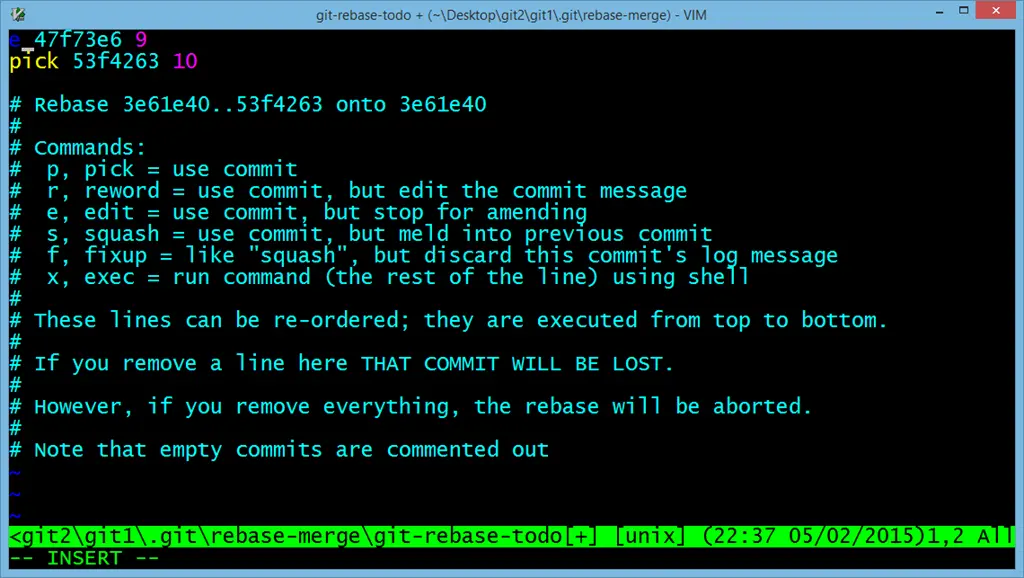
(In the picture above, I am going to remove the file added in commit 47f73e6.)
You will then be dropped back to the command prompt, and you can step through the commits you set to edit. You can make the changes (either edit the file or delete it) and then use the same amend as before. Once you’ve finished that, you step the rebase forward by doing git rebase --continue.
For example:
del password.txt
git commit --a --amend
git rebase --continue
Filter-Branch
What if you have pushed? Or perhaps you need something more? Git includes a solution for this, called filter-branch, which was totally unknown to me before this discussion. filter-branch is not only useful to remove files but can also change the details of a number of commits (e.g., updating your email associated with your commits).
Let’s get rid of the file, for example, password.txt:
git filter-branch --tree-filter 'rm -f password.txt' HEAD
Note – On Windows, you will use double quotes (") like above, but on Linux, it would be a single quote ('). Once done, you need to push to Git, but you will need to use --force and --all switches:
git push --force --all
Your next issue is that all your team members still have the file (if they already pulled), so they need to clean up too. The way they do this is to run rebase but using the --onto switch this time. For example:
git rebase --onto origin/master master
Those members who haven’t pulled since that file got into the repo can pull as normal and don’t need to worry about this.
BFG
There is also a standalone tool called BFG Repo Cleaner. It has nice documentation and is blindingly fast! One nice feature: you can say remove all files above a certain size or x number of the largest files.
GC
Once you’ve done all of this, run a garbage collection by using the gc command, which may return disk space from orphaned files. To do this, run:
git gc --auto
That’s it! Have you ever messed up a file (I have—I committed my Azure password once in a file!)? Share what happened and how you fixed it!