Hyper-V Shrinking a VHD


Virtualization is the way of the future—whether for demos, testing, or production systems—it is the future, and that means VHD files will be everywhere. However, VHD files grow and grow but never shrink because of how they’re designed to work. For example, if you put a 10GB file on a VHD, it expands the VHD by 10GB (for the disk), but if you delete a file, the space isn’t reclaimed automatically. This is fine for production systems (your VHDs live on a SAN with lots of disk—or they should, for a lot of good reasons). However, if it’s on your laptop for training, R&D, or sending to customers, being able to reclaim disk space can be valuable, and the advantage is that it can be done manually. So let me show you how it’s done in Hyper-V.
For this post, I have a VHD that contains an MSSQL database (MDF and LDF files). The disk space usage on the VHD looks like this:
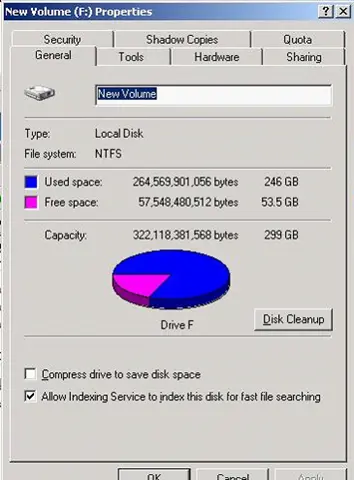
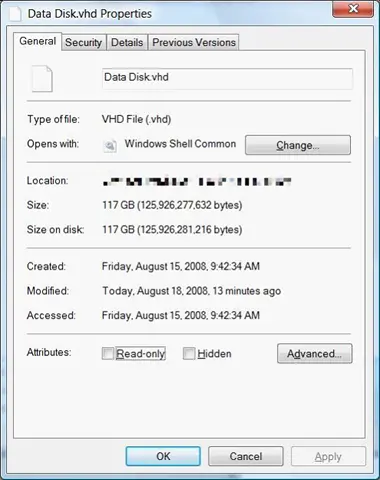
So the VHD is supposedly a max of 300GB, and I’ve never copied that much onto it. Right now, it contains a simple 53GB (plus some change). The actual VHD file on my laptop looks like this, using a whopping 117GB of real disk space. So there’s at least 64GB I could get back!
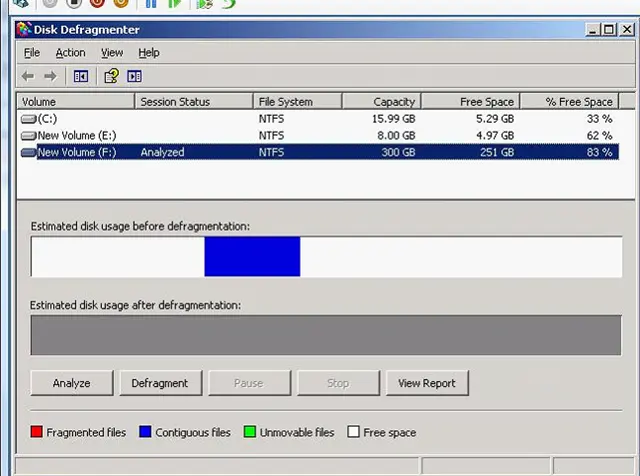
The first step in shrinking the disk is to defrag it inside the virtual machine, as the shrinking process only cleans space from the end of the disk. So if you have any data at the end (like I did—see below), you’ll need to remove it. Unfortunately, I had an “unmovable” piece of data—conveniently at the end of the disk—turning out to be the LDF file for the SQL database.
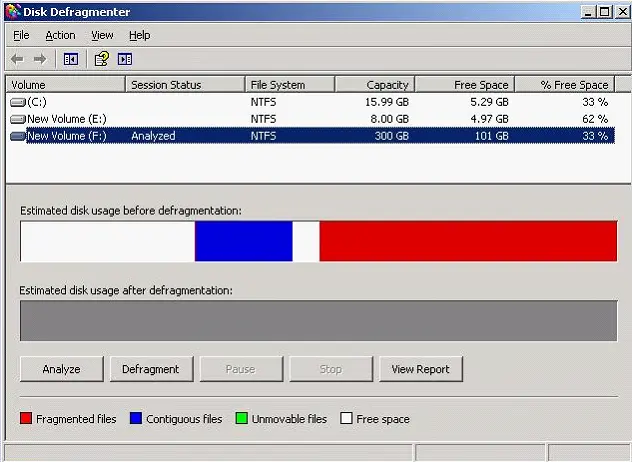
A quick truncate/empty of the LDF file (don’t do this in production) made it easier to defrag the disk—especially freeing up space at the end. Since I didn’t have much free time, I skipped the defrag and worked on the now-empty space available before the MDF (blue) file.
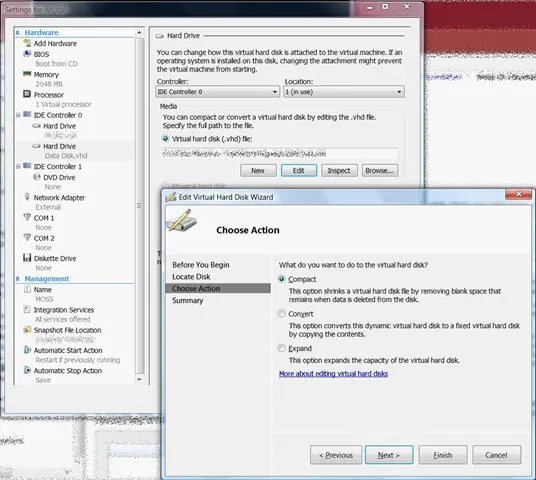
Step two: Shut down the VM, go to its settings, and select the disk settings, then click Edit. This will bring up the disk edit wizard, where you keep the first option selected: Compact.
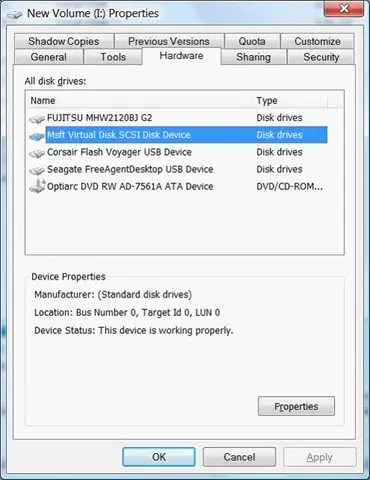
This is very cool—because it actually loads the VHD as a disk in the host operating system! In fact, you can browse and edit it (though I’d guess that might screw up the compact operation). This is similar to the VHDMount tool in Virtual Server. I’m not sure how to do this manually in Hyper-V yet, but it would be really cool to be able to do that.
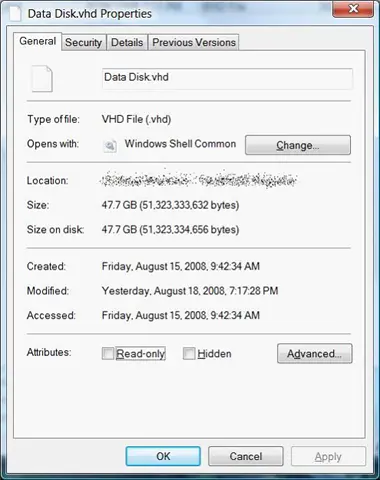
After some time—let me rephrase that as a significant amount of time, which in my case took over six hours—the process finished, compacting the VHD to 60GB less!