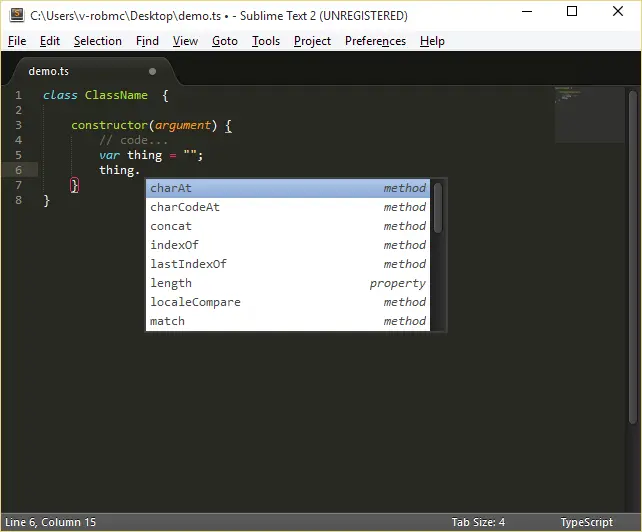
How to use TypeScript in Sublime Text!


You want to code in TypeScript. You want to code with Sublime Text. Today, that is really easy to do, thanks to Package Control and Microsoft, which now provides a first-class plugin for Sublime Text to enable and light up TypeScript.
Step 1: Install Package Control
The installation instructions can be found here, but in summary, press Ctrl+` and then paste the following code (for Sublime Text 2; for 3, see their website) into the text box and press Enter:
import urllib2,os,hashlib; h = 'eb2297e1a458f27d836c04bb0cbaf282' + 'd0e7a3098092775ccb37ca9d6b2e4b7d'; pf = 'Package Control.sublime-package'; ipp = sublime.installed_packages_path(); os.makedirs( ipp ) if not os.path.exists(ipp) else None; urllib2.install_opener( urllib2.build_opener( urllib2.ProxyHandler()) ); by = urllib2.urlopen( 'http://packagecontrol.io/' + pf.replace(' ', '%20')).read(); dh = hashlib.sha256(by).hexdigest(); open( os.path.join( ipp, pf), 'wb' ).write(by) if dh == h else None; print('Error validating download (got %s instead of %s), please try manual install' % (dh, h) if dh != h else 'Please restart Sublime Text to finish installation')
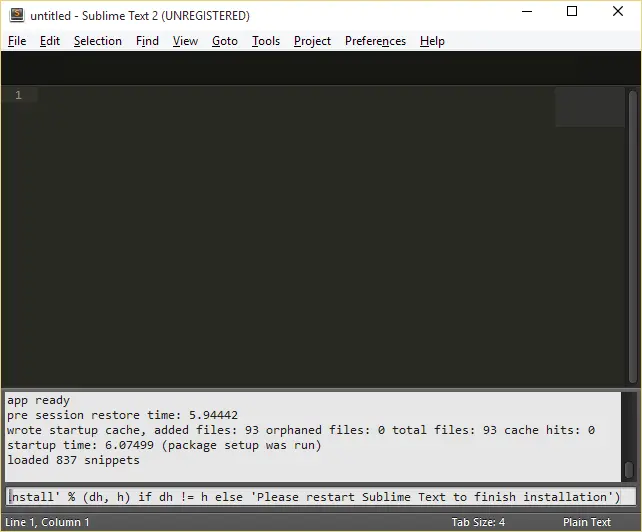
It takes a few seconds, during which nothing happens, and then the message window will display: “Please restart Sublime Text to finish installation” — so do that.
Step 2: Add the TypeScript package
Press Ctrl+Shift+P to bring up the command palette, type Package Control: Install Package, and press Enter.
You can use the arrow keys to navigate the list more efficiently and select the correct item instead of typing everything.
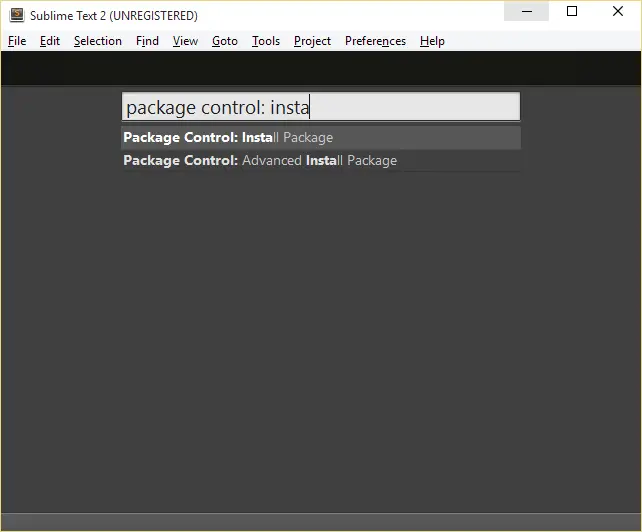
In the next command palette window, type TypeScript and hit Enter.
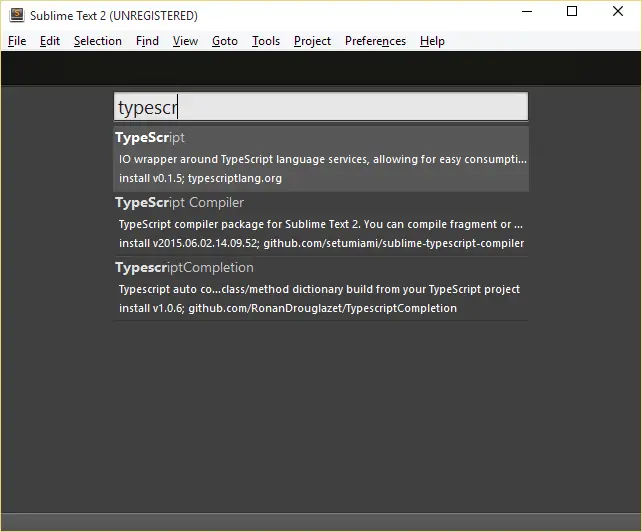
In the status bar, the plugin will start downloading and installing TypeScript:

Once that’s complete, you’ll have glorious TypeScript in Sublime!