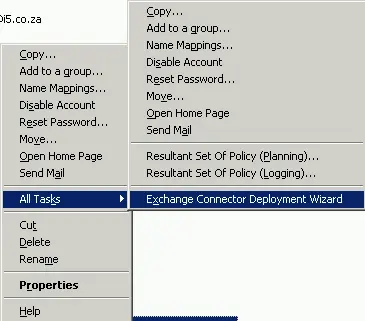
How to set all your users to use the same email handling methods


In MSCRM 4.0, you can specify how users work with their incoming and outgoing email. Incoming email is handled via none, the router, the Outlook client, or the forward mailbox, while outgoing email is managed through the router, Outlook client, or none. There are two ways to configure this:
- Get users to set it in their personal settings (yeah right), or manually adjust each user one-by-one in the admin panel (boring and a waste of time).
Well, you can create a simple workflow to update these settings in bulk:
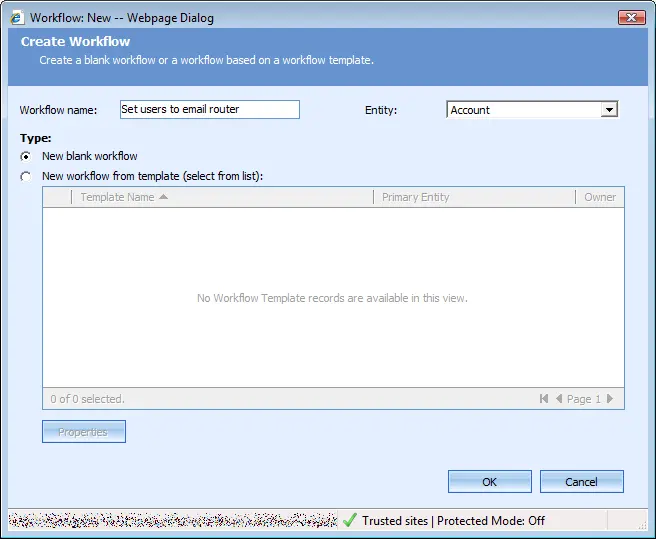
Step 1: Create a new blank workflow and set the entity to System User (despite my picture).
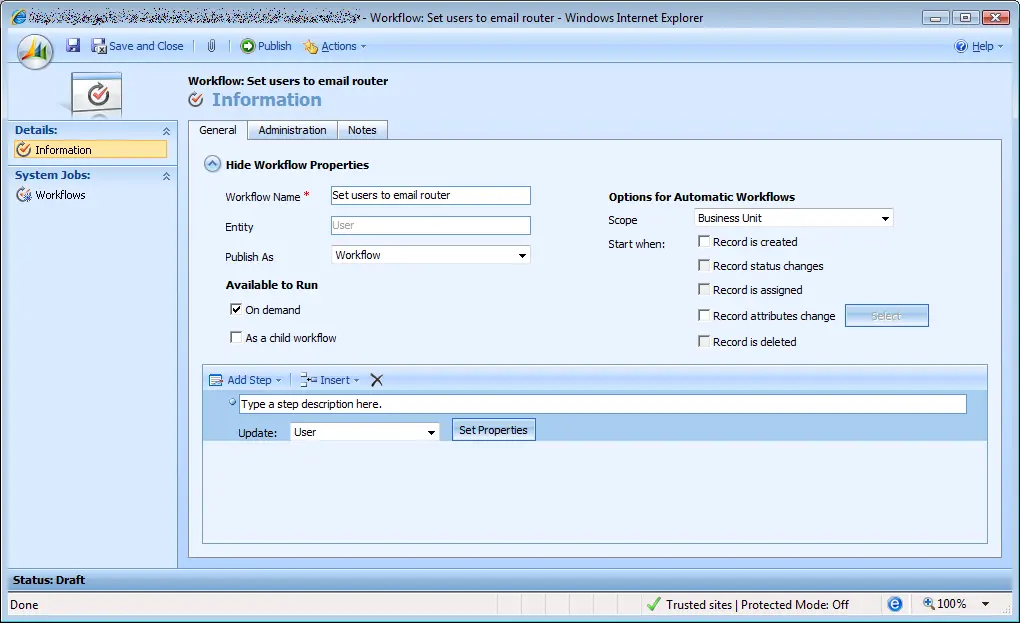
Step 2: Turn off automatic execution (or keep it on if you want this to run on user creation, ensuring future users are also configured correctly). Under Available to Run, select "On Demand". Add a step to update the user.
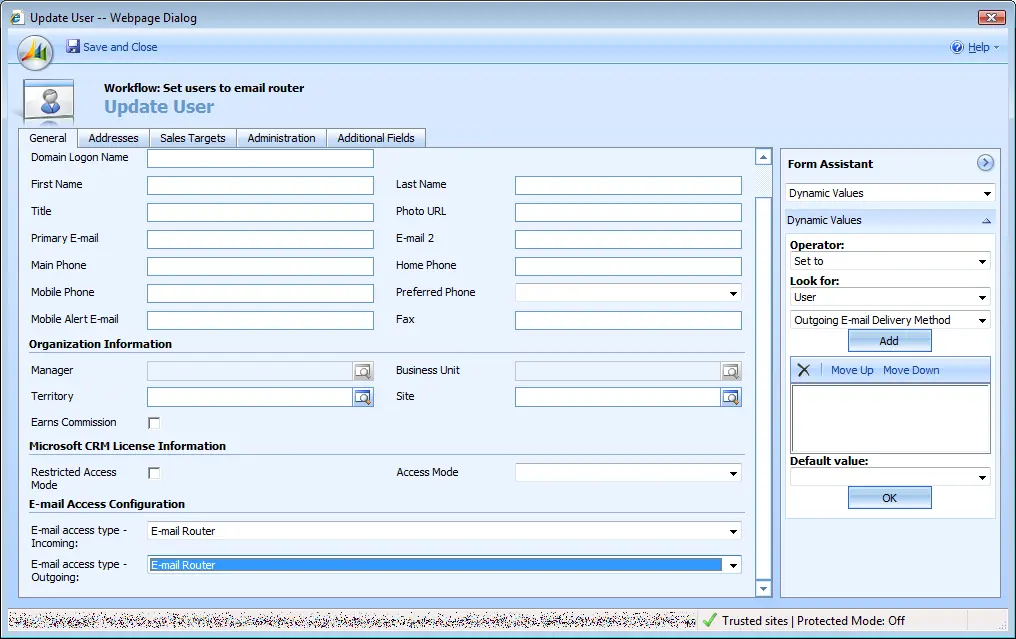
Step 3: Click "Set Properties" and update the "Email Access Configuration" to your preferred method.
Step 4: Save your workflow. Now, in the user list, click the "Run Workflow" button, select your workflow, and click OK.
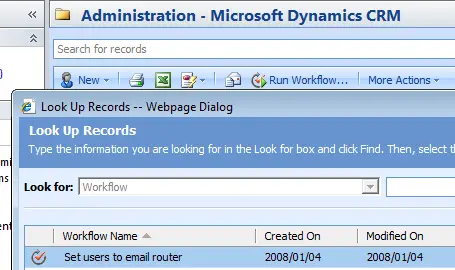
And voilà—now all users are updated to the correct email method.
Another useful option for network admins: After installing the email router, Active Directory users and groups gain a menu option to launch the configuration tool directly (see AD Config Tool).