Enabling Flip 3d with Logitech Performance MX Mouse


I purchased a Logitech Performance MX Mouse](http://www.logitech.com/en-us/mice-pointers/mice/devices/5845) (to replace my other [Logitech V450 mouse), which has a number of fantastic features:
- Dark-field optical sensor that works on everything, including glass
- The awesome and tiny wireless receiver that can remain plugged in all the time
- Ability to charge over USB and still work
- 7 buttons
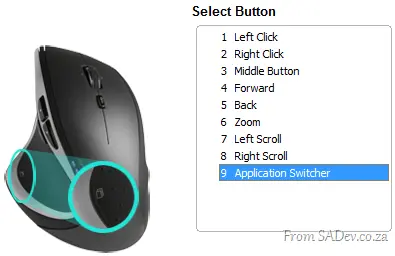
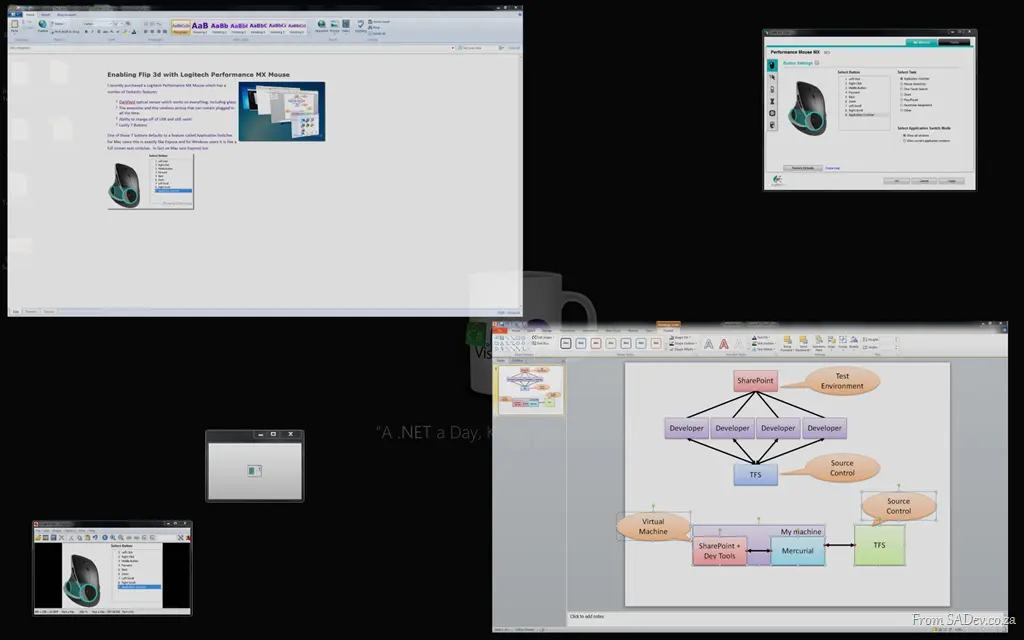 One of those seven buttons defaults to a feature called Application Switcher. For Mac users, this is exactly like Expose, and for Windows users, it’s like a full-screen task switcher.
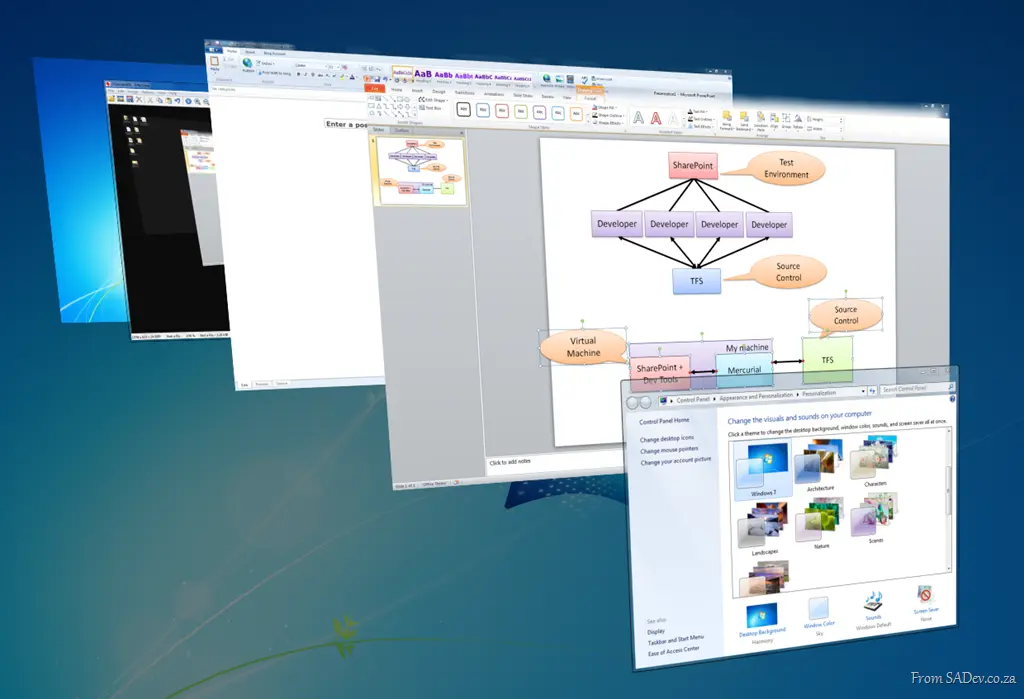
In fact, on Mac it runs Expose, but on Windows this is a custom application—and it really doesn’t have the polish of Flip 3D (the Win+Tab thing) that ships with Windows Vista and Windows 7.
 So how do you change this? There are many posts about using macros, assigning specific applications, or even hacked drivers—but from my own experience, this is no longer needed. It appears most people don’t know about it because it’s so well hidden.
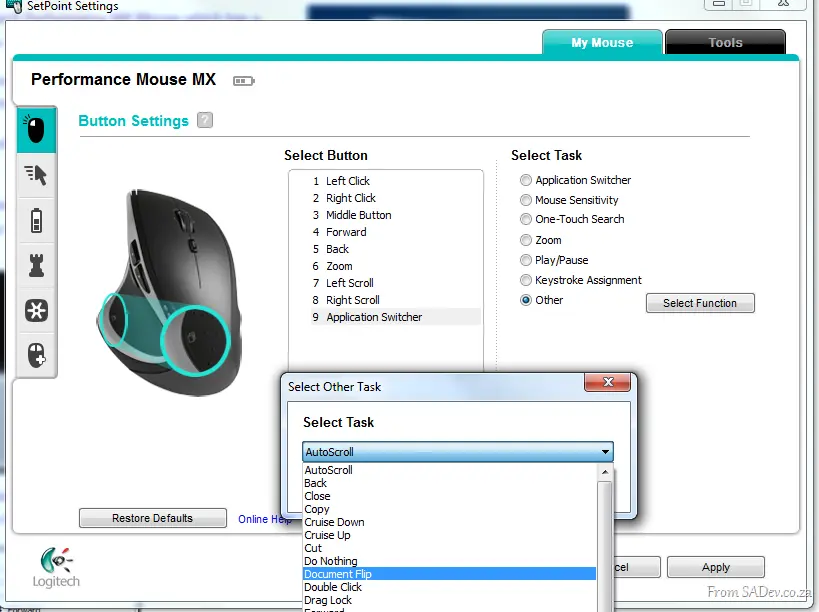 The first step is to download the latest version of SetPoint (the mouse software) from Logitech, which, at the time of writing, is 6.2. However, the mouse ships with version 4.7—a release over three years old! This is odd, since the mouse was launched less than a year ago.
Once you’ve upgraded, go to the Button Settings section, select the button, and set the task to Other. This will bring up a dialog with a massive dropdown full of options. If you look for Flip 3D or an alternative application switcher, you won’t find it—but there’s an option called Document Flip, which (you guessed correctly) is Flip 3D.
Set your mouse to this, and voilà!