Cannot add a Service Reference to SharePoint 2010 OData!


SharePoint 2010 has a number of APIs (an API is a way we communicate with SharePoint), some we have had for a while, like the web services, but one is new—OData. What is OData?
The Open Data Protocol (OData) is a Web protocol for querying and updating data that provides a way to unlock your data and free it from silos that exist in applications today. OData does this by applying and building upon Web technologies such as HTTP, Atom Publishing Protocol (AtomPub), and JSON to provide access to information from a variety of applications, services, and stores.
The main reason I like OData over web services is that it is lightweight, works well in Visual Studio, and works easily across platforms, thanks to all the SDKs.
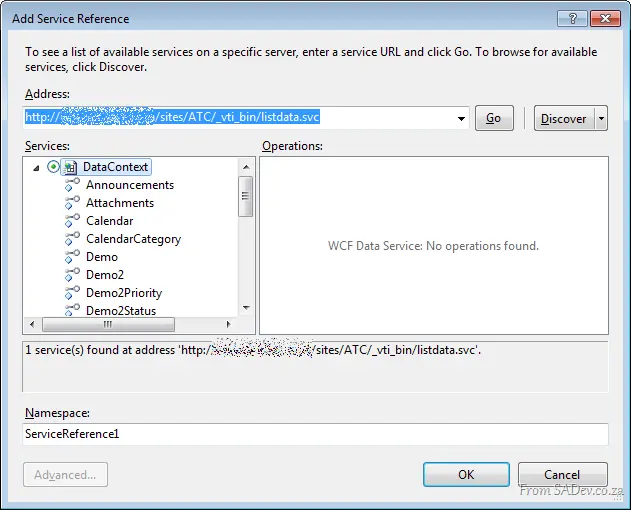 SharePoint 2010 exposes these on the following URL:
 _http(s)://<site>/_vti_bin/listdata.svc_. You can add this to Visual Studio to consume it, using the exact same process as a web service: right-click the project and select Add Service Reference.
Once loaded, each list is a contract and listed on the left. To add it to code, you just hit OK and start using it.
Add Service Reference Failed
 The procedure above works well—until it doesn’t. Oddly enough, my current work encountered a situation where the Add Reference dialog failed. The experience isn’t great when it fails: the dialog closes and pops back up blank. Try it again, and it disappears—but stays gone.
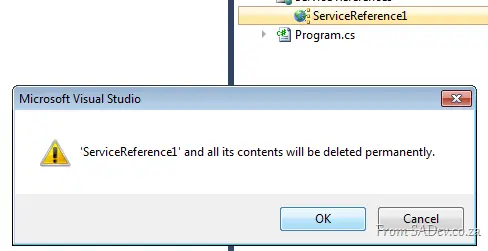 If you check the status bar in Visual Studio, you’ll see the error message indicating it failed—but by then, you may notice the service reference is listed, but no code works, because the add failed.
If you right-click and try to delete it, Visual Studio will refuse, because the add failed. The only way to remove it is to close Visual Studio, navigate to the Service References folder (<Solution Folder>\<Project Folder>\Service References\), and delete the folder matching your service name. You’ll then be able to reopen Visual Studio and delete the service reference successfully.
What Went Wrong?
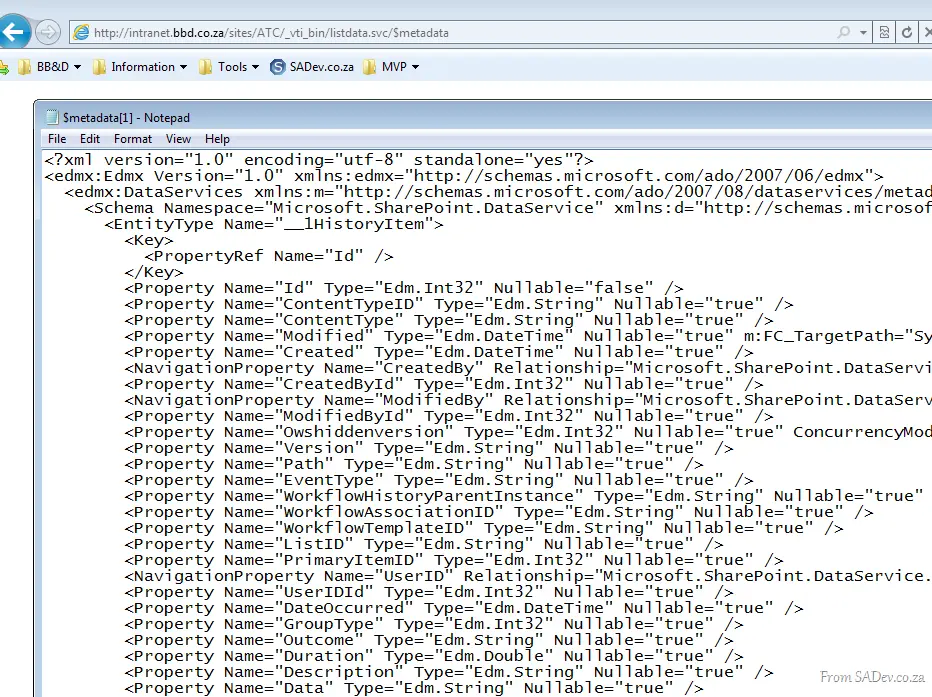 Since we have no way to know what caused the failure, we need to dig deeper. Start by launching a web browser and navigating to the metadata URL for the service:
 _http(s)://<site>/_vti_bin/listdata.svc/$metadata_.
In Internet Explorer 9, this just gives a useless blank page 🙁, but if you use the right-click menu option in IE 9 (View Source), it will show you the XML in Notepad. This XML is what Visual Studio attempts to parse and fails on. To diagnose the issue, save it to your machine with a .csdl file extension—this special extension is required for the next tool, which refuses to work with files lacking it.
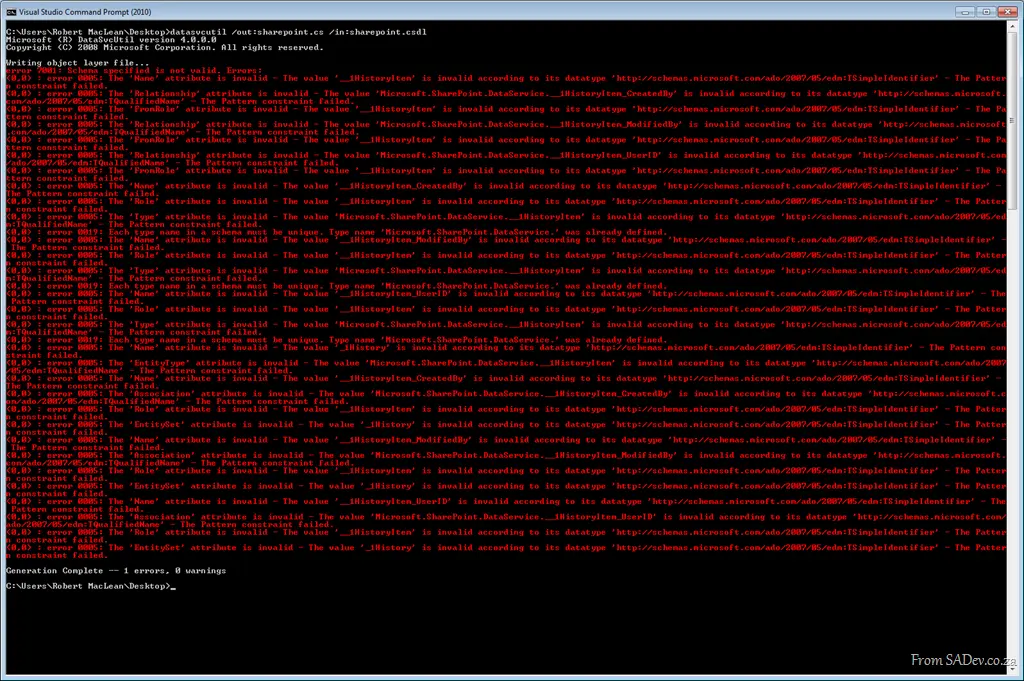 Next, open the Visual Studio Command Prompt and navigate to where you saved the CSDL file. Use the command-line tool
 DataSvcUtil.exe. If you’ve worked with WCF, you may recognize SvcUtil.exe—this is similar, but specifically for OData services. It takes the CSDL file and generates a code contract using this syntax: datasvcutil.exe /out:<file.cs> /in:<file.csdl>
Immediately, you’ll see a mass of red errors, indicating failure. In my case, the issue was a list named 1 History, which the OData service refers to as __1History. This problematic entry was blocking code generation, as revealed by the errors.
Solving the Problem!
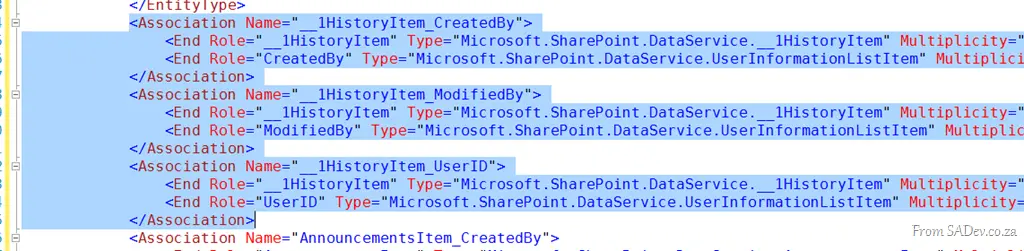 Since I didn’t need 1 History, I cleaned up the CSDL file by removing all references to
 __1History. In Visual Studio, I opened the CSDL file and began deleting references to the troublemaker. I also needed to remove the item contract for the list, which was __1HistoryItem. First, I removed the EntityType for the item contract, highlighted in the image.
The next cleanup step was removing all associations to __1HistoryItem.
 Finally, I removed the EntitySet for the list.
PHEW! Now the hard work is done. I jumped back to the command prompt, reran DataSvcUtil, and it worked: 
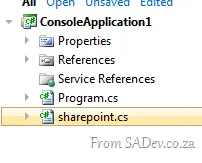 This produced a file (in my case,
 s_harepoint.cs), which I added to my project just like any other class file. Now I could use OData in my solution as intended!