Amazing Lock Screen: release 14


[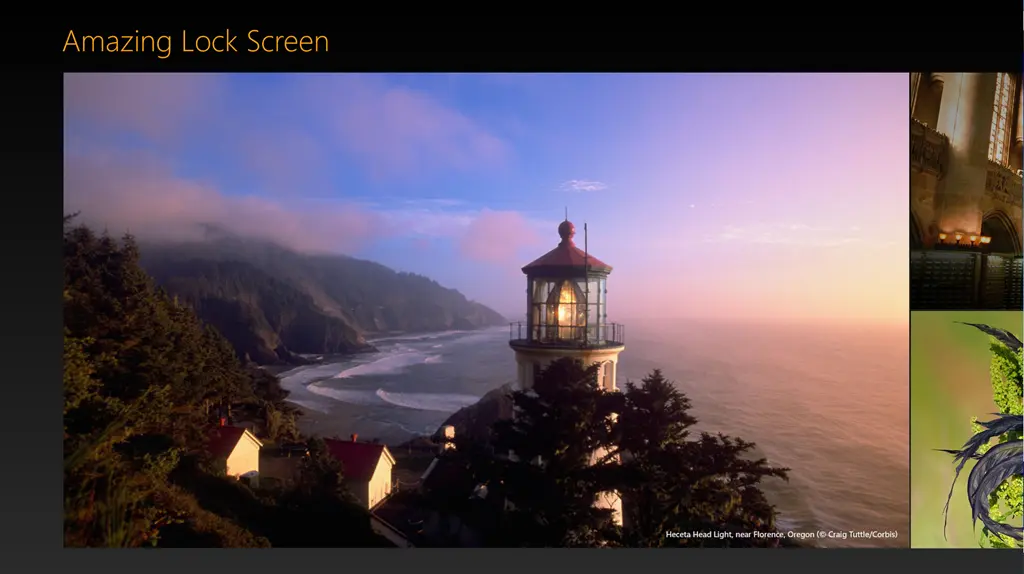 ] Last night, I shipped the latest version of Amazing Lock Screen—the very popular app (4 stars from 800 ratings, just under 70k downloads)—which brings in some new features.
Visual Improvements
First off, it’s for Windows 8.1 only—so get that upgrade! Next, there are some UI tweaks, nothing too major around that front, but I think they’re still visually interesting.
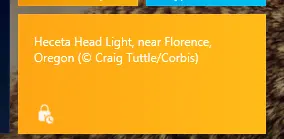
The most obvious visual improvement is around the tiles. We now have wide tile support (in addition to the square) and it’s a live tile, which shows the last 5 days’ worth of images!
[ ] [
] [ ]
]
Image Handling
[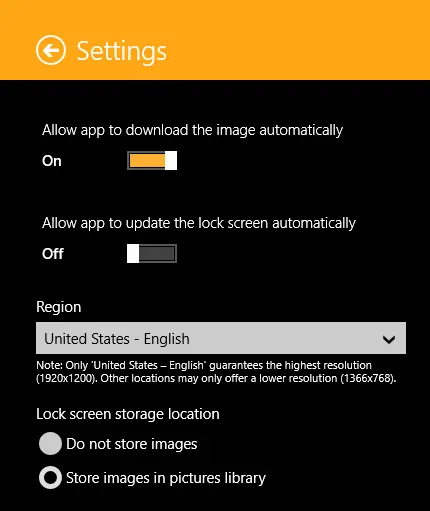 ] However, that’s not the major reason for this release. The major new features are a bunch of settings. By default—and how we’ve always done it—the app downloads the image to a temp folder and then sets the lock screen. For release 1.4, we’ve made each of those steps a setting, so:
- You can control if it downloads automatically now.
- You can control if it sets the lock screen automatically.
- You can control the location (temp or pictures library).
So what does this allow you to do? To the right are my settings, where I have it download automatically, download to the pictures library, and not update the lock screen.
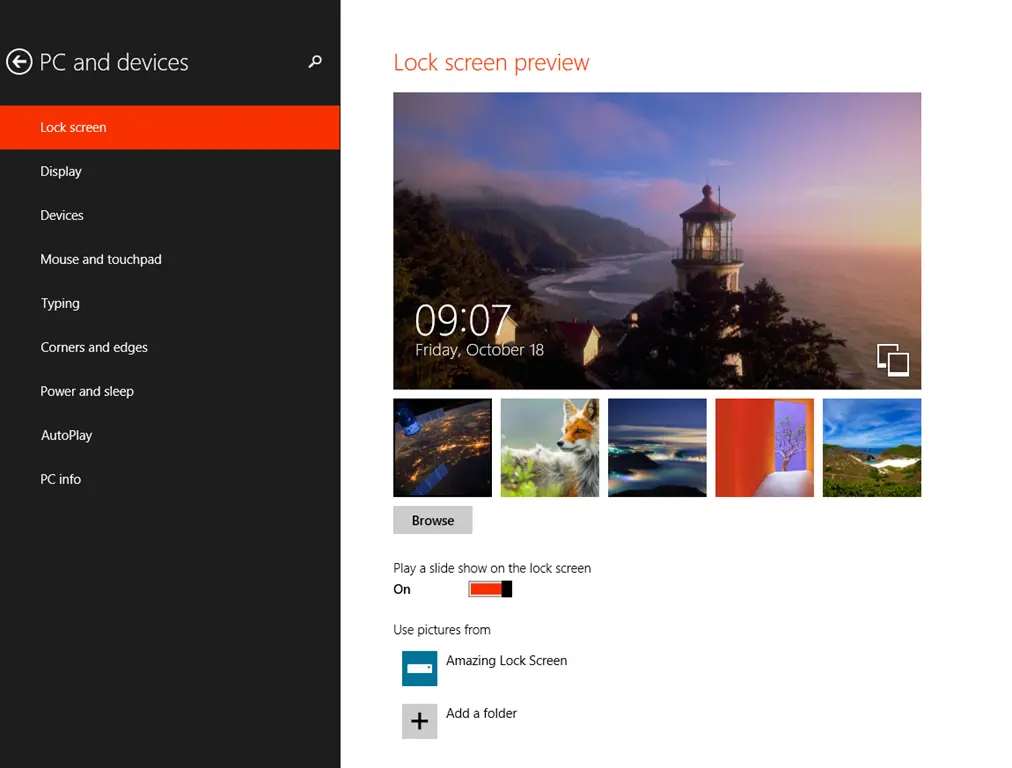
Using this combination, I can add the folder under pictures to the normal lock screen settings and set it to be a slideshow (see settings below).
[ ]
]
Since Windows is checking a folder for images and the app isn’t setting the image, it allows for amazing lock screens built from MULTIPLE pictures from Bing—it looks amazing!
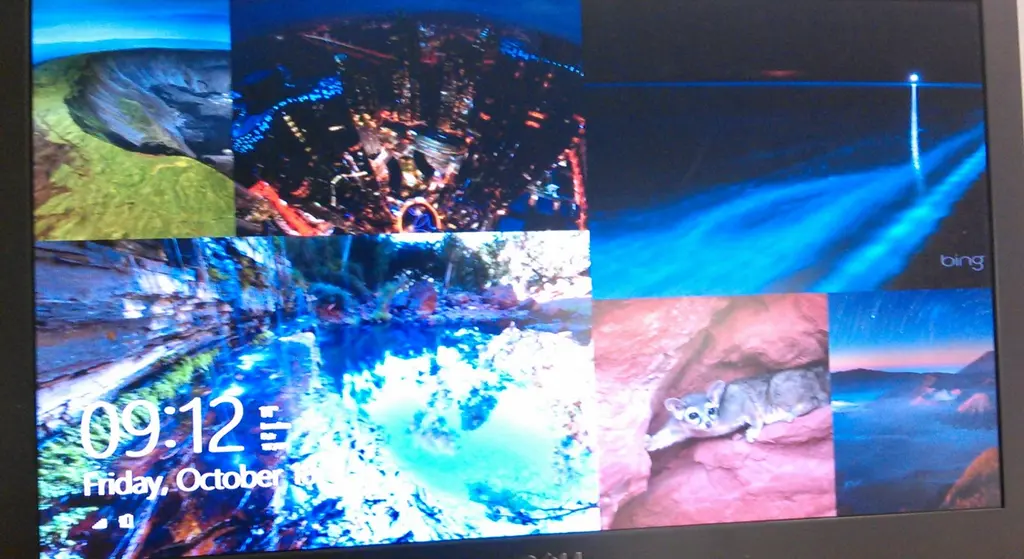
(shitty camera phone)
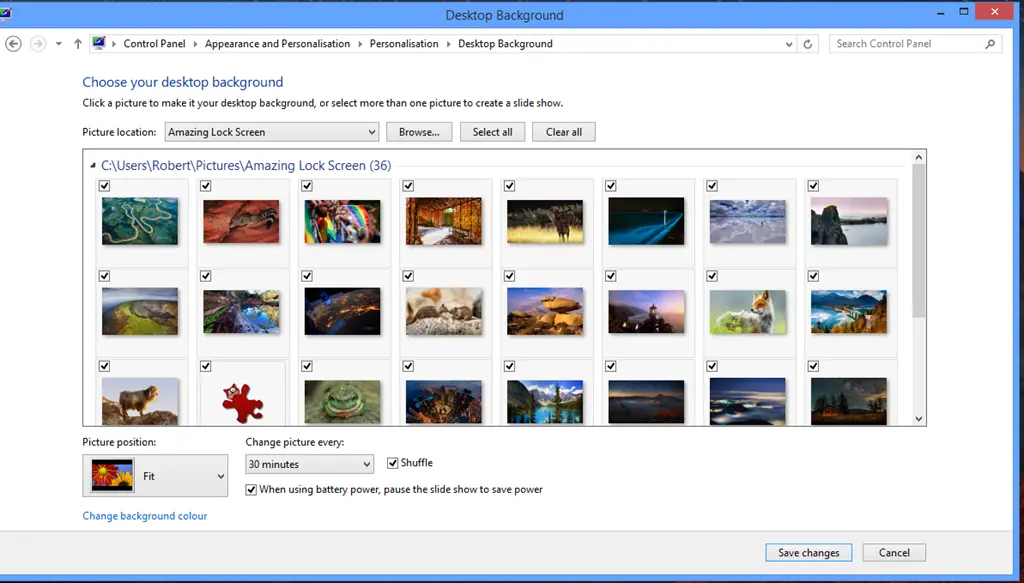
The second trick? Because we no longer use temp, I can also use the Bing images for my desktop wallpaper by setting the wallpapers to point to the Amazing Lock Screen folder.
I hope you enjoy using this release—please send feedback!